How to Move Minecraft to Another Drive in Windows 10

Move Minecraft for Windows to another drive with the built-in Settings option, protect your worlds, and see what to do if Move is unavailable.
You can add a crosshair to a game on Windows 10 with a desktop overlay such as CrossOver. The app places a customizable reticle above other windows, so it can help when a game has no crosshair or when its built-in reticle is difficult to see. The basic process is simple: install CrossOver, choose a sight, position it, lock it with Ctrl+Alt+Shift+X, and then open your game.
Whenever a game already offers its own crosshair settings, use those first. An external overlay is not part of the game itself, and online games can have different rules about overlays or helper tools. CrossOver's own documentation also lists game-specific compatibility exceptions, so check the official CrossOver project page before using it in a competitive title.
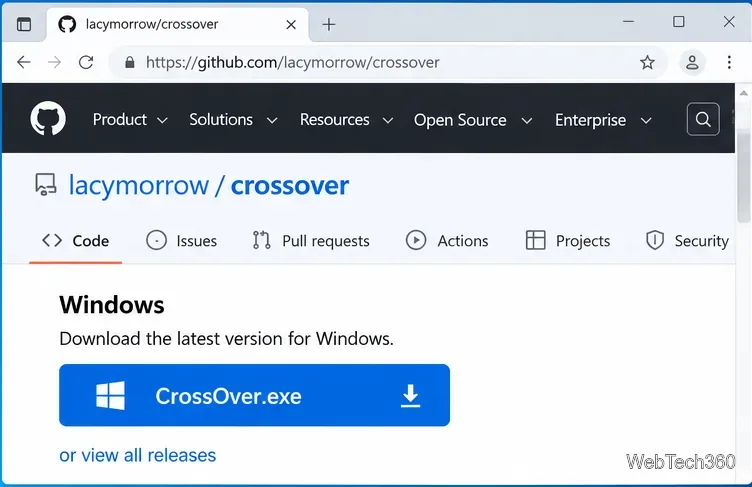
Open the CrossOver GitHub repository and use the Windows download link, or open the official releases page if you want to choose a specific build. The project documentation says its downloadable builds are unsigned, so Windows may display a SmartScreen warning. Only bypass that warning when you are certain the file came from the official project page.
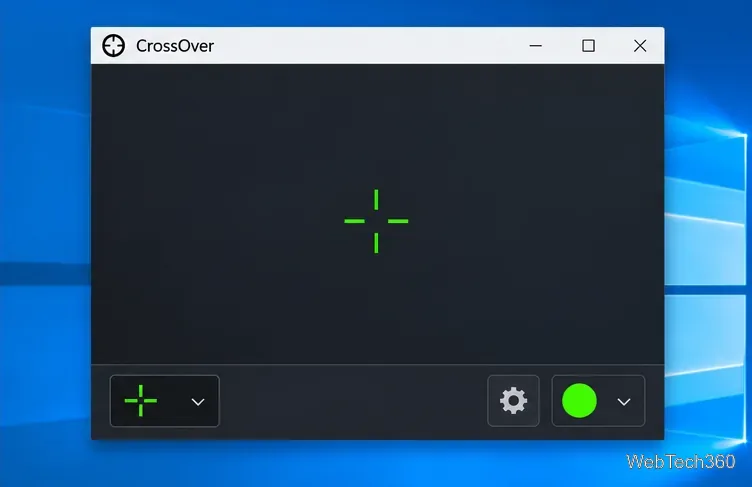
Launch CrossOver. A crosshair should appear in the app window or over the desktop. CrossOver's current documentation lists support for Windows 10 and Windows 11. If the overlay is visible on the desktop, you can move on to selecting the sight you want.
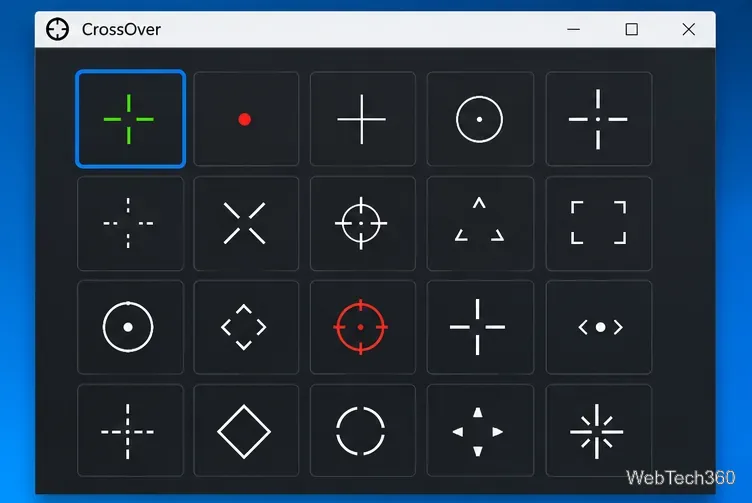
Click the bullseye control to open the crosshair chooser. The app includes many built-in designs, and its documentation also says you can drag in your own PNG, SVG, or GIF image. Keep the design simple enough that it remains visible without covering the target.
To place the crosshair, click and drag it. Double-click the bullseye to center it on the current display. For fine adjustment, use Ctrl+Alt+Shift plus the arrow keys to nudge the crosshair one step at a time.
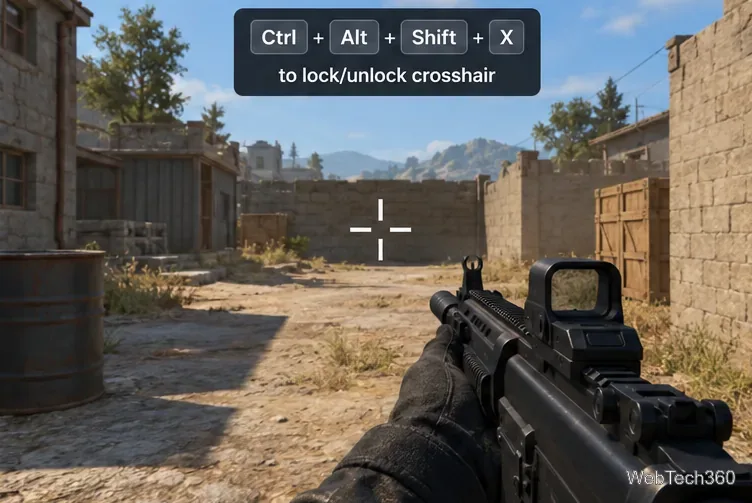
Press Ctrl+Alt+Shift+X to toggle the CrossOver settings window and lock the crosshair in place. Then start your game. If the overlay disappears in exclusive fullscreen mode, switch the game to Windowed or Borderless/Windowed Fullscreen. CrossOver's documentation says exclusive fullscreen commonly hides the overlay, while windowed or borderless modes are generally more reliable.
Open CrossOver's settings to adjust the crosshair's size, color, and opacity. The app also provides a separate center reticle option and can hide the overlay while you aim down sights if you configure that feature. Keep the opacity high enough to see the reticle against both bright and dark scenes.
| Action | Default shortcut |
|---|---|
| Lock/unlock crosshair and toggle settings | Ctrl+Alt+Shift+X |
| Nudge crosshair | Ctrl+Alt+Shift+Arrow key |
| Hide/show crosshair | Ctrl+Alt+Shift+H |
| Center on the current display | Ctrl+Alt+Shift+C |
| Move to the next display | Ctrl+Alt+Shift+M |
| Reset CrossOver | Ctrl+Alt+Shift+R |
Ctrl+Alt+Shift+M to move the overlay to the next display.Ctrl+Alt+Shift+R if the position or settings become unusable.CrossOver still documents Windows 10 as a supported operating system, but Microsoft ended standard Windows 10 support on October 14, 2025. The PC will continue to run, but Microsoft recommends moving to Windows 11 or using an eligible Extended Security Updates option if you must stay on Windows 10. See Microsoft's Windows 10 end-of-support guidance for current security options.
Move Minecraft for Windows to another drive with the built-in Settings option, protect your worlds, and see what to do if Move is unavailable.
Find out why Windows 10 hides SmartScreen’s Run anyway button, how to review the warning, and how to allow a bypass while keeping SmartScreen on.
Combine left and right channels so you can hear the full mix through one earbud. Follow the Windows 10 Settings path and learn how to restore stereo when you want it.
Learn how to build a custom grid for your display in Windows 10 with PowerToys FancyZones, adjust zones, choose each monitor, and snap apps into place.
Set Windows 10 to sign in automatically at startup with Microsoft Sysinternals Autologon, then learn how to disable it and understand the security tradeoffs.
Add the Ultimate Performance power plan in Windows 10 with an elevated command, select it in Power Options, and check compatibility and power-use limits.
Refresh missing or incorrect bookmark icons in Edge by reopening the saved page, clearing cached images, or rebuilding the favicon cache safely.
Turn the number row into virtual numpad keys on Windows 10 with AutoHotkey v2. Set up a Caps Lock toggle, test it in your app, and see what the script cannot remap.
Turn off a wired Ethernet adapter in Windows 10, confirm you selected the right device, restore it later, or use PowerShell.
Pair Bluetooth headphones with Windows 10, choose them as your audio output, and fix common discovery or sound problems.








