Home
» WINDOWS
»
How to Add an Accent Color and Dark Theme to Windows Search in Windows 10
How to Add an Accent Color and Dark Theme to Windows Search in Windows 10
Windows 10’s built-in Colors settings can apply dark mode and an accent color to parts of the desktop, but they do not reliably style every Windows Search result. To add a dark results pane and tint Search’s top bar, set the Windows colors first, then use the open-source BeautySearch utility. It modifies Search’s web-based interface and requires administrator access, so check the project’s compatibility notes before installing. The interface pictures below are examples; labels and layout can vary by Windows build.
What the built-in Windows settings change
Microsoft’s Windows color settings let you select a light, dark, or custom mode and choose an accent color. That controls supported Windows surfaces, but the Search window may still show light results. BeautySearch adds two specific tweaks for that gap: Show accent color on Search Window and Show search results in Dark Theme. If you do not want a third-party utility modifying Search files, stop after the first three steps; the standard theme and accent settings will still apply where Windows supports them.
Set Windows 10 to dark mode and choose an accent color
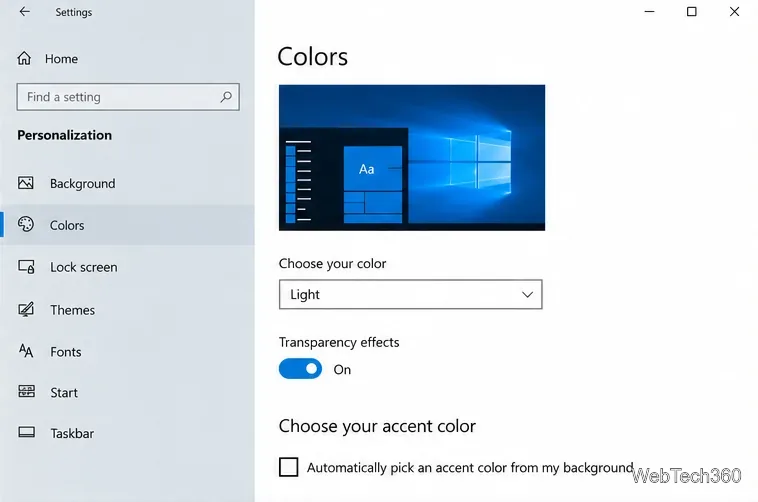
Open the Colors page. Press Windows+I to open Settings, then select Personalization and Colors.Open Settings and go to Personalization > Colors.
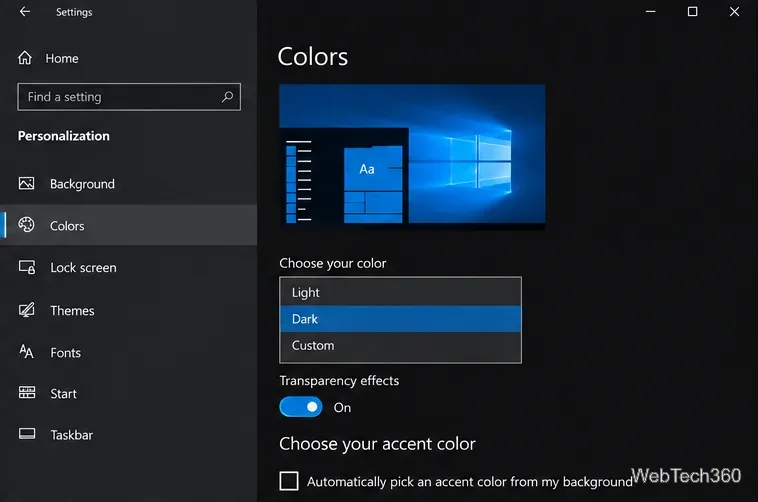
Choose Dark. Under Choose your color, select Dark. Windows 10’s custom mode can separate Windows and app colors, but use Dark as the straightforward starting point for this Search setup.Choose Dark to set the Windows color mode before applying the Search tweak.
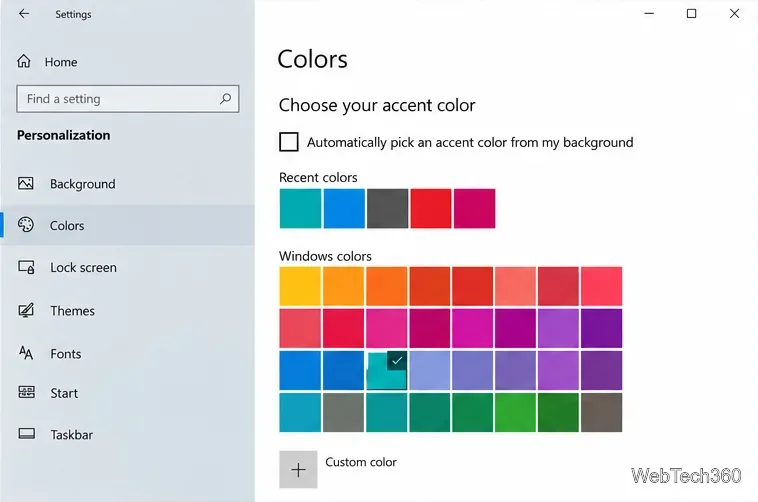
Select an accent color. Under Choose your accent color, select a color from the Windows palette or choose a custom color. If automatic background colors are enabled, turn that option off to choose a fixed swatch.Pick the accent color you want Windows Search to use.
Install the Search appearance options
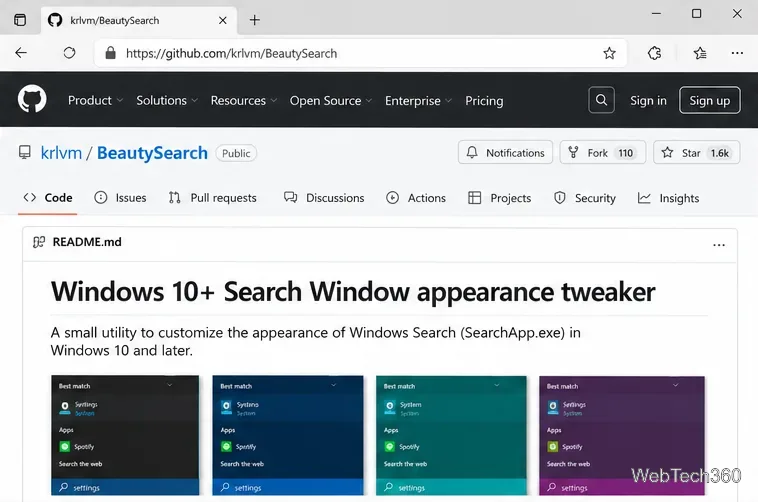
Check the official project release. Open the BeautySearch repository, then follow its link to Latest release. The release page currently identifies version 1.18. Read its notes before downloading. The README’s explicit Windows 10 test list is dated and ends at version 21H2, so compatibility with every later Windows build is not assured. Avoid third-party download mirrors.Start from the maintainer’s BeautySearch repository and its Releases page.
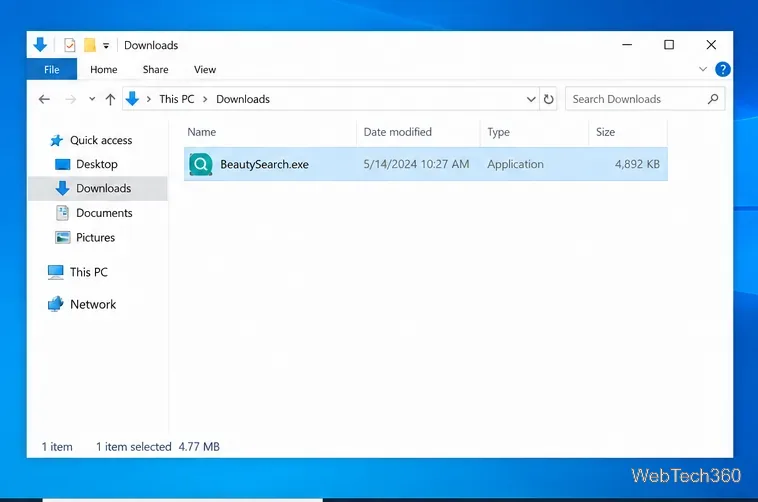
Download the installer. From the project’s release page, download its installer and keep the file in Downloads so it is easy to locate. Confirm that you have the project’s BeautySearch.exe file before proceeding.Locate the installer downloaded from the project’s release page.
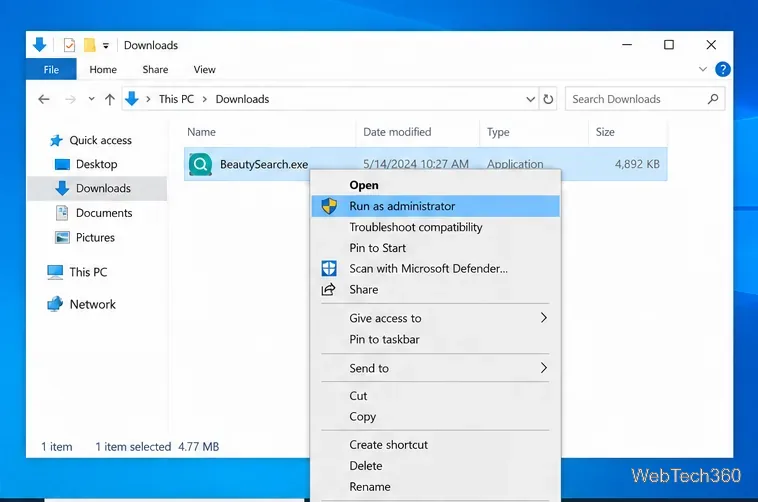
Run the verified file as administrator. In File Explorer, right-click BeautySearch.exe and select Run as administrator. The installer needs elevated access to change Search’s interface files. Approve the Windows administrator prompt only if you verified the file came from the maintainer’s release page. If Windows or your security software flags it and you cannot verify the file, cancel instead of bypassing the warning.Use Run as administrator only for the verified installer you downloaded from the repository.
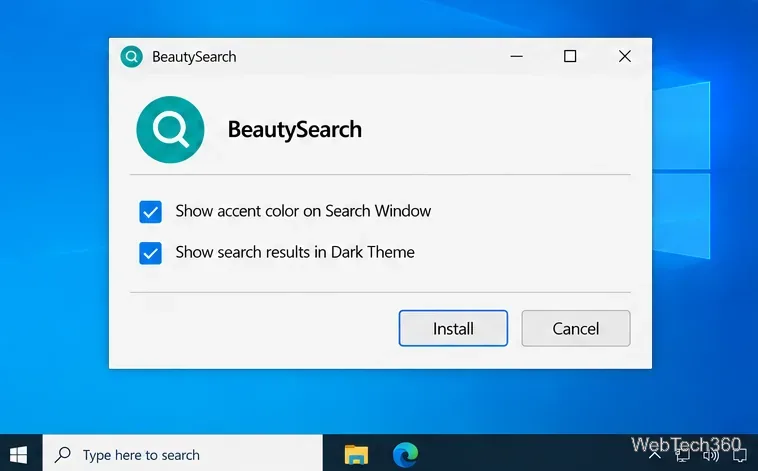
Choose the two Search tweaks. Select Show accent color on Search Window and Show search results in Dark Theme, then click Install. Leave unrelated options unchanged unless you have reviewed what they do. BeautySearch’s project page also describes a theme option for dark Search results when apps use a light theme; consult the installer and repository notes if you use Windows’ Custom color mode.Enable the two Search appearance options, then select Install.
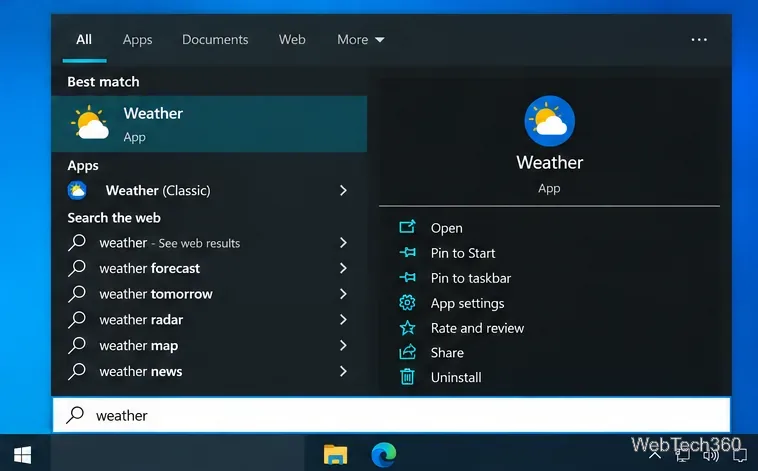
Test Windows Search. Press Windows+S and enter a query. Search should show dark results and use your chosen accent color in its navigation area. Close and reopen Search if it was already open during installation. The project says the installer does not need to remain running after the tweak is installed.Press Windows+S and check whether Search results use the selected dark style and accent color.
Troubleshooting and removing BeautySearch
If Search stays light, confirm Windows is set to Dark, reopen Search, and check that both options were selected in the installer. A Windows update may replace Search interface files, and a future BeautySearch release or Windows build may behave differently. Reinstall only after checking the release notes for your build.
The project README reports that BeautySearch can interfere with Bing Search in some regions; uninstalling the tweak is its suggested way to restore that behavior. To undo the appearance changes, run the installer again as administrator and use its Uninstall option. If the Search window will not open afterward, follow Microsoft’s current DISM and System File Checker guidance rather than copying system-repair commands from unrelated sites.
Windows 10 version 22H2 reached its general end-of-support date on October 14, 2025. A Search color tweak does not extend security support; check Microsoft’s Windows 10 lifecycle notice for your edition and support options.