Home
» WINDOWS
»
How to Fix Windows Update Error 0x800705b4
How to Fix Windows Update Error 0x800705b4
Windows Update error 0x800705b4 means an update took too long or was interrupted. It does not prove that Microsoft Defender is the cause. A stalled download, a damaged update cache, network interference, or corrupted Windows components can also be involved. Start with the low-risk checks below, then move to repairs only if the error remains.
Important: Windows 10 reached the end of standard support on October 14, 2025. If this PC is still running Windows 10, check whether it is enrolled in Extended Security Updates (ESU) or can be upgraded to a supported Windows release. See Microsoft’s Windows 10 support guidance.
1. Restart, check connectivity, and run the troubleshooter
Save your work and restart the computer. Make sure the internet connection is stable, disconnect a VPN or proxy temporarily if your organization’s policy allows it, and check that the system date and time are correct. Keep the PC connected to power while updates install.
The update page displays a failed update and the 0x800705b4 error code.
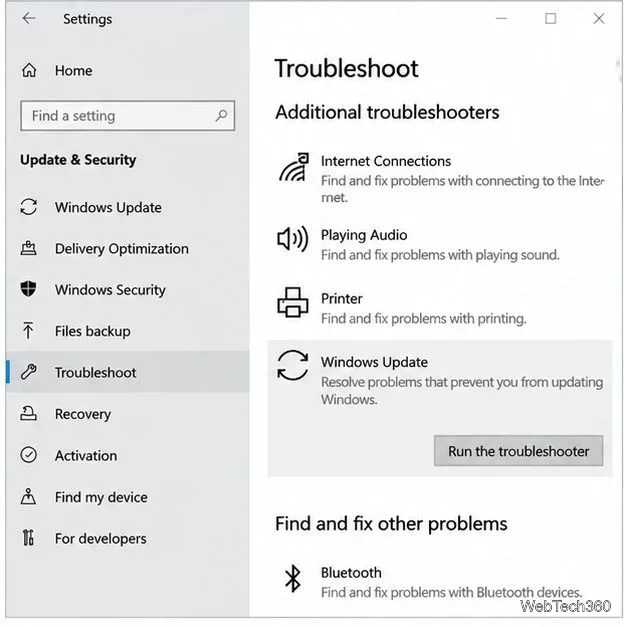
On Windows 10, open Settings > Update & Security > Troubleshoot > Additional troubleshooters. Select Windows Update, choose Run the troubleshooter, and follow the prompts. Restart when it finishes, then return to Windows Update and select Check for updates. Menu wording can vary by Windows version. Microsoft’s current instructions are in its Windows Update troubleshooter guide.
Open the Windows Update troubleshooter before trying advanced repairs.
2. Check the Windows Update service
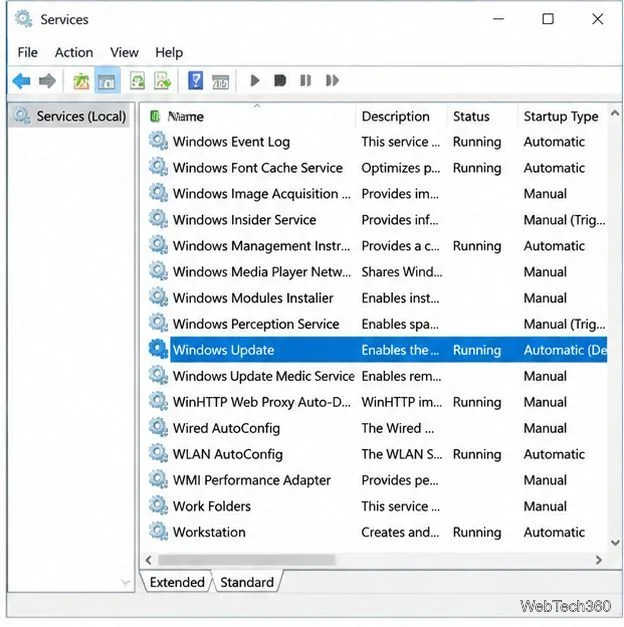
Press Win + R, enter services.msc, and press Enter. Find Windows Update, open its properties, and check whether it is running. If it is stopped, select Start if available. Do not force a particular startup type on a managed work PC; Windows and organizational policies may control the service.
Check the Windows Update service status in Services.
Also check that the Background Intelligent Transfer Service (BITS) is not disabled. Close Services and try Windows Update again. Avoid disabling unrelated services such as Network List Service, and do not use broad firewall commands from unverified troubleshooting posts: they can change security settings without fixing the underlying update issue.
3. Clear the Windows Update download cache
Incomplete cached files can prevent an update from downloading or installing. Use this method only if the simpler steps fail. You need an administrator account.
Press Win + R, type services.msc, and press Enter.
Right-click Windows Update and select Stop.
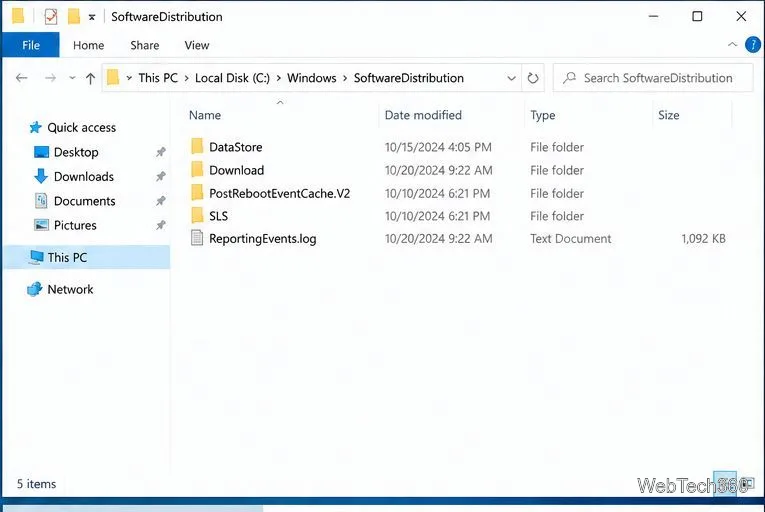
In File Explorer, open C:\Windows\SoftwareDistribution. Delete the contents of this folder, not the folder itself. If Windows says a file is in use, confirm the service has stopped; do not force-delete locked files.
Return to Services, right-click Windows Update, and choose Start.
Restart the PC and check for updates again.
The SoftwareDistribution folder stores temporary Windows Update download and data files.
Windows rebuilds the cache as needed. Clearing it may remove locally cached update history or downloads, but it does not remove your personal documents.
4. Repair Windows system files
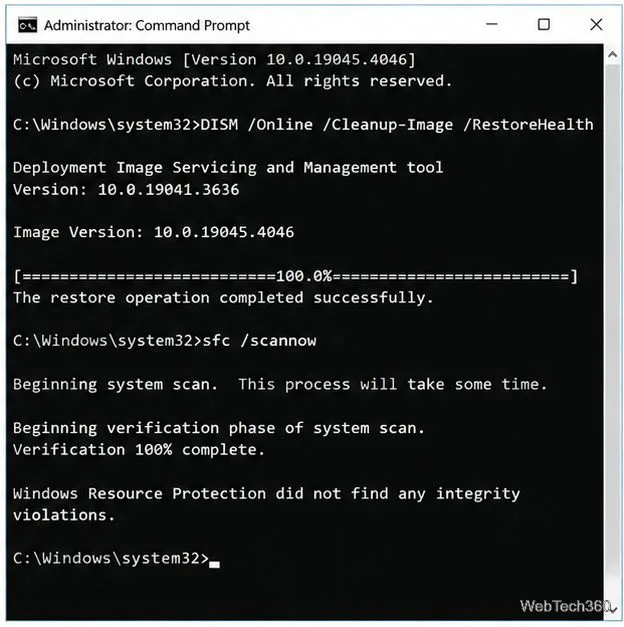
Corrupted system components can interfere with updating. Open Start, type Command Prompt, choose Run as administrator, and approve the prompt. Run these commands one at a time, waiting for each to finish:
DISM.exe /Online /Cleanup-image /Restorehealth
sfc /scannow
Run DISM first, then SFC, to repair Windows component and system-file problems.
DISM repairs the Windows component image; SFC then checks protected system files. The process may take several minutes. Restart after completion and try Windows Update again. If DISM cannot obtain repair files because Windows Update itself is broken, consult Microsoft’s official DISM and SFC instructions for supported repair-source options.
5. Check security software and scan for malware
If the problem began after installing third-party antivirus or firewall software, check the vendor’s support page for Windows compatibility and updates. Do not leave real-time protection disabled. If necessary, temporarily uninstall the conflicting product using its official removal instructions, restart, and test Windows Update; reinstall or enable a supported security solution promptly afterward.
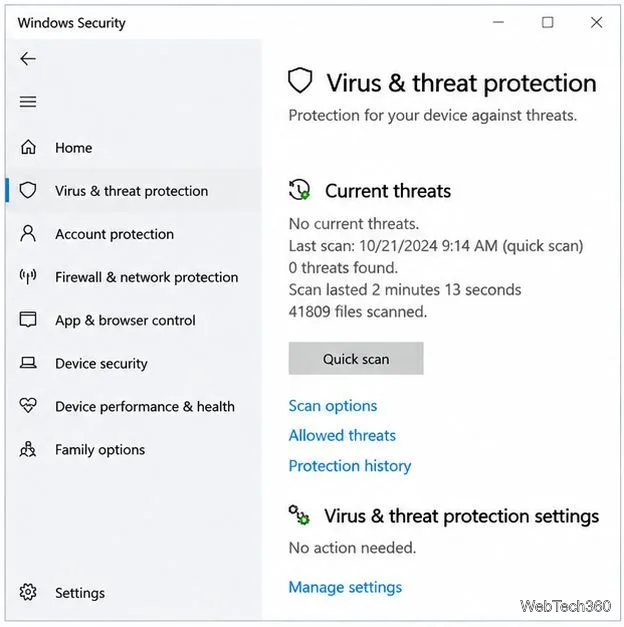
Use Windows Security to check for malware without leaving protection disabled.
Open Windows Security > Virus & threat protection and run a scan if malware is a concern. Do not create registry values from old online guides or turn off the firewall as a routine fix; there is no single registry change that is appropriate for every 0x800705b4 case.
6. Verify time, storage, and recent changes
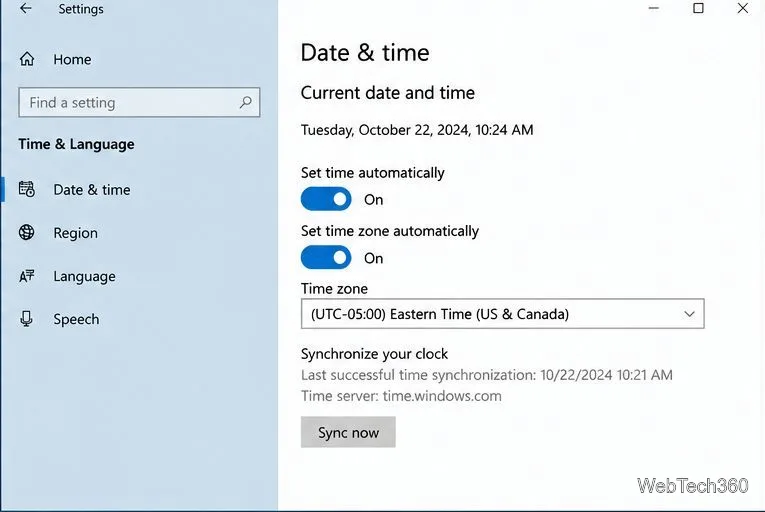
Open Settings > Time & Language > Date & time. Enable automatic time where appropriate and use the synchronization option if available. Confirm the Windows drive has enough free space for the update. Use Settings’ storage tools or Disk Cleanup to remove files you recognize; review Downloads and the Recycle Bin before deleting anything.
Verify that Windows date, time, and time zone settings are correct.
Disconnect recently added USB accessories and retry if the failure began immediately after connecting new hardware. Install device drivers only from Windows Update or the PC/device manufacturer’s official site. If the error started directly after a driver or update change, use Device Manager or Windows Recovery options to roll back that specific change where possible.
7. Use recovery options only as a last resort
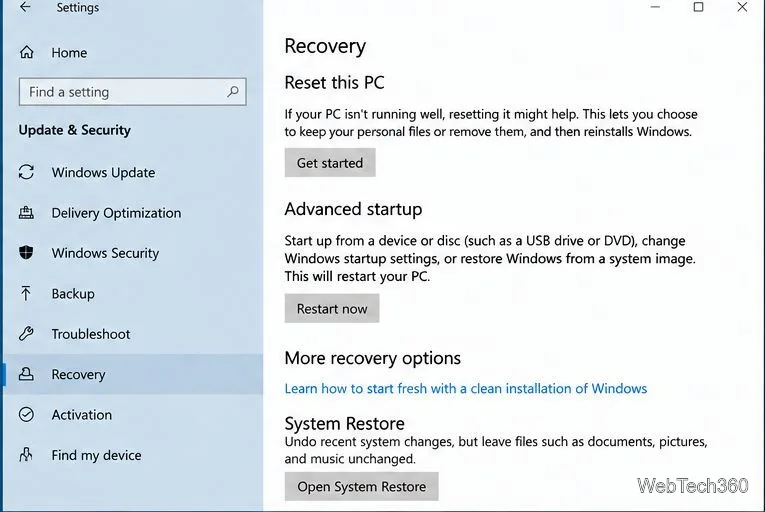
If the steps above fail, check Settings > Update & Security > Recovery for System Restore or other recovery options, if available. Choose a restore point dated before the problem began and review affected programs first. Back up important files before recovery work.
Recovery options are a last resort after less disruptive troubleshooting.
Reset this PC is more disruptive: even the “Keep my files” option removes many installed apps and resets settings. Back up your data, make sure you can reinstall required software, and follow Microsoft’s current recovery guidance before proceeding. On a Windows 10 PC, also consider moving to a supported operating system rather than spending time repairing update paths that are no longer serviced.
Quick checklist
Restart the PC and verify internet, date, time, and free storage.
Run the Windows Update troubleshooter.
Check Windows Update and BITS services.
Clear the SoftwareDistribution cache if needed.
Run DISM, then SFC, from an administrator Command Prompt.
Check security software compatibility without leaving the PC unprotected.
Back up files before System Restore or Reset this PC.
For more detail, use Microsoft’s official Windows Update troubleshooting guide. Error 0x800705b4 has multiple possible causes, so test one change at a time and retry the update after each step.