Home
» WINDOWS
»
How to Fix OpenGL Errors in Windows 10: A Practical Guide
How to Fix OpenGL Errors in Windows 10: A Practical Guide
OpenGL errors in Windows 10 usually mean an application cannot initialize or use the graphics features it expects. The cause may be an outdated or incompatible display driver, damaged Windows files, an app-specific problem, or hardware that does not support the OpenGL version required. OpenGL is a graphics API—not a driver—so the best fix depends on when the error appears. Work through these checks in order, testing the affected app after each major change.
An initialization error can point to the graphics driver or to an OpenGL requirement the system cannot meet.
1. Repair Windows system files
If several apps are failing or Windows is showing other system errors, run Microsoft’s repair tools. Open Start, type Command Prompt, right-click it, and select Run as administrator. Run the following command first, and wait for it to finish:
DISM.exe /Online /Cleanup-image /Restorehealth
Then run:
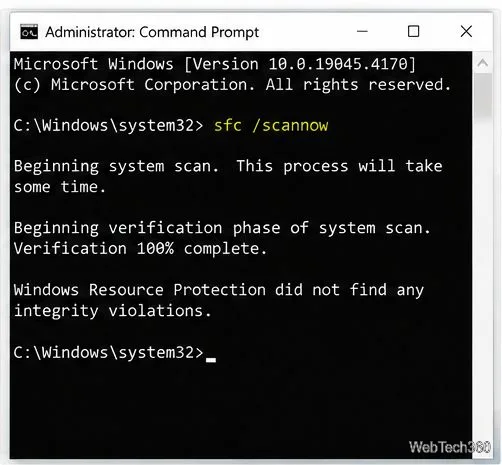
sfc /scannow
Do not close the window before verification reaches 100%. Restart Windows if files were repaired, then check the app again. If SFC reports that it could not repair some files, consult Microsoft’s System File Checker instructions for the next steps.
Run SFC from an elevated Command Prompt and allow the scan to finish.
2. Update the correct graphics driver
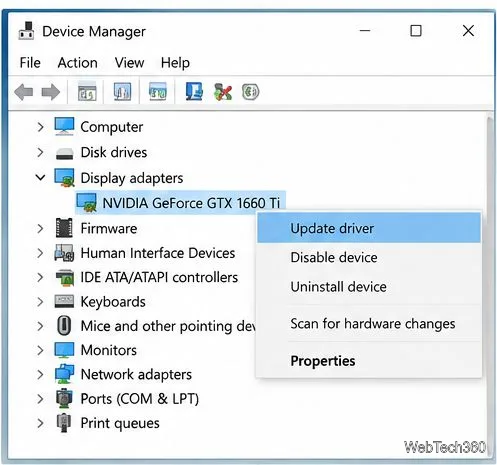
Driver problems are among the most common reasons an app cannot initialize OpenGL. First identify the GPU: right-click Start, open Device Manager, and expand Display adapters. If more than one adapter appears, your PC may have both integrated and dedicated graphics.
Right-click the adapter and choose Update driver.
Select Search automatically for drivers, or check Windows Update for optional driver updates.
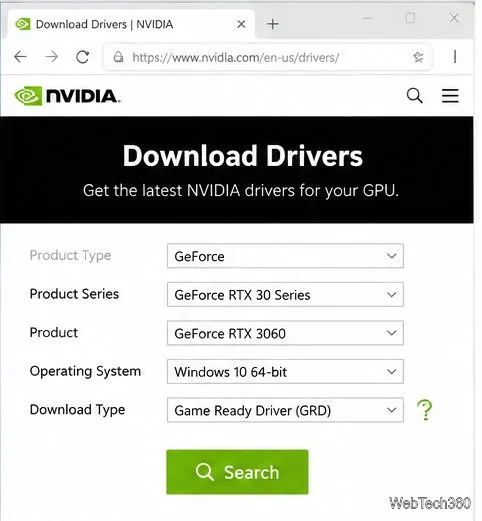
If Windows says the best driver is already installed, check the computer maker’s support page or the GPU maker’s official site for a compatible release.
Use Device Manager to identify the adapter and start a driver update.Choose the exact GPU model and Windows version on the manufacturer’s official driver page.
3. Check Windows Update
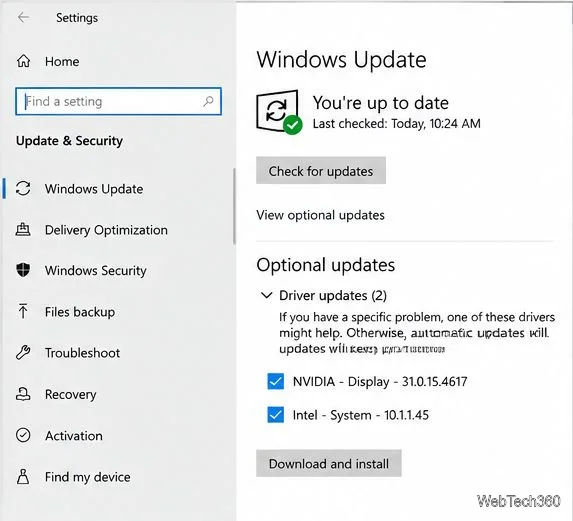
Windows Update can provide display-driver fixes, including drivers listed under optional updates. Open Settings → Update & Security → Windows Update, select Check for updates, and review View optional updates if that link appears. Install a relevant display driver, restart, and retest. Do not install every optional driver indiscriminately; choose updates that match your hardware.
Check Windows Update for compatible display-driver updates.
4. Repair or reinstall the affected app or game
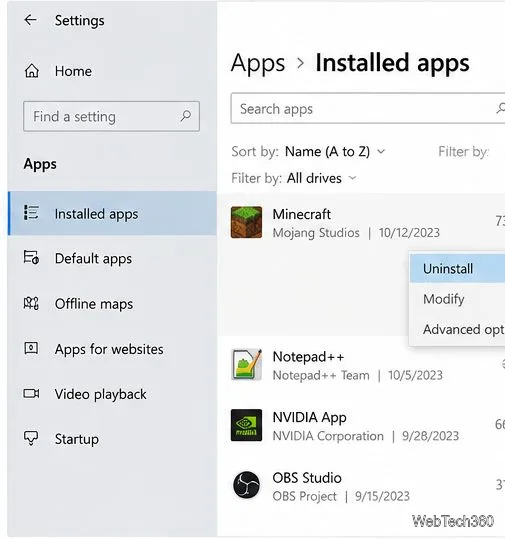
If the error occurs in just one program while other graphics apps work normally, focus on that program. Install its latest update first. If the problem continues, use the app’s built-in repair or verify-files option when available. Otherwise, uninstall it from Settings → Apps (or Control Panel → Programs and Features for older desktop programs), restart, and reinstall it from the publisher’s official source. Back up saves, configuration files, plugins, or project data before uninstalling; some apps store these separately from the program itself.
Uninstall only the affected app, and preserve its data before removing it.
5. Review performance and power settings
Visual-effects settings do not normally enable OpenGL, but a low-power configuration or aggressive performance utility can contribute to unusual behavior. On a laptop, connect the power adapter and select a balanced or performance-oriented power mode if available. Close GPU overclocking tools and return custom CPU/GPU overclocks to default while troubleshooting.
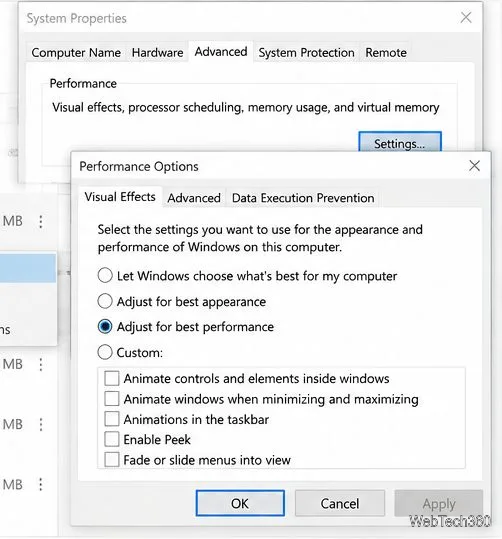
You can also test Windows’ visual-effects setting: press Win + R, enter sysdm.cpl, and press Enter. Open Advanced → Performance → Settings. Choose Adjust for best performance only as a temporary test, then select OK and retry the app. This reduces interface animations; it is not a dedicated OpenGL repair, and you can restore your preferred setting afterward.
Treat the visual-effects option as a diagnostic test, not a guaranteed OpenGL fix.
6. Check the app’s graphics requirements and settings
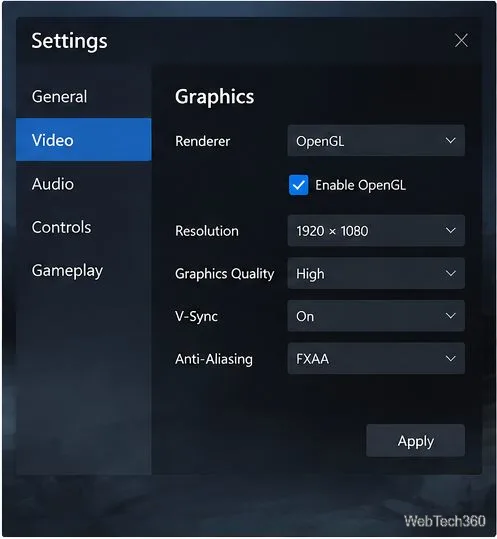
Some programs let you select a renderer or graphics API; others choose it automatically. Open the app’s official documentation and settings, and confirm that the required renderer is enabled and supported. Do not assume every game has an OpenGL toggle, and do not force a different renderer unless the developer documents that option.
Older GPUs may not support the OpenGL version a newer app requires, even with the latest driver. If Device Manager shows Microsoft Basic Display Adapter, Windows may not be using the manufacturer’s full graphics driver. Install a compatible vendor driver if one exists. If the GPU is too old for the app’s minimum requirements, a settings change cannot add missing hardware support.
A renderer selector is app-specific; use it only when the application actually offers the option.
7. If the error remains
Only one app fails: update or repair that app, check its supported GPU and OpenGL requirements, and review its logs.
Every 3D app fails: focus on the display driver, Windows Update, and GPU detection.
The problem began after a driver update: open Device Manager → Display adapters → your GPU → Properties → Driver. If Roll Back Driver is available, consider returning to the previous compatible version.
You see a specific error code or missing DLL: search the app or GPU manufacturer’s official support documentation for the exact message. Avoid downloading individual DLL files from unofficial sites.
OpenGL errors do not have one universal fix. Start with the GPU driver and app-specific checks, use DISM and SFC when Windows itself may be damaged, and confirm that the hardware supports the required OpenGL version. If you contact support, include the exact error text, app version, GPU model, Windows version, and whether the issue started after an update.