Home
» WINDOWS
»
How to Search Inside Multiple Text Files at Once on Windows 10
How to Search Inside Multiple Text Files at Once on Windows 10
To search the contents of several text-based files at once on Windows 10, use grepWin, a free, open-source search utility for Windows. It can scan scripts, logs, plain-text documents, subtitle files, and other text-readable formats in one operation, then show the matching files and lines. File Explorer can search indexed content in supported locations, but grepWin is a practical choice when you want explicit file filters, repeatable text searches, or regular expressions.
1. Download and open grepWin
Get the installer or other available package from the official grepWin project on GitHub or the developer’s grepWin page. Choose a package that matches your Windows setup, and follow the installer prompts if you download the installer. The developer currently lists Windows 10 version 22H2 or later as a requirement, so check your Windows version if the app will not run.
Open grepWin. Its interface includes a folder location, search options, file filters, and controls for searching or replacing text. You do not need to move all your files into one folder: choose a common parent folder and include subfolders if your files are organized into directories.
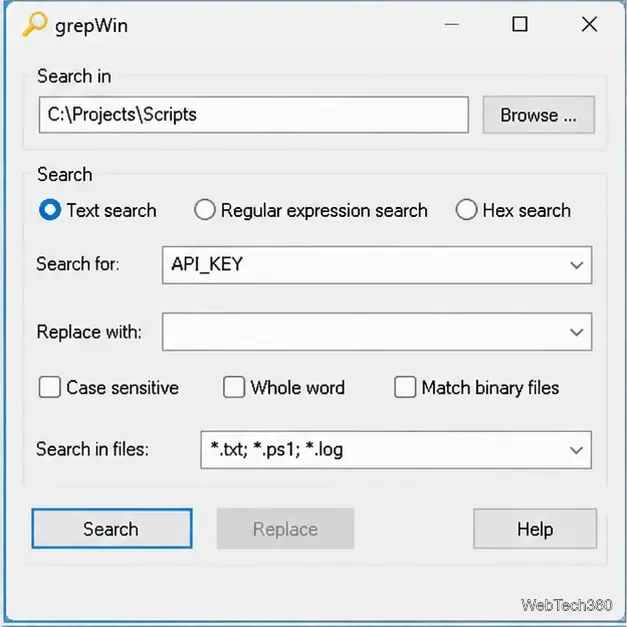
Choose the folder that contains the files you want to search, then use the Text search mode for a normal word or phrase.
2. Choose a folder and enter your search term
In Search in, enter the folder path or select Browse to locate it. For example, you might choose C:\Projects\Scripts.
Under the search options, select Text search if you want to find a literal word or phrase. Use regular-expression search only when you deliberately need a pattern, such as several variations of a filename.
Type the word or phrase into Search for. For example, search for API_KEY to locate references to that string in configuration files, scripts, and logs.
Leave Case sensitive unchecked if uppercase and lowercase letters should be treated alike. Enable it when capitalization matters. If available in your chosen settings, the whole-word option can help avoid matches inside longer words.
A sample query searches for the literal string API_KEY and limits the scan to selected text file extensions.
3. Include subfolders and filter file types
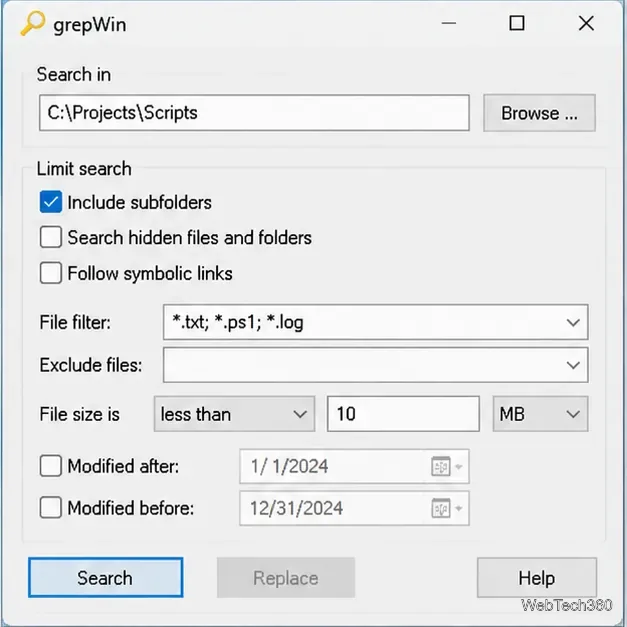
Before running the search, review the scope settings. If the files are inside nested folders, enable Include subfolders (or the equivalent recursive-search option shown in your version). Without it, files below the selected directory may be skipped.
Use the file filter to narrow the search to relevant extensions. For example, a filter such as *.txt; *.ps1; *.log targets text documents, PowerShell scripts, and log files. Adjust the patterns to match your actual files; include more than one pattern when the interface accepts semicolon-separated masks. You can also use available size or modification-date limits to exclude unrelated files and reduce scan time.
Enable recursive searching when needed, and use file masks or other limits to avoid scanning unrelated files.
4. Run the search and inspect the matches
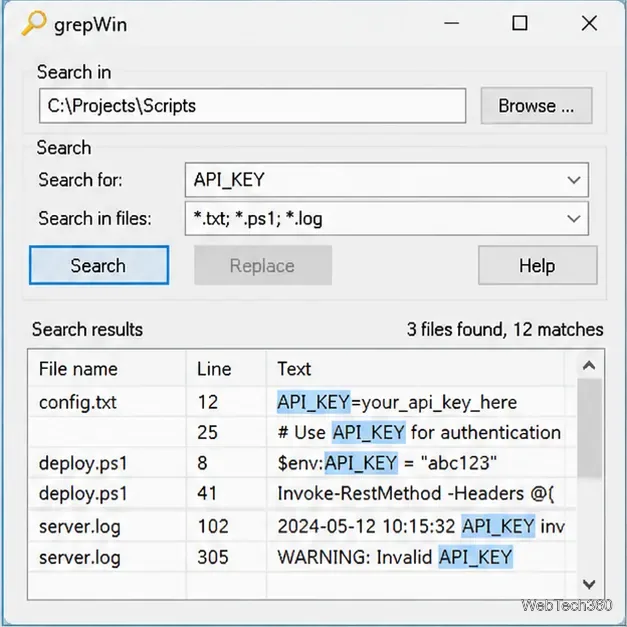
Click Search. grepWin lists files containing the term and provides matching text or line details, depending on the result view and version. Review the filename and surrounding text to distinguish a real match from an unrelated occurrence. If line numbers are shown, use them to jump to the relevant location in a text editor.
Double-clicking a result opens it through the file’s associated application. Be careful with executable scripts: opening a script through its file association may run it rather than display its contents. To inspect a script safely, open your editor first and use its Open command, or right-click the file and choose an appropriate text editor.
Review the matching file and line before opening it in a text editor.
Tips for more reliable searches
No results: confirm the folder path, spelling, case-sensitivity setting, and file filter. Temporarily broaden the filter to check whether the extension was excluded.
Too many results: search a narrower folder, include only relevant extensions, enable whole-word matching if appropriate, or use a more specific phrase.
Need to find a pattern: switch to regular-expression mode only after checking the syntax. A regular expression is interpreted differently from a literal search string.
Need to search Windows locations: access permissions can affect which folders the app can read. Search only locations you are authorized to access; avoid changing permissions broadly just to make a search work.
Can Windows search file contents without grepWin?
Yes, Windows Search can find content in indexed locations and supported file types. Microsoft explains how to configure indexed locations and whether Windows indexes file contents in its Search indexing documentation. Results depend on indexing settings and the handlers available for each file type. For a quick search in an indexed folder, File Explorer may be enough; for a focused scan across specific text-file extensions, grepWin offers more direct control over the search scope.
Important: grepWin also includes search-and-replace functionality. Start with search-only mode when you are locating text. If you later replace text across multiple files, verify the search pattern and replacement carefully, and keep backups or use version control before making bulk changes.