Home
» WINDOWS
»
How to Record System Sound With FFmpeg on Windows 10
How to Record System Sound With FFmpeg on Windows 10
To record system sound with FFmpeg on Windows 10, you need a recording input that captures your computer’s playback—not a regular microphone. The simplest option on some PCs is Stereo Mix, which is supplied by certain audio drivers. Once it is enabled, FFmpeg can capture that device through its Windows DirectShow input and save the result as an MP3, WAV, or another supported audio format.
Important: Stereo Mix is not available on every PC or audio driver. If it is missing, use a compatible loopback or virtual audio device instead. FFmpeg’s official documentation describes the DirectShow device syntax and device-listing command used below: FFmpeg device documentation.
1. Enable Stereo Mix or another loopback source
First, check whether Windows exposes Stereo Mix as a recording device.
Press Win + R, type mmsys.cpl, and press Enter.
Open the Recording tab in the classic Sound window.
Right-click an empty area and enable Show Disabled Devices. If available, also show disconnected devices.
If Stereo Mix appears, right-click it and choose Enable.
Enable Stereo Mix in the Recording tab if your audio driver provides it.
You do not normally need to set Stereo Mix as the default recording device just to specify it explicitly in FFmpeg. If it does not appear, check your computer or audio-chip manufacturer’s driver support. Do not download drivers from unknown sites. Some systems instead use a virtual audio cable or a device that explicitly supports loopback capture.
2. Download FFmpeg for Windows
Open the official FFmpeg download page and follow one of its listed Windows-build links. FFmpeg’s project distributes source code and links to Windows executable builds maintained by third parties, so choose a reputable build and the correct architecture for your PC.
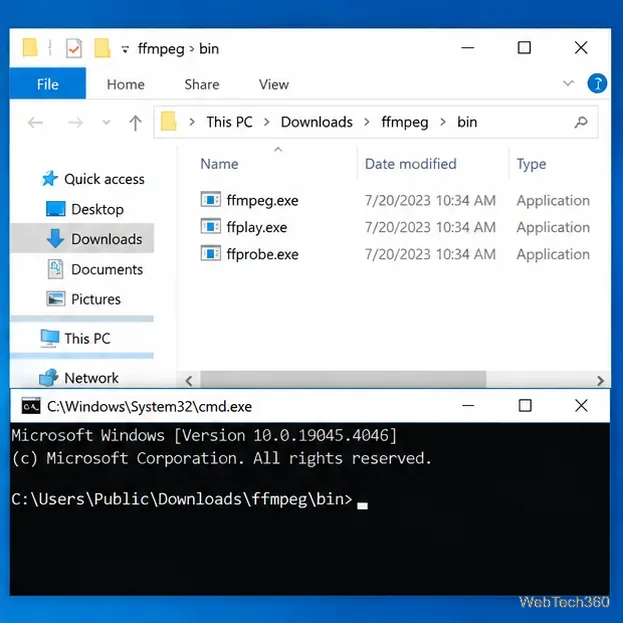
Extract the downloaded archive. Open the extracted folder, then open its bin directory, where ffmpeg.exe should be located. You can add this directory to your Windows PATH to run FFmpeg from any terminal, but that is optional. For this guide, open File Explorer in the bin folder, click the address bar, type cmd, and press Enter. Command Prompt will open at that location.
Opening Command Prompt from FFmpeg’s bin folder avoids having to configure PATH first.
3. Find the exact audio device name
In Command Prompt, run this command:
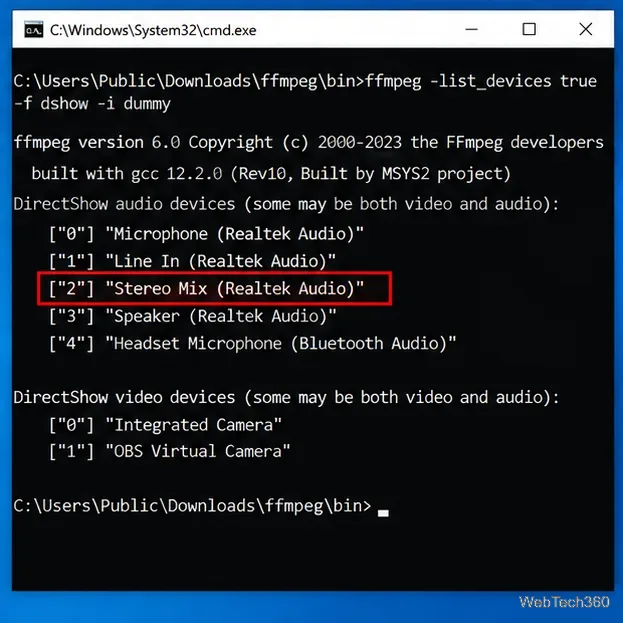
ffmpeg -list_devices true -f dshow -i dummy
FFmpeg may print an error about the dummy input because the command is only being used to enumerate devices; that is expected. Look for the section labeled DirectShow audio devices. Identify the exact recording-device name, including any text in parentheses. Depending on your hardware, it may resemble Stereo Mix (Realtek Audio), but your device name may be different.
Copy the exact device name shown in your own FFmpeg output; the example name here may differ from your PC.
4. Start recording system audio
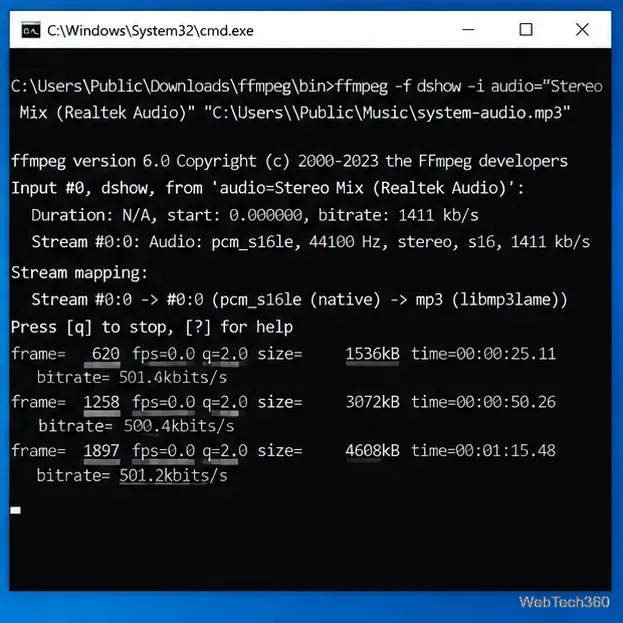
Create a folder for your recordings, such as C:\Users\Public\Music\Recordings. Then run the command below, replacing the sample device name and output path with your own values:
Use the device name exactly as FFmpeg listed it. Keep the quotes around names and paths that contain spaces. The output extension determines the container format, while FFmpeg selects a suitable encoder based on the format and the capabilities of your build.
For a lossless PCM recording, you can save a WAV file instead:
WAV files are typically much larger than MP3 files. Use MP3 for a smaller everyday recording, or WAV when you want uncompressed PCM audio for editing. Make sure the destination folder already exists; FFmpeg will not create missing folders for you.
While FFmpeg is running, its console displays stream information and recording progress.
5. Stop and check the recording
Leave the Command Prompt window running while you play the audio you want to capture. You can minimize the window, but do not close it. To finish the recording cleanly, return to the terminal and press Ctrl + C. Wait for FFmpeg to stop and return to the prompt before opening the output file. This allows FFmpeg to finalize the file properly.
Open the destination folder and play the file. If it is silent, confirm that Windows is actually playing sound through the path captured by Stereo Mix, check that the correct device name was selected, and verify that the source is not muted. Some applications or audio drivers route playback in a way that Stereo Mix does not capture.
Troubleshooting common problems
Stereo Mix is missing: Show disabled recording devices, then check for an appropriate driver from your PC or sound-card manufacturer. If the driver does not expose Stereo Mix, use a loopback-capable or virtual audio device.
FFmpeg says the device cannot be found: Rerun the device-list command and copy the full name exactly. Names can differ between machines and may change after audio-driver updates.
The output is silent or too quiet: Check the Windows playback volume, per-app volume, mute state, and the capture device’s properties. Confirm that you selected a loopback source rather than a physical microphone.
The command says the output path is invalid: Create the destination folder first and put the full output path in quotes.
FFmpeg does not recognize -f dshow: Make sure you downloaded a Windows build that includes DirectShow support. The official FFmpeg device documentation explains that DirectShow is the Windows input backend used in these examples.
With a working loopback source, the process is straightforward: enable or install the capture device, identify it with FFmpeg’s DirectShow listing command, start recording to a file, and stop with Ctrl + C. Keep in mind that Windows 10 support from Microsoft ended on October 14, 2025; if you still use Windows 10, consult Microsoft’s current guidance for security and support options: Microsoft Windows Support.