Home
» WINDOWS
»
How to Change Mouse DPI and Pointer Speed in Windows 10
How to Change Mouse DPI and Pointer Speed in Windows 10
Windows 10 does not provide a universal numeric DPI control for every mouse. You can change how quickly the pointer moves through Windows, but a true DPI (dots per inch) adjustment is usually available only through a mouse’s DPI button or its manufacturer’s software. Start with the Windows pointer-speed setting; if your mouse supports selectable DPI levels, use its dedicated controls for a more direct change.
Change mouse pointer speed in Windows 10
This setting changes the pointer’s on-screen response without changing the mouse sensor’s actual DPI. It is the quickest place to start if the cursor feels too slow or too fast.
Press Windows + I to open Settings.
Select Devices, then choose Mouse in the left pane.
Under the mouse settings, adjust the Cursor speed slider. Move it right to make the pointer travel farther for the same physical movement, or left to slow it down.
Move the mouse around the desktop and try selecting small icons or text. Make small changes until the pointer feels comfortable.
In Windows 10, start with Settings > Devices > Mouse and adjust Cursor speed.
If the slider is missing or you want to change pointer acceleration, open Additional mouse options under Related settings. This opens the classic Mouse Properties dialog.
Adjust pointer speed and precision in Mouse Properties
In Settings, select Additional mouse options. You can also press Windows + R, type main.cpl, and press Enter.
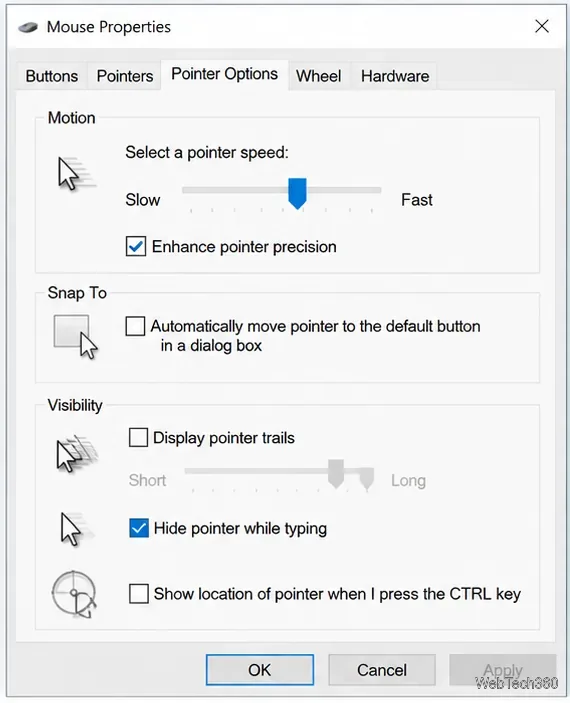
In Mouse Properties, open the Pointer Options tab.
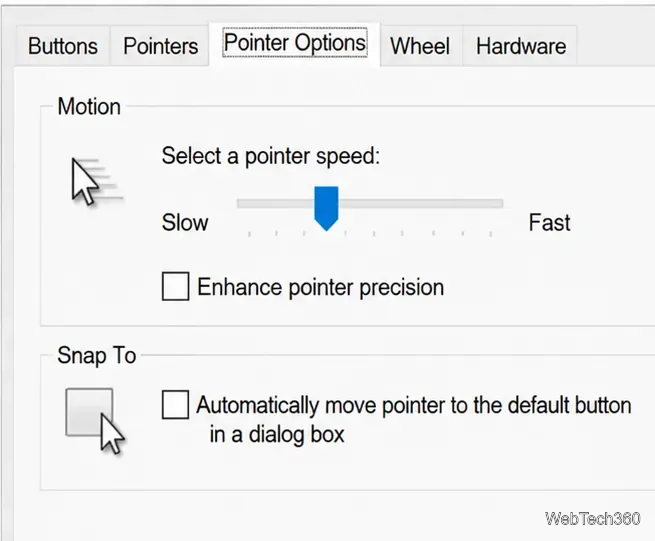
Under Motion, move Select a pointer speed toward Slow or Fast. This is another way to tune Windows pointer speed.
Choose whether to enable Enhance pointer precision, then select Apply and test the result. Select OK when you are satisfied.
The Pointer Options tab controls Windows pointer speed and acceleration.
Should you turn on Enhance pointer precision?
This option applies pointer acceleration: cursor movement depends partly on how quickly you move the physical mouse, not just how far. It can feel helpful for general desktop use because a quick movement crosses more screen space. Some gamers prefer to turn it off for a more consistent relationship between hand movement and cursor movement. Neither choice is universally best; try both and keep the setting that suits your work or game. Individual games may also have their own sensitivity settings.
Change the actual DPI on a gaming mouse
DPI and Windows pointer speed are related but different. DPI describes how many counts the mouse sensor reports per inch of physical movement. Higher DPI generally moves the pointer farther at the same Windows settings; lower DPI generally moves it less. Windows’ speed slider does not show or directly set a mouse’s hardware DPI value.
Look for a DPI button. Many gaming mice have a button near the scroll wheel or on the underside. Pressing it may cycle through preset sensitivity levels. Some models indicate the selected level with an LED or on-screen notification; behavior depends on the model.
Open the manufacturer’s app. Install the official configuration utility for your exact mouse model, if one is available. For example, Logitech provides Logi Options+ for supported productivity devices; gaming models may use a different Logitech utility. Other brands have their own apps and supported-device lists.
Find sensitivity or DPI settings. The label and location vary by software. If the app supports DPI stages, choose an existing stage or configure a value, then save or apply the profile as instructed by the app.
Test in the application you use most. If the cursor jumps too far, select a lower DPI stage; if you must repeatedly lift and reposition the mouse, try a higher one. Change one setting at a time so you can tell what helped.
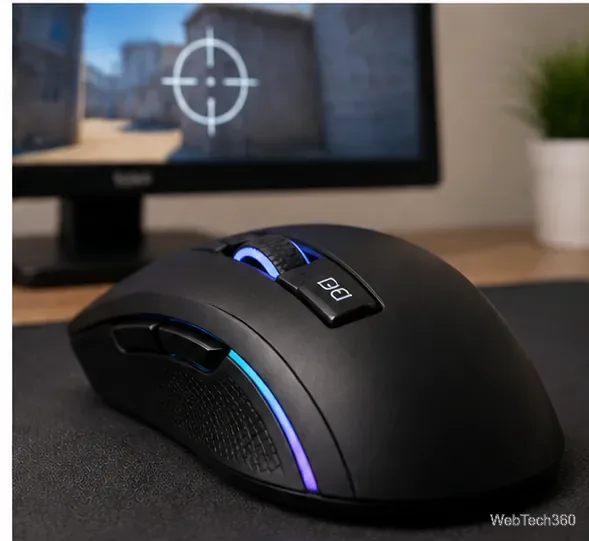
Some gaming mice use a dedicated button to cycle through hardware DPI presets.
Not every mouse supports changing DPI. If the manufacturer’s documentation and software do not offer a DPI control, use Windows pointer speed instead. Do not install unofficial utilities simply because they claim to unlock hidden DPI settings.
Choose a comfortable setting and troubleshoot problems
Cursor is too fast or too slow everywhere: adjust Cursor speed in Settings or the Motion slider in Mouse Properties.
Aiming feels inconsistent in games: try turning off Enhance pointer precision, then tune the game’s own sensitivity setting. Check whether the game uses raw mouse input, if that option is documented by the game.
The DPI button seems to do nothing: check the mouse manual; the button may require the supported vendor app, may be assigned another function, or may not exist on that model.
The pointer skips or behaves erratically: clean the sensor, try a suitable mouse pad or different surface, reconnect the mouse directly to the PC, and check batteries or wireless receiver placement. Update software or firmware only from the manufacturer’s official support page.
Settings do not stick: check whether a vendor profile or another utility is overriding the Windows or mouse settings.
Compare pointer behavior after changing one precision setting at a time.
For Microsoft’s Windows 10 mouse controls, see the official Change mouse settings guide. Windows 10 support ended on October 14, 2025, so Microsoft no longer provides its usual free security updates and technical support for the operating system.
Quick summary
Use Settings > Devices > Mouse to adjust everyday pointer speed, and Additional mouse options > Pointer Options to tune pointer acceleration. For a true hardware DPI change, use your mouse’s DPI button or official manufacturer software if the model supports it.