The main Windows command-line tool for managing local user accounts is net user. To open the graphical Local Users and Groups console on supported editions, run lusrmgr.msc. These are different tools: net user works from Command Prompt or PowerShell, while lusrmgr.msc opens a management snap-in that is not included in Windows Home editions.
Which command should you use?
net user: list local accounts, inspect an account, create or delete a user, and enable or disable an account from the command line.lusrmgr.msc: open the Local Users and Groups graphical console to inspect users, groups, and account properties. It is available on supported Pro, Enterprise, and Education editions, but not Windows Home.net localgroup: list local groups or manage group membership, including adding a user to a local group.netplwiz: open the User Accounts interface for some common account settings.
Use the least powerful tool that completes your task. Commands that change accounts or group membership may require an elevated terminal and can affect who is allowed to sign in or administer the PC.
Open Local Users and Groups with lusrmgr.msc
- Press Windows + R to open the Run dialog.
- Enter
lusrmgr.msc, then select OK or press Enter.
- In the left pane, select Users to inspect accounts or Groups to inspect local groups.

The console shows accounts configured on the computer, including accounts that are disabled. Double-click a user to review available properties, such as whether the account is disabled and which groups it belongs to. The exact properties shown can vary by Windows edition and account type.
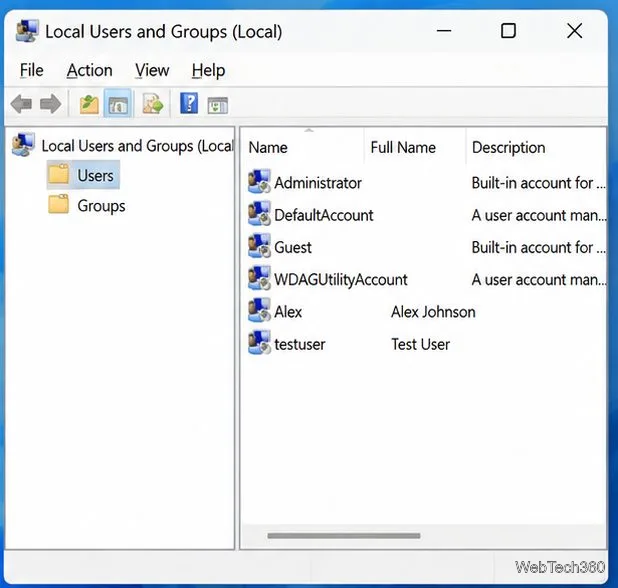
Check the account properties carefully
The built-in names you may encounter include Administrator, Guest, DefaultAccount, and WDAGUtilityAccount, although visibility and status vary. Do not assume every listed account is intended for everyday sign-in. Avoid enabling built-in accounts or changing group membership unless you understand the security consequences.
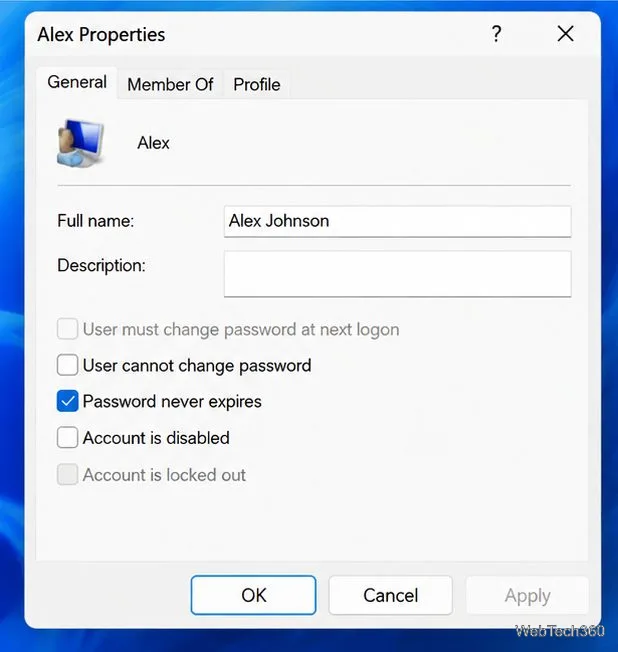
Manage local accounts from Command Prompt
If you prefer commands—or your Windows edition does not include the graphical snap-in—open Command Prompt or Windows Terminal. Run as administrator for account changes. These examples operate on the local computer unless you explicitly specify a domain option.
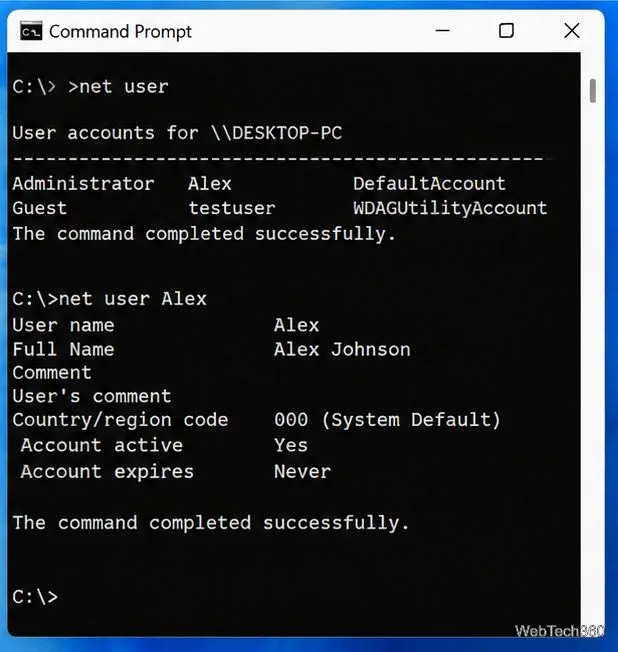
List accounts and inspect one user
net user
net user username
Replace username with the account name. The first command lists accounts; the second displays details for one account, including whether it is active and other account settings.
Create, disable, or enable an account
net user NewUser * /add
net user NewUser /active:no
net user NewUser /active:yes
The asterisk prompts for a password instead of placing it directly in the command text, where it could be exposed in shell history or logs. The active options disable or re-enable the account. Only run the line you actually need; these are examples, not a script to paste all at once.
Delete an account or manage group membership
net user NewUser /delete
net localgroup
net localgroup Administrators NewUser /add
net localgroup Administrators NewUser /delete
Deleting a user can make that account’s files and settings harder to access, so confirm the username and back up needed data first. Adding a user to Administrators grants broad system privileges; use a standard account for routine work whenever practical. The final command removes the user from that group, not the user account itself.
What if lusrmgr.msc is unavailable?
If Windows reports that the snap-in cannot be used with your edition, that is expected on Windows Home. You do not need to install a third-party utility just to perform common tasks. Use net user and net localgroup in a terminal, or open Settings > Accounts to manage accounts through Windows’ built-in interface. The wording and exact menu path can vary between Windows 10 and Windows 11.
If the snap-in is missing on a supported edition, check the Windows edition and whether an organization policy restricts Microsoft Management Console snap-ins. On a domain controller, Local Users and Groups is not the tool for managing domain accounts; use the appropriate domain administration tools instead.
Safety checklist
- Confirm the exact account name before changing or deleting it.
- Keep at least one known, working administrator account available.
- Do not enable built-in accounts or grant administrator rights without a clear reason.
- Use
net user username or the Properties window to verify the result after a change.
For command syntax and supported options, see Microsoft’s official net user command reference and Local accounts documentation. Microsoft also documents user and group commands for Windows environments.








