Home
» WINDOWS
»
How to Block the Automatic Chromium Edge Upgrade on Windows 10
How to Block the Automatic Chromium Edge Upgrade on Windows 10
You can use the legacy DoNotUpdateToEdgeWithChromium registry value to block the original automatic delivery of Chromium-based Microsoft Edge on Windows 10. This setting was designed for the transition from the old Edge browser to the Chromium-based version; it is not a general switch for disabling updates to an Edge browser that is already installed. Microsoft documents the historical blocker and its limitations in its Microsoft Edge Update policy documentation.
Important: This is a legacy deployment setting, not a recommended way to manage a current browser. If Microsoft Edge is already installed, use supported update-management policies rather than expecting this value to roll back or freeze the browser. Windows 10 support ended on October 14, 2025, for most editions; see Microsoft’s Windows 10 end-of-support guidance before relying on an older system.
Before you edit the registry
Editing the Windows Registry incorrectly can cause system or application problems. Sign in with an administrator account, close Registry Editor when finished, and back up the relevant key before changing anything. If this is a work-managed computer, check with your IT administrator before changing device-wide settings.
Open Registry Editor by entering regedit in the Run dialog.
Block the legacy automatic Edge delivery
1. Open Registry Editor
Press Windows + R to open Run. Enter regedit and press Enter. If Windows displays a User Account Control prompt, confirm only if you intended to open Registry Editor.
2. Navigate to the EdgeUpdate key
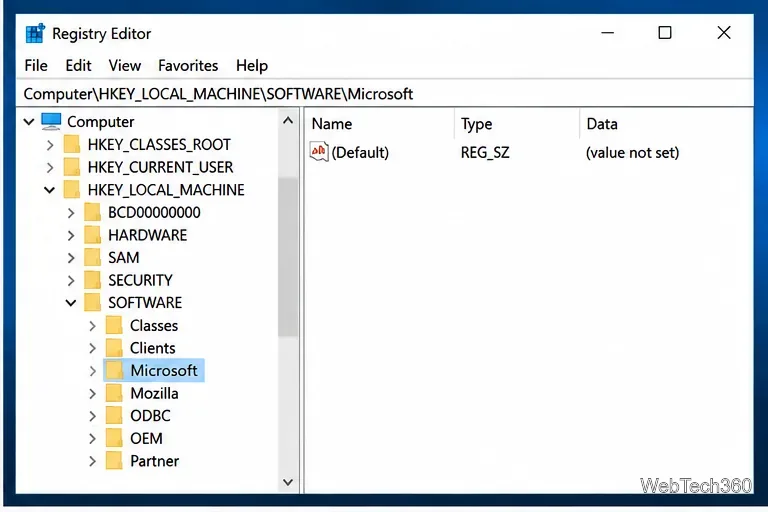
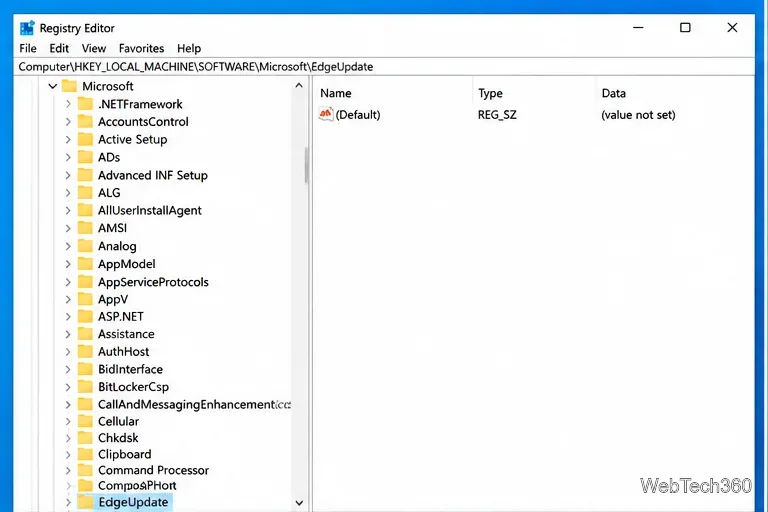
In Registry Editor, use the address bar (if available) or expand the folders in the left pane and go to:
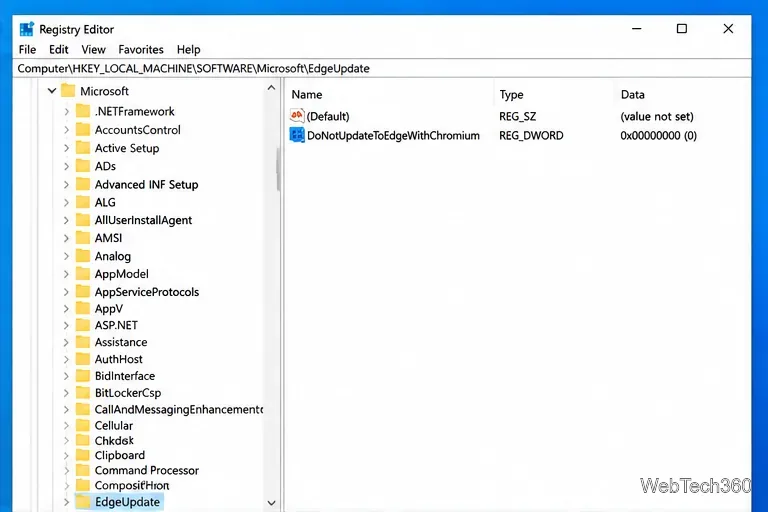
HKEY_LOCAL_MACHINE\SOFTWARE\Microsoft\EdgeUpdate
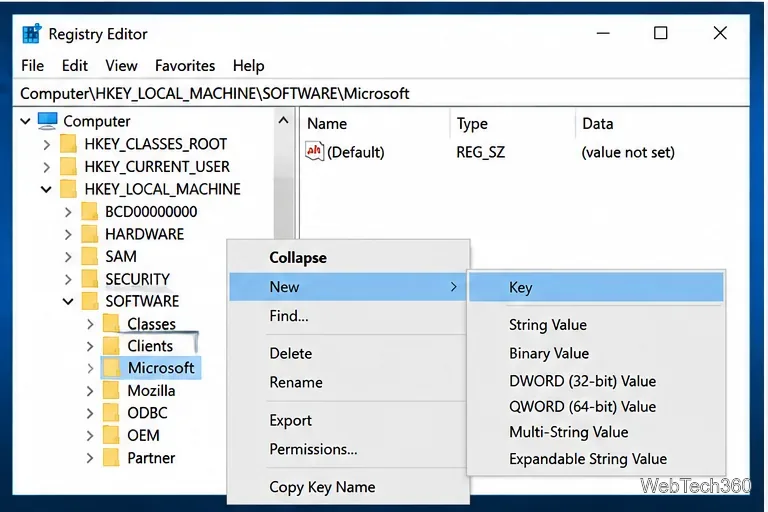
If the EdgeUpdate key does not exist, right-click Microsoft, select New > Key, and name the new key EdgeUpdate. Check the path carefully before creating anything; the legacy blocker uses the Microsoft software branch, not the Policies branch.
Navigate to the Microsoft branch under HKEY_LOCAL_MACHINE\SOFTWARE.If needed, create the missing EdgeUpdate key from the Microsoft key.
3. Create the DWORD value
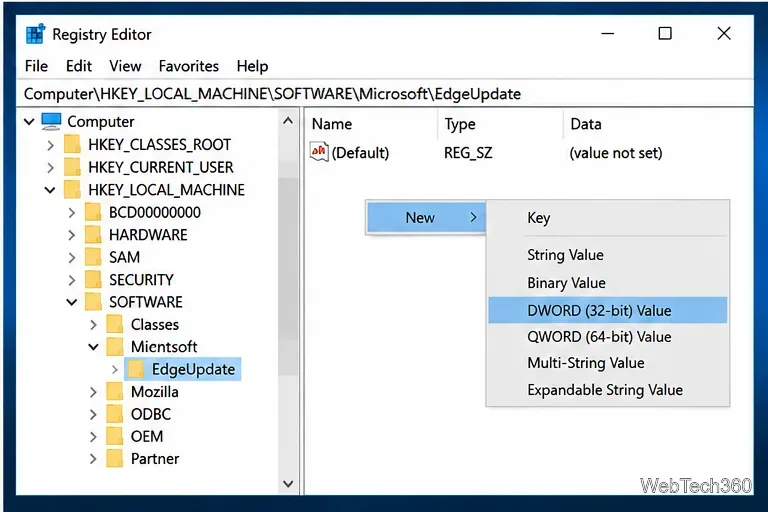
Select EdgeUpdate. In the right pane, right-click an empty area and choose New > DWORD (32-bit) Value. Name the value exactly:
DoNotUpdateToEdgeWithChromium
Use the exact spelling and do not add spaces. A 32-bit DWORD is the correct value type even if Windows itself is 64-bit.
Choose DWORD (32-bit) Value for the blocker setting.
4. Set the value to 1
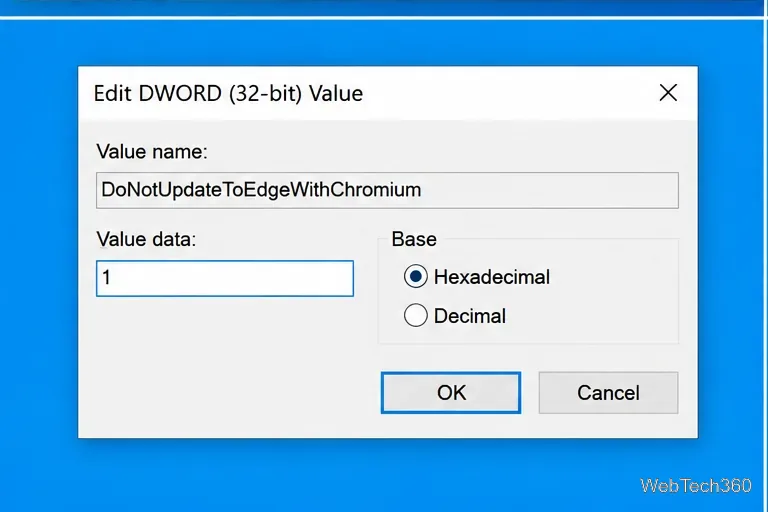
Double-click DoNotUpdateToEdgeWithChromium. In the Edit DWORD dialog, enter 1 in the Value data field. Hexadecimal or Decimal is fine for the value 1. Select OK.
Confirm that you are working in the EdgeUpdate key.After creating the DWORD, open it to change its value data.Set the DWORD value data to 1.
5. Verify the setting and restart
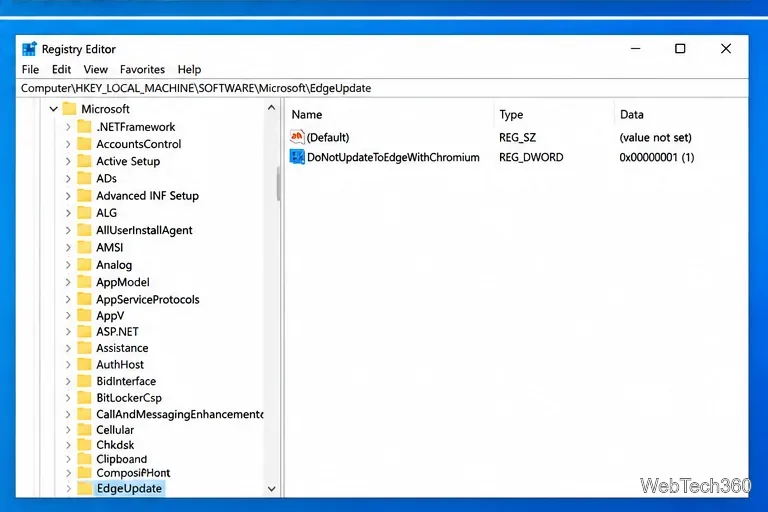
Return to the right pane and confirm that DoNotUpdateToEdgeWithChromium appears as a REG_DWORD with data 0x00000001 (1). Close Registry Editor and restart Windows if you want to ensure the system starts fresh with the change.
The final value should show 0x00000001 (1).
What this setting does—and does not do
It was intended to block: the original automatic distribution of Chromium-based Edge through the legacy Windows Update rollout.
It does not uninstall Edge: it will not remove a browser already present on the computer.
It does not freeze browser updates: it is not the current Microsoft Edge update policy and should not be used to stop security updates to an installed browser.
It does not guarantee that Edge cannot be installed manually: the historical blocker was for automatic delivery, not a ban on a user or administrator installing the browser.
Microsoft’s documentation notes that the blocker had to be configured before automatic installation and that the legacy Edge/side-by-side experience is not supported starting with Windows 10 version 20H2. For managed devices, review the current Edge Update policy reference and the Microsoft Edge configuration guide. These cover supported controls for enterprise update and deployment management.
How to undo the registry change
If you need to reverse the legacy block, return to the same EdgeUpdate key and either set DoNotUpdateToEdgeWithChromium to 0 or delete that value. Do not delete the entire EdgeUpdate key if it contains other settings. Restart Windows after making the change. Removing this legacy value does not itself install Edge; it only removes this particular blocker.
Frequently asked questions
Will this restore the old Microsoft Edge?
No. The setting was intended to block the original Chromium Edge rollout, not to roll back an installed browser. Legacy Microsoft Edge and the side-by-side setup are no longer supported on Windows 10 version 20H2 and later.
Will it stop Microsoft Edge from updating?
No. Do not confuse the old DoNotUpdateToEdgeWithChromium value with modern Edge Update policies. Disabling security updates can leave a browser vulnerable. If you administer devices and need a controlled rollout, use Microsoft’s documented update policies and maintain a plan to deploy security fixes.
Is it safe to keep using Windows 10?
The operating system continues to run, but standard Windows 10 support ended on October 14, 2025. Microsoft recommends moving to a supported Windows version or checking eligibility for its Extended Security Updates program. See the official support link above for current options.