Home
» WINDOWS
»
How to Rip a DVD to MP4 and Play It on Windows 10 or 11
How to Rip a DVD to MP4 and Play It on Windows 10 or 11
If your Windows 10 or Windows 11 PC has a DVD drive but no reliable DVD playback app, one practical option is to convert a disc you own into a digital video file. WinX DVD Ripper Platinum can read a DVD and convert a selected title to MP4, which you can then open in a compatible media player without inserting the disc each time. You will need an optical drive (built-in or USB), enough disk space, and permission to make the copy.
Check local law and the disc’s terms before copying. Do not use the software to distribute copyrighted material or bypass protection unlawfully. WinX’s own site warns against using it for rental discs or commercial backups.
How to rip a DVD to MP4 with WinX DVD Ripper
1. Download and install the software
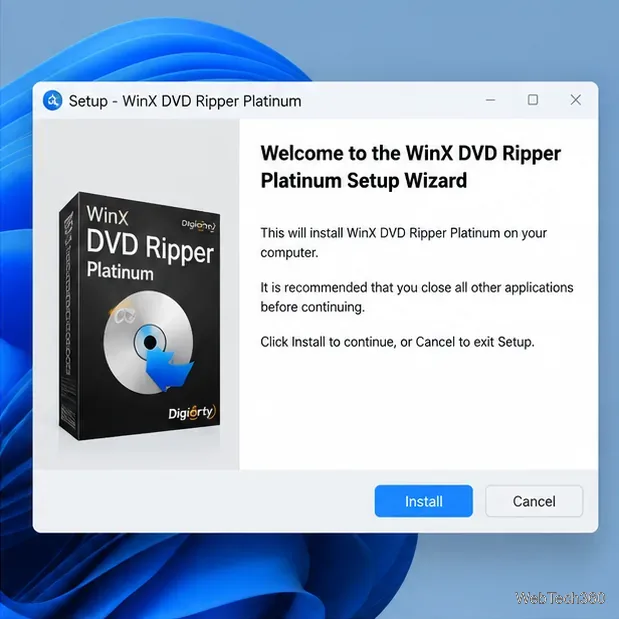
Open the official download page, obtain the Windows installer, and run it. Review the installer prompts and finish setup. Launch WinX DVD Ripper Platinum from the Start menu or its shortcut. The trial is limited: the publisher’s FAQ says it converts only the first five minutes of a DVD, so check the current terms before deciding whether to buy a license.
Download the installer from the publisher’s official WinX DVD Ripper page.Follow the setup wizard to install the application.
2. Load the DVD
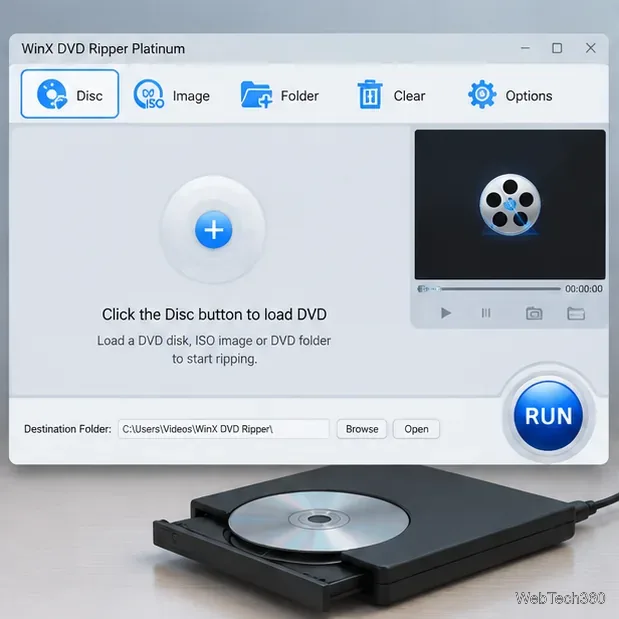
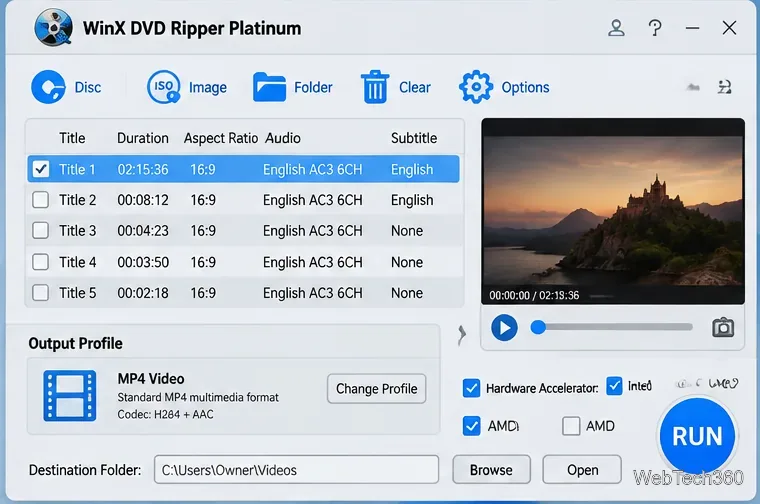
Insert the disc into the optical drive. In WinX DVD Ripper, select Disc (sometimes labeled DVD Disc), choose the correct drive if prompted, and confirm. The software scans the disc and lists its titles. If the source is already stored on your PC, use the relevant ISO Image or Folder option instead.
Use Disc to load a physical DVD, or choose an ISO image or DVD folder.
For movies, the main feature is usually the longest title, but do not assume duration alone proves which item you want. Preview the listed titles and check their duration, audio, and subtitle options. For a TV series or bonus features, select the particular title or titles you need.
3. Choose MP4 as the output format
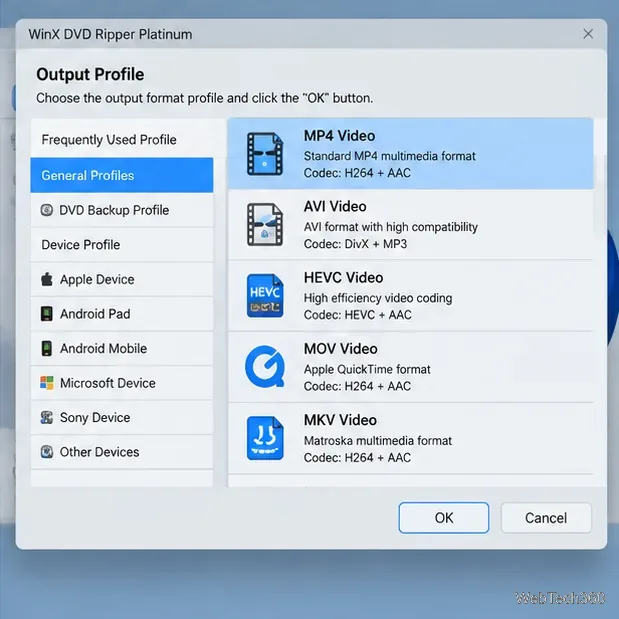
After the disc loads, the Output Profile window appears. Open General Profiles and choose MP4 Video, then confirm with OK. MP4 is a practical default for Windows because it is widely supported. If you need a file for a specific device, choose a suitable device profile instead. Keep in mind that changing the container or resolution cannot restore detail that is not present on the DVD.
Select MP4 Video for broad compatibility with Windows media players.
4. Set the destination folder
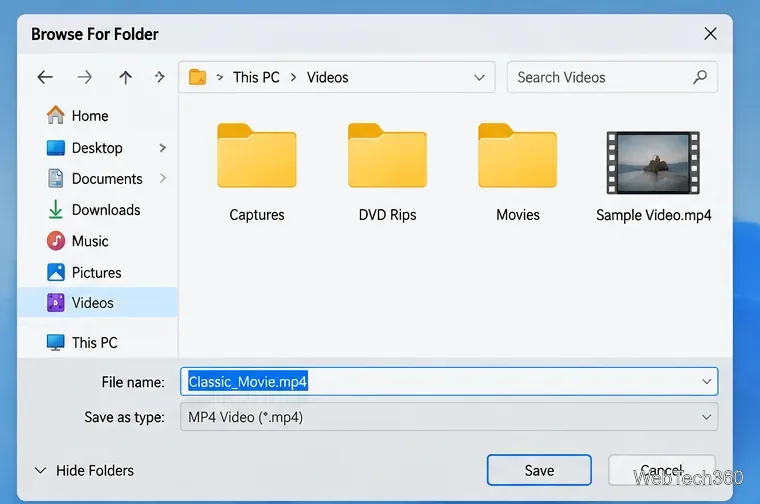
Use Browse beside the destination field to select an easy-to-find folder, such as Videos or a dedicated DVD Rips folder. Confirm that the drive has sufficient free space. Give the output a clear filename if the application offers that option, and avoid saving it to a temporary folder you might later clear.
Choose a destination folder with enough free space for the converted video.
5. Review settings and start ripping
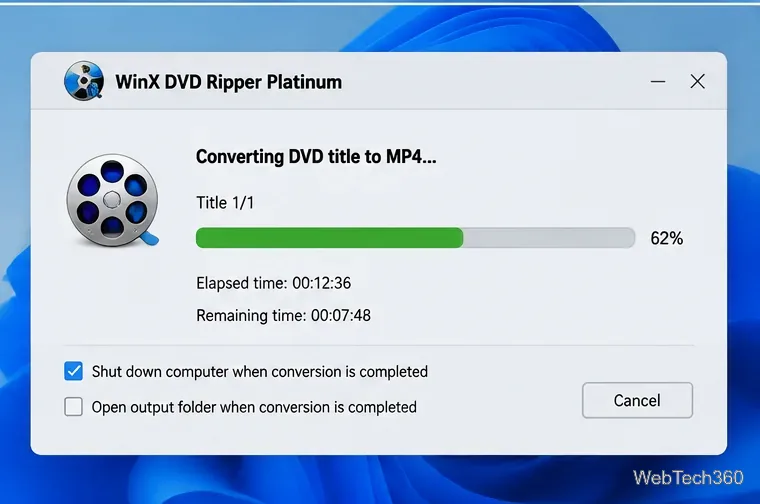
Before starting, confirm the correct title is checked, MP4 is selected, and the destination path is right. If the application offers hardware acceleration for supported Intel, NVIDIA, or other hardware, enable only options appropriate to your system; do not select hardware your PC does not have. Click RUN to begin. Processing time varies with disc condition, title length, output settings, and PC hardware—advertised speed claims are not a guarantee for every computer.
Check the title, output profile, destination, and available hardware acceleration before starting.Wait for conversion to finish; the time depends on the disc, PC, and settings.
6. Play the converted file
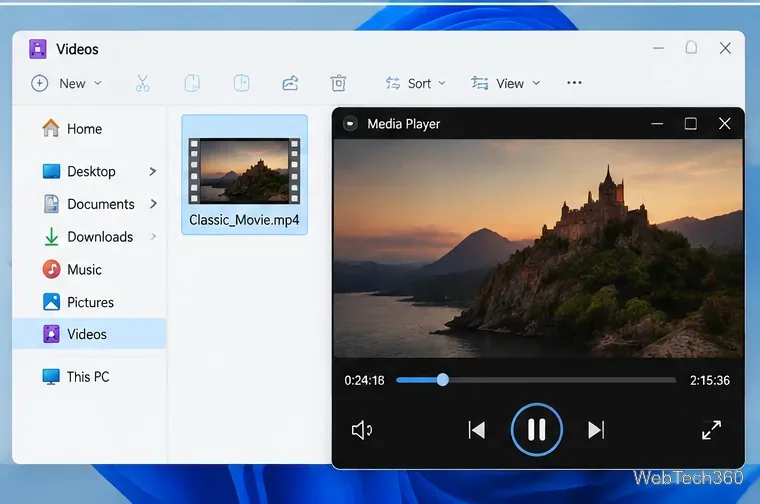
When conversion finishes, open the destination folder and double-click the MP4 file. It should play in a compatible app such as Windows Media Player, Media Player, or another installed video player. If Windows asks which app to use, choose one you trust. Keep the original disc as a backup; a converted file may not preserve every disc menu, extra, subtitle track, or interactive feature.
Open the resulting MP4 file in a compatible media player.
Common problems and fixes
The disc is not detected: Check that the drive appears in File Explorer, reconnect a USB drive, try another USB port, and inspect the disc for dirt or scratches. Restart the app after reconnecting the drive.
The wrong title is selected: Compare the titles’ durations and preview them before conversion. Episodic discs may contain multiple similarly sized titles.
The output will not play: Confirm the file finished converting and is not the trial’s five-minute sample. Try another media player and make sure the output file is not zero bytes.
Conversion fails or freezes: Clean the disc gently, close other heavy applications, make sure the destination drive is writable, and try a supported output profile. If the app provides a safe or compatibility mode, consult its current guide before changing advanced settings.
Subtitles or audio are missing: Reopen the title settings and select the desired audio track and subtitle option before starting another conversion.
What to know about compatibility and copying
WinX advertises MP4, AVI, MPEG, and device-specific output profiles, plus options for DVD backup. Availability depends on the edition and version. The free trial is not a full-length conversion solution, and copy-protection support should not be interpreted as permission to circumvent legal restrictions. Use this workflow for discs you are entitled to copy and keep any digital backup secure.