How to Move Minecraft to Another Drive in Windows 10

Move Minecraft for Windows to another drive with the built-in Settings option, protect your worlds, and see what to do if Move is unavailable.
If you are trying to add a game to GeForce Experience on Windows 10, the current method is slightly different from older guides. NVIDIA has replaced GeForce Experience with the NVIDIA App, which keeps its game-detection and optimization features in a newer interface. Instead of adding a game executable one at a time, you add the folder where your games are installed and let NVIDIA App scan that location.
NVIDIA says GeForce Experience can still be reinstalled, but it is no longer supported. For most Windows 10 systems, the steps below are the recommended approach. You can get the current software from the official NVIDIA App download page.
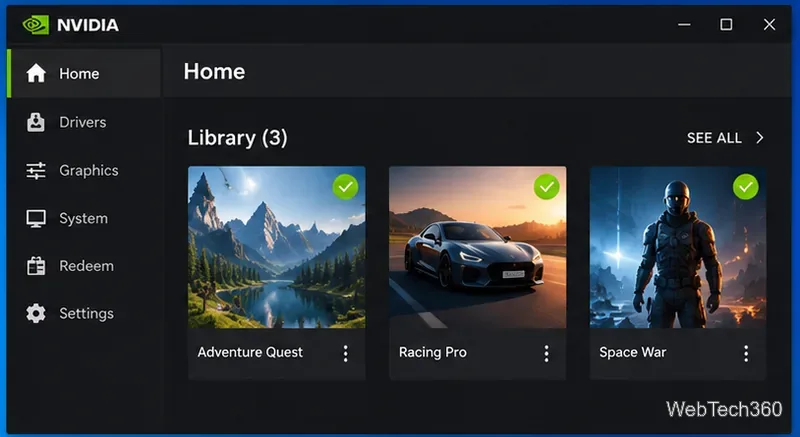
Before changing anything, open NVIDIA App and check the Home screen. Games that the app has already detected appear in its Library. If the game you want is already listed, you do not need to add it again.
D:\Games, adding that parent folder is usually more useful than adding a desktop shortcut or Start menu entry.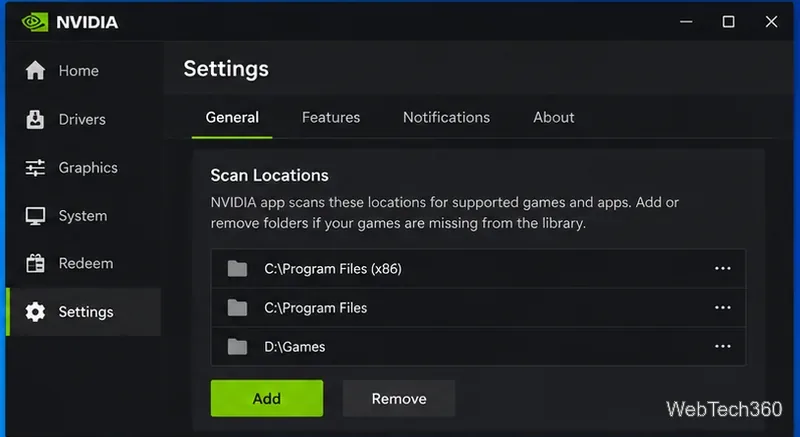
NVIDIA's own support page confirms this workflow: if a supported game is missing, make sure its installation directory is one of the folders NVIDIA App checks. See NVIDIA's game-detection support article for the current guidance.
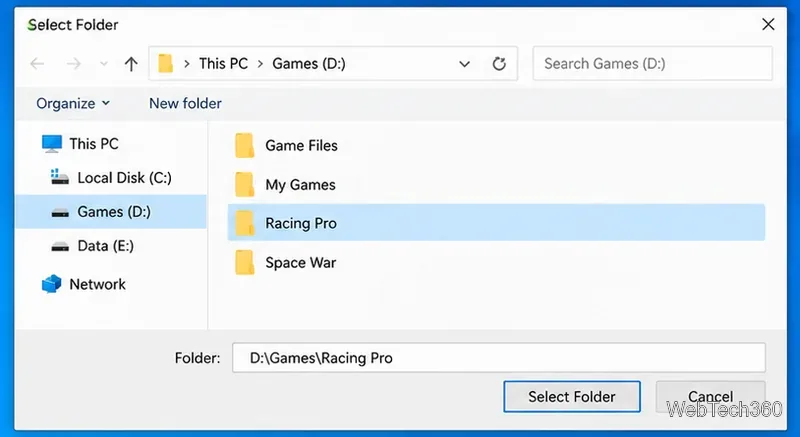
Adding a scan location does not guarantee that every executable will become an optimizable game. NVIDIA App recognizes supported titles and their configuration files. If nothing appears after adding the correct folder, work through these checks:
C:\Program Files.If the game is detected but cannot be optimized, NVIDIA specifically recommends running the game once and updating it to its latest official patch. The company documents those steps in its optimization troubleshooting guide.
Once a supported game appears, select it from the Library or Graphics section. NVIDIA App can recommend settings based on your GPU, CPU, and display, and it provides a Performance-to-Quality control before you apply the recommended configuration. You can review the individual settings first rather than treating optimization as mandatory.
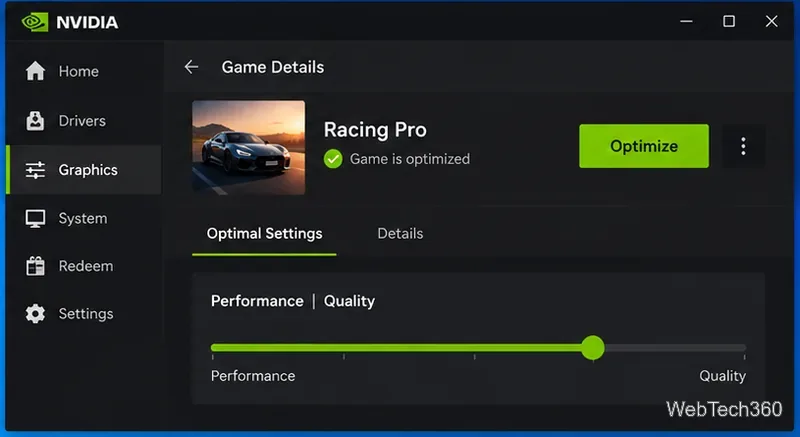
If you prefer your own in-game settings, leave them unchanged. NVIDIA App is a convenience layer, not a requirement for launching games.
Technically, yes, but it is now a legacy path. NVIDIA's current FAQ says you can uninstall NVIDIA App and reinstall GeForce Experience, but it also states that GeForce Experience is no longer supported. That is why older instructions that refer to the GeForce Experience Home page, a three-dot menu, a Games tab, or a separate “Scan for games” command should be treated as outdated for a current Windows 10 setup.
The practical fix is simple: use NVIDIA App, open Settings > Scan Locations, add the folder where the game is installed, and verify that the title is on NVIDIA's supported-games list. That keeps the original GeForce Experience functionality while using the interface NVIDIA currently maintains.
Move Minecraft for Windows to another drive with the built-in Settings option, protect your worlds, and see what to do if Move is unavailable.
Find out why Windows 10 hides SmartScreen’s Run anyway button, how to review the warning, and how to allow a bypass while keeping SmartScreen on.
Combine left and right channels so you can hear the full mix through one earbud. Follow the Windows 10 Settings path and learn how to restore stereo when you want it.
Learn how to build a custom grid for your display in Windows 10 with PowerToys FancyZones, adjust zones, choose each monitor, and snap apps into place.
Set Windows 10 to sign in automatically at startup with Microsoft Sysinternals Autologon, then learn how to disable it and understand the security tradeoffs.
Add the Ultimate Performance power plan in Windows 10 with an elevated command, select it in Power Options, and check compatibility and power-use limits.
Refresh missing or incorrect bookmark icons in Edge by reopening the saved page, clearing cached images, or rebuilding the favicon cache safely.
Turn the number row into virtual numpad keys on Windows 10 with AutoHotkey v2. Set up a Caps Lock toggle, test it in your app, and see what the script cannot remap.
Turn off a wired Ethernet adapter in Windows 10, confirm you selected the right device, restore it later, or use PowerShell.
Pair Bluetooth headphones with Windows 10, choose them as your audio output, and fix common discovery or sound problems.








