How to Fix Lines on a Monitor Screen in Windows 10

Use a screenshot test, cable and port checks, monitor diagnostics, display settings, and driver rollback to pinpoint lines on a Windows 10 monitor.
Modern browsers do not have one universal “trusted websites” switch. In Chrome, Edge, and Firefox, the safest approach is to allow only the specific permission or compatibility exception a site needs. Windows still has a legacy Trusted sites security zone, but Microsoft Edge uses Windows Security Zones only for limited decisions and Internet Explorer mode—not as a general allowlist for normal browsing.
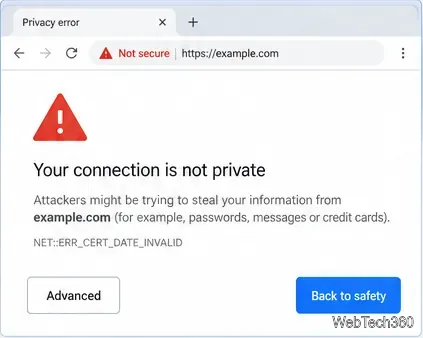
Before changing anything, identify what the browser is actually blocking. Granting a narrow permission is safer than weakening browser-wide protection.
| What is blocked | Best fix |
|---|---|
| Camera, microphone, location, notifications, or pop-ups | Allow that permission for the site only. |
| HTTP images or frames inside an HTTPS page | Allow insecure content only if the site genuinely requires it. |
| A Firefox page breaks because tracking protection blocks required resources | Turn off Enhanced Tracking Protection for that site only. |
| Certificate, “connection is not private,” phishing, or malware warning | Do not use a trusted-site workaround. Fix the certificate/network issue or leave the site. |
| A managed work or school browser blocks a setting | Ask the administrator; policy may prevent local changes. |
Chrome lets you override individual site permissions. Google documents this under Change site settings permissions.
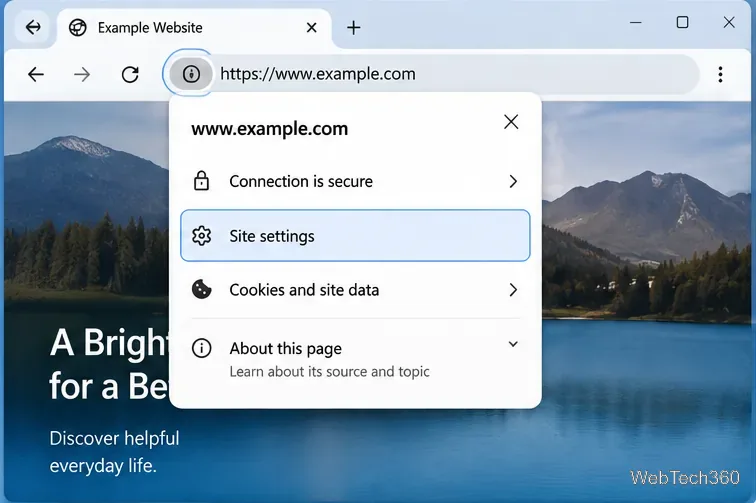
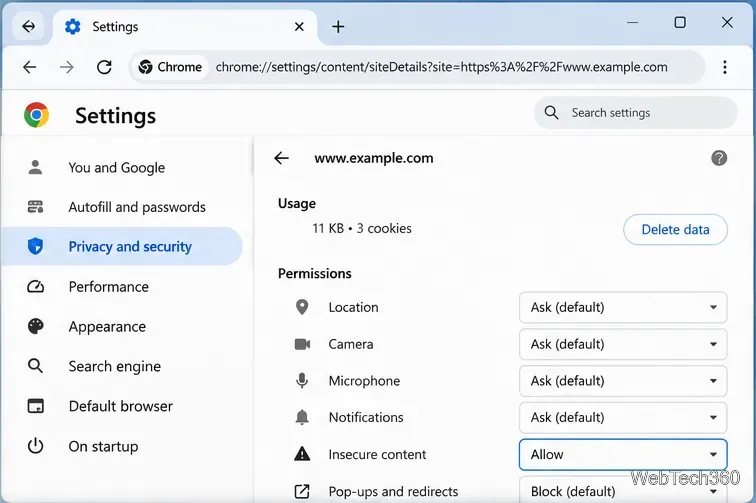
If an HTTPS page depends on an HTTP image, frame, or other mixed content, Chrome can allow Insecure content for that site. This is not the same as declaring the whole website safe, and it does not remove Safe Browsing or certificate checks. Use it only when you understand why the site requires mixed content.
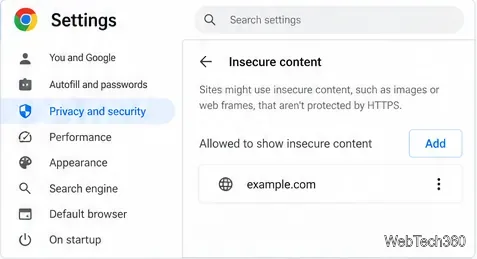
Edge also uses per-site permissions. Microsoft notes that most Edge permissions are configured per site rather than through the old Windows security-zone model. See Microsoft’s per-site configuration guidance.
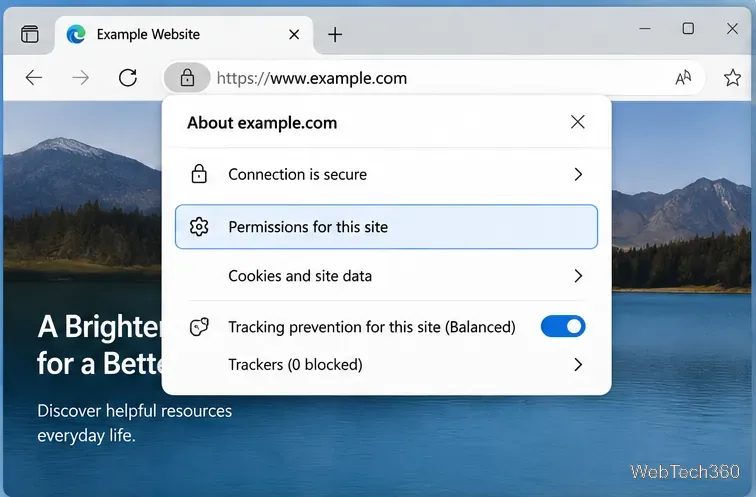
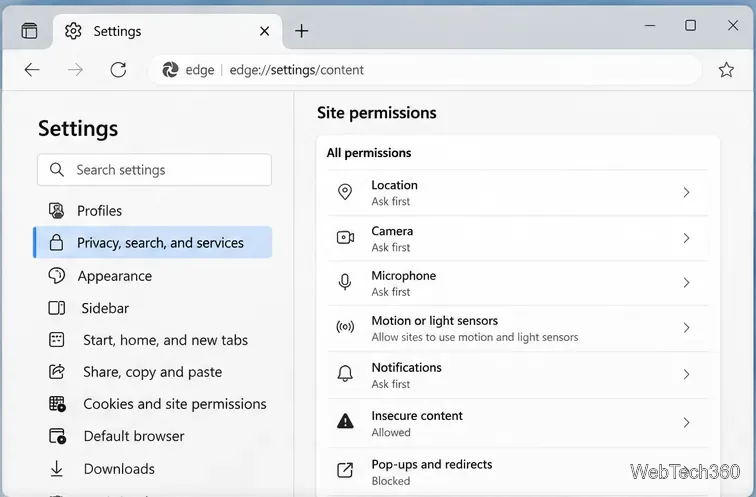
You can also review permission categories in Settings > Privacy, search, and services > Site permissions > All permissions. Menu names can move slightly between Edge releases, but per-site permission controls remain the preferred approach.
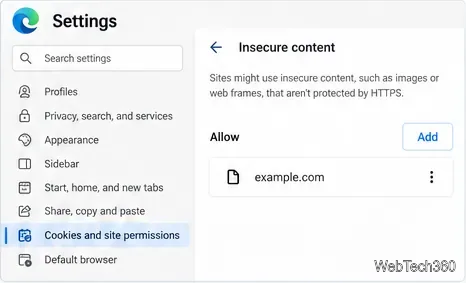
Firefox does not provide a single desktop “Trusted Sites” list. For normal permissions, use the site’s permissions controls or Page Info. Mozilla explains these controls in its Site Permissions panel documentation.
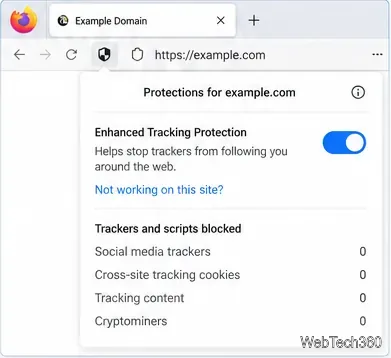
If a legitimate site is broken because Firefox Enhanced Tracking Protection blocks required resources, click the shield beside the address and turn Enhanced Tracking Protection off for that site. Mozilla recommends this as a site-specific troubleshooting step; it does not make certificate or malware warnings safe. You can turn protection back on at any time. See Mozilla’s Enhanced Tracking Protection guide.
The Internet Options > Security > Trusted sites zone still exists in Windows for legacy and enterprise scenarios. To add a site, press Windows + R, enter inetcpl.cpl, open the Security tab, choose Trusted sites, select Sites, and add the address. Keep the HTTPS requirement enabled whenever possible.
Do not expect this Windows list to override normal Chrome, Firefox, or Edge security warnings. Microsoft states that modern Edge relies mainly on its own per-site settings and uses Security Zones only for a few decisions such as integrated authentication, certain download behavior, and Internet Explorer mode.
If Chrome shows Your connection is not private, Google recommends resolving the certificate, network, or device problem rather than installing certificates yourself. See Chrome’s error-message guidance. Likewise, a red phishing or malware warning is a Safe Browsing alert; Google advises against visiting the site. Microsoft gives similar guidance for sites flagged by Defender SmartScreen in Edge security documentation.
For an internal company site with a private certificate authority, the correct fix is usually for IT to deploy the organization’s trusted root certificate and configure the browser or device by policy. Avoid broad security exceptions when a narrow permission or proper certificate configuration will solve the problem.
Use a screenshot test, cable and port checks, monitor diagnostics, display settings, and driver rollback to pinpoint lines on a Windows 10 monitor.
Show two other time zones beside your Windows 10 clock. Set up each additional clock, give it a clear label, and find it in the taskbar calendar.
Find the File Explorer extension that delays right-click menus in Windows 10, test it safely with ShellExView, and restore any menu features you still need.
Stop Windows 10 from powering down a specific network adapter or USB device with plan-level settings and Device Manager controls, plus tips to avoid excess battery drain.
Check whether Windows 10 uses a digital license or product key, find a firmware-stored OEM key, and save license details securely for a reinstall.
Identify a Windows 10 Task Manager process by checking its executable path, file properties, publisher, linked services, and a Microsoft Defender scan.
Create a searchable Windows 10 folder inventory with PowerShell. Save every file and subfolder path as plain text or export details to a sortable CSV.
Add a custom reminder, quote, or label to your Windows 10 desktop with a Rainmeter text skin. Create the INI file, load it, then adjust its font and position.
Use Bluetooth Swift Pair on Windows 10 to pair a compatible accessory from a notification, with setup steps and fixes when the prompt does not appear.
Learn what common laptop function key symbols mean, how Fn and Fn Lock affect them, and how to confirm the right shortcut for your Windows 10 laptop model.








