How to Add Users to Jira Boards: Project Roles and Filter Access

To add someone to a Jira board, give them access to Jira and to the project whose work appears on the board. Jira does not have one universal “invite to this board” control. A team-managed board follows access to its project; a company-managed board also depends on the saved filter behind it. If either project permission or filter access is missing, the person may be unable to open the board or may see no work items.

This guide covers Jira Cloud. Atlassian documentation and some screens now use “space” where older Jira pages say “project”; the wording and menu placement can vary by project type and site configuration. The interface images below are illustrative, so compare the labels with your own Jira site.

Understand the three access layers

Check these permissions separately before changing anything:

  • Jira app access: For licensed Jira work, the person needs a Jira app role. An organization admin or user access admin can grant it in Atlassian Administration; project access does not always include app access. See Atlassian’s app access instructions.
  • Project access: A role controls what the person can do with work items. Choose read-only access for board viewers; editors need the corresponding permissions.
  • Saved filter access: A company-managed board also requires permission to view its saved filter and browse the project work. Board viewers do not automatically administer the board.

1. Check whether the project is team-managed or company-managed

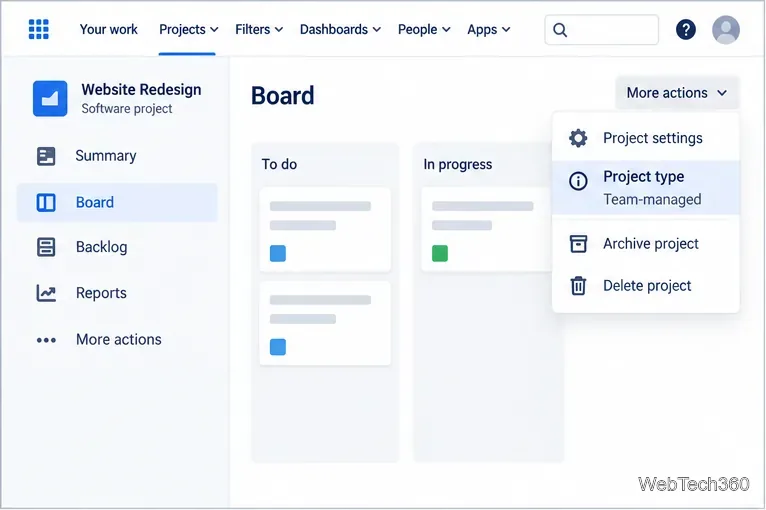
Open the project and select More actions (•••) beside its name to see the project type. Team-managed projects use an Access page; company-managed projects use People and roles connected to a permission scheme. See Atlassian’s comparison of project settings.

A Jira project board with the More actions menu open and Team-managed shown under Project type.
Check the project type first; it determines which access settings to use.

2. Add someone to a team-managed project

A team-managed project administrator can add people and assign roles from the project’s Access page:

  1. Open the project sidebar and select Project settings or Space settings.
  2. Select Access, then Add people.
  3. Enter the person’s name or email address, choose the least-privileged role that fits the work, and select Add.

Default roles are Viewer, Member, and Administrator: viewers can see work, members can collaborate, and administrators can manage settings. Check Access before relying on individual membership: open or limited projects give site users default access, while private projects are limited to admins and added people. See Atlassian’s team-managed access guide.

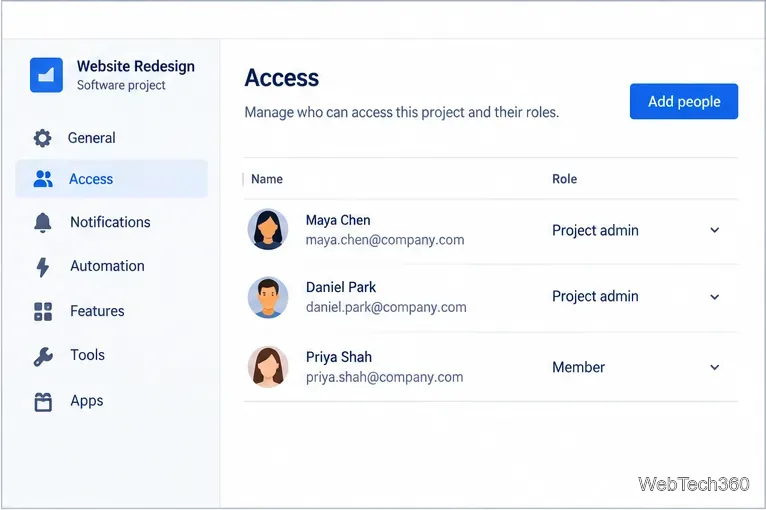
The Access page in a team-managed Jira project, with an Add people button and a list of assigned roles.
Open Access to review current project members and their roles.
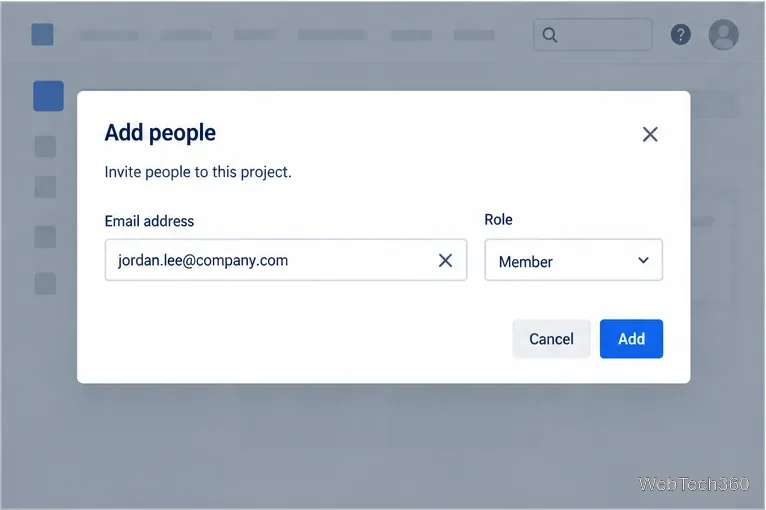
An Add people dialog with an email field, a Member role dropdown, and an Add button.
Enter the person’s email and select an appropriate project role.
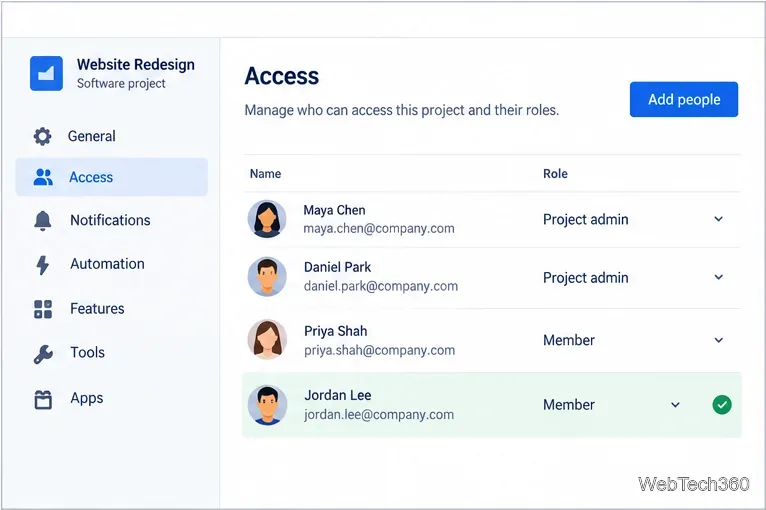
The team-managed Access list after Jordan Lee has been added with the Member role.
Confirm the person appears in the project access list with the intended role.

3. Add someone to a company-managed project

Company-managed project roles connect to a permission scheme. A project administrator with role-management permission can add someone; otherwise, ask a Jira administrator.

  1. Open the project’s People page in project settings.
  2. Select Add people, enter a name or email, and choose the project role they need.
  3. Select Add, then confirm the person appears with the correct role.

Available roles vary. Check the permission scheme to see what a role grants; schemes may be shared across projects, so a role can provide broader access than one board. See Atlassian’s project-role instructions.

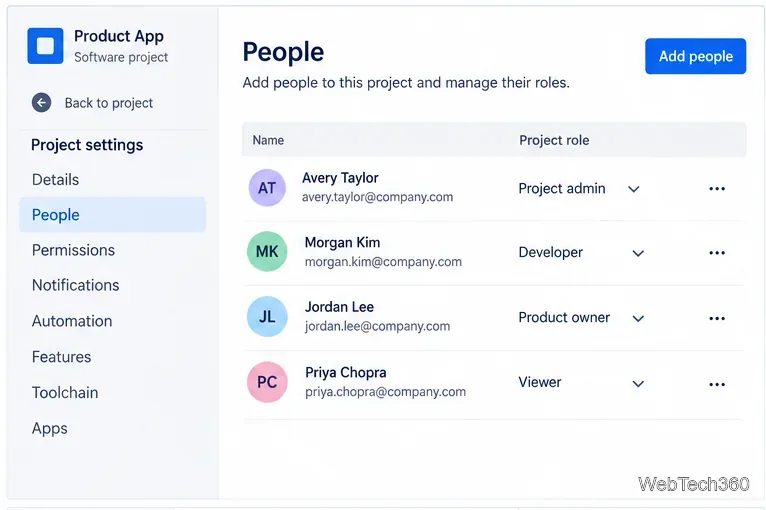
The People page for a company-managed Jira project, showing a project role column and an Add people button.
Company-managed projects list people and roles on the People page.
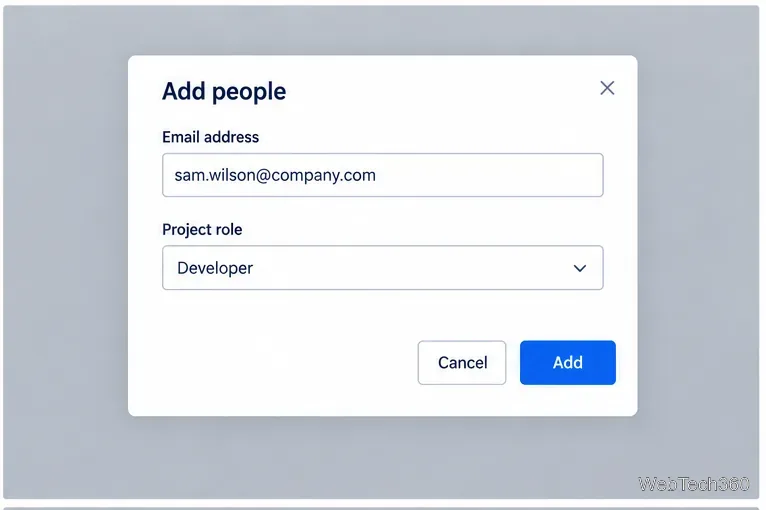
An Add people dialog for a company-managed project with an email address, Developer role, and Add button.
Choose a project role that grants only the access the person needs.

4. Share a company-managed board’s saved filter

If the person can open the project but not the board, check the saved filter. Use More actions > Configure board to identify it, or find it under Filters > View all filters.

  1. Open the filter and select Details, then Edit permissions (or edit the filter from the Filters page).
  2. Add the relevant user, group, project, or project role as a viewer. Grant editor access only if they need to change the filter itself.
  3. Select Add and Save. Have the person reopen the board and confirm that its work items are visible.

Share only with the needed project, role, group, or person. A public filter can be found on the internet, so avoid public access for internal work. If sharing options are missing, ask an admin about the Create Shared Object global permission. See Atlassian’s filter-sharing guide and company-managed board guide.

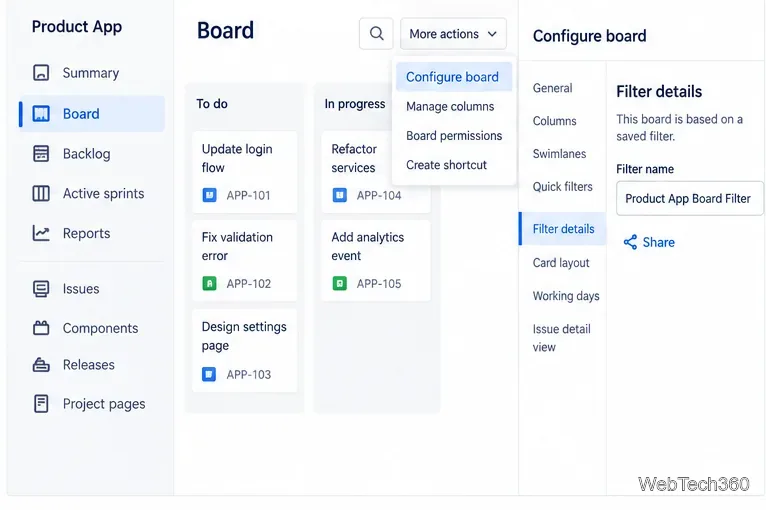
A Jira company-managed board with Configure board open to Filter details and the saved filter’s Share control.
Use the board settings to identify which saved filter controls board visibility.
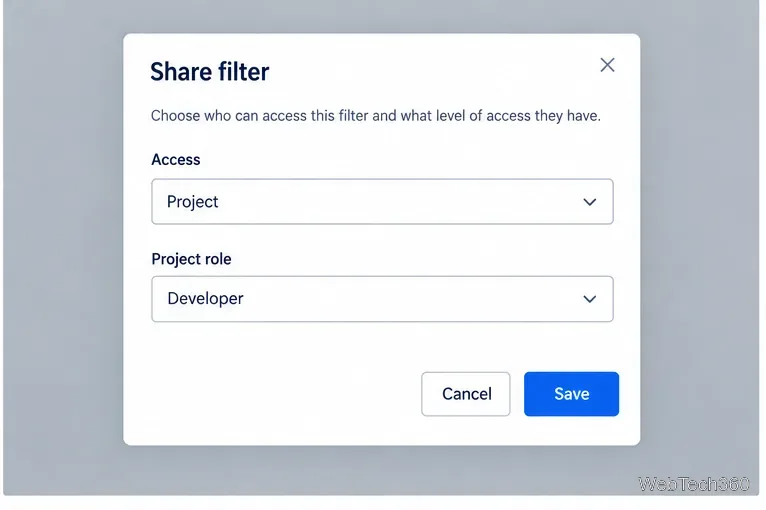
The Share filter dialog with access limited to a project role named Developer and a Save button.
Share the filter with the relevant project or role instead of making it public.

If the user still cannot see the board

  • They cannot sign in: Ask an organization or user access admin to confirm Jira app access and resend the invitation using Atlassian’s invite flow. The person should use the invited email address.
  • The project is missing: Check the assigned role and, for company-managed projects, the scheme’s browse permission.
  • The board looks empty: Confirm the filter is shared and includes work items the person can browse.
  • You cannot change access: Ask a project or Jira administrator for the required role-management or filter-sharing permission. Board administration does not automatically grant project permissions.

Give Jira app access when required, add the person to the right project role, and share the filter if needed. Then verify they can open the board and see its intended work.

Leave a Comment

How to Make a Glass Bottle in Minecraft
How to Make a Glass Bottle in Minecraft

Learn the exact three-glass recipe, smelt sand into glass, and fill your Minecraft bottles with water for brewing.

How to Make a Discord Server Private or Public

How to Make a Discord Server Private or Public

Control who can join, see channels, and find your Discord server with role permissions, invite links, and Discovery settings.

How to Make a Discord Server: Create, Set Up, and Invite Members

How to Make a Discord Server: Create, Set Up, and Invite Members

Create a Discord server in the desktop app or browser, organize channels, set permissions and safety tools, then share an invite that fits your group.

How to Make an Infinite Lava Farm in Minecraft

How to Make an Infinite Lava Farm in Minecraft

Build a renewable lava farm with pointed dripstone, one lava source, and a cauldron. Follow the setup, collection steps, and fixes for a cauldron that will not fill.

How to Fix Minecraft Skins That Fail to Load

How to Fix Minecraft Skins That Fail to Load

Fix a Minecraft skin that will not load by checking Bedrock Dressing Room, your Microsoft account, Marketplace downloads, updates, and Java skin settings.

What Languages Are Available in Minecraft? Java vs. Bedrock

What Languages Are Available in Minecraft? Java vs. Bedrock

Minecraft language options differ between Java and Bedrock. See common languages, why old counts are unreliable, and where to check your edition.

What to Put in a Minecraft Survival Base: Essentials and Upgrades

What to Put in a Minecraft Survival Base: Essentials and Upgrades

Plan a practical Minecraft survival base with the essentials for safety, food, storage, and crafting, plus useful upgrades to add as your world grows.

How to Update Minecraft on Nintendo Switch: Manual and Automatic Methods

How to Update Minecraft on Nintendo Switch: Manual and Automatic Methods

Update Minecraft on Nintendo Switch from the HOME Menu, enable automatic updates, and troubleshoot when the console cannot find or install one.

How to Get Minecoins in Minecraft: Buy, Redeem, and Use Them

How to Get Minecoins in Minecraft: Buy, Redeem, and Use Them

Learn the official ways to get Minecoins in Minecraft, redeem a prepaid code, spend coins on Marketplace content, and fix a missing balance.

How to Add Users to Jira Boards: Project Roles and Filter Access

How to Add Users to Jira Boards: Project Roles and Filter Access

Learn how to add Jira users to team-managed and company-managed projects, assign the right role, and share a board’s saved filter safely.