How to Make a Glass Bottle in Minecraft
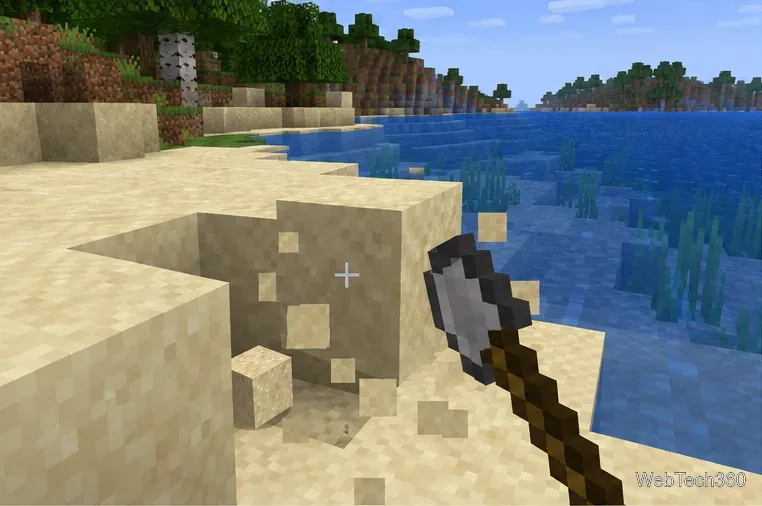
Learn the exact three-glass recipe, smelt sand into glass, and fill your Minecraft bottles with water for brewing.
To make a Discord server, sign in on desktop or in a browser, select Add a Server (+), choose Create My Own or a template, name the server, and select Create. Then add channels, review permissions, and invite people. These steps follow Discord's current desktop and browser workflow; mobile menus may look different.
A server is a shared space organized into text and voice channels. Start with a few rooms for your group, then add more as needed. See Discord's server setup guide for its current creation flow.
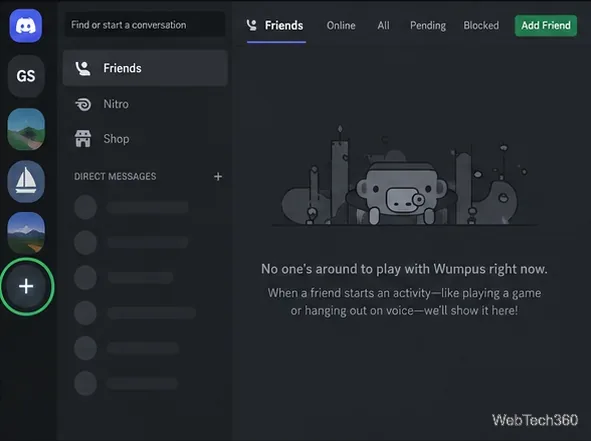
Find the plus icon in the vertical server rail at the far left. Select Add a Server. If you have many servers, scroll down the rail; the button may be below the visible icons.
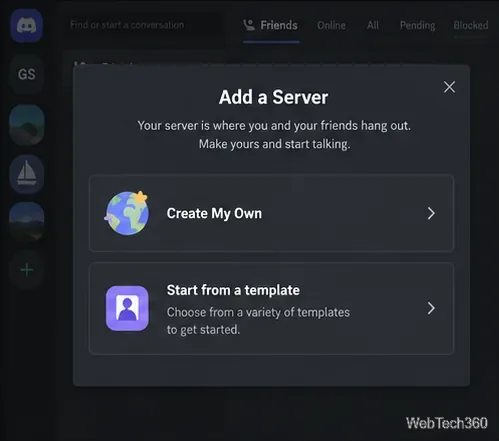
Select Create My Own for a blank setup, or use a template if its channels suit your group. You can change channel names and settings later.
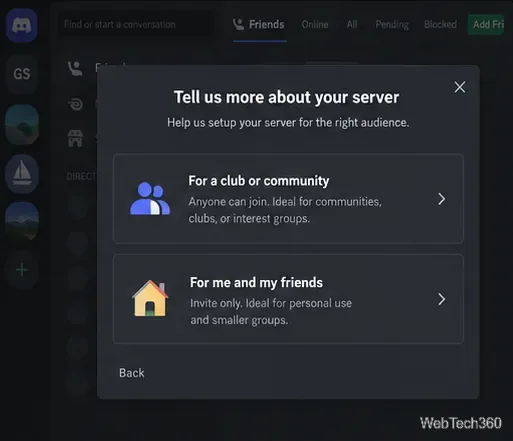
Select the friends option for a small group, or the club and community option for a wider shared interest. Discord describes Community servers as invite-only too, with additional tools for moderation and welcoming members. Community setup does not automatically make a server public; Discovery has separate eligibility and setup requirements.
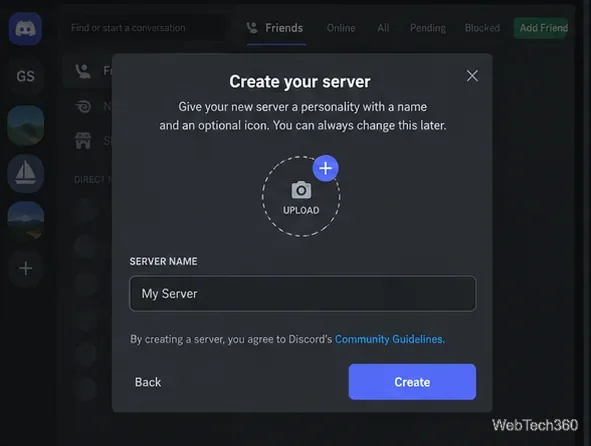
Enter a recognizable name, upload an icon if you want one, and select Create. Discord's server creation guide lists 128 by 128 pixels as the icon minimum. You can change the name and icon after setup, so you do not need to finalize the branding first.
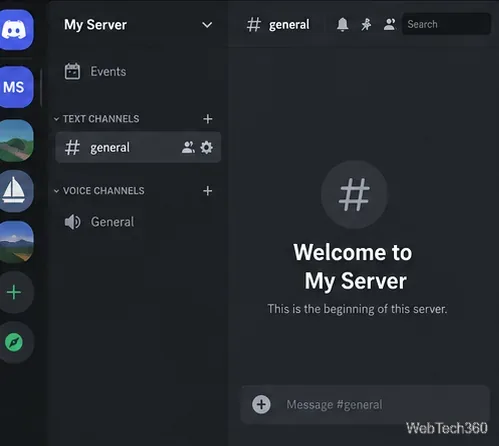
The new server opens to its channel list and chat area. Initial channels can vary by setup path. Check what is there, then rename or remove anything your group does not need.
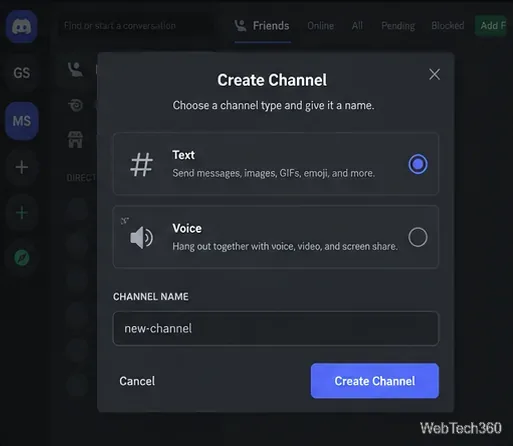
Select the plus beside a channel category, choose Text or Voice, and enter a short name. Use text channels for topics such as introductions or help; voice channels are for live conversation and can also support video and screen sharing.
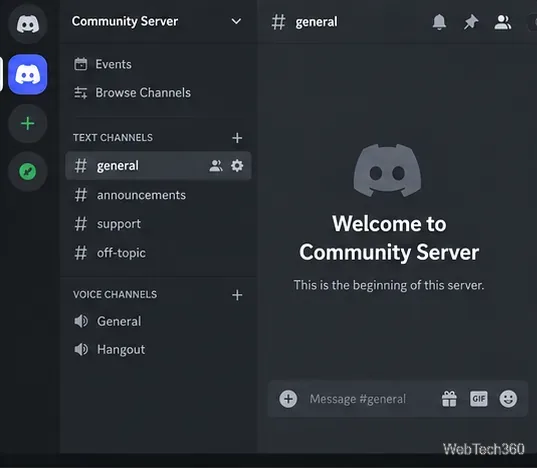
Begin with a few useful rooms, such as #announcements, #general, and a topic or help channel. Add categories to group related rooms as your server grows. Discord supports category-level and channel-specific permissions; a short initial list is easier to navigate than many empty channels.
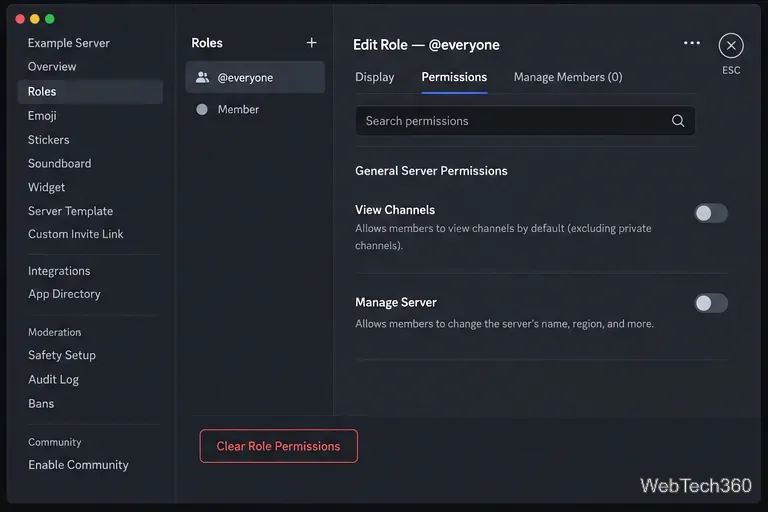
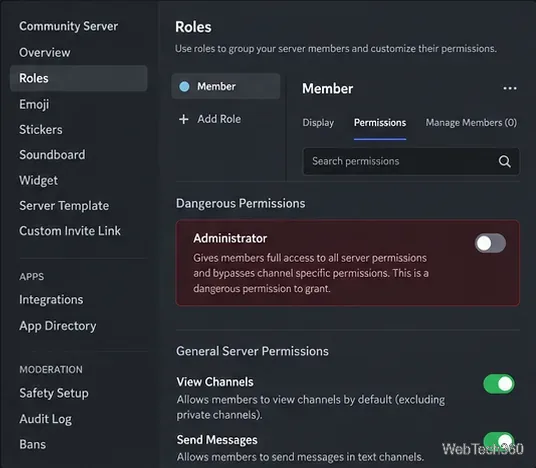
Open the server menu, select Server Settings, and choose Roles. The @everyone role sets baseline permissions for all members. Add roles such as Moderator only when useful, and give each role the specific tasks it needs.
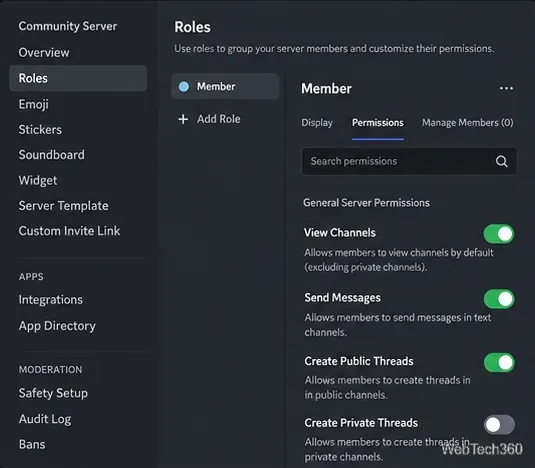
Administrator grants broad access and bypasses channel restrictions. Reserve it for the owner and people who truly need full control. Moderators can often do their jobs with narrower permissions. Discord explains this in its roles and permissions guide.
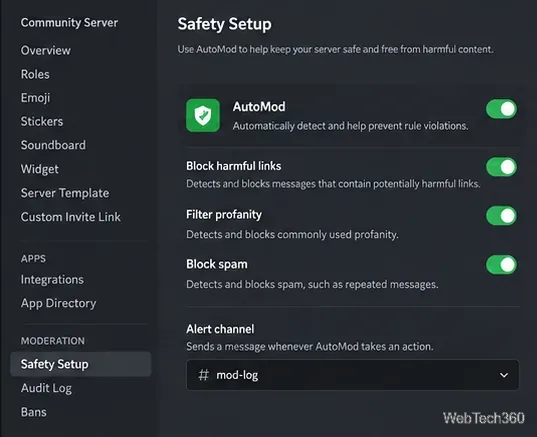
For a wider community, open Server Settings, choose Enable Community, and complete the safety setup. Review the rules and moderation options before sharing a long-lasting invite. Community servers can use Rules Screening and AutoMod to filter messages or alert moderators. See Discord's Community setup guide and AutoMod guide.
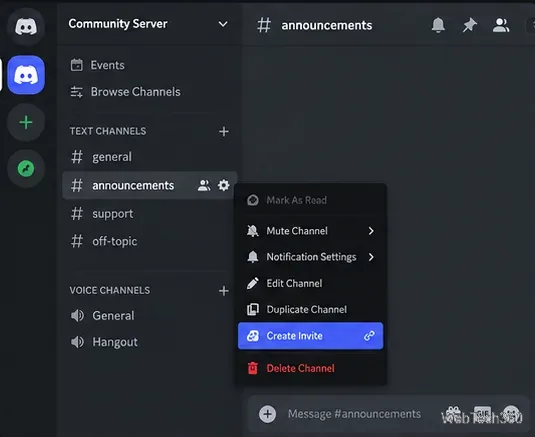
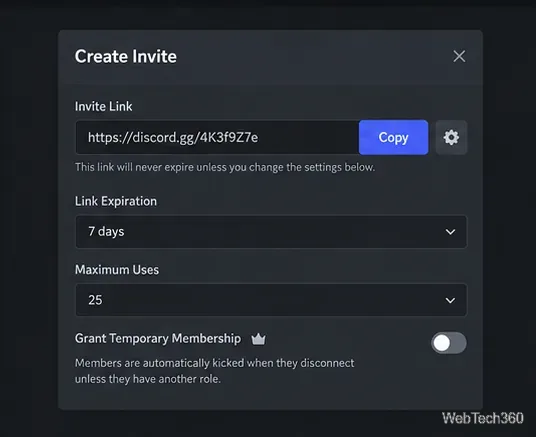
Open a channel's menu and select Create Invite. You must own the server or have invite permissions. Starting from a channel can make it the first place a new member sees, as Discord explains in its invite instructions.
In the invite panel, open Edit Invite Link to set an expiration and maximum number of uses. The displayed default can depend on that channel's previous settings. Discord offers a no-expiration option for Community servers. For a small or temporary group, use a shorter expiry or use limit. Generate a new link after changing settings, then copy and share it with the people you want to join. You can review or pause invites in Server Settings. See Discord's Invites 101 guide for details.
No. Servers are invite-only by default. Discord lists separate join options for eligible servers; Community status by itself does not make a server publicly discoverable.
Yes. You can update both after creation, so start with a clear name and focus on the channel layout and permissions first.
Learn the exact three-glass recipe, smelt sand into glass, and fill your Minecraft bottles with water for brewing.
Control who can join, see channels, and find your Discord server with role permissions, invite links, and Discovery settings.
Create a Discord server in the desktop app or browser, organize channels, set permissions and safety tools, then share an invite that fits your group.
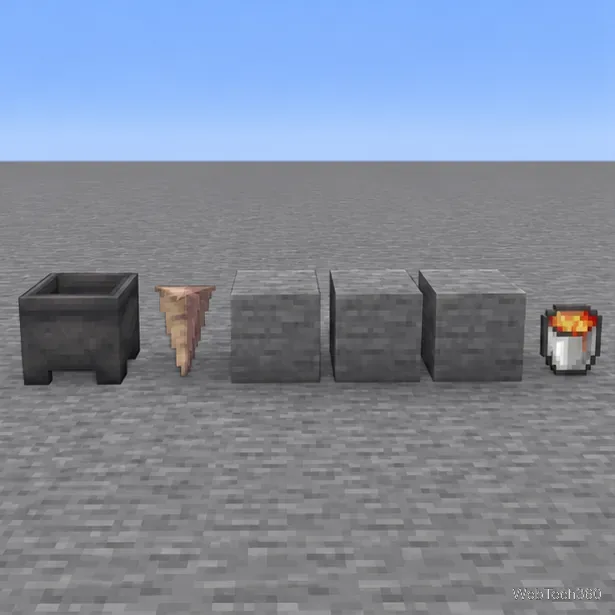
Build a renewable lava farm with pointed dripstone, one lava source, and a cauldron. Follow the setup, collection steps, and fixes for a cauldron that will not fill.
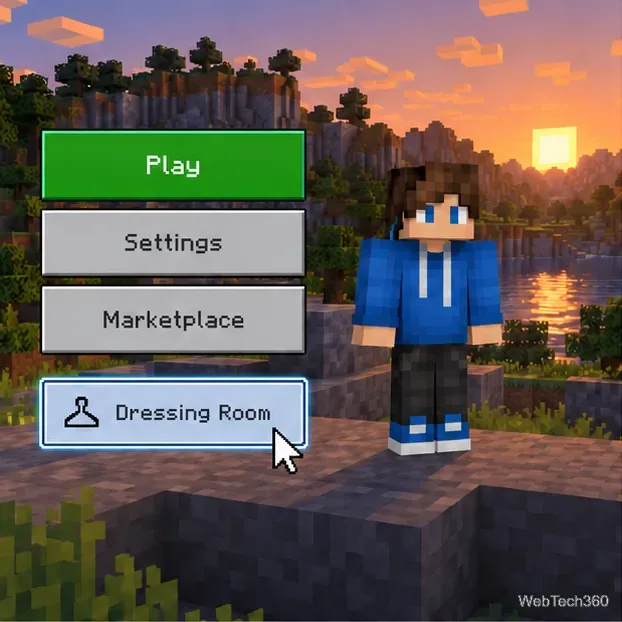
Fix a Minecraft skin that will not load by checking Bedrock Dressing Room, your Microsoft account, Marketplace downloads, updates, and Java skin settings.
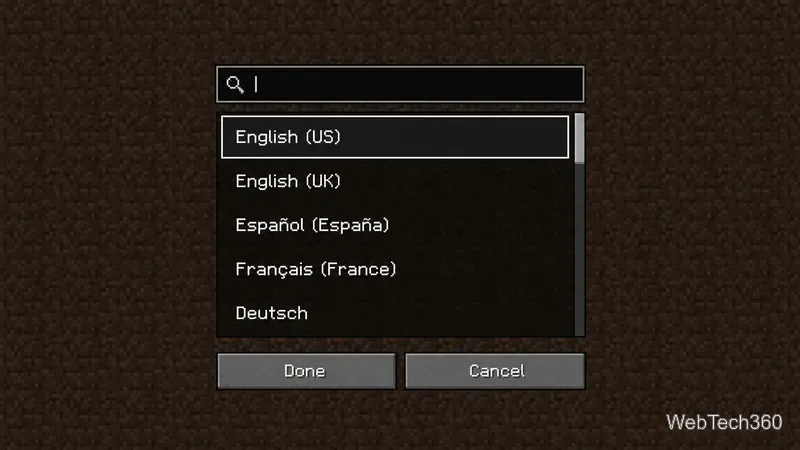
Minecraft language options differ between Java and Bedrock. See common languages, why old counts are unreliable, and where to check your edition.
Plan a practical Minecraft survival base with the essentials for safety, food, storage, and crafting, plus useful upgrades to add as your world grows.
Update Minecraft on Nintendo Switch from the HOME Menu, enable automatic updates, and troubleshoot when the console cannot find or install one.
Learn the official ways to get Minecoins in Minecraft, redeem a prepaid code, spend coins on Marketplace content, and fix a missing balance.
Learn how to add Jira users to team-managed and company-managed projects, assign the right role, and share a board’s saved filter safely.