How to Make a Glass Bottle in Minecraft
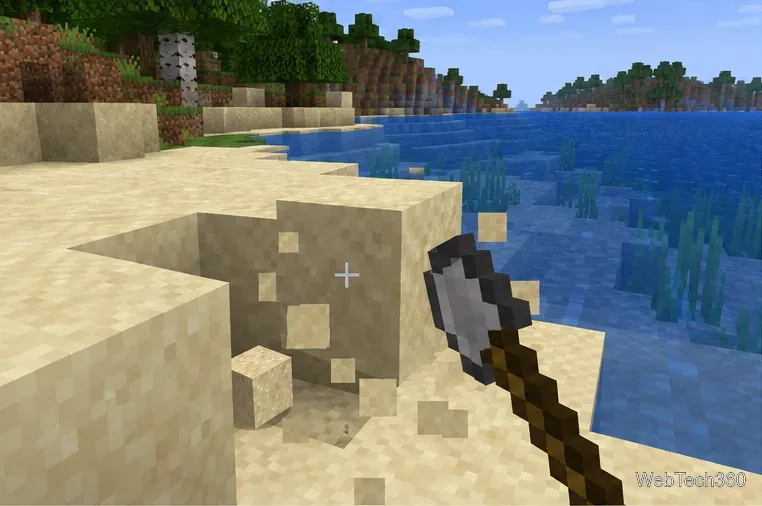
Learn the exact three-glass recipe, smelt sand into glass, and fill your Minecraft bottles with water for brewing.
If a Minecraft skin stays blank or reverts to a default character, identify where it fails. In Bedrock Edition, reselect it in Dressing Room, verify the Microsoft account and Marketplace download, then restart and update. In Java Edition, manage uploaded skins through your Minecraft profile. If it appears locally but not on one server, troubleshoot that session before reinstalling.
Menu names vary a little by platform, so use the official support links below for platform-specific screens.
Check whether one skin or all skins are affected, and whether the failure is in Dressing Room, a local world, or only multiplayer. One missing Marketplace item suggests an account or download issue; every blank preview suggests sign-in, connection, or loading trouble. If it renders locally but not on one server, narrow the issue to that server or online session.
If Bedrock shows the named error “Armor,” Mojang classifies it as a skin issue and recommends changing the skin in Dressing Room. Follow its Bedrock error-code guidance as the starting point.
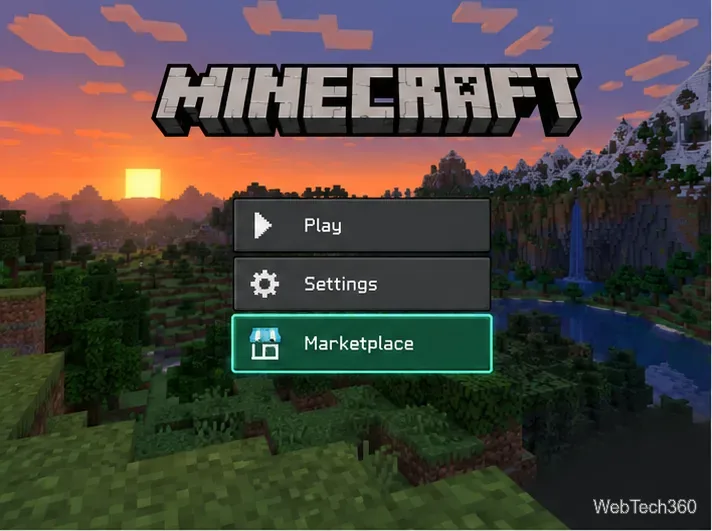
From the main menu, open Dressing Room, choose the affected character, and select the skin again. If that preview remains blank, choose a different skin you know is available. Back out to the menu and reopen Dressing Room. If the alternate skin loads but the original does not, the trouble is limited to that item or imported file; if no skin loads, continue with the account and connection checks.
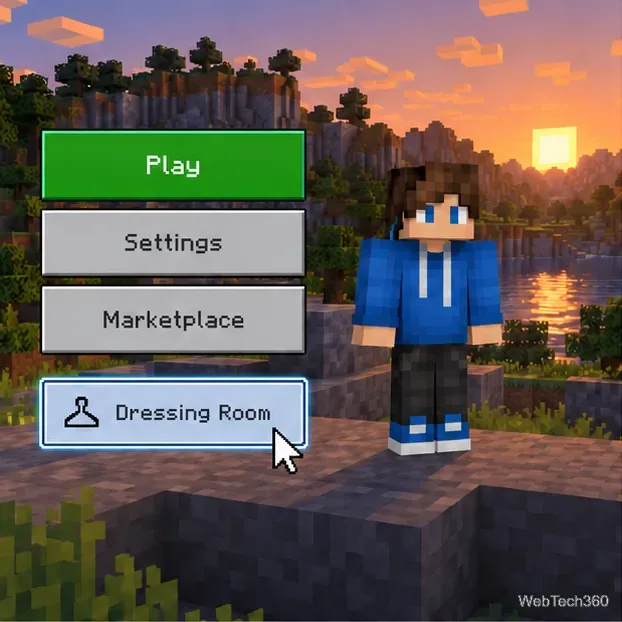
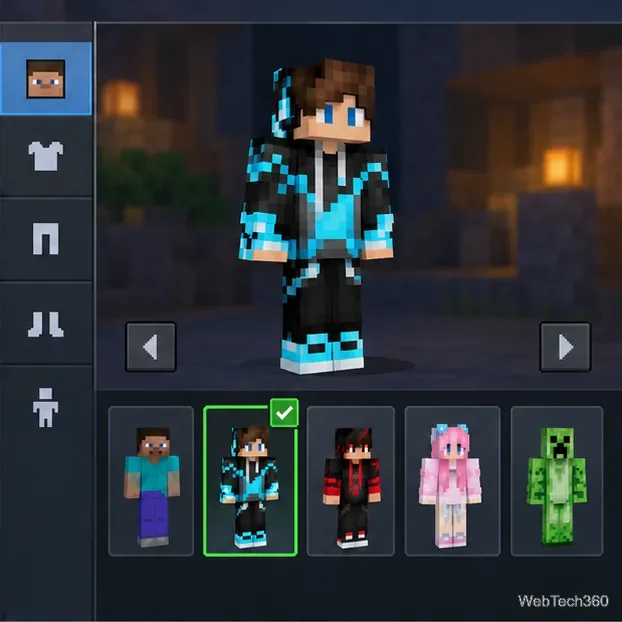
Mojang’s Dressing Room instructions cover equipping Character Creator items and skins. Use a working skin temporarily if one particular preview keeps failing.
Confirm Minecraft is signed in to the Microsoft account that owns or received the skin. Purchases follow the account, so the wrong profile can make content look missing. See Mojang’s account requirements if you need to confirm which account is linked.
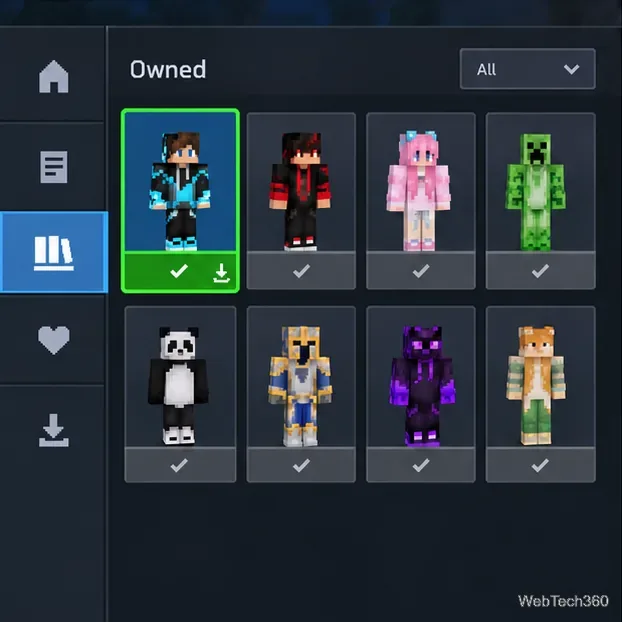
For a Marketplace skin, open Marketplace > My Library and check Owned or the subscription section. Download or equip the skin if offered. Mojang’s Marketplace access guide explains where to find owned content. If the item came through a subscription, confirm the subscription is active and the item is still included.
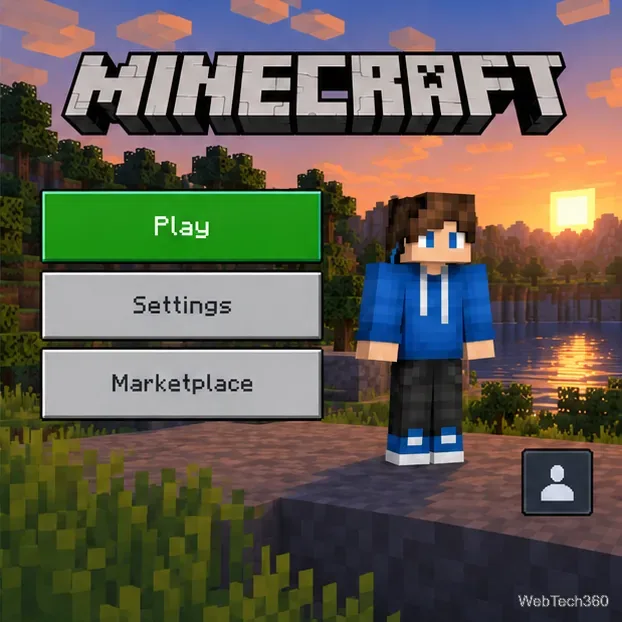
Marketplace and account content need a working connection. If Marketplace items fail too, confirm the device is online, wait a few minutes, fully close and restart the game, then sign back in to the correct account. Mojang recommends waiting, checking the connection, restarting, and updating for Marketplace errors; see its Marketplace error guide and network troubleshooting.
Install the latest standard release from your platform’s store or launcher. If you use a Preview or Beta build, switch back to the regular release before comparing results. Do not delete game folders or clear device data as an early fix; those actions can remove local content and are not a substitute for correcting the account or download.
After selecting a skin in Dressing Room, check it in a local single-player world. If it fails only in multiplayer, test another server. A skin that renders locally but not on one server narrows the issue to that server or connection; confirm the game is current and ask the operator about skin or compatibility restrictions.
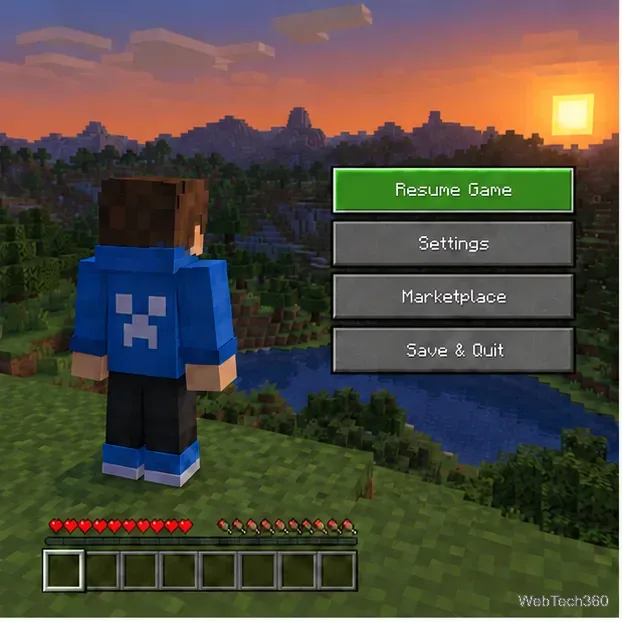
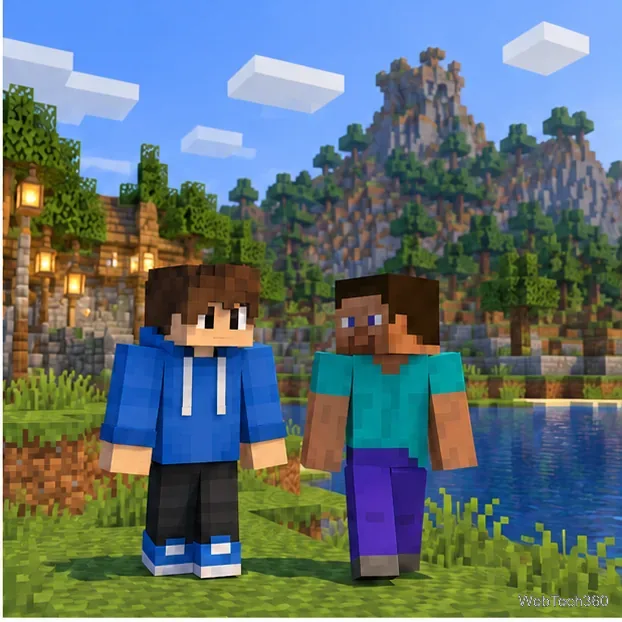
Java skins are managed through the Java profile, not the Bedrock Dressing Room. Sign in to the Minecraft profile that owns Java Edition, open the skin-change page, choose the Classic or Slim model that matches the file, upload the PNG, and apply it. Mojang’s Java custom-skin instructions show the current profile workflow.
If the profile shows the new skin but the game uses the old one, close Minecraft and the launcher, reopen them, and confirm the account and latest release. Check a local world; if only one server fails, investigate that server separately.
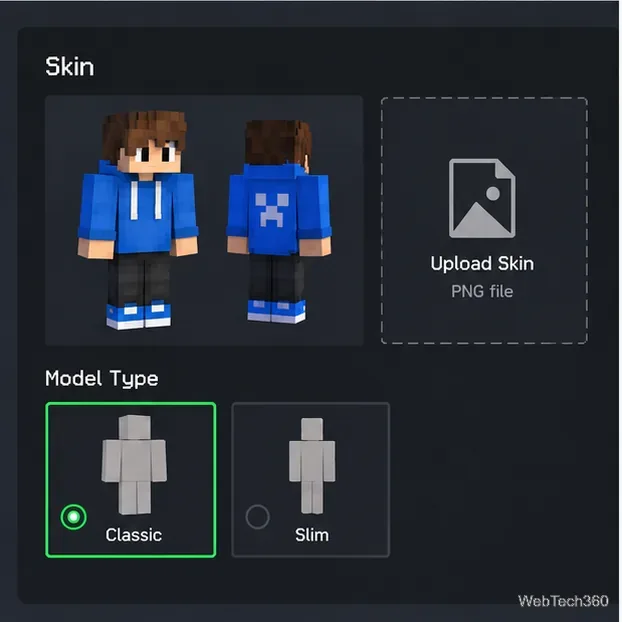
If known skins still stay blank, note your edition, device, game version, and whether the problem occurs locally, in Marketplace, or only online. Include any error code when you contact Minecraft Support. Reinstalling is a last resort: it will not fix an account mismatch or a temporary service problem. Before uninstalling, back up worlds using the instructions for your platform in Mojang’s backup and restore guide .
Learn the exact three-glass recipe, smelt sand into glass, and fill your Minecraft bottles with water for brewing.
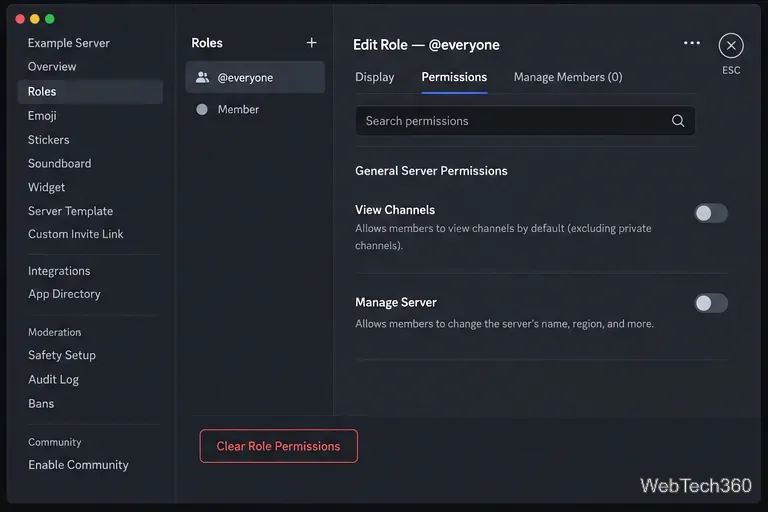
Control who can join, see channels, and find your Discord server with role permissions, invite links, and Discovery settings.
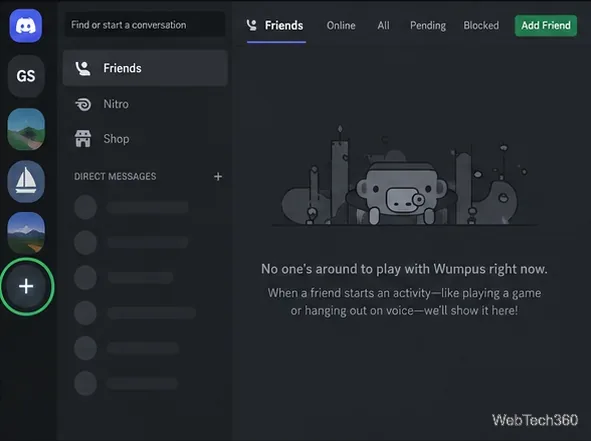
Create a Discord server in the desktop app or browser, organize channels, set permissions and safety tools, then share an invite that fits your group.
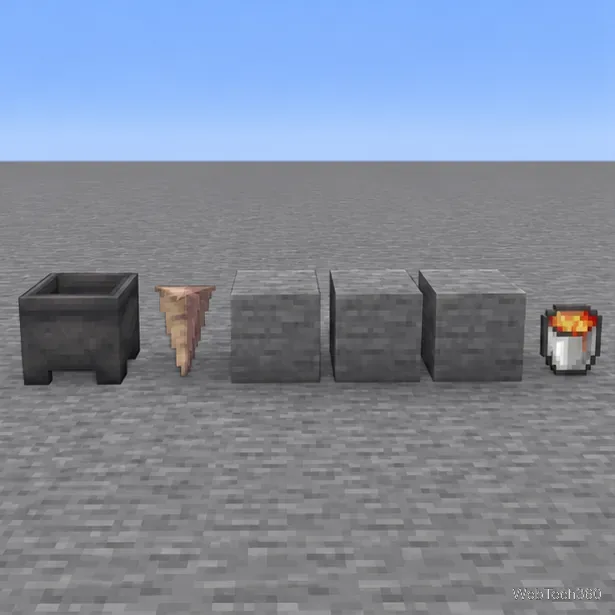
Build a renewable lava farm with pointed dripstone, one lava source, and a cauldron. Follow the setup, collection steps, and fixes for a cauldron that will not fill.
Fix a Minecraft skin that will not load by checking Bedrock Dressing Room, your Microsoft account, Marketplace downloads, updates, and Java skin settings.
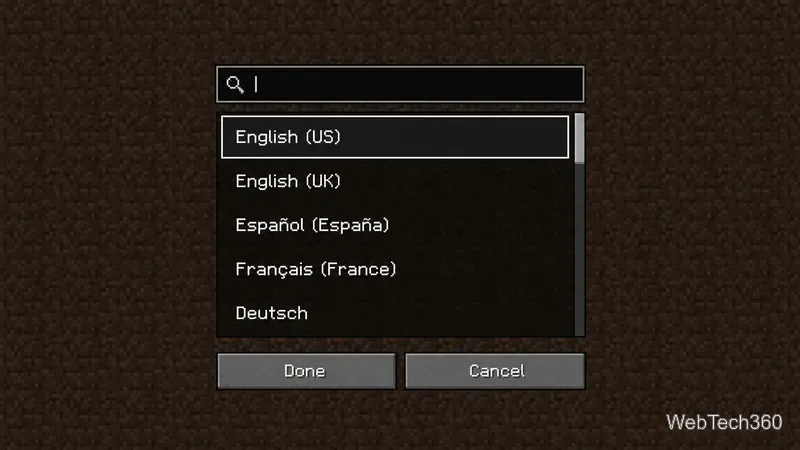
Minecraft language options differ between Java and Bedrock. See common languages, why old counts are unreliable, and where to check your edition.
Plan a practical Minecraft survival base with the essentials for safety, food, storage, and crafting, plus useful upgrades to add as your world grows.
Update Minecraft on Nintendo Switch from the HOME Menu, enable automatic updates, and troubleshoot when the console cannot find or install one.
Learn the official ways to get Minecoins in Minecraft, redeem a prepaid code, spend coins on Marketplace content, and fix a missing balance.
Learn how to add Jira users to team-managed and company-managed projects, assign the right role, and share a board’s saved filter safely.