How to Make a Glass Bottle in Minecraft
Learn the exact three-glass recipe, smelt sand into glass, and fill your Minecraft bottles with water for brewing.
To update Minecraft on Nintendo Switch, connect the console to the internet, highlight Minecraft on the HOME Menu, press the controller’s + or − button, and select Software Update > Via the Internet. The Switch checks for an available update and downloads it. You can also accept an update prompt when you start the game or enable automatic software updates.
Nintendo’s built-in software update menu is the most direct way to check for a Minecraft update. You do not need to open the Nintendo eShop or start the game first. Make sure the console is online; a wireless connection is enough. If Minecraft is open, return to the HOME Menu before following these steps.
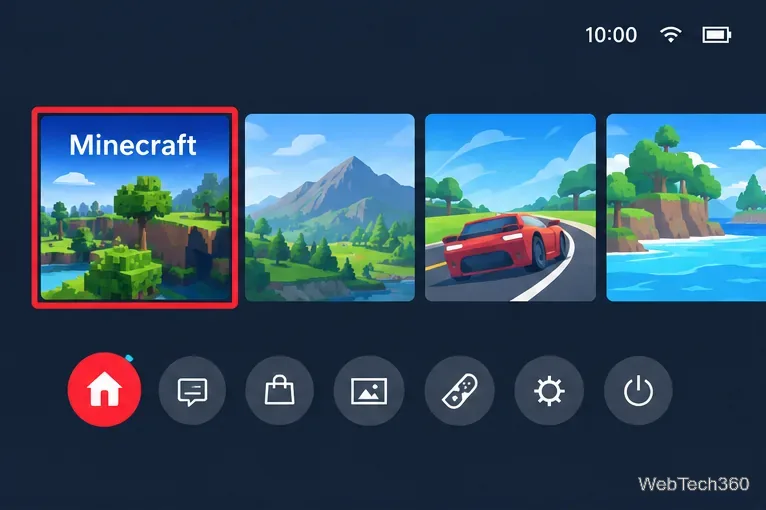
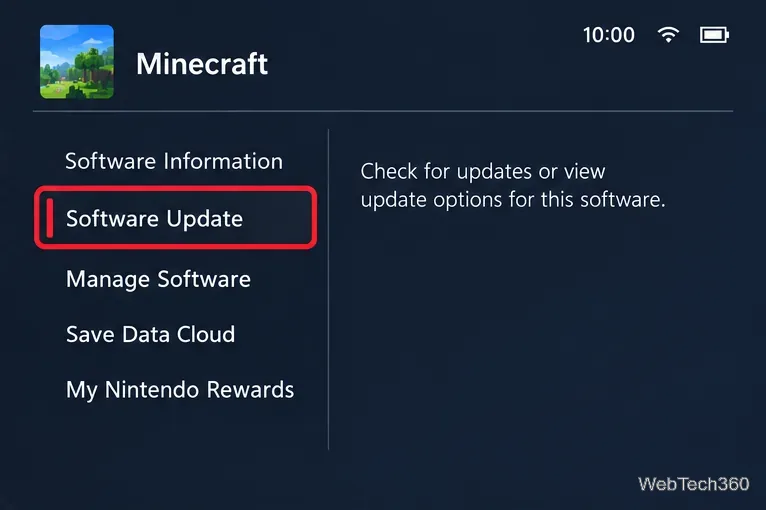
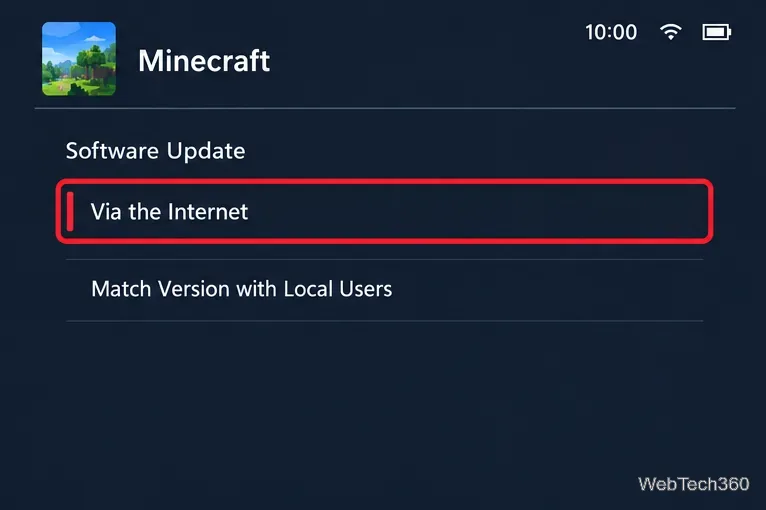
Nintendo documents this same sequence for updating Switch software: select the title from HOME without starting it, open its menu with + or −, and choose the internet update option. The game may show an update prompt when launched while the console is online; accept the prompt if it appears. The prompt and the manual check use the console’s software update process.
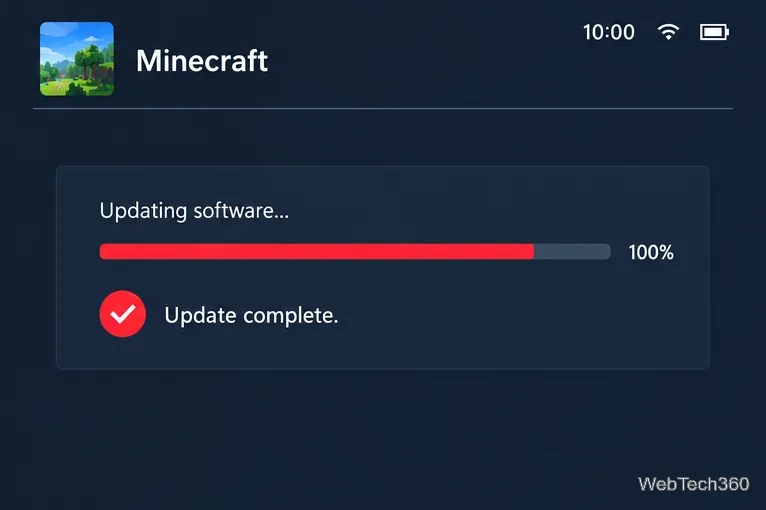
If you want the Switch to download updates for installed games when it is connected to the internet, turn on automatic software updates:
This setting applies to installed software, including Minecraft. It does not mean every update will install the moment it is released: the console must be online, and an update may not yet be available for your copy. If you need to check right away, use the manual HOME Menu steps above. Nintendo’s software update instructions describe both automatic and manual updating.
A “no update available” result can mean the game is already current. It can also mean there is no newer Switch release available to download yet. Minecraft updates are version-specific, so avoid relying on an old version number in a guide; the number changes over time. Run the internet check again later if you are expecting a release that has just been announced.
Nintendo’s Switch system update guide explains how to check for console updates and restart the system. For a game update, return to Minecraft’s software menu; installing a console system update is a separate task and does not replace the game update check.
For an installed copy of Minecraft, use the HOME Menu’s Software Update option. Nintendo’s official instructions do not require searching for the game in the eShop to install a software update. If the game opens with an update prompt while the Switch is online, you can accept it there instead. Once the installation finishes, start Minecraft normally.
These steps apply to the Nintendo Switch software menu. The exact update size and version depend on the release available for the game, so the console’s internet check is the reliable way to see whether your installed copy has an update waiting.
Learn the exact three-glass recipe, smelt sand into glass, and fill your Minecraft bottles with water for brewing.
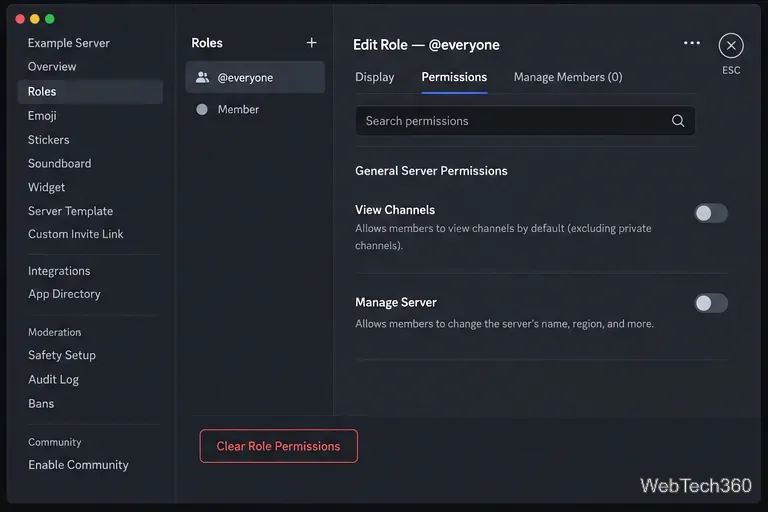
Control who can join, see channels, and find your Discord server with role permissions, invite links, and Discovery settings.
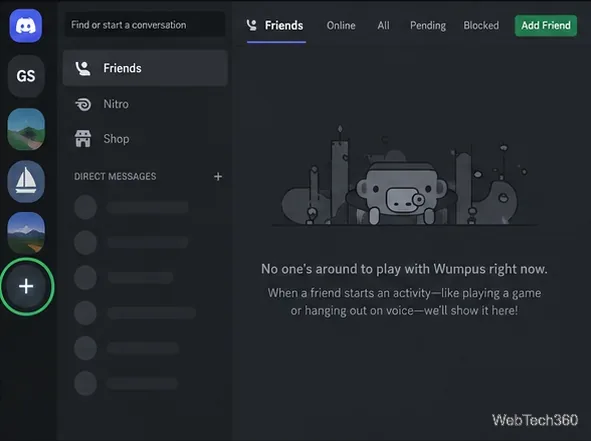
Create a Discord server in the desktop app or browser, organize channels, set permissions and safety tools, then share an invite that fits your group.
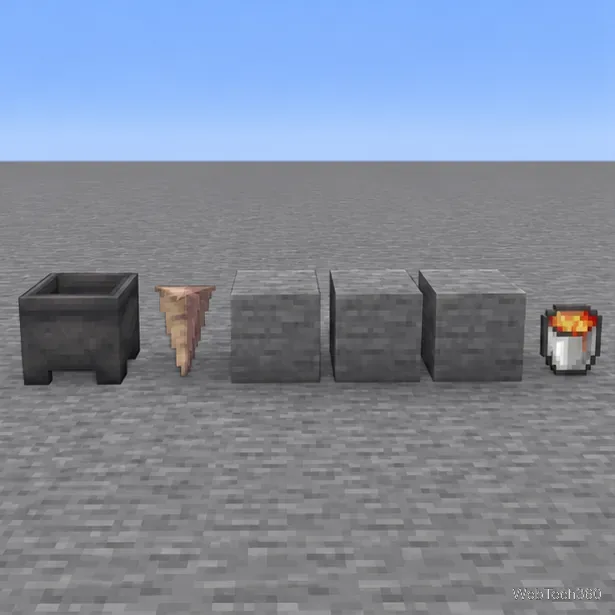
Build a renewable lava farm with pointed dripstone, one lava source, and a cauldron. Follow the setup, collection steps, and fixes for a cauldron that will not fill.
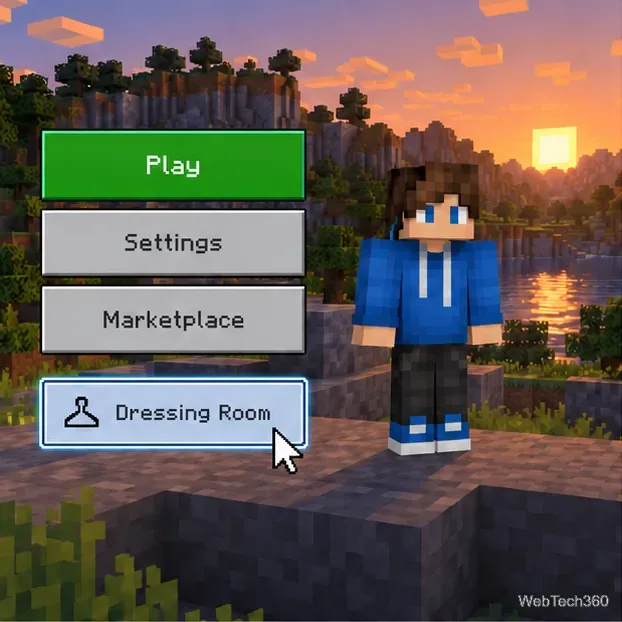
Fix a Minecraft skin that will not load by checking Bedrock Dressing Room, your Microsoft account, Marketplace downloads, updates, and Java skin settings.
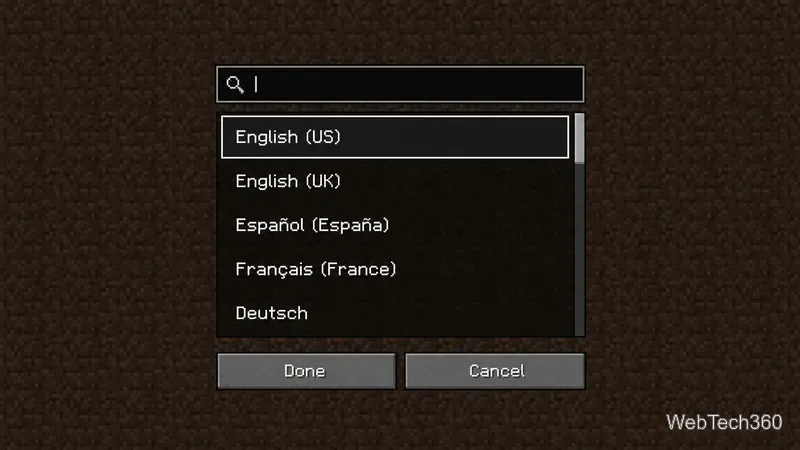
Minecraft language options differ between Java and Bedrock. See common languages, why old counts are unreliable, and where to check your edition.
Plan a practical Minecraft survival base with the essentials for safety, food, storage, and crafting, plus useful upgrades to add as your world grows.
Update Minecraft on Nintendo Switch from the HOME Menu, enable automatic updates, and troubleshoot when the console cannot find or install one.
Learn the official ways to get Minecoins in Minecraft, redeem a prepaid code, spend coins on Marketplace content, and fix a missing balance.
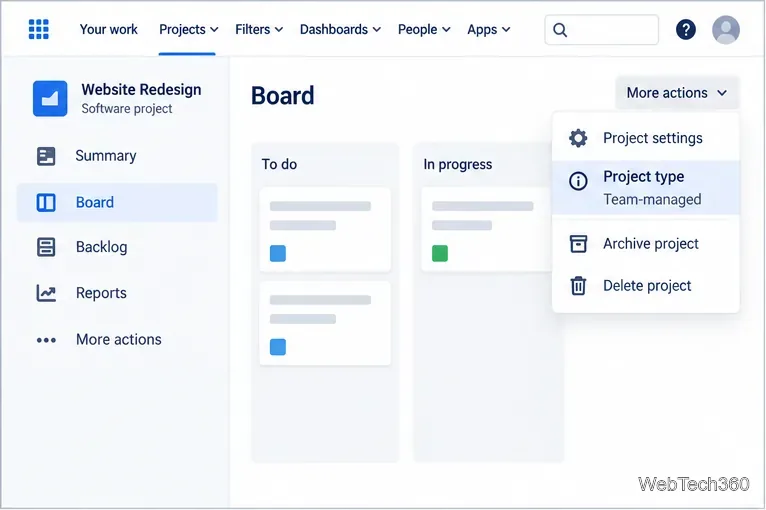
Learn how to add Jira users to team-managed and company-managed projects, assign the right role, and share a board’s saved filter safely.