How to Make a Glass Bottle in Minecraft
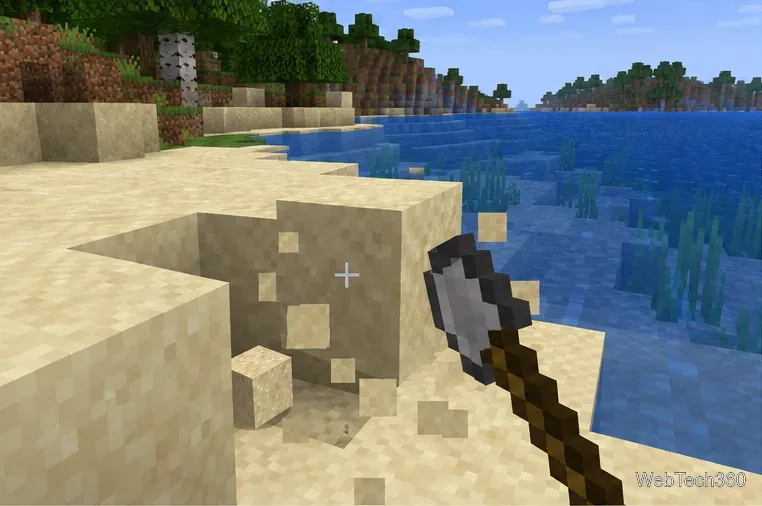
Learn the exact three-glass recipe, smelt sand into glass, and fill your Minecraft bottles with water for brewing.
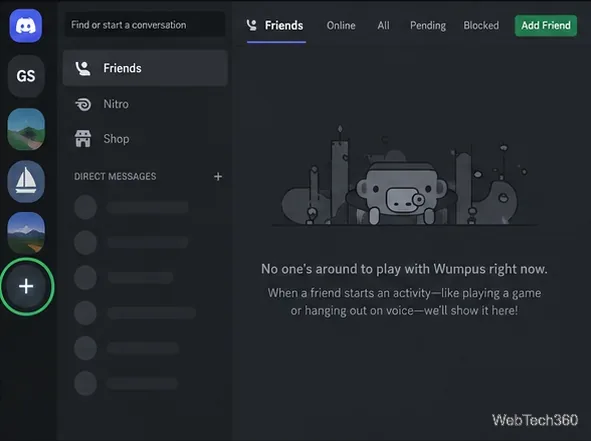
Discord does not have one switch that makes every part of a server private or public. To limit access, change role and channel permissions and control invite links. To let people join, share an invite and make at least one channel visible to new members. To appear in Discord’s Server Discovery, you also need a Community server that meets Discord’s eligibility rules.
These settings do different jobs:
Discord’s recommended setup hides channels from the default @everyone role, then gives approved members a separate role with the access they need. This works on desktop or in a browser; the mobile app lacks the one-click permission-clearing control.
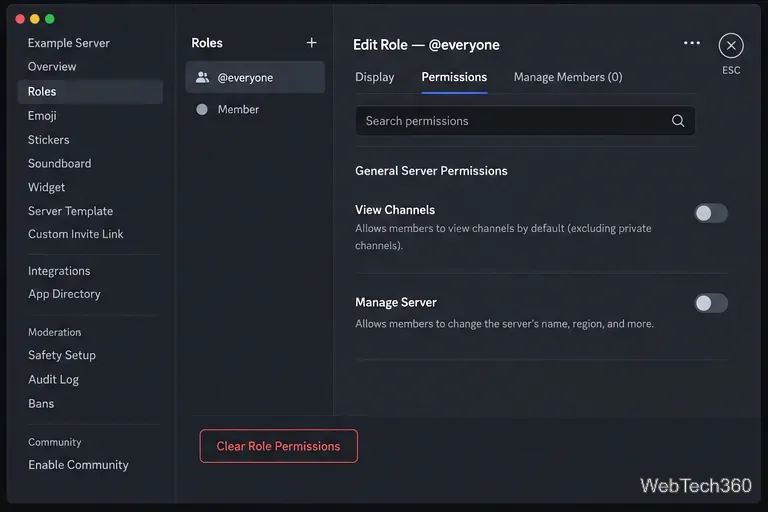
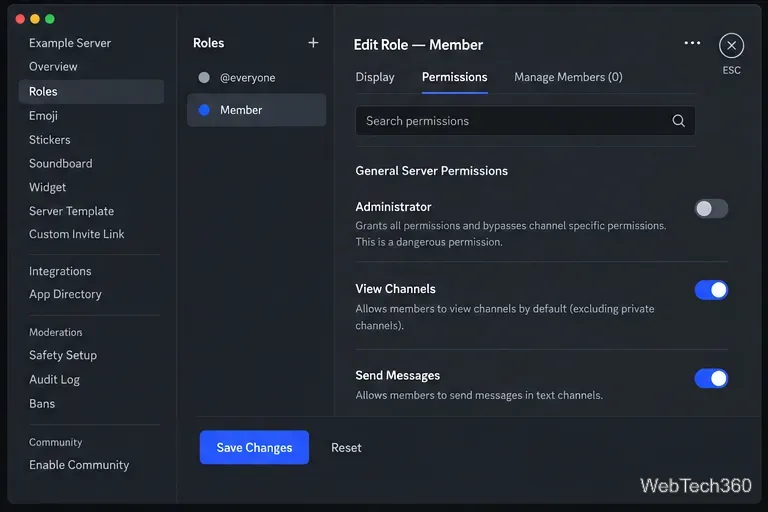
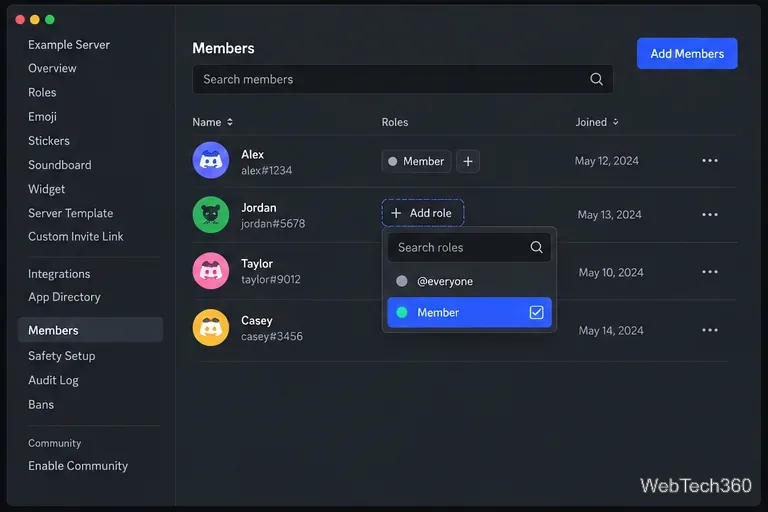
To stop new people from joining, open Server Settings > Invites and pause invitations or remove links you no longer want active. If the server is listed in Discovery, open Server Settings > Community > Overview and disable Community if you no longer need its features. Discord’s current setup flow requires a Community server for Discovery, so the server will no longer qualify for that listing. Review the steps in its Discovery setup guide before changing Community settings. Community server invite links do not expire, so review them carefully. Discord’s invite guide explains how to pause or remove links.
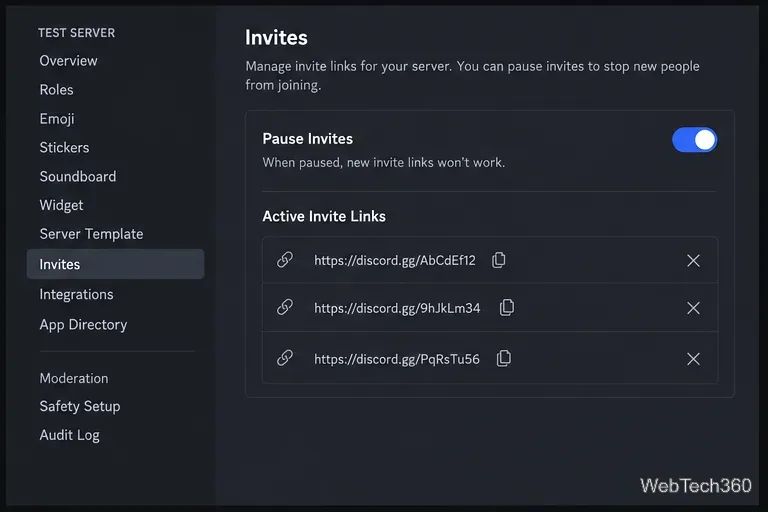
If you want anyone who has a link to join, you do not need to enable Community or Discovery. Choose a welcome channel, then allow @everyone to use View Channel there. You can keep other channels private by granting access only to specific roles. For a read-only welcome channel, leave Send Messages off for @everyone.
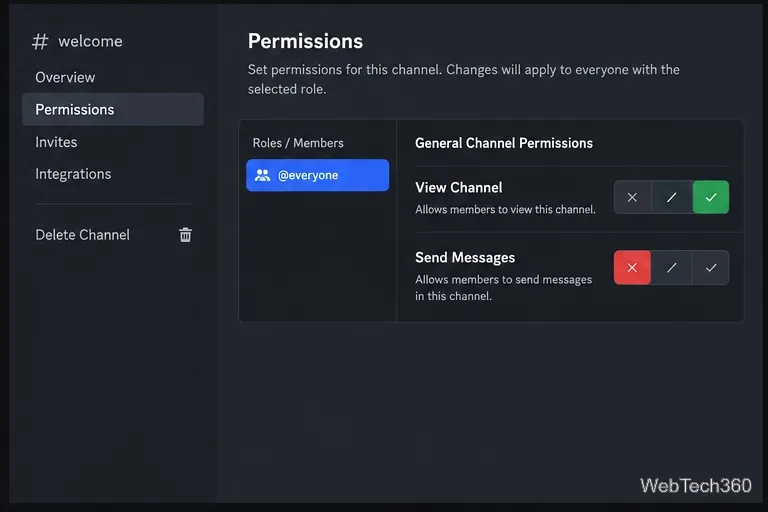
In that channel, select Create Invite, then Edit invite link to choose an expiration and maximum number of uses before copying the link. Discord shows seven days by default when you have not changed that channel’s invite settings; previously selected settings may carry over. Anyone with an active link can use it, so share it only where you intend. Community server invites do not expire.
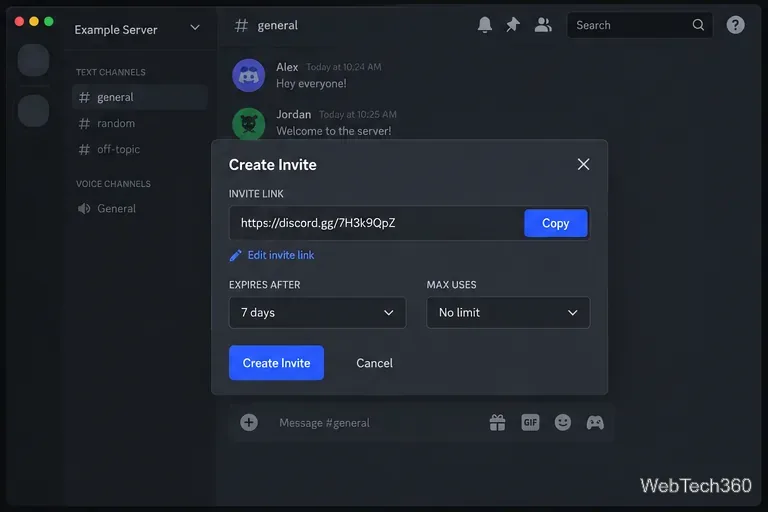
For a listing in Server Discovery, open Server Settings > Enable Community and complete the safety setup. Then open the Discovery settings and choose Set Up Discovery. Discord’s current Discovery requirements include at least 1,000 members, an age of at least eight weeks, activity requirements, clean server and channel names, safety settings, and the two-factor-authentication requirement for moderation. Meeting every requirement is necessary; turning on Community by itself will not list the server.
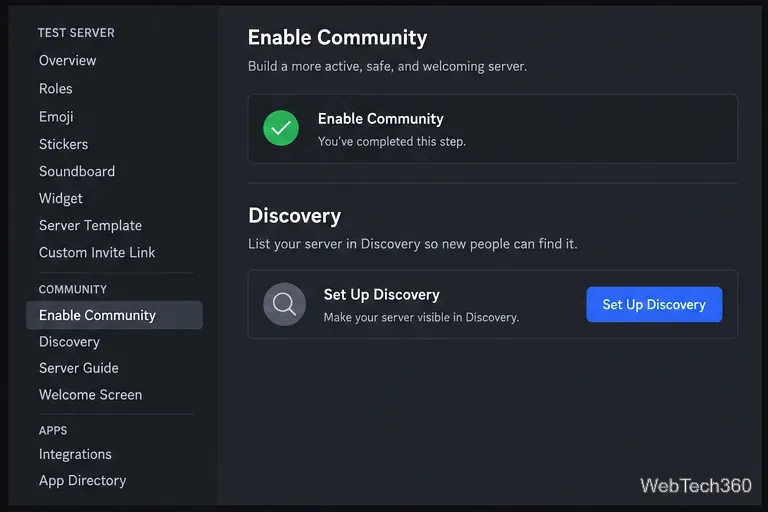
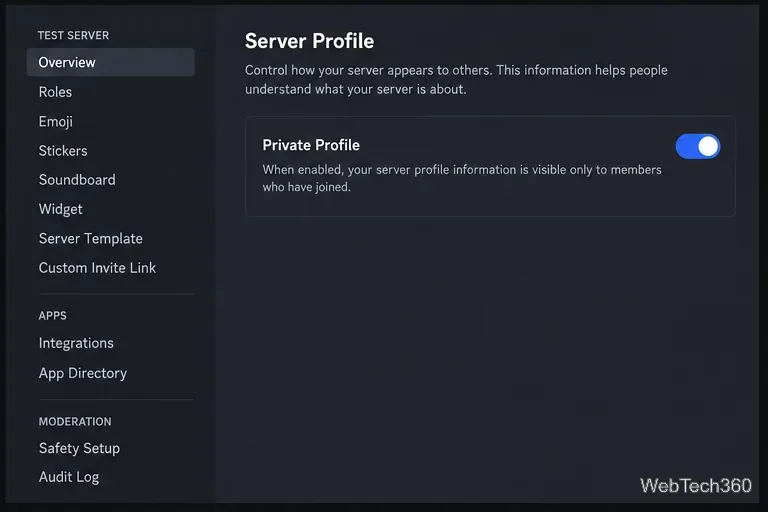
If you mean the server’s information card rather than channel access, open Server Settings > Server Profile on desktop or in a browser and use Private Profile. When enabled, the profile details are visible only to members who have joined. This setting does not control who can join or view channels. Discord says Discovery, the server widget, or an announcement channel can make profile details visible outside the server; you can turn Private Profile back on after disabling those features, except while the server remains in Discovery. See Discord’s Server Profile guide.
Before sharing a link widely, assign trusted moderators, turn on AutoMod, set a verification level, and restrict mass mentions to trusted roles. If unwanted joins begin, pause invites while you respond. Discord lists these measures in its server raid-prevention guidance. Review the roles and channel overrides whenever you change how people can join.
Learn the exact three-glass recipe, smelt sand into glass, and fill your Minecraft bottles with water for brewing.
Control who can join, see channels, and find your Discord server with role permissions, invite links, and Discovery settings.
Create a Discord server in the desktop app or browser, organize channels, set permissions and safety tools, then share an invite that fits your group.
Build a renewable lava farm with pointed dripstone, one lava source, and a cauldron. Follow the setup, collection steps, and fixes for a cauldron that will not fill.
Fix a Minecraft skin that will not load by checking Bedrock Dressing Room, your Microsoft account, Marketplace downloads, updates, and Java skin settings.
Minecraft language options differ between Java and Bedrock. See common languages, why old counts are unreliable, and where to check your edition.
Plan a practical Minecraft survival base with the essentials for safety, food, storage, and crafting, plus useful upgrades to add as your world grows.
Update Minecraft on Nintendo Switch from the HOME Menu, enable automatic updates, and troubleshoot when the console cannot find or install one.
Learn the official ways to get Minecoins in Minecraft, redeem a prepaid code, spend coins on Marketplace content, and fix a missing balance.
Learn how to add Jira users to team-managed and company-managed projects, assign the right role, and share a board’s saved filter safely.