How to Open a Linux Shell in a Folder on Windows 10

Open a Linux shell in any Windows 10 folder with File Explorer, PowerShell, and WSL. Check the Linux path and fix common setup issues.
If you want Windows 10 to repeat a set of mouse clicks for you, the most practical current option is Power Automate for desktop. It can record mouse and keyboard actions, target specific interface elements, add delays, and repeat a block of actions. That is more reliable than an old-style auto clicker that only remembers fixed screen coordinates.
Microsoft's current Power Automate for desktop requirements still list Windows 10 Home, Pro, and Enterprise. However, Windows 10 reached end of support on October 14, 2025. The operating system can still run, but Microsoft no longer provides the normal free security and feature updates, so moving to a supported Windows version is the safer long-term choice.
Search the Start menu for Power Automate. If it is not installed, use Microsoft's official installation guide. The Microsoft Store version can be installed without administrator rights, while the MSI installer requires an administrator account.
Open Power Automate and create a new desktop flow. Give it a descriptive name such as Repeat invoice clicks or Open daily report, then open the flow designer.
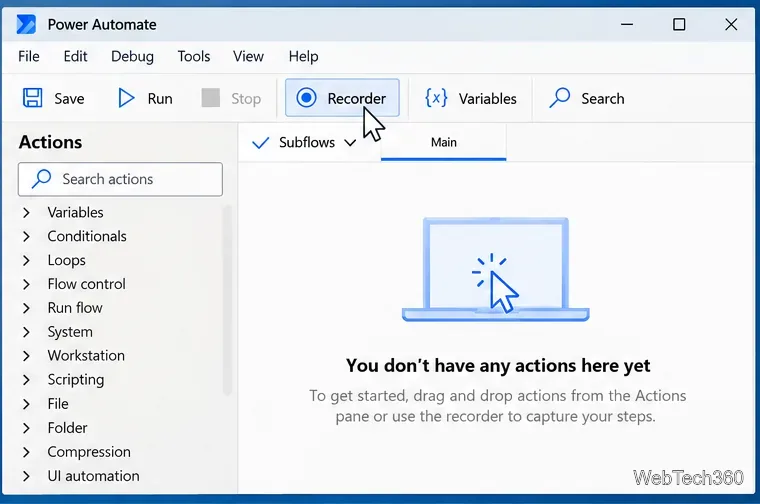
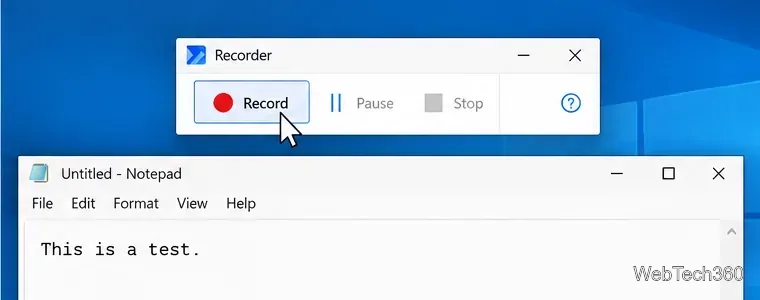
Select Recorder in the toolbar, then select Record. Perform the clicks you want to automate at a normal pace. Power Automate's recorder can create UI automation actions that are tied to interface elements instead of only to raw X/Y coordinates. When you have completed the sequence, stop the recording and return to the flow designer.
Microsoft documents the same workflow in its desktop-flow recording guide.
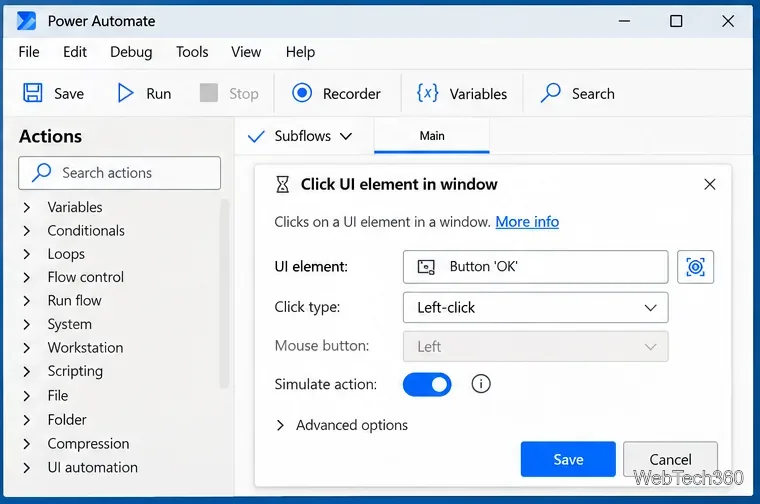
Open each recorded click and check what it targets. For normal Windows applications, prefer Click UI element in window when the target control can be detected. Microsoft says this action can perform left-click, right-click, double-click, middle-click, and button-down or button-up events.
The action also offers a Simulate action option for supported elements. Simulated clicks can work without physically moving the pointer or bringing the target screen to the foreground, although Microsoft notes that simulation is not compatible with every UI element. See the UI automation action reference for the current options.
If a program needs time to open, load a page, or update after a click, insert a Wait step before the next action. Without a delay, the flow may send the next click before the target control exists.
To run the same clicks a known number of times, place them inside a Loop. Microsoft's loop action reference describes Loop as an action that repeats a block a specified number of times. Use repetition carefully: a flow that clicks the wrong button repeatedly can do much more damage than a single bad click.
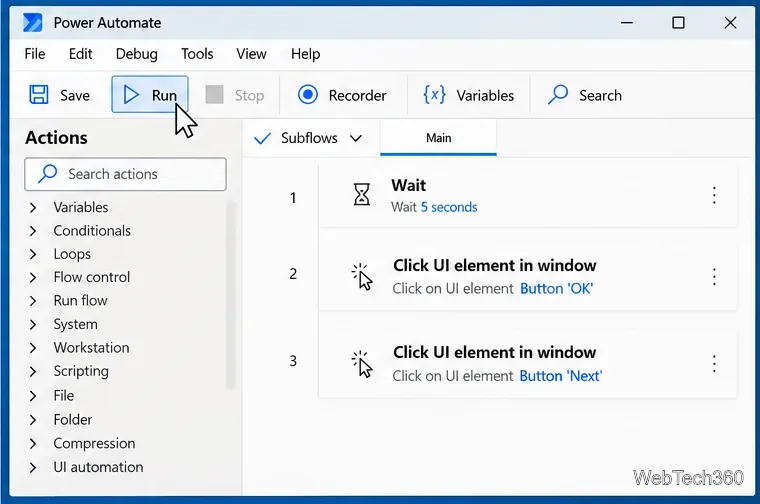
Run the flow once while watching the screen. Confirm that every click lands on the intended control and that dialogs, notifications, window movement, display scaling, or slow application startup do not change the result. Test again after changing monitor layout or screen resolution.
For an application that does not expose usable UI elements, Power Automate provides fallback methods. Microsoft's troubleshooting guidance suggests hovering over a UI element and then sending a mouse click, using image or OCR-based targeting, or moving the pointer to specific coordinates before using Send mouse click. The mouse and keyboard action reference documents the coordinate-based mouse action. Coordinate clicks are the least flexible option because the target can move when a window is repositioned or the display setup changes.
If you need to click an application that is running with elevated administrator privileges, Microsoft states that Power Automate must run with the same or higher privileges for mouse and UI automation actions to interact with it.
For most repetitive Windows 10 clicking tasks, Power Automate for desktop is a better fit than the older single-purpose auto-click tools because it combines recording, UI-element targeting, waits, loops, and troubleshooting options in one workflow.
Open a Linux shell in any Windows 10 folder with File Explorer, PowerShell, and WSL. Check the Linux path and fix common setup issues.
Use a screenshot test, cable and port checks, monitor diagnostics, display settings, and driver rollback to pinpoint lines on a Windows 10 monitor.
Show two other time zones beside your Windows 10 clock. Set up each additional clock, give it a clear label, and find it in the taskbar calendar.
Find the File Explorer extension that delays right-click menus in Windows 10, test it safely with ShellExView, and restore any menu features you still need.
Stop Windows 10 from powering down a specific network adapter or USB device with plan-level settings and Device Manager controls, plus tips to avoid excess battery drain.
Check whether Windows 10 uses a digital license or product key, find a firmware-stored OEM key, and save license details securely for a reinstall.
Identify a Windows 10 Task Manager process by checking its executable path, file properties, publisher, linked services, and a Microsoft Defender scan.
Create a searchable Windows 10 folder inventory with PowerShell. Save every file and subfolder path as plain text or export details to a sortable CSV.
Add a custom reminder, quote, or label to your Windows 10 desktop with a Rainmeter text skin. Create the INI file, load it, then adjust its font and position.
Use Bluetooth Swift Pair on Windows 10 to pair a compatible accessory from a notification, with setup steps and fixes when the prompt does not appear.








