How to Set Different Scaling Levels for Multiple Monitors in Windows 10

Adjust each Windows 10 monitor independently with per-display scaling, keep text readable, and troubleshoot custom scaling or blurry apps.
To automatically mute audio when you lock Windows 10, keep WinMute running in the background. This free utility can mute Windows audio when the workstation locks and unmute it when you return. It works at the system level, so you do not have to configure each music player or browser separately.
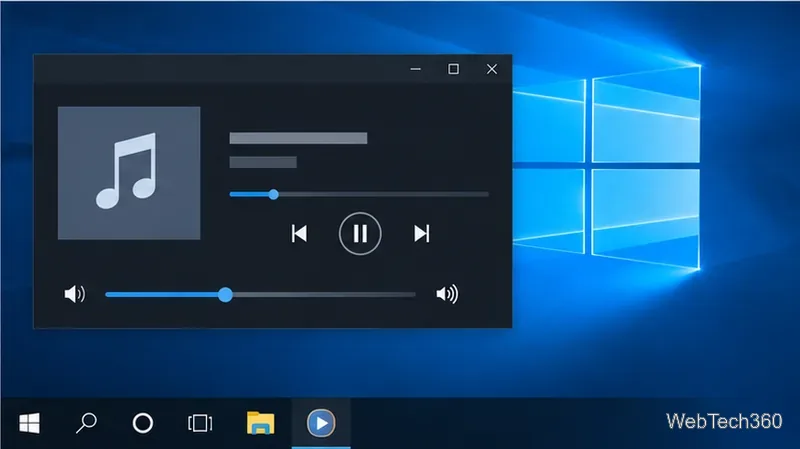
WinMute does not pause a song, video, or call. It silences sound while the PC is locked, but playback may continue and move forward. Pause the app first if you need to preserve your place.
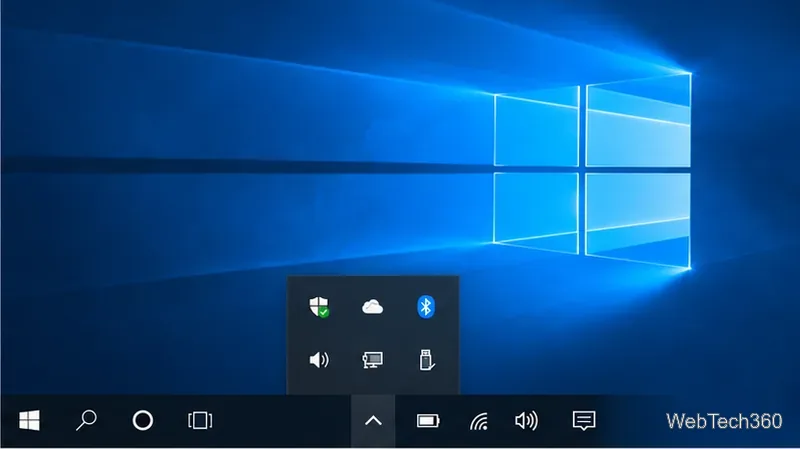
The WinMute project says the app can mute sound devices when you lock the workstation, turn off the display, or use other supported triggers. It runs from the Windows notification area, and its project instructions say it unmutes audio when you return. The app therefore needs to remain open in the background for the lock trigger to work.
Windows also has per-app volume and output-device controls. If one program behaves differently, check its settings in Volume mixer; Microsoft notes that individual apps can have their own volume and playback-device selection. WinMute controls Windows audio rather than the media controls inside an app.
The project describes muting all sound devices on the workstation, which can include speakers and headphones depending on what is connected. If you need a call alert or another notification to remain audible, test your device setup before relying on automatic muting. WinMute can also react when the display turns off or the PC enters sleep or hibernation, so review its options if you want only the workstation-lock event.
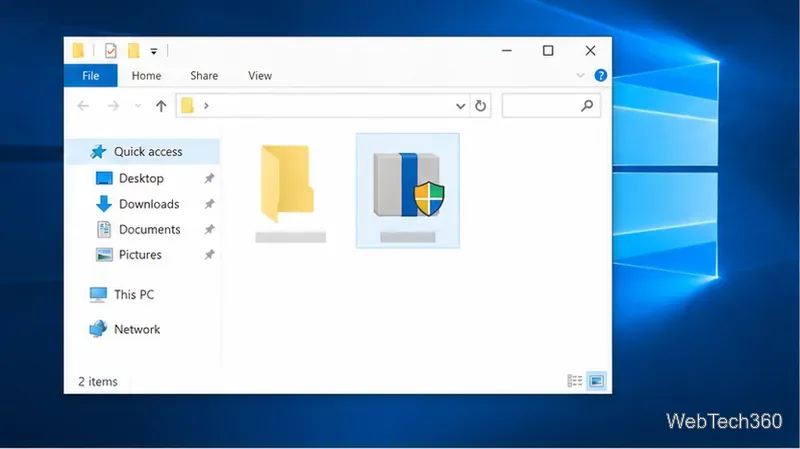
Setup.exe, or extract the ZIP archive and start the program from its folder. The project also documents installing with WinGet by running winget install LX-Systems.WinMute in Terminal.
Windows 10 continues to run, but Microsoft ended standard support on October 14, 2025. PCs no longer receive the regular free security and feature updates; installing WinMute does not change that. See Microsoft’s Windows 10 end-of-support guidance if you need current upgrade or Extended Security Updates options.
Adjust each Windows 10 monitor independently with per-display scaling, keep text readable, and troubleshoot custom scaling or blurry apps.
Use AirType’s browser pairing setup to type on an iPhone from a Windows 10 PC, with current setup steps, troubleshooting, and privacy limits.
Hide the mouse pointer in Windows 10 videos, games, and other apps with built-in typing controls or PowerToys CursorHide’s adjustable inactivity timer.
Find Control Panel Power Options on a Windows 10 desktop, open the page with a Run command, and adjust power plans, display timeouts, sleep, and button behavior.
Learn what Windows 10 deletion leaves behind, how to use SDelete on an HDD, and why SSDs and cloud backups need separate treatment.
Use FFmpeg’s DirectShow tools to open an integrated webcam’s driver properties in Windows 10, find the correct device, and troubleshoot missing controls.
Identify a keypress in Windows 10 with a browser event tester or SharpKeys, then separate layout, software, and keyboard hardware issues.
Use double quotes around each complete path with spaces in Command Prompt. Learn how to list, change to, copy, and troubleshoot Windows 10 files and folders.
Turn off the Windows 10 Start menu’s hover-to-expand behavior with a legacy Mach2 command, check build limits, and see the built-in app-list alternative.
Fix the iTunes Library.itl read error on Windows 10 by updating iTunes, restoring a compatible backup, or safely creating a new library without deleting media files.








