How to Create a List of All Items in a Folder on Windows 10

Create a searchable Windows 10 folder inventory with PowerShell. Save every file and subfolder path as plain text or export details to a sortable CSV.
Windows 10 lets you install more than one keyboard layout for the same PC, then switch between them whenever you need different key mappings or special characters. The quickest path is Settings > Time & Language > Language. From there, you can add a layout to an installed language, switch layouts from the taskbar or with Windows key + Spacebar, and remove layouts you no longer use.
Note: Windows 10 reached the end of standard Microsoft support on October 14, 2025. The steps below still apply to Windows 10 systems, but Microsoft recommends moving to a supported Windows release or using an eligible Extended Security Updates option. See Microsoft's Windows 10 end-of-support guidance.
You do not have to change the Windows display language just to use another keyboard layout. Microsoft treats the display language and keyboard layout as separate settings.
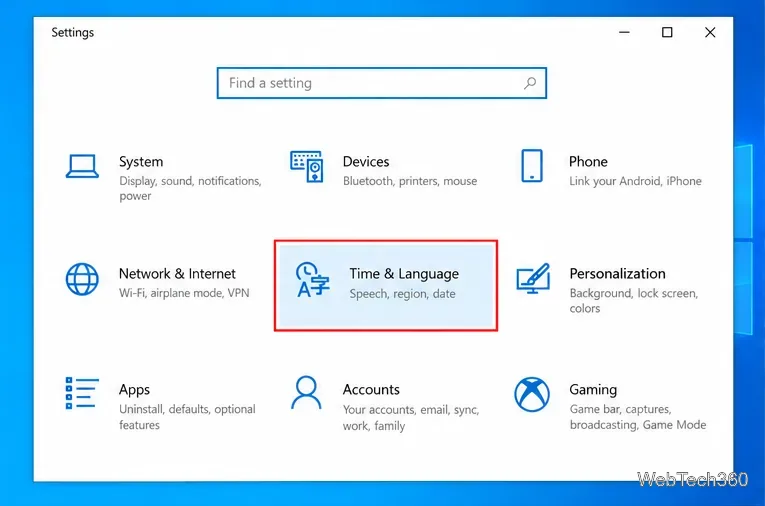
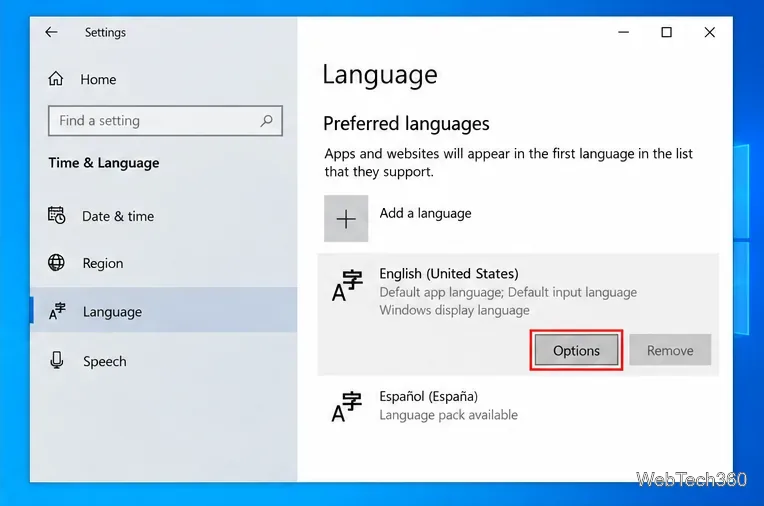
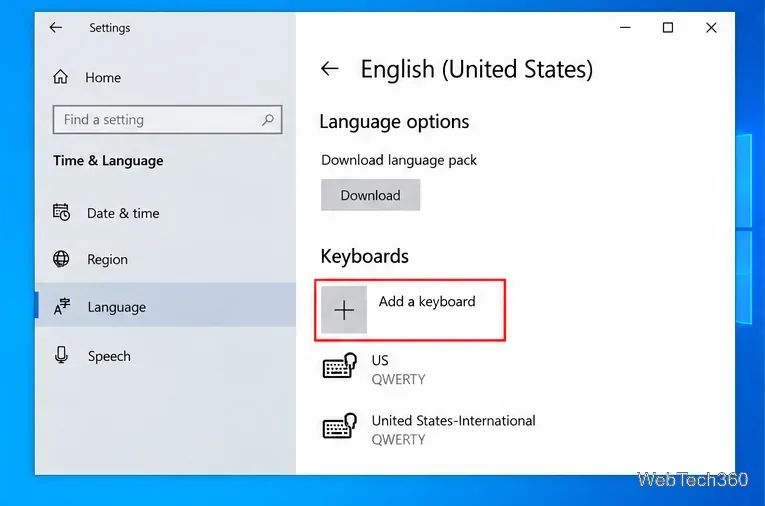
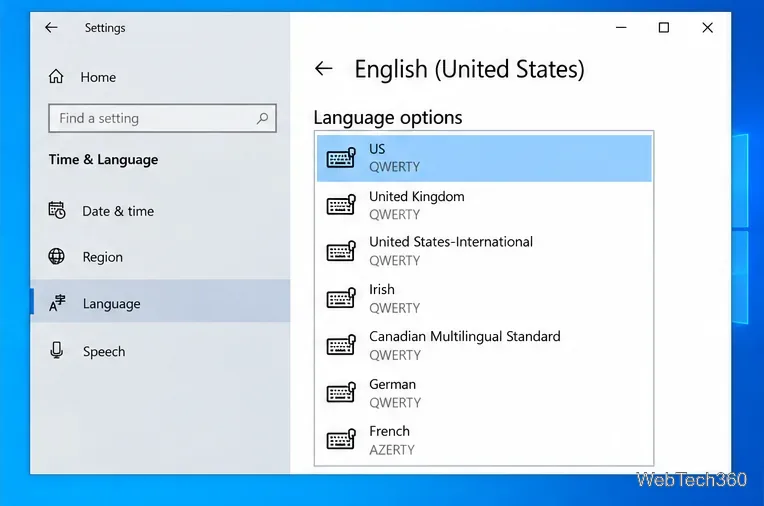
If the layout you want is not listed under the current language, go back to Settings > Time & Language > Language and check the language that normally contains that layout. If the required language is not installed, Windows may need you to add that language first. Microsoft's current language and keyboard layout documentation explains this behavior in more detail.
After two or more layouts are installed, you can switch without returning to Settings.
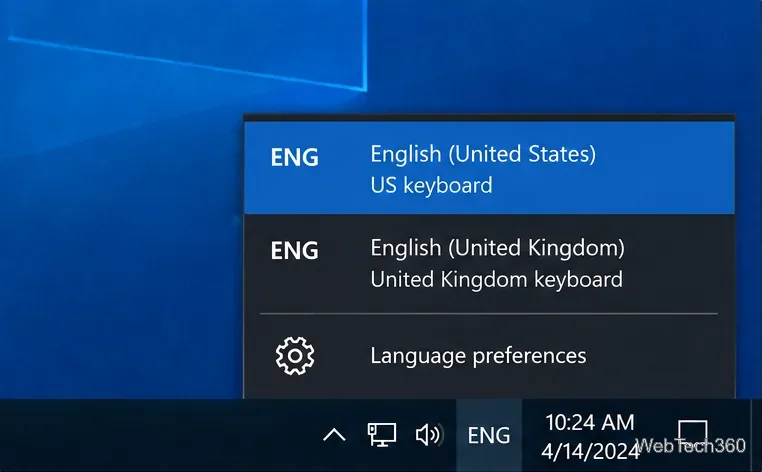
Select the input language indicator in the notification area on the right side of the taskbar. It commonly shows a language code such as ENG. Choose the keyboard layout you want from the menu.
Hold the Windows key and press Spacebar. Each press cycles to another installed layout. If nothing changes, you probably have only one keyboard layout installed.
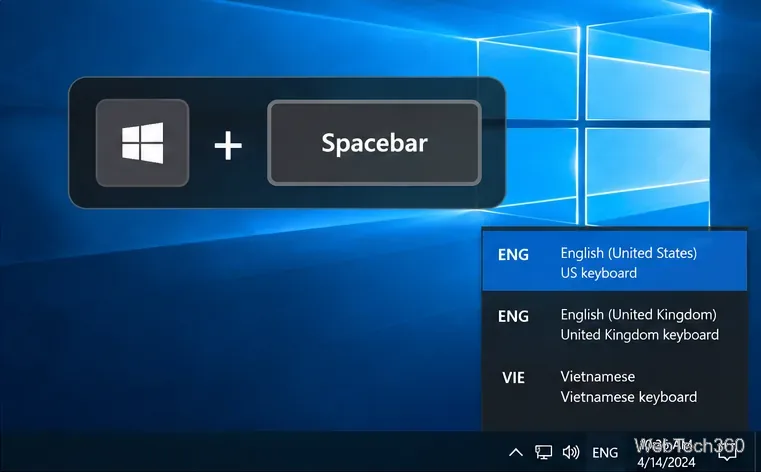
Changing the keyboard layout changes how physical keys are interpreted; it does not change the Windows display language.
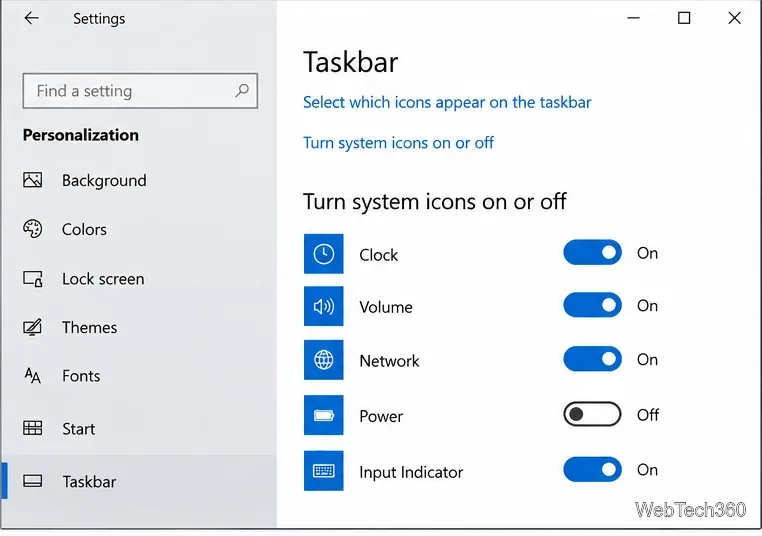
On Windows 10, the input indicator is normally visible when multiple layouts are available. If it is missing, open Settings > Personalization > Taskbar. Under Notification area, select Turn system icons on or off, then turn Input Indicator on.
If the indicator still does not appear, the legacy desktop language bar may be enabled instead. Go to Settings > Devices > Typing > Advanced keyboard settings and clear Use the desktop language bar when it's available if you prefer the taskbar indicator.
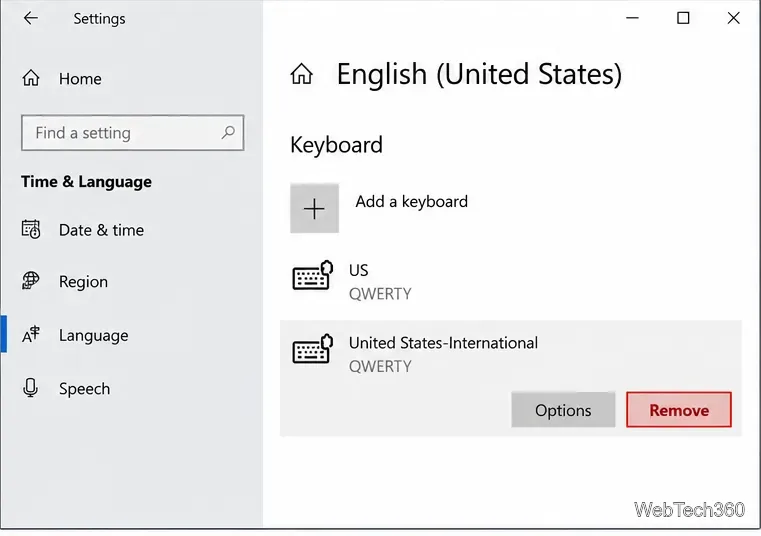
If Remove is unavailable, that layout may be the only keyboard layout associated with the current Windows display language. Add another keyboard layout first, then return and remove the unwanted one. Also check both the current display language and the language that normally owns the layout, because Windows can store a keyboard layout under either location.
A keyboard layout controls what characters Windows produces when you press physical keys. The Windows display language controls interface text in places such as Settings and File Explorer. You can therefore keep Windows in English while using another layout, or keep several English layouts and switch between them as needed.
For most users, the simplest setup is to keep only the layouts they actually use. That keeps the Windows key + Spacebar cycle short and reduces accidental switches while typing.
Create a searchable Windows 10 folder inventory with PowerShell. Save every file and subfolder path as plain text or export details to a sortable CSV.
Add a custom reminder, quote, or label to your Windows 10 desktop with a Rainmeter text skin. Create the INI file, load it, then adjust its font and position.
Use Bluetooth Swift Pair on Windows 10 to pair a compatible accessory from a notification, with setup steps and fixes when the prompt does not appear.
Learn what common laptop function key symbols mean, how Fn and Fn Lock affect them, and how to confirm the right shortcut for your Windows 10 laptop model.
Turn off your Windows 10 display instantly with ScreenSleep, set a keyboard shortcut, and see when to use the built-in screen timeout instead.
Fix the “running scripts is disabled on this system” PowerShell error on Windows 10 with a current-user policy, a temporary session option, and safe steps for downloaded scripts.
Change the Windows 10 drag-selection color with a backup-first registry walkthrough, RGB examples, troubleshooting tips, and steps to restore your original values.
Check your router’s connected-device list or scan a local network with Fing Desktop on a supported PC. Learn what each method can show and how to verify unfamiliar entries.
Messenger does not offer a documented per-friend online alert. Learn how Active Status works, where to check the green dot, and which notifications you can enable instead.
Use 7-Zip to find an exact filename or wildcard match inside a ZIP or other supported archive on Windows 10 without unpacking its files.








