How to Open a Linux Shell in a Folder on Windows 10

Open a Linux shell in any Windows 10 folder with File Explorer, PowerShell, and WSL. Check the Linux path and fix common setup issues.
When Windows 10 shows “How do you want to open this file?”, it usually means that Windows does not have a usable default app associated with that file type. You can choose an app once, or make that app the permanent default for every file with the same extension.
Windows 10 itself reached the end of free support on October 14, 2025. The steps below still apply to PCs that continue to run Windows 10, but Microsoft recommends moving to a supported version of Windows when possible. See Microsoft's Windows 10 end-of-support information.
The prompt is not necessarily an error. It appears when Windows cannot confidently match the file to a default program. Common reasons include:
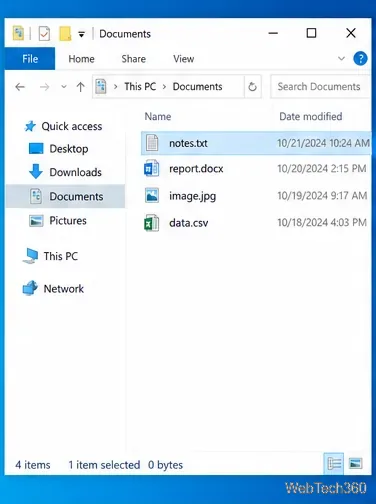
The quickest method is to use Open with. This lets you test another installed app without changing every other file association first.
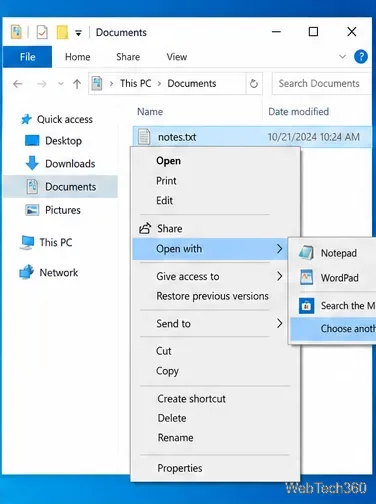
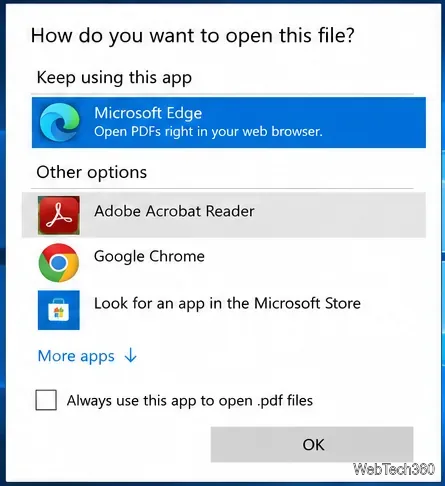
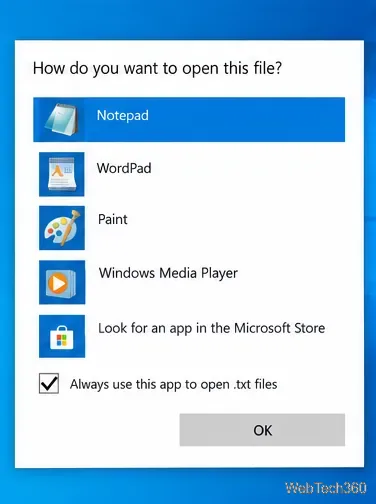
Microsoft documents the same basic workflow in its File Explorer accessibility guide: choose Open with, select another app, and use the “Always use” option when you want a permanent association.
Choose More apps first. Windows may hide less frequently used programs below the initial suggestions. On Windows 10, the expanded chooser can also offer Look for another app on this PC, which lets you browse to an installed program's executable file.
Use that option only for software you already installed and trust. If you do not have a compatible program, search the Microsoft Store or the software publisher's official website for an app that supports the file format.
Do not simply rename the extension to make it look like another format. Microsoft notes that changing a filename extension does not convert the file's actual format.
If you are unsure what kind of file you have, identify its extension first. For example, .pdf, .jpg, .txt, and .docx each describe different file types.
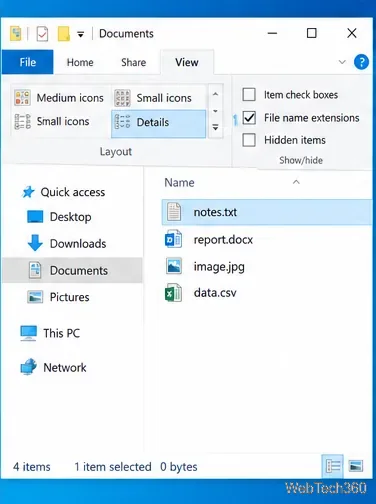
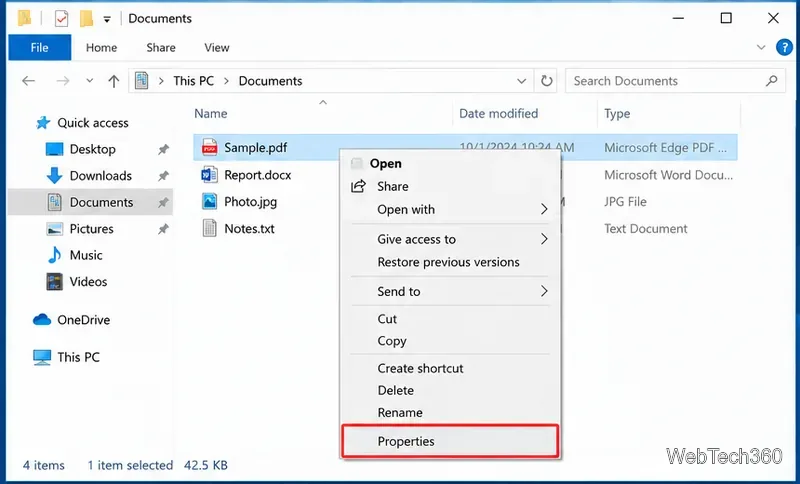
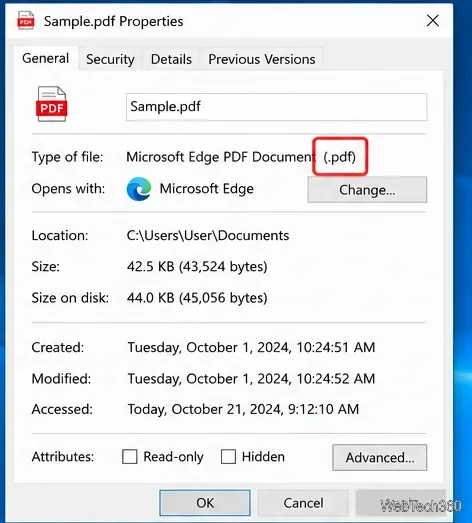
Microsoft's guide to common Windows file name extensions also explains how extensions identify file types and how to find compatible apps for unknown formats.
If the correct app is already installed but Windows keeps asking what to use, set the association directly in Settings.
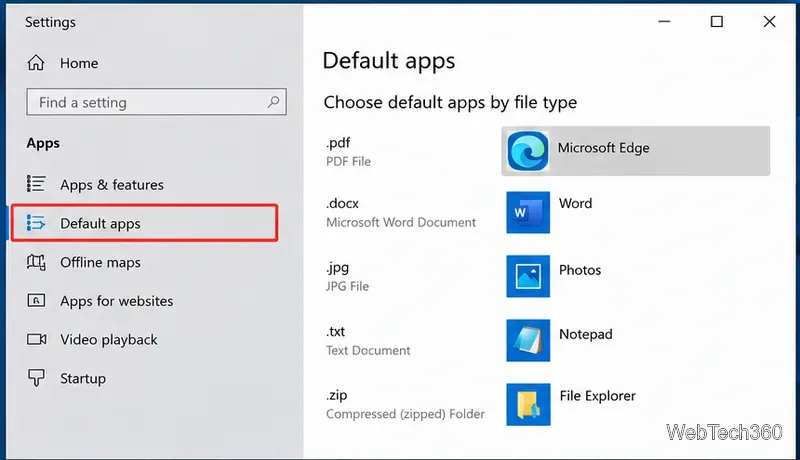
Microsoft's current default-app documentation confirms that Windows lets you assign an app by file type or configure defaults for an application.
Make sure the selected program still opens normally, then repeat the Open with process and choose the permanent “Always use” option. If the program no longer appears at all, reinstalling that application from its official source may restore its file-type registrations.
If only one unusual file triggers the message, the file may have the wrong extension or may be damaged. In that case, verify where the file came from before trying random programs. The safest fix is to identify the real format and use software that explicitly supports it.
Open a Linux shell in any Windows 10 folder with File Explorer, PowerShell, and WSL. Check the Linux path and fix common setup issues.
Use a screenshot test, cable and port checks, monitor diagnostics, display settings, and driver rollback to pinpoint lines on a Windows 10 monitor.
Show two other time zones beside your Windows 10 clock. Set up each additional clock, give it a clear label, and find it in the taskbar calendar.
Find the File Explorer extension that delays right-click menus in Windows 10, test it safely with ShellExView, and restore any menu features you still need.
Stop Windows 10 from powering down a specific network adapter or USB device with plan-level settings and Device Manager controls, plus tips to avoid excess battery drain.
Check whether Windows 10 uses a digital license or product key, find a firmware-stored OEM key, and save license details securely for a reinstall.
Identify a Windows 10 Task Manager process by checking its executable path, file properties, publisher, linked services, and a Microsoft Defender scan.
Create a searchable Windows 10 folder inventory with PowerShell. Save every file and subfolder path as plain text or export details to a sortable CSV.
Add a custom reminder, quote, or label to your Windows 10 desktop with a Rainmeter text skin. Create the INI file, load it, then adjust its font and position.
Use Bluetooth Swift Pair on Windows 10 to pair a compatible accessory from a notification, with setup steps and fixes when the prompt does not appear.








