How to Set Different Scaling Levels for Multiple Monitors in Windows 10

Adjust each Windows 10 monitor independently with per-display scaling, keep text readable, and troubleshoot custom scaling or blurry apps.
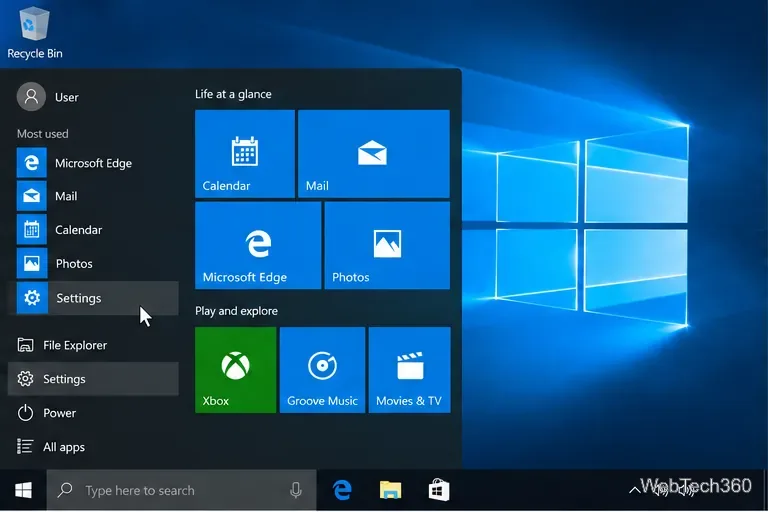
To change the primary mouse button in Windows 10, open Settings > Devices > Mouse, then choose Right under Select your primary button. Windows applies the change immediately, so the physical right button becomes the main button for selecting, opening, and dragging items. Choose Left to restore the default arrangement.
The built-in Windows setting works with a standard mouse and does not require extra software. You can open Settings from the Start menu or press Windows key + I.
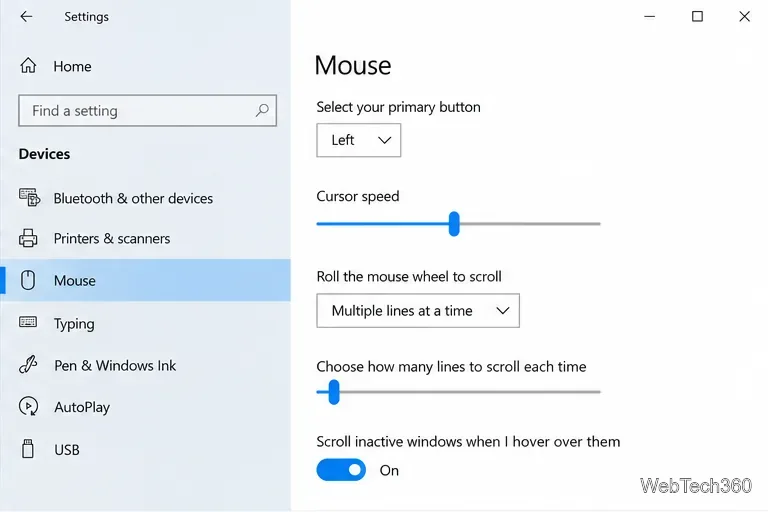 Mouse with the Select your primary button control visible and currently set to Left.">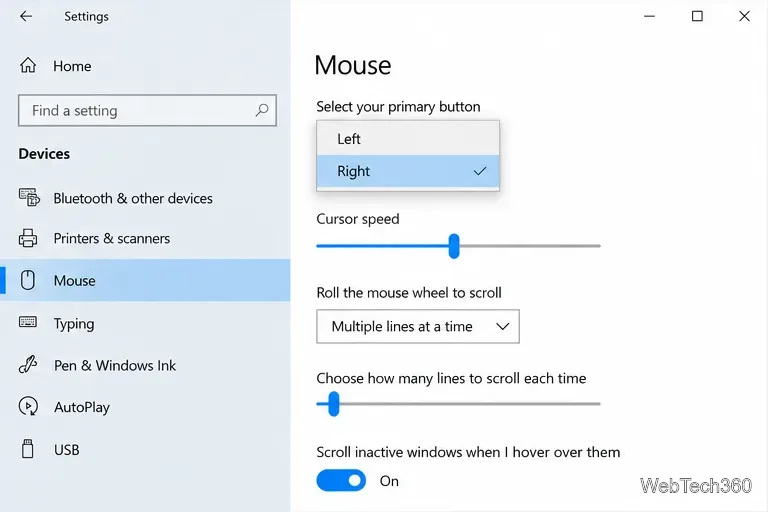
You do not need to restart the PC or click Apply in the Settings app. The selection takes effect as soon as you make it. If you are changing this setting for someone else, let them know that the physical buttons will feel reversed from the usual arrangement.
The primary button is the one Windows treats as the main button for actions such as selecting, dragging, and opening items. When Right is selected, the physical right button performs those actions. The physical left button becomes the secondary button and normally opens a context menu.
Windows documentation uses “primary” and “secondary” to describe these functions because the primary button can be physically on either side. In the usual Windows convention, “left-click” means clicking the primary button, even after its physical position has been switched. This distinction can help when instructions say to left-click while you are using a right-handed setup.
The setting changes the main left/right button roles. It does not remap the scroll wheel, its middle click, or extra side buttons such as Back and Forward. Those controls may have separate options in the mouse manufacturer’s software. Touchpads can also have driver-specific click zones or gestures; if their behavior does not follow the mouse setting, check Settings > Devices > Touchpad or your PC maker’s touchpad utility.
Some Windows 10 configurations expose the classic Control Panel dialog as another way to switch the buttons. From the Mouse page in Settings, select Additional mouse options under Related settings. In the Mouse Properties window, open the Buttons tab.
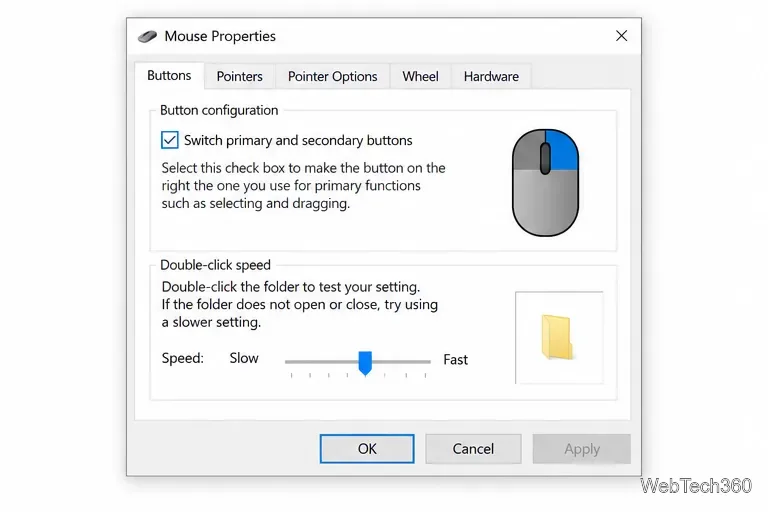
If you cannot reach the dialog from Settings, search for Control Panel from Start, open it, and select Mouse. Depending on the Control Panel layout, Mouse may appear under Hardware and Sound or in the list of icons.
Test the change in File Explorer: click a file once with the physical right button to select it, then use that button to open a folder or file. Use the physical left button on an item to check that it opens the context menu. If the test behaves the other way around, return to Settings > Devices > Mouse and confirm which option is selected. The Mouse Properties checkbox should agree with the Settings choice.
If Windows shows the correct choice but a particular mouse still behaves differently, check for button assignments in the mouse maker’s utility or a profile stored on the device. Also test in another Windows app, since a specialized app may assign its own actions to extra buttons.
These mouse controls remain available in Windows 10. Microsoft’s standard support for Windows 10 ended on October 14, 2025; Microsoft says free Windows Update software updates, technical assistance, and security fixes are no longer provided after that date. See Microsoft’s mouse settings guide for the Windows 10 steps and current support note.
For terminology on how Windows treats primary and secondary buttons, see Microsoft’s Mouse Input documentation.
Adjust each Windows 10 monitor independently with per-display scaling, keep text readable, and troubleshoot custom scaling or blurry apps.
Use AirType’s browser pairing setup to type on an iPhone from a Windows 10 PC, with current setup steps, troubleshooting, and privacy limits.
Hide the mouse pointer in Windows 10 videos, games, and other apps with built-in typing controls or PowerToys CursorHide’s adjustable inactivity timer.
Find Control Panel Power Options on a Windows 10 desktop, open the page with a Run command, and adjust power plans, display timeouts, sleep, and button behavior.
Learn what Windows 10 deletion leaves behind, how to use SDelete on an HDD, and why SSDs and cloud backups need separate treatment.
Use FFmpeg’s DirectShow tools to open an integrated webcam’s driver properties in Windows 10, find the correct device, and troubleshoot missing controls.
Identify a keypress in Windows 10 with a browser event tester or SharpKeys, then separate layout, software, and keyboard hardware issues.
Use double quotes around each complete path with spaces in Command Prompt. Learn how to list, change to, copy, and troubleshoot Windows 10 files and folders.
Turn off the Windows 10 Start menu’s hover-to-expand behavior with a legacy Mach2 command, check build limits, and see the built-in app-list alternative.
Fix the iTunes Library.itl read error on Windows 10 by updating iTunes, restoring a compatible backup, or safely creating a new library without deleting media files.








