How to Set Different Scaling Levels for Multiple Monitors in Windows 10

Adjust each Windows 10 monitor independently with per-display scaling, keep text readable, and troubleshoot custom scaling or blurry apps.
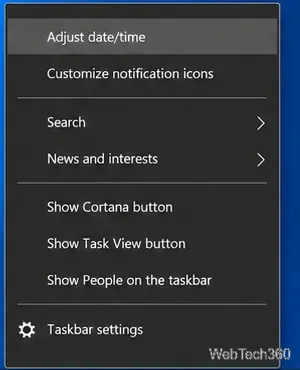
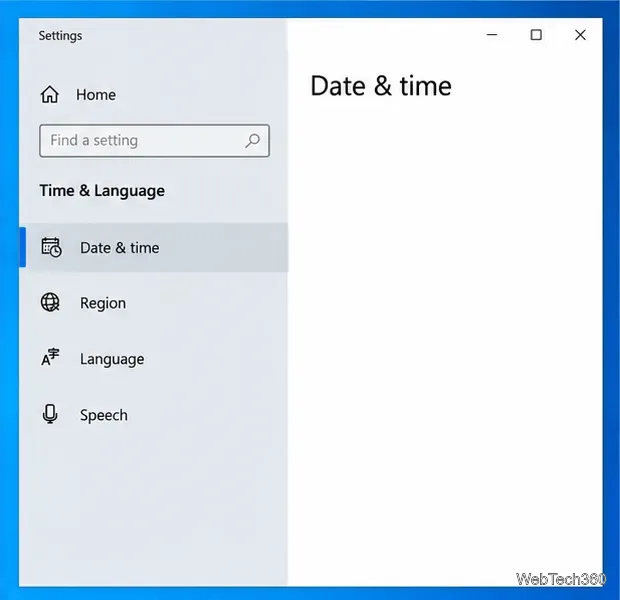
To change the time in Windows 10, open Settings > Time & Language > Date & time. For a one-time correction, turn off Set time automatically, select Change, enter the correct date and time, and confirm. If the clock is off by a whole hour, check the time zone first; changing the clock manually will not fix a zone mismatch.
You can also use the classic Control Panel dialog. The steps below cover both routes, automatic clock sync, daylight saving time, and common fixes.
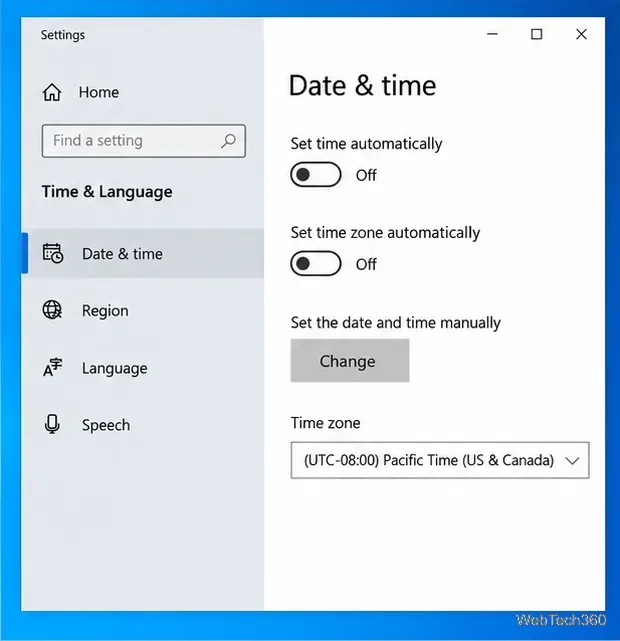
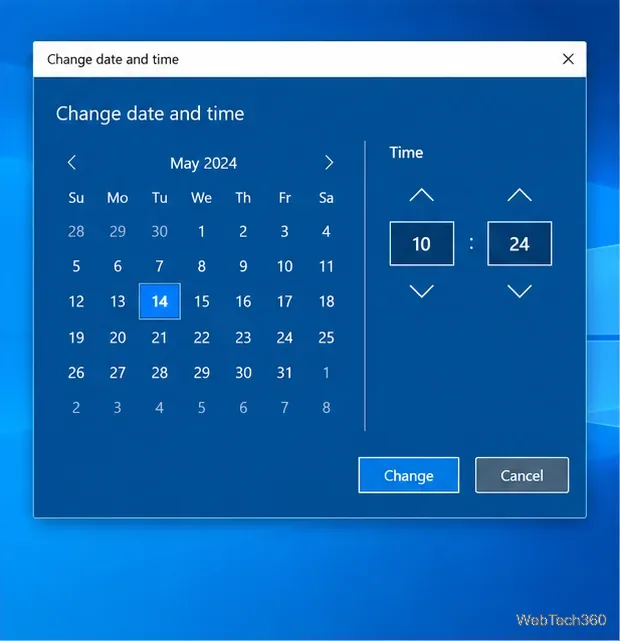
To return to automatic correction later, switch Set time automatically back On. If the button remains gray after you turn automatic time off, the computer may be managed by work or school policy, or your account may not have permission to change the clock. Contact the administrator for a managed PC.
If the minutes are right but the displayed time is several hours early or late, select the correct time zone instead of adding or subtracting hours manually. On the same Date & time page, turn Set time zone automatically off, then choose your region from the Time zone list. Do not select a zone just because its name looks familiar; use the one that matches your location.
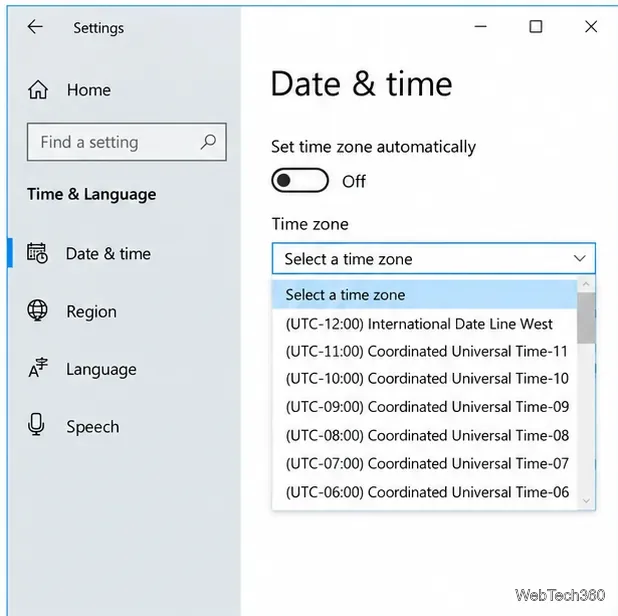
When automatic time-zone detection is on, Windows handles daylight saving changes based on the selected location. If you set the zone manually, leave Adjust for daylight saving time automatically on where that option appears, unless your region does not observe daylight saving time or your organization requires a different setting. A wrong zone can make appointments, file timestamps, and calendar reminders appear shifted even when the underlying clock is syncing correctly.
For most PCs, automatic time is the simplest choice. Connect to the internet, turn Set time automatically on, confirm the time zone, then scroll to Synchronize your clock and select Sync now. This requests a fresh correction from the Windows time service; it does not change your time zone.
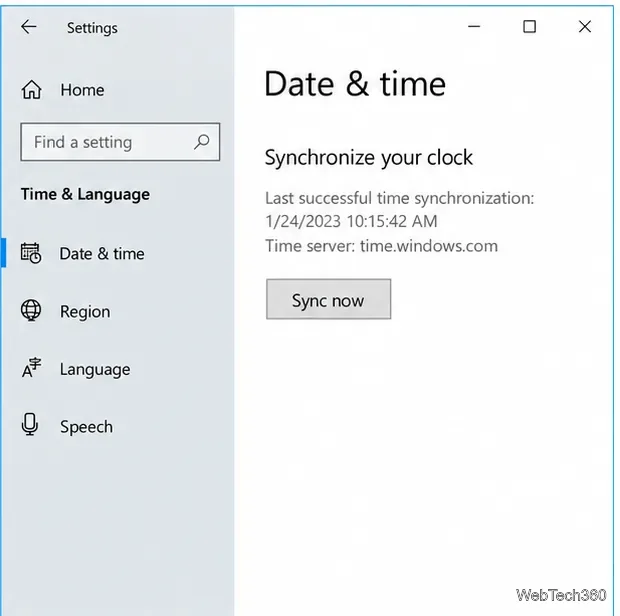
If sync fails, check the internet connection and confirm the time zone before retrying. A work or school computer can use a time source chosen by its administrator, so the Sync now control or server may differ. Microsoft describes the Windows Time service and its network time synchronization in its Windows Time Service documentation.
If you prefer the older interface, open Start, search for Control Panel, and select Clock and Region > Date and Time. On the Date and Time tab, choose Change date and time, enter the values, and select OK. Windows may ask you to approve the change.
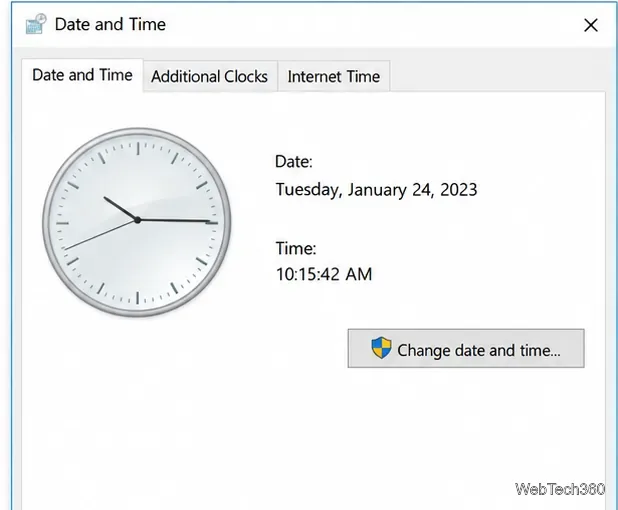
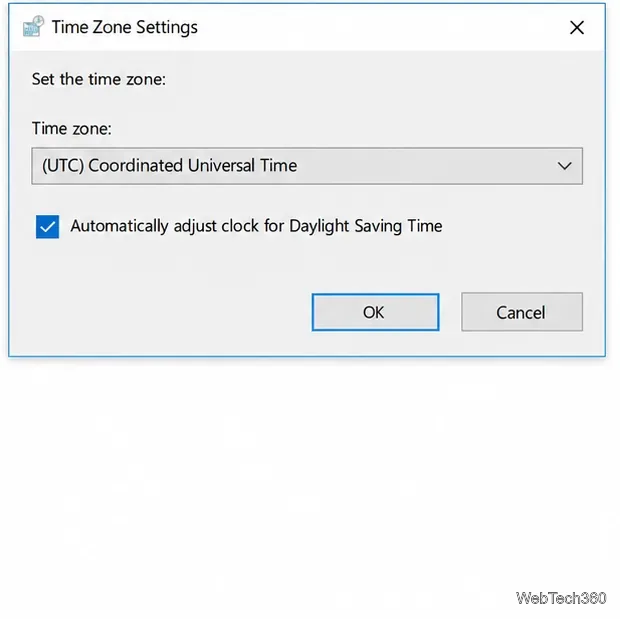
To change the zone in this interface, select Change time zone, choose the correct entry, and select OK. Keep automatic daylight saving adjustment enabled when it applies to that zone.
Windows 10 support note: Windows 10 continues to run, but Microsoft ended free software updates, technical support, and security fixes on October 14, 2025. See Microsoft's current time, date, and time-zone instructions for the Windows Settings labels and the support notice.
Adjust each Windows 10 monitor independently with per-display scaling, keep text readable, and troubleshoot custom scaling or blurry apps.
Use AirType’s browser pairing setup to type on an iPhone from a Windows 10 PC, with current setup steps, troubleshooting, and privacy limits.
Hide the mouse pointer in Windows 10 videos, games, and other apps with built-in typing controls or PowerToys CursorHide’s adjustable inactivity timer.
Find Control Panel Power Options on a Windows 10 desktop, open the page with a Run command, and adjust power plans, display timeouts, sleep, and button behavior.
Learn what Windows 10 deletion leaves behind, how to use SDelete on an HDD, and why SSDs and cloud backups need separate treatment.
Use FFmpeg’s DirectShow tools to open an integrated webcam’s driver properties in Windows 10, find the correct device, and troubleshoot missing controls.
Identify a keypress in Windows 10 with a browser event tester or SharpKeys, then separate layout, software, and keyboard hardware issues.
Use double quotes around each complete path with spaces in Command Prompt. Learn how to list, change to, copy, and troubleshoot Windows 10 files and folders.
Turn off the Windows 10 Start menu’s hover-to-expand behavior with a legacy Mach2 command, check build limits, and see the built-in app-list alternative.
Fix the iTunes Library.itl read error on Windows 10 by updating iTunes, restoring a compatible backup, or safely creating a new library without deleting media files.








