How to Set Different Scaling Levels for Multiple Monitors in Windows 10

Adjust each Windows 10 monitor independently with per-display scaling, keep text readable, and troubleshoot custom scaling or blurry apps.
To estimate battery wear on a Windows 10 laptop, generate the built-in battery report and compare Design Capacity with Full Charge Capacity. The percentage is a capacity estimate, not a direct measurement of how many minutes the laptop will run. You can calculate it from the two values Windows reports without installing a battery utility.
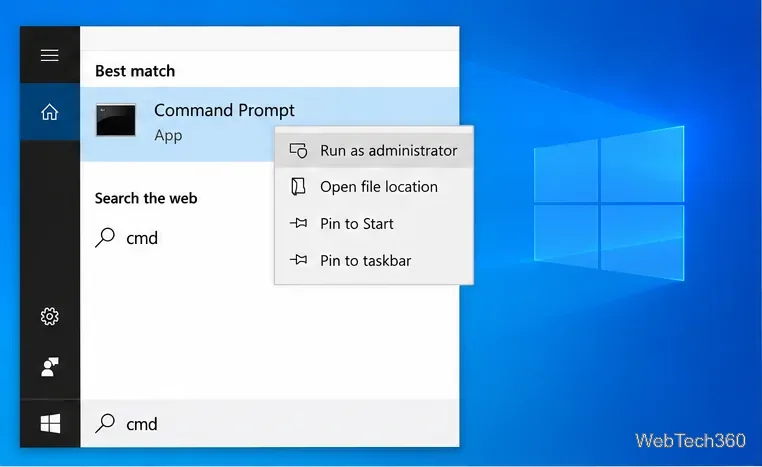
Windows includes the powercfg /batteryreport command. Microsoft documents it as a way to generate an HTML report of battery usage, with an optional output path. See the Powercfg command-line options for the supported syntax.
powercfg /batteryreport /output "%USERPROFILE%\Desktop\battery-report.html", then press Enter. The command saves an HTML report on your Desktop and prints the path. You can instead run powercfg /batteryreport to let Windows choose a location; copy the path shown in Command Prompt.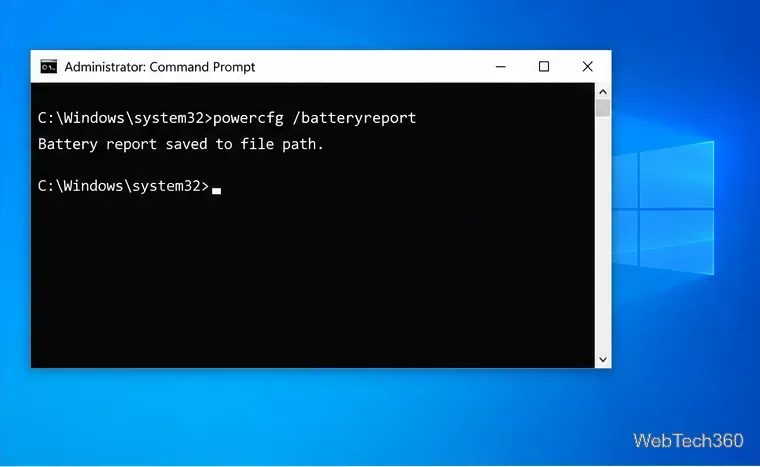
In the report, scroll to Installed batteries. The table may show the battery name, manufacturer, serial number, Design Capacity, Full Charge Capacity, and sometimes Cycle Count. Not every laptop exposes every field, and a computer with more than one battery may list multiple rows.
| Report field | What it means |
|---|---|
| Design Capacity | The battery's rated capacity when new, as reported by its controller. |
| Full Charge Capacity | The controller's current estimate of the maximum charge the battery can hold. |
| Cycle Count | The number of charge cycles reported by the battery, when available. It is context, not a wear percentage. |
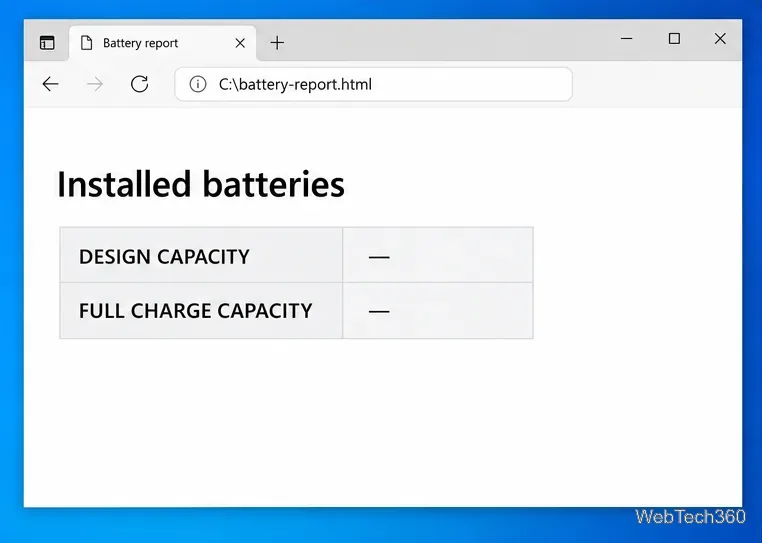
Use the capacity values for the same battery and make sure they use the same unit, usually milliwatt-hours (mWh). If the report lists multiple batteries, calculate each row separately instead of pairing values from different rows.
Subtract Full Charge Capacity from Design Capacity, divide the difference by Design Capacity, and multiply by 100:
Estimated wear (%) = (Design Capacity − Full Charge Capacity) ÷ Design Capacity × 100
For example, if a report shows a design capacity of 50,000 mWh and a full-charge capacity of 42,000 mWh, the calculation is (50,000 − 42,000) ÷ 50,000 × 100 = 16% estimated wear. The battery is reporting about 84% of its original capacity. This is an arithmetic example, not a benchmark for a particular laptop.
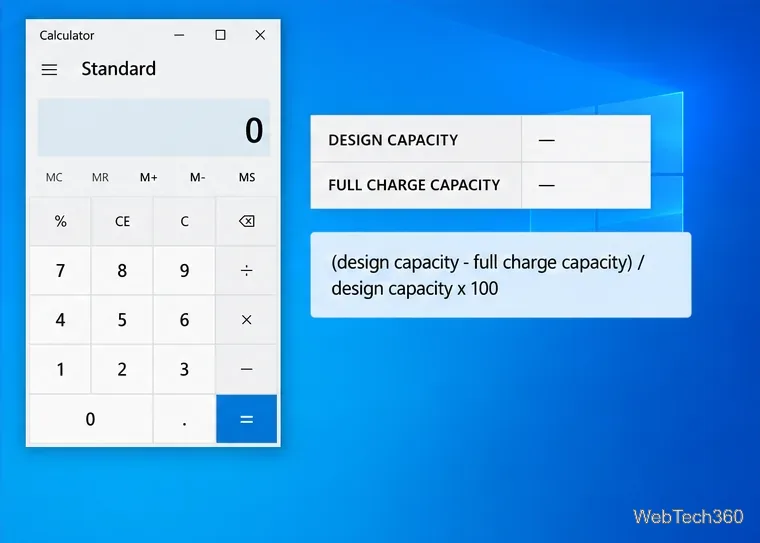
You can also calculate estimated capacity retention as Full Charge Capacity ÷ Design Capacity × 100. For instance, 42,000 ÷ 50,000 × 100 = 84% retained capacity; estimated wear is 100% minus that result. A simple calculator is enough.
Battery wear is a useful comparison, but it does not predict runtime exactly. Screen brightness, workload, wireless activity, power settings, temperature, and battery age all affect how long a charge lasts. A laptop reporting 16% wear will not necessarily provide exactly 16% less runtime than when it was new.
Windows relies on information supplied by the battery controller and system firmware. Microsoft's battery design guidance identifies design capacity, last full-charge capacity, and cycle count as battery data, while its API documentation notes that some controllers do not support design capacity or may return no value. See Microsoft's battery and charging guidance and the DesignCapacityInMilliwattHours documentation.
If Installed batteries is empty, a value is blank or zero, or the two capacities are identical when that seems unlikely, the laptop may not be exposing usable battery data to Windows. Rerun the report once, then check the computer maker's support page or built-in diagnostics for your exact model. Those tools can sometimes read information that the standard Windows report does not show.
A reported percentage is an estimate, not a service diagnosis. If the laptop's battery life has become impractical, the computer shuts down unexpectedly, or the manufacturer's diagnostic flags a fault, use the manufacturer's repair guidance. For routine checks, save a new report occasionally and compare the same capacity fields over time; a single reading is less informative than a consistent trend.
Adjust each Windows 10 monitor independently with per-display scaling, keep text readable, and troubleshoot custom scaling or blurry apps.
Use AirType’s browser pairing setup to type on an iPhone from a Windows 10 PC, with current setup steps, troubleshooting, and privacy limits.
Hide the mouse pointer in Windows 10 videos, games, and other apps with built-in typing controls or PowerToys CursorHide’s adjustable inactivity timer.
Find Control Panel Power Options on a Windows 10 desktop, open the page with a Run command, and adjust power plans, display timeouts, sleep, and button behavior.
Learn what Windows 10 deletion leaves behind, how to use SDelete on an HDD, and why SSDs and cloud backups need separate treatment.
Use FFmpeg’s DirectShow tools to open an integrated webcam’s driver properties in Windows 10, find the correct device, and troubleshoot missing controls.
Identify a keypress in Windows 10 with a browser event tester or SharpKeys, then separate layout, software, and keyboard hardware issues.
Use double quotes around each complete path with spaces in Command Prompt. Learn how to list, change to, copy, and troubleshoot Windows 10 files and folders.
Turn off the Windows 10 Start menu’s hover-to-expand behavior with a legacy Mach2 command, check build limits, and see the built-in app-list alternative.
Fix the iTunes Library.itl read error on Windows 10 by updating iTunes, restoring a compatible backup, or safely creating a new library without deleting media files.








