How to Access a Network Location in Command Prompt on Windows 10

Use pushd to open a UNC network path in Windows 10 Command Prompt, run commands in the shared folder, and return with popd.
To check the partition style of a disk on Windows 10, use Disk Management and open the disk's Properties > Volumes tab. The Partition style field will say either GUID Partition Table (GPT) or Master Boot Record (MBR). You can also check the same information with DiskPart or PowerShell without installing any third-party software.
GPT and MBR are disk partitioning schemes, not file systems such as NTFS or exFAT. Microsoft describes MBR as the older BIOS-oriented scheme and GPT as the modern UEFI-oriented scheme. GPT also supports disks larger than 2 TB and more than four partitions. See Microsoft's GPT and MBR partition scheme documentation.
This is the easiest graphical method if you only need to inspect one disk.
diskmgmt.msc and press Enter.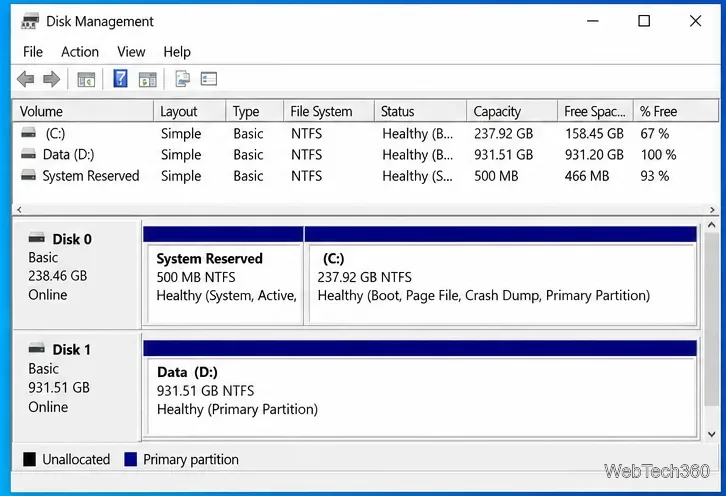
The Disk Management window identifies each physical disk separately from its volumes, which helps you avoid checking the wrong drive.
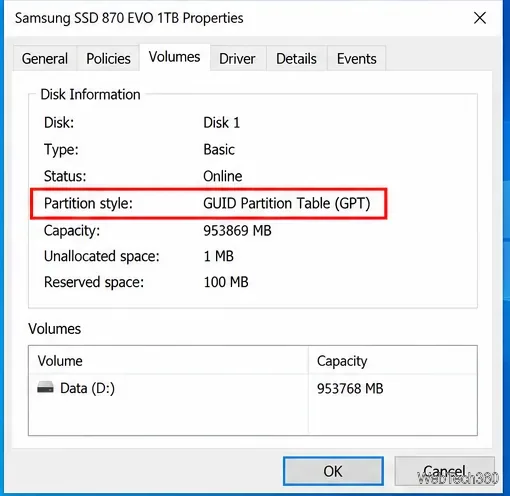
If the value says GUID Partition Table (GPT), the disk uses GPT. If it says Master Boot Record (MBR), it uses MBR. Microsoft documents this same Properties and Volumes workflow when verifying a disk's partition scheme.
DiskPart is useful when you are already working in Command Prompt or need to check several disks at once.
diskpart.DISKPART> prompt, run list disk.diskpart
list disk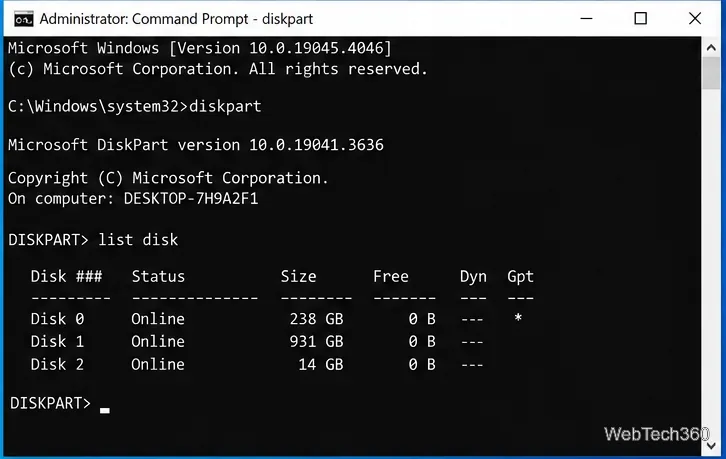
Look at the Gpt column. An asterisk (*) in that column indicates a GPT disk. If the GPT column is blank for a disk, it is using MBR. Microsoft states that list disk displays whether disks use the MBR or GPT partition style in the DiskPart list command reference.
When you finish, type exit to leave DiskPart.
PowerShell provides the clearest one-command view because the output includes a Partition Style column.
Get-Disk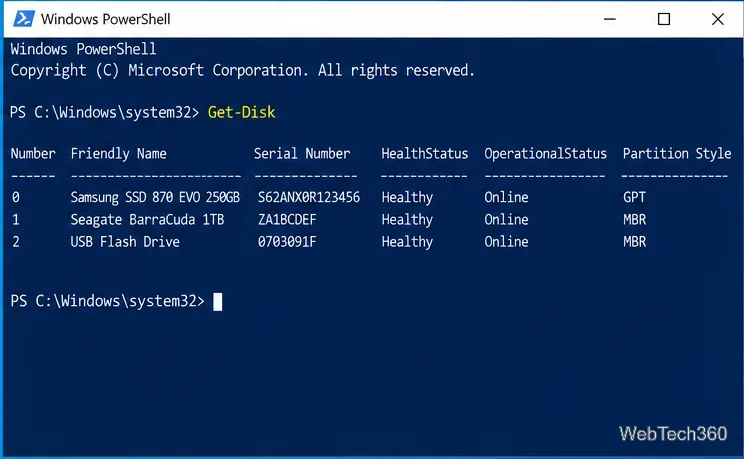
Match the disk number or friendly name to the disk you want to inspect, then read Partition Style. For a more compact output, you can run:
Get-Disk | Select-Object Number, FriendlyName, PartitionStyleThe Microsoft Get-Disk documentation confirms that the cmdlet returns disks visible to Windows. One limitation is that Get-Disk does not return dynamic disks in the same way as ordinary basic physical disks.
| Partition style | Typical use | Important limit or feature |
|---|---|---|
| GPT | Modern UEFI-based PCs | Supports disks larger than 2 TB and more than four partitions |
| MBR | Older BIOS/legacy configurations | Limited to 2 TB disks and up to four primary partitions |
Checking the partition style is read-only; the methods above do not erase or reformat the disk. Do not confuse checking a disk with converting it.
Yes, but the conversion method matters. Microsoft's standard Disk Management and DiskPart conversion procedures require you to back up the disk and remove existing partitions or volumes before changing its partition scheme. That is very different from simply checking the current style.
For eligible Windows system disks, Microsoft also provides MBR2GPT.exe, which can convert an MBR system disk to GPT without deleting the data when the disk meets the tool's requirements. Read the official MBR2GPT documentation before attempting a conversion.
Windows 10 reached the end of general Microsoft support on October 14, 2025. PCs can still run Windows 10, and the built-in disk tools described above remain useful, but Microsoft recommends moving to a supported Windows release or using an applicable Extended Security Updates option. See Microsoft's Windows 10 end-of-support guidance.
Use pushd to open a UNC network path in Windows 10 Command Prompt, run commands in the shared folder, and return with popd.
Learn how to install a Rainmeter skin from an INI file by placing it in the right Skins folder, preserving its resources, refreshing Rainmeter, and loading it in Manage.
Open one folder in its own File Explorer window with Shift or the context menu, or change Folder Options to make every folder open separately.
Pin a frequently used Control Panel applet, such as Power Options or Sound, to the Windows 10 Start menu for one-click access.
Choose a supported Windows 10 hotkey for switching input languages, assign shortcuts to individual layouts, or disable an accidental shortcut.
Move a Windows 10 app to the display you want, use its game monitor setting, and handle full-screen apps with a practical primary-monitor workaround.
Use a transparent PNG and a Rainmeter skin to keep an image watermark above windows, adjust its transparency, and make it click-through on Windows 10.
Convert stereo audio to mono on Windows 10 with Audacity. Mix both channels into one mono track, export a new file, and verify the channel count.
Use Windows 10 Clipboard history to save recent text and images, paste an earlier clip with Windows key + V, and manage sync, pinned items, and privacy.
Learn how to zoom in on a video in Windows 10 with VLC’s Interactive Zoom, or use Windows Magnifier when the clip is playing in another app.








