How to Set Different Scaling Levels for Multiple Monitors in Windows 10

Adjust each Windows 10 monitor independently with per-display scaling, keep text readable, and troubleshoot custom scaling or blurry apps.
Windows 10 does not provide one built-in list showing the last time every app was opened. For a quick lookup, use LastActivityView, a free portable utility that gathers activity records from several places in Windows. Its Action Time can help you find a recent app launch, but it is a recorded event—not proof that someone actively used the app.
LastActivityView.exe from the extracted folder.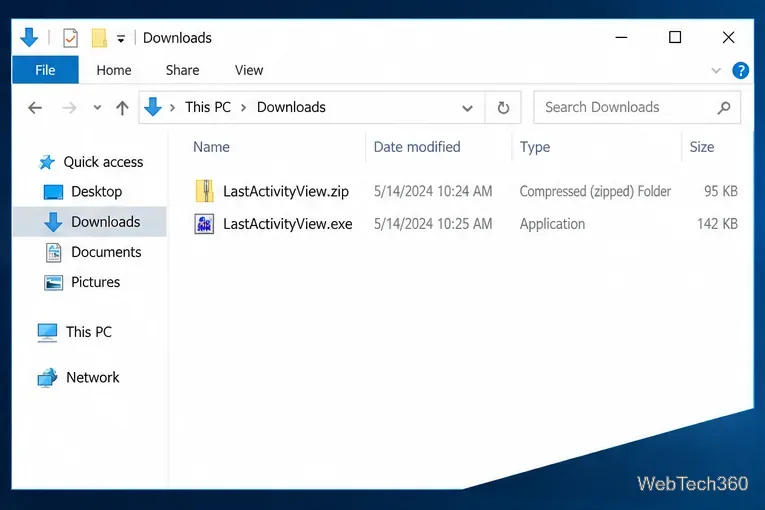
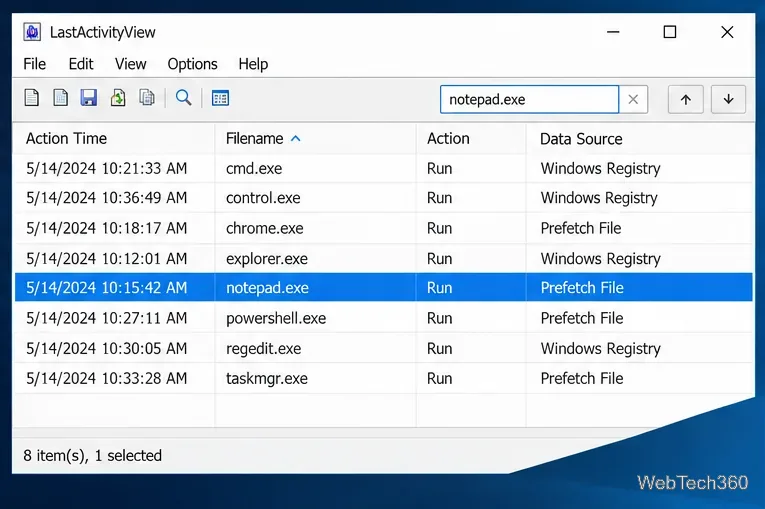
notepad.exe, and check the related Action. A “Run .EXE file” entry means a process started; it may have been started by a person, another program, or a background service.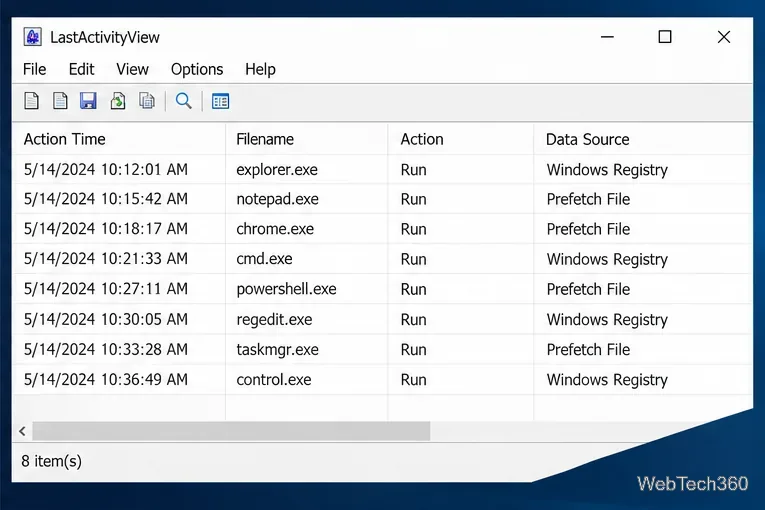
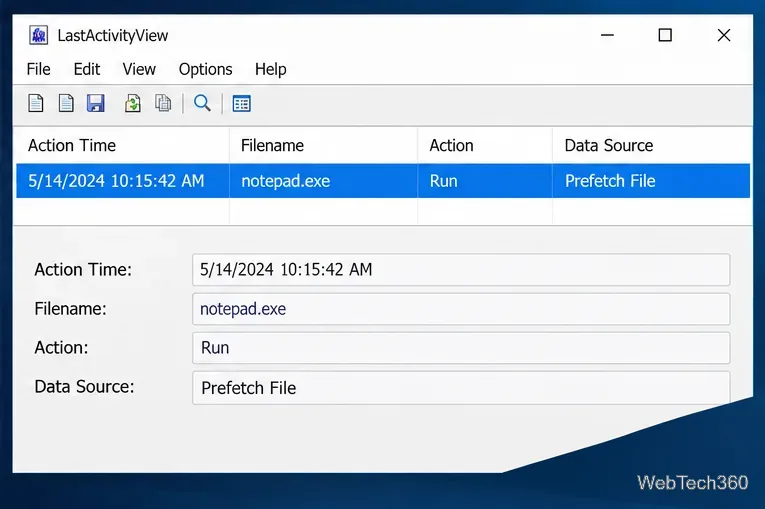
LastActivityView combines information from sources including the Windows Registry, Windows event logs, and the Prefetch folder. NirSoft warns that the availability and accuracy of entries vary by PC. For example, a registry change can affect a time derived from a registry key’s modified date. Some event types also have their own recording limits.
Use the result as a clue about a recorded launch or other activity. It does not show how long an app stayed open, whether its window was in the foreground, or whether a person interacted with it. A missing row also does not prove the app was never opened: Windows may not have retained a usable record for that event. NirSoft documents these limits on its LastActivityView page.
A “Run .EXE file” row can also reflect a helper program or background service starting a process. If the date matters, compare the row with other available records and check whether its action and source fit the situation you are investigating.
Windows 10 Task Manager has an App History tab, but it summarizes resource usage such as CPU time and network activity over time. It is useful for comparing app resource use, not for looking up one reliable “last opened” timestamp across every desktop and Store app. See Microsoft’s Task Manager overview for the tab’s purpose.
For process-start records going forward, an administrator can enable Success auditing for Audit Process Creation in Local Security Policy or an organization’s Group Policy. Then open Event Viewer, go to Windows Logs > Security, and filter for event ID 4688 (“A new process has been created”). Microsoft notes that process-creation auditing records the application and account and can generate medium-to-high event volume depending on activity. It only records events after auditing is enabled, and it records process starts—not proof of interactive use. See Microsoft’s Audit Process Creation guide and event 4688 reference.
Adjust each Windows 10 monitor independently with per-display scaling, keep text readable, and troubleshoot custom scaling or blurry apps.
Use AirType’s browser pairing setup to type on an iPhone from a Windows 10 PC, with current setup steps, troubleshooting, and privacy limits.
Hide the mouse pointer in Windows 10 videos, games, and other apps with built-in typing controls or PowerToys CursorHide’s adjustable inactivity timer.
Find Control Panel Power Options on a Windows 10 desktop, open the page with a Run command, and adjust power plans, display timeouts, sleep, and button behavior.
Learn what Windows 10 deletion leaves behind, how to use SDelete on an HDD, and why SSDs and cloud backups need separate treatment.
Use FFmpeg’s DirectShow tools to open an integrated webcam’s driver properties in Windows 10, find the correct device, and troubleshoot missing controls.
Identify a keypress in Windows 10 with a browser event tester or SharpKeys, then separate layout, software, and keyboard hardware issues.
Use double quotes around each complete path with spaces in Command Prompt. Learn how to list, change to, copy, and troubleshoot Windows 10 files and folders.
Turn off the Windows 10 Start menu’s hover-to-expand behavior with a legacy Mach2 command, check build limits, and see the built-in app-list alternative.
Fix the iTunes Library.itl read error on Windows 10 by updating iTunes, restoring a compatible backup, or safely creating a new library without deleting media files.








