How to Set Different Scaling Levels for Multiple Monitors in Windows 10

Adjust each Windows 10 monitor independently with per-display scaling, keep text readable, and troubleshoot custom scaling or blurry apps.
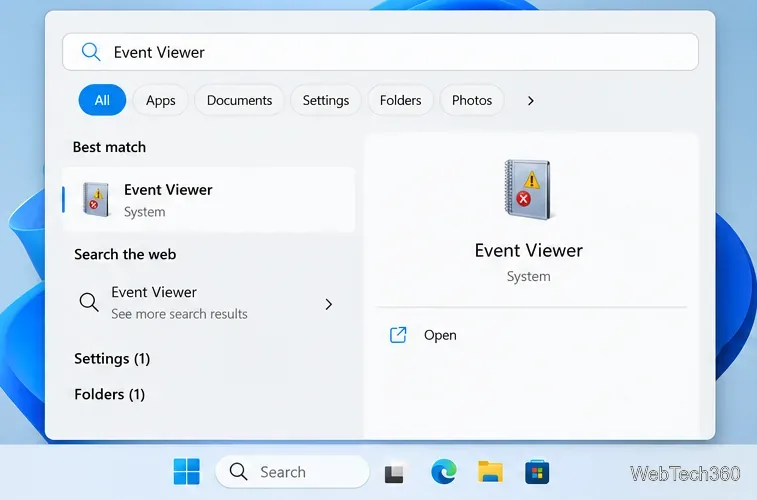
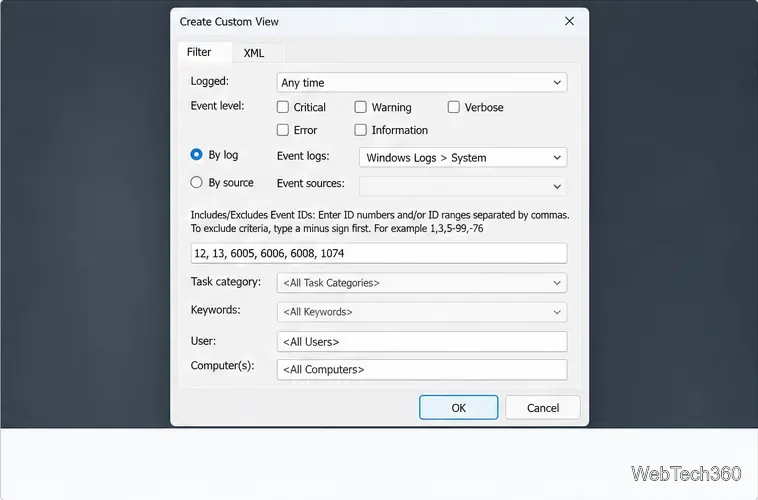
Use Event Viewer to check when Windows started and began shutting down. Create a custom view for the System log and filter for event IDs 12, 13, 6005, 6006, 6008, and 1074. Windows records these events automatically, so there is no need to install a separate logger. The entries describe operating-system and event-service activity; they do not always mark the exact moment someone pressed the power button.
Filter the Windows Logs > System log, then check each event's source as well as its ID. Microsoft cautions that an event ID can be used by different sources, so an ID alone is not enough to identify an event.
| Event ID | Source | What it tells you |
|---|---|---|
| 12 | Kernel-General | The operating system started. |
| 13 | Kernel-General | The operating system is shutting down. |
| 6005 | EventLog | The Event Log service started, usually during startup. |
| 6006 | EventLog | The Event Log service stopped, commonly during an orderly shutdown. |
| 6008 | EventLog | The previous shutdown was unexpected; Windows records this after it starts again. |
| 1074 | User32 | A process or user requested a shutdown or restart; the message can include the process and reason. |
For a clean reboot, events 1074 and 13 can help show the request and shutdown sequence. Events 41 from Kernel-Power and 6008 can point to a shutdown that did not complete normally, such as after a crash or power loss. These records help establish a timeline, but they are not a complete diagnostic by themselves.
Event Viewer keeps the System log in a single list with many unrelated entries. A custom view saves a filter so you can return to the relevant events without repeating the setup.
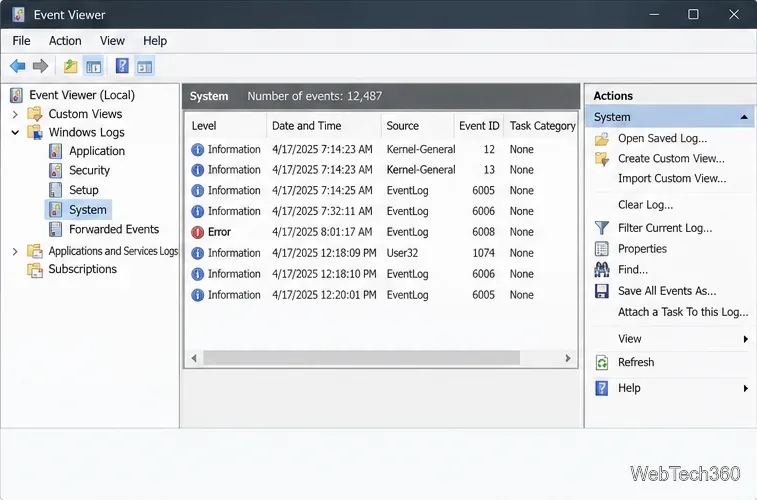
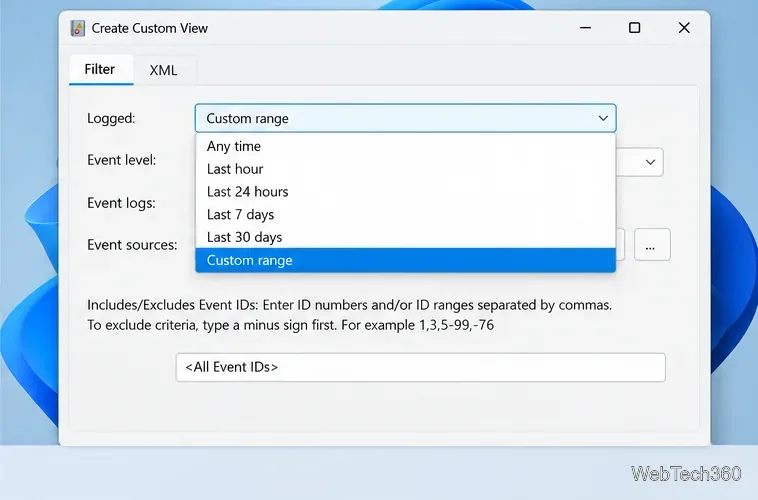
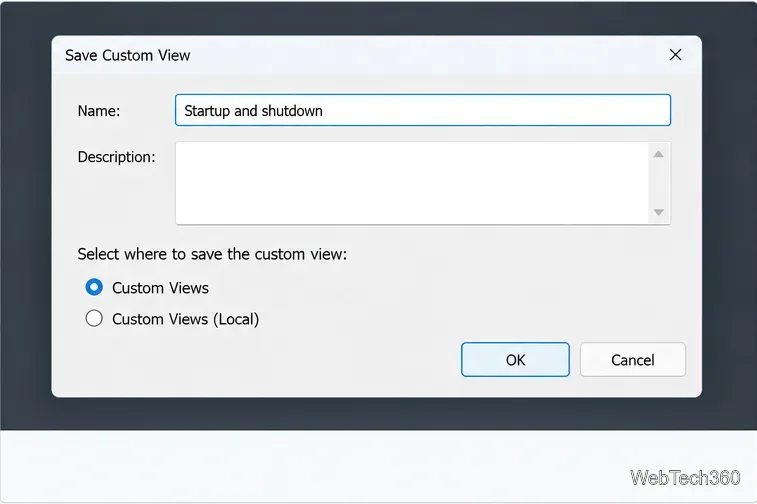
Select the saved view and review the Date and Time, Source, and Event ID columns. Sort by time to build a sequence. Double-click an entry to open its properties and read the full message; for example, a Kernel-General event 12 describes the operating system starting. Compare the source and message with the event ID instead of assuming every result with a matching number means the same thing.
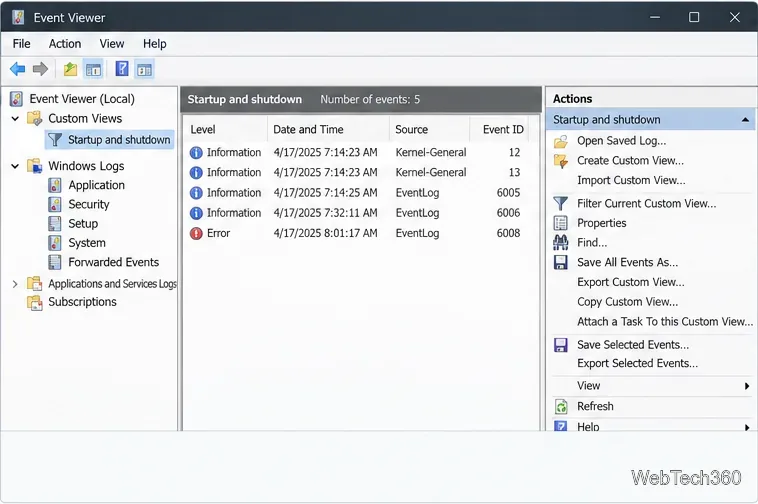
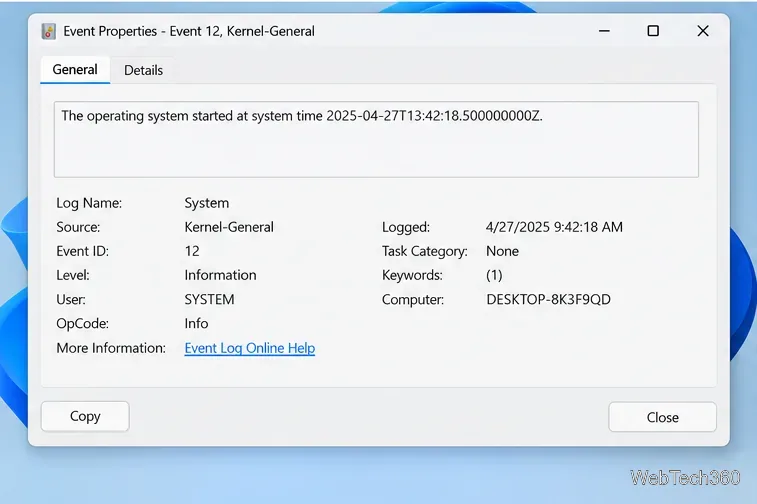
If you see event 6008 or 41, look at nearby entries such as 1074, 13, and 1001 for more context about the next startup or a possible crash. A missing 6006 does not prove that Windows was never shut down; an interrupted shutdown, restart method, or overwritten System log can change what remains available. Windows retains events only until the log reaches its configured size and retention behavior, so older records may no longer be present.
With the custom view selected, choose Save All Events in Custom View As in the Actions pane (or the corresponding command from the view's context menu). Choose CSV for a spreadsheet, XML for structured event data, or EVTX when you want to preserve a native event-log file for later review. Save the file with a descriptive name, such as startup-shutdown.csv.
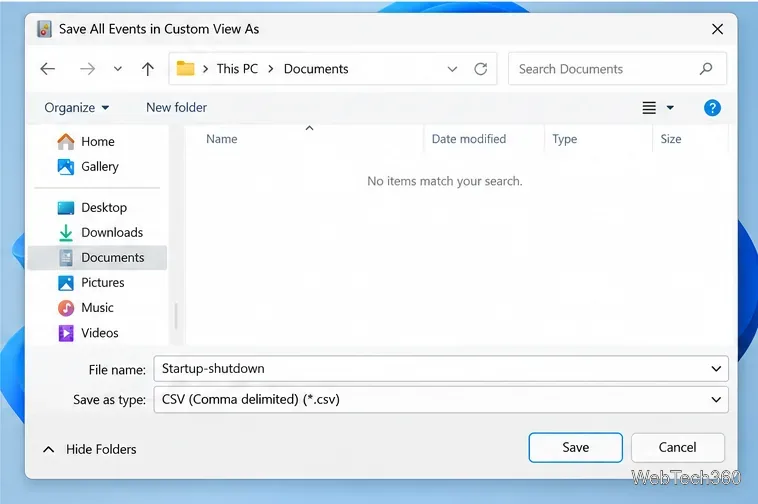
There is a similarly named Export Custom View command. It saves the filter definition as an XML file so the view can be imported elsewhere; it does not export the matching event records. To export the records, use Save All Events in Custom View As. In Excel or another spreadsheet, confirm the date and time column imports as dates before sorting or calculating intervals.
Adjust each Windows 10 monitor independently with per-display scaling, keep text readable, and troubleshoot custom scaling or blurry apps.
Use AirType’s browser pairing setup to type on an iPhone from a Windows 10 PC, with current setup steps, troubleshooting, and privacy limits.
Hide the mouse pointer in Windows 10 videos, games, and other apps with built-in typing controls or PowerToys CursorHide’s adjustable inactivity timer.
Find Control Panel Power Options on a Windows 10 desktop, open the page with a Run command, and adjust power plans, display timeouts, sleep, and button behavior.
Learn what Windows 10 deletion leaves behind, how to use SDelete on an HDD, and why SSDs and cloud backups need separate treatment.
Use FFmpeg’s DirectShow tools to open an integrated webcam’s driver properties in Windows 10, find the correct device, and troubleshoot missing controls.
Identify a keypress in Windows 10 with a browser event tester or SharpKeys, then separate layout, software, and keyboard hardware issues.
Use double quotes around each complete path with spaces in Command Prompt. Learn how to list, change to, copy, and troubleshoot Windows 10 files and folders.
Turn off the Windows 10 Start menu’s hover-to-expand behavior with a legacy Mach2 command, check build limits, and see the built-in app-list alternative.
Fix the iTunes Library.itl read error on Windows 10 by updating iTunes, restoring a compatible backup, or safely creating a new library without deleting media files.








