How to Create a List of All Items in a Folder on Windows 10

Create a searchable Windows 10 folder inventory with PowerShell. Save every file and subfolder path as plain text or export details to a sortable CSV.
You can clean a large SteamLibrary folder on Windows 10 without installing a third-party “junk cleaner.” The safest approach is to let Steam remove or move games first, then manually check only for folders that clearly belong to games you already uninstalled. Avoid deleting the entire steamapps folder, Steam manifest files, or userdata just to reclaim space.
Steam game files and save files are not always stored in the same place. Steam says its default Windows game path is C:\Program Files (x86)\Steam\steamapps\common\, while games installed to another library may use a path such as D:\SteamLibrary\steamapps\common\. You can confirm the exact library location in Steam under Steam > Settings > Storage. See Valve's official guide to Steam library locations and moving games.
Also protect anything you care about before deleting leftovers. Steam Cloud can store saves and settings for supported games, but developers decide which files are synchronized. Valve notes that local Steam Cloud data is stored under Steam\userdata\[SteamID]\ by default on Windows. Check the game's Cloud status or back up important saves and mods first. Valve's Steam Cloud documentation explains these limits.
Open Steam and go to Steam > Settings > Storage. Select the drive that contains the library you want to clean. Steam shows installed content and storage use, which is much safer than guessing from folder names in File Explorer.
If one or two installed games account for most of the space, uninstalling or moving them will usually recover far more storage than deleting miscellaneous leftovers. Steam can also move installed games to another library from the Storage page.
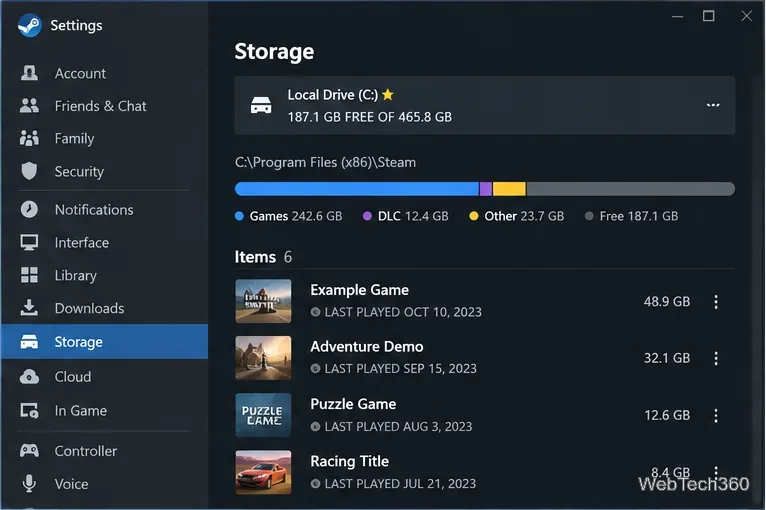
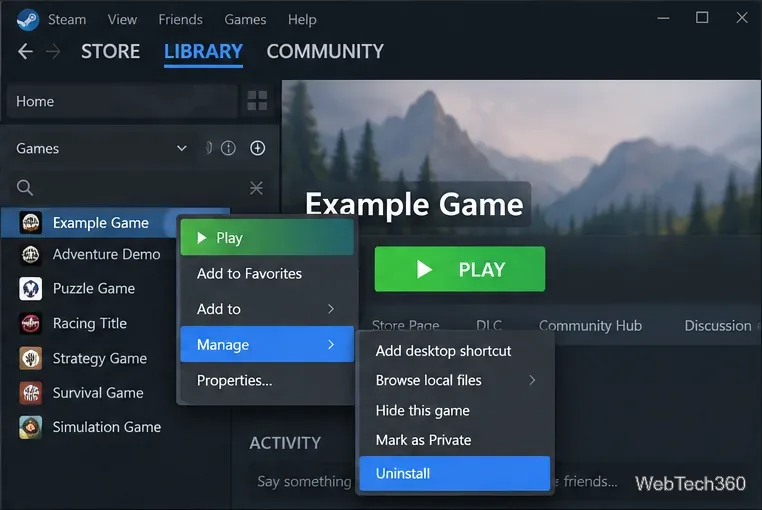
For a game you no longer want, open Library, right-click the game, choose Manage, and select Uninstall. You can also manage installed games from the Storage page. Removing a game through Steam first allows the client to update its installation records instead of leaving Steam thinking the game is still present.
If you might reinstall soon, consider moving the game instead of removing it. Valve's current Storage tools support additional library paths and moving existing installations between them.
After uninstalling the games you no longer need, fully exit Steam. Open File Explorer and browse to the library's steamapps\common folder. Look for a folder that belongs to a game you have already uninstalled.
Before deleting it, make sure the game is no longer listed as installed in Steam and check whether the folder contains custom mods, screenshots, configuration files, or saves you want to keep. Some games keep user-created content inside their installation folder even after the main game is removed.
Delete only a folder you can positively identify as leftover. Do not bulk-delete every unfamiliar folder. If you are uncertain, move the suspected leftover folder to a temporary backup location, launch Steam, and confirm your remaining games still work before emptying that backup.
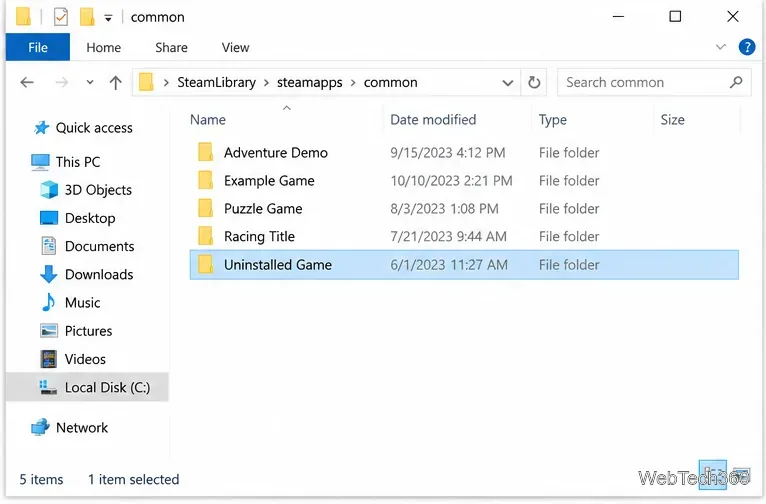
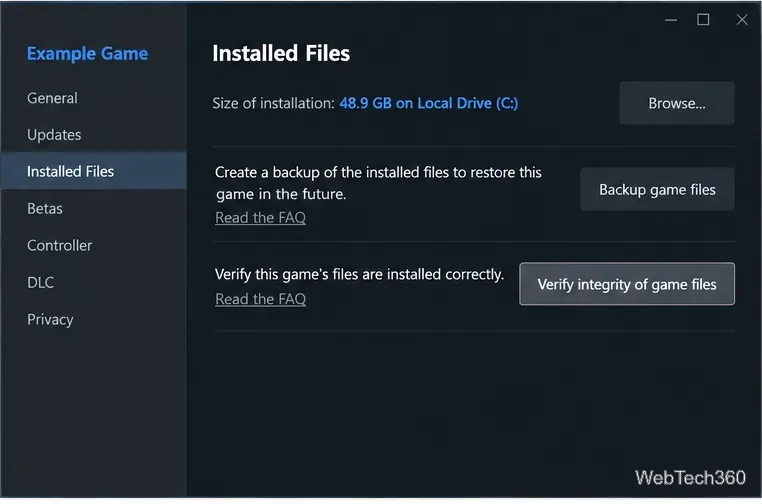
steamapps\common only after uninstalling the game, and remove a folder only when you are certain it is no longer needed.If you manually removed files near an installed game or you are unsure whether an installation is complete, use Steam's verification tool. Right-click the game in Library, select Properties > Installed Files > Verify integrity of game files. Steam checks the managed installation and reacquires files that are missing or invalid. Valve documents the process in its Verify Integrity of Game Files guide.
| Item | Recommendation |
|---|---|
steamapps\common\<game> | Delete only when that game is already uninstalled and you have checked for saves, mods, or other custom files. |
appmanifest_*.acf | Do not treat these as junk. Steam uses manifest data to track installed applications. |
userdata | Do not delete it as routine cleanup; it can contain local user and Steam Cloud-related data. |
workshop\content | Do not wipe it blindly. Workshop content is tied to subscriptions and may simply download again. |
downloading | Do not use manual deletion as normal cleanup. For download problems, Valve recommends troubleshooting from Steam, including Settings > Downloads > Clear Cache. |
A large Steam library is usually large because of installed games, DLC, and Workshop content—not because of a few residual files. If storage remains tight, move games to another library or uninstall titles you rarely play. Valve's update and installation troubleshooting guide also confirms the current Settings > Storage controls, including adding a library and repairing a library folder. Note that Repair Folder is a permissions/troubleshooting tool; it is not a disk-cleanup command.
The main rule is simple: let Steam manage active installations, then delete only leftovers you can identify with confidence. That recovers unused space without turning a routine cleanup into a full game re-download.
Create a searchable Windows 10 folder inventory with PowerShell. Save every file and subfolder path as plain text or export details to a sortable CSV.
Add a custom reminder, quote, or label to your Windows 10 desktop with a Rainmeter text skin. Create the INI file, load it, then adjust its font and position.
Use Bluetooth Swift Pair on Windows 10 to pair a compatible accessory from a notification, with setup steps and fixes when the prompt does not appear.
Learn what common laptop function key symbols mean, how Fn and Fn Lock affect them, and how to confirm the right shortcut for your Windows 10 laptop model.
Turn off your Windows 10 display instantly with ScreenSleep, set a keyboard shortcut, and see when to use the built-in screen timeout instead.
Fix the “running scripts is disabled on this system” PowerShell error on Windows 10 with a current-user policy, a temporary session option, and safe steps for downloaded scripts.
Change the Windows 10 drag-selection color with a backup-first registry walkthrough, RGB examples, troubleshooting tips, and steps to restore your original values.
Check your router’s connected-device list or scan a local network with Fing Desktop on a supported PC. Learn what each method can show and how to verify unfamiliar entries.
Messenger does not offer a documented per-friend online alert. Learn how Active Status works, where to check the green dot, and which notifications you can enable instead.
Use 7-Zip to find an exact filename or wildcard match inside a ZIP or other supported archive on Windows 10 without unpacking its files.








