How to Fix Lines on a Monitor Screen in Windows 10

Use a screenshot test, cable and port checks, monitor diagnostics, display settings, and driver rollback to pinpoint lines on a Windows 10 monitor.
To clear autofill data in Chrome, you can either remove all saved form entries for a chosen time range or delete individual addresses, payment methods, and passwords. The important distinction is that Chrome treats passwords separately in Google Password Manager, while some payment and address information may be stored in your Google Account or Google Wallet rather than only on the device.
This is the fastest option when you want to remove many saved form suggestions from desktop Chrome. Google documents this route through the browser's Delete browsing data dialog.
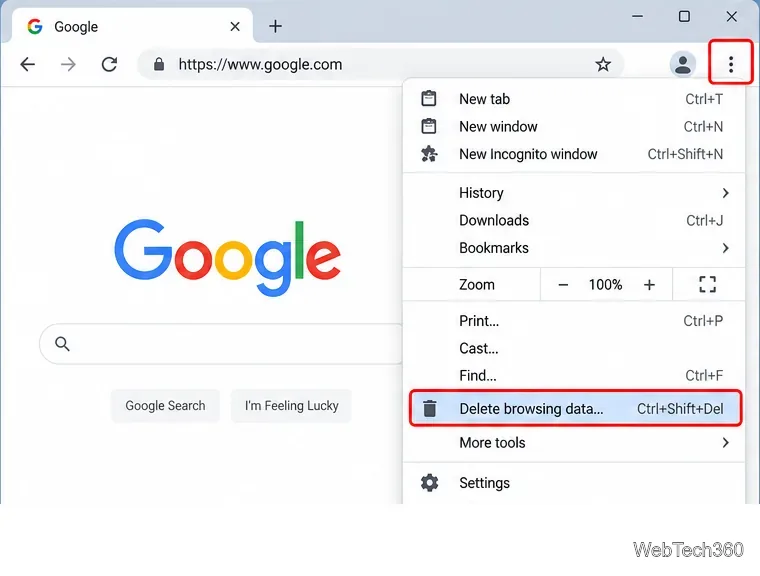
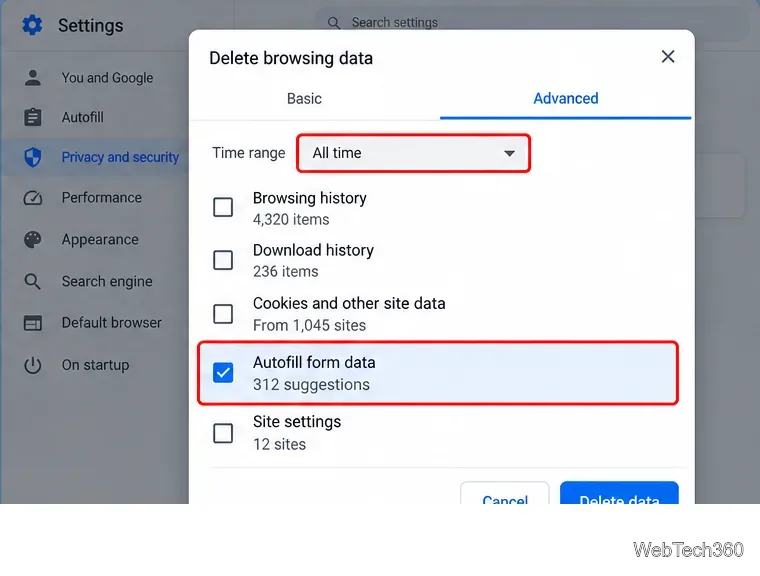
This bulk cleanup removes Chrome autofill entries such as saved addresses and card details covered by the selected time range. It does not remove saved passwords from Google Password Manager. Google also notes that addresses or payment information stored in your Google Account or Google Wallet may remain. See Google's Chrome autofill help and browsing-data documentation for the current behavior.
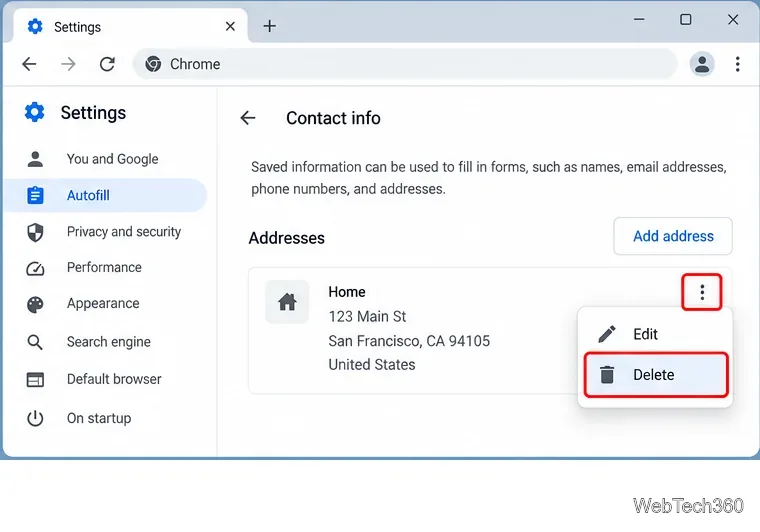
If only one saved item is wrong or outdated, deleting it individually is safer than clearing everything. In current Chrome, open the three-dot menu and go to Passwords and autofill. Depending on the Chrome build and account configuration, the Settings page may use labels such as Contact info or Addresses and more.
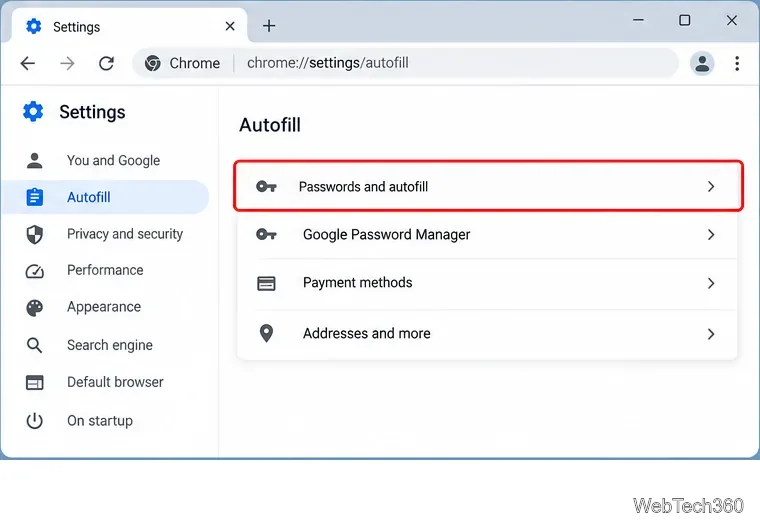
If you are signed in to Chrome, changes to account-backed autofill information can also appear on other devices where you use the same Google Account.
Open the payment section under Passwords and autofill and delete the card or payment entry you no longer need. If Chrome shows that the payment method is stored in Google Wallet, remove it there instead. Google Wallet's web instructions are available on the Manage payment methods page.
Passwords are not part of the Autofill form data checkbox. To remove one, open Passwords and autofill > Google Password Manager, select the saved site entry, and choose Delete. Google also provides a separate option in Password Manager settings to delete all Google Password Manager data. Review the official Chrome password-management instructions before using the all-data option, because it can remove passwords and passkeys associated with the manager.
Deleting old entries does not automatically disable autofill. If you do not want Chrome to save new data, open each autofill category and turn off its Save and fill setting. For passwords, open Google Password Manager settings and turn off Offer to save passwords and passkeys.
| What you want to remove | Best place to do it |
|---|---|
| Many saved form entries | Delete browsing data > Advanced > Autofill form data |
| One address or contact | Passwords and autofill > contact/address section |
| One saved card | Passwords and autofill > payment section, or Google Wallet if account-backed |
| Saved passwords or passkeys | Google Password Manager |
When privacy is the goal, delete only the category you actually need. Clearing cookies, history, or cached files is not required just to remove autofill data, and selecting extra categories can sign you out of sites or remove other browsing information you meant to keep.
Use a screenshot test, cable and port checks, monitor diagnostics, display settings, and driver rollback to pinpoint lines on a Windows 10 monitor.
Show two other time zones beside your Windows 10 clock. Set up each additional clock, give it a clear label, and find it in the taskbar calendar.
Find the File Explorer extension that delays right-click menus in Windows 10, test it safely with ShellExView, and restore any menu features you still need.
Stop Windows 10 from powering down a specific network adapter or USB device with plan-level settings and Device Manager controls, plus tips to avoid excess battery drain.
Check whether Windows 10 uses a digital license or product key, find a firmware-stored OEM key, and save license details securely for a reinstall.
Identify a Windows 10 Task Manager process by checking its executable path, file properties, publisher, linked services, and a Microsoft Defender scan.
Create a searchable Windows 10 folder inventory with PowerShell. Save every file and subfolder path as plain text or export details to a sortable CSV.
Add a custom reminder, quote, or label to your Windows 10 desktop with a Rainmeter text skin. Create the INI file, load it, then adjust its font and position.
Use Bluetooth Swift Pair on Windows 10 to pair a compatible accessory from a notification, with setup steps and fixes when the prompt does not appear.
Learn what common laptop function key symbols mean, how Fn and Fn Lock affect them, and how to confirm the right shortcut for your Windows 10 laptop model.








