How to Create a List of All Items in a Folder on Windows 10

Create a searchable Windows 10 folder inventory with PowerShell. Save every file and subfolder path as plain text or export details to a sortable CSV.
To clear old Protection History entries in Windows Defender on Windows 10, the safest approach is to resolve any alert that still needs action and let Windows Security remove older events automatically. Microsoft does not provide a supported “Clear all” button in the Protection History screen. If you want scan-history data to age out sooner, you can change its retention period with an elevated PowerShell command.
Microsoft now calls the built-in antivirus Microsoft Defender Antivirus, while the interface you open from Start is the Windows Security app. Microsoft’s current Protection History documentation says the page keeps events for two weeks before they disappear from the list.
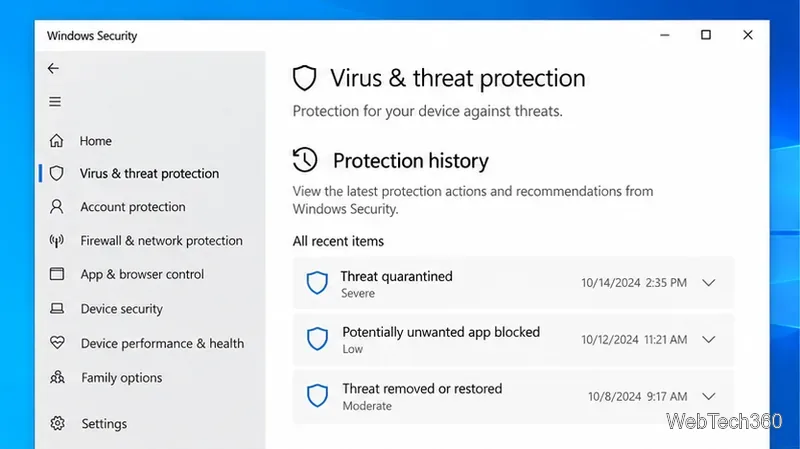
Do not treat Protection History as a browser history list. Some entries represent security decisions that still matter. Open Start > Windows Security > Virus & threat protection > Protection history, expand each recent card, and check whether Windows is asking you to take action.
If a card still requires action, clearing old log data will not fix the underlying security issue. Resolve the alert first, then allow the history to age out.
For most PCs, this is the best option. Once there are no unresolved alerts, leave Protection History alone. Microsoft says events in the Windows Security Protection History view are retained for two weeks, after which they disappear automatically.
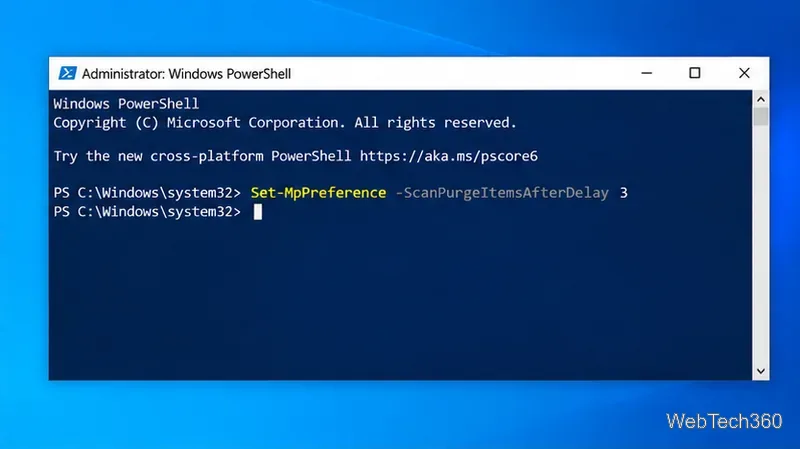
If you specifically want Defender’s scan history to be retained for fewer days, Microsoft documents the ScanPurgeItemsAfterDelay setting in the Defender PowerShell module. This changes the retention period; it is not an instant “delete everything now” command.
3 with the number of days you want scan-history items to be kept:Set-MpPreference -ScanPurgeItemsAfterDelay 3Microsoft’s Set-MpPreference documentation says ScanPurgeItemsAfterDelay controls how many days items remain in the scan-history folder. A value of 0 means Defender does not automatically remove those items, so do not use zero when your goal is cleanup.
Microsoft also documents this setting in its Defender remediation guidance. That documentation lists a 15-day default for the PowerShell scan-history setting, while the consumer Windows Security page describes Protection History as retaining events for two weeks. Because those pages describe related layers of Defender history, do not expect every visible card to disappear at an exact hour after you change the setting.
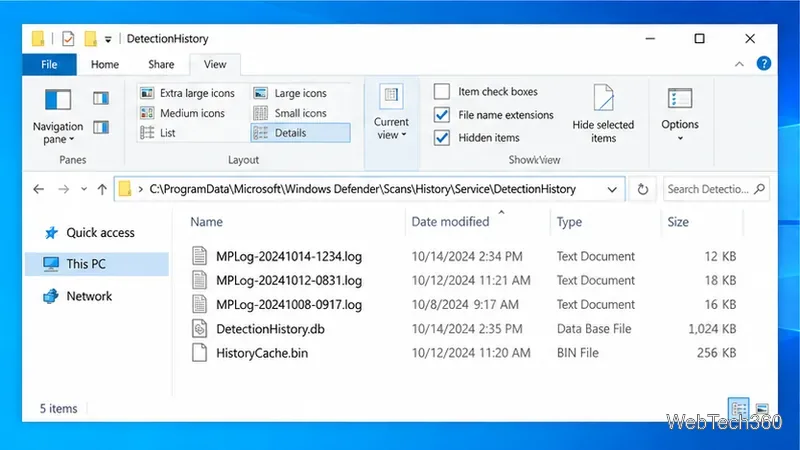
Older guides often tell users to delete files under C:\ProgramData\Microsoft\Windows Defender\Scans\History, including the Service or DetectionHistory folders. That is not the recommended first method for routine cleanup. These are protected Defender data folders, and Microsoft’s current Windows Security documentation does not present manual folder deletion as the normal way to clear Protection History.
If Protection History is corrupted, unusually old entries never disappear, or the Windows Security interface is malfunctioning, treat that as a troubleshooting problem rather than normal maintenance. Start by restarting Windows, installing available security intelligence and Windows updates, and rechecking the Protection History screen. On a managed work PC, contact the administrator instead of changing protected Defender folders yourself.
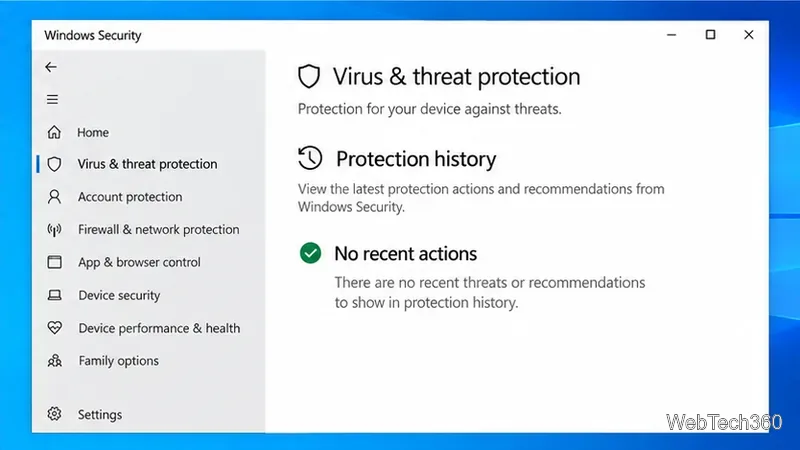
A yellow warning icon can mean Windows Security still has a recommendation or item that needs review. Open Protection History and expand the newest cards. If an item says action needed, deal with that item rather than trying to hide it by purging history. After resolving the alert, restart Windows if the notification area icon has not refreshed.
Also remember that Windows 10 reached end of standard support on October 14, 2025. Microsoft recommends moving to Windows 11 when possible, or using an eligible Windows 10 Extended Security Updates option while it remains available. Clearing Defender history does not compensate for running an operating system without current security updates.
Create a searchable Windows 10 folder inventory with PowerShell. Save every file and subfolder path as plain text or export details to a sortable CSV.
Add a custom reminder, quote, or label to your Windows 10 desktop with a Rainmeter text skin. Create the INI file, load it, then adjust its font and position.
Use Bluetooth Swift Pair on Windows 10 to pair a compatible accessory from a notification, with setup steps and fixes when the prompt does not appear.
Learn what common laptop function key symbols mean, how Fn and Fn Lock affect them, and how to confirm the right shortcut for your Windows 10 laptop model.
Turn off your Windows 10 display instantly with ScreenSleep, set a keyboard shortcut, and see when to use the built-in screen timeout instead.
Fix the “running scripts is disabled on this system” PowerShell error on Windows 10 with a current-user policy, a temporary session option, and safe steps for downloaded scripts.
Change the Windows 10 drag-selection color with a backup-first registry walkthrough, RGB examples, troubleshooting tips, and steps to restore your original values.
Check your router’s connected-device list or scan a local network with Fing Desktop on a supported PC. Learn what each method can show and how to verify unfamiliar entries.
Messenger does not offer a documented per-friend online alert. Learn how Active Status works, where to check the green dot, and which notifications you can enable instead.
Use 7-Zip to find an exact filename or wildcard match inside a ZIP or other supported archive on Windows 10 without unpacking its files.








