How to Create a List of All Items in a Folder on Windows 10

Create a searchable Windows 10 folder inventory with PowerShell. Save every file and subfolder path as plain text or export details to a sortable CSV.
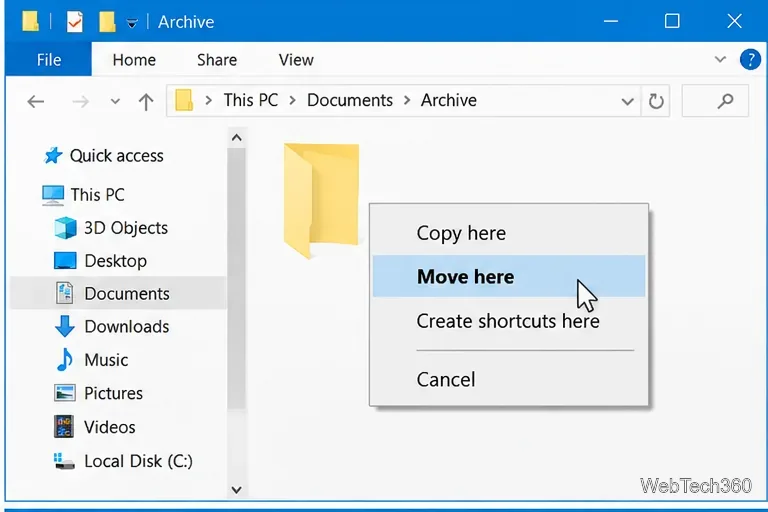
Windows 10 does not include a built-in setting that asks for confirmation every time you move a file or folder with a normal left-button drag and drop. If you want a confirmation-like step without installing extra software, the best option is to drag with the right mouse button. When you release the button, File Explorer shows a menu that lets you choose Move here, Copy here, or Cancel.
This matters because a quick mouse slip can move a folder into a nearby folder without an extra warning. The methods below keep the same Windows 10 workflow while making the action more deliberate.
Right-button drag is the closest built-in Windows behavior to a move confirmation dialog. Microsoft documents that right-button drag-and-drop uses a shortcut menu so the user can choose the final action rather than letting the default happen immediately. See Microsoft's Shell Clipboard Formats documentation.
This adds one intentional choice at the end of the gesture, so it is much harder to move a folder accidentally.
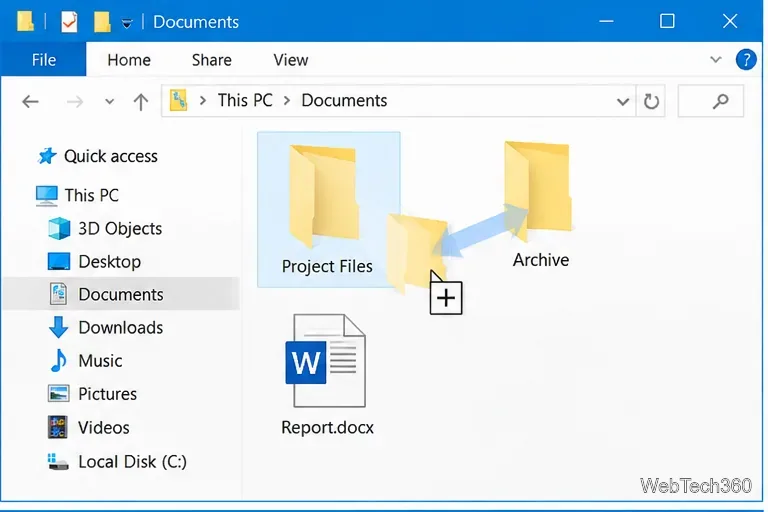
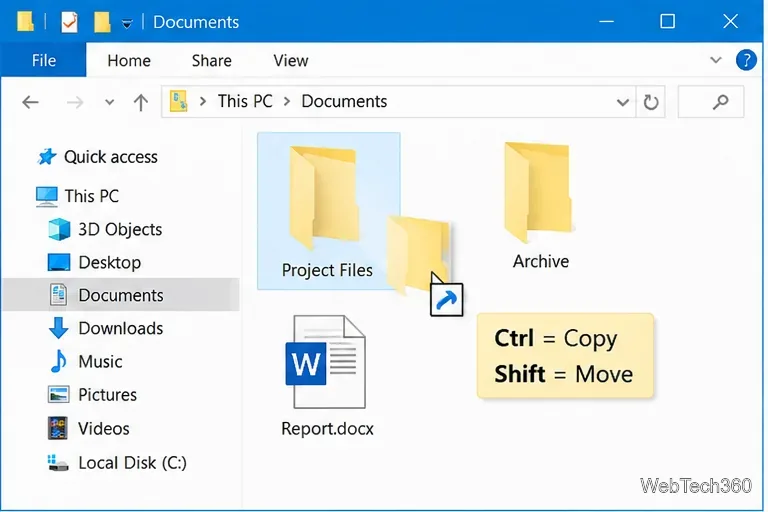
Windows can choose a default drag-and-drop action based on the source and destination. Microsoft notes that dragging a file from one volume to another normally defaults to a copy. You can override the behavior with keyboard modifiers instead of relying on the default.
These File Explorer shortcuts are listed in Microsoft's Windows keyboard shortcuts reference. Watch the small label or pointer badge during the drag so you know which action will occur before you release the mouse button.
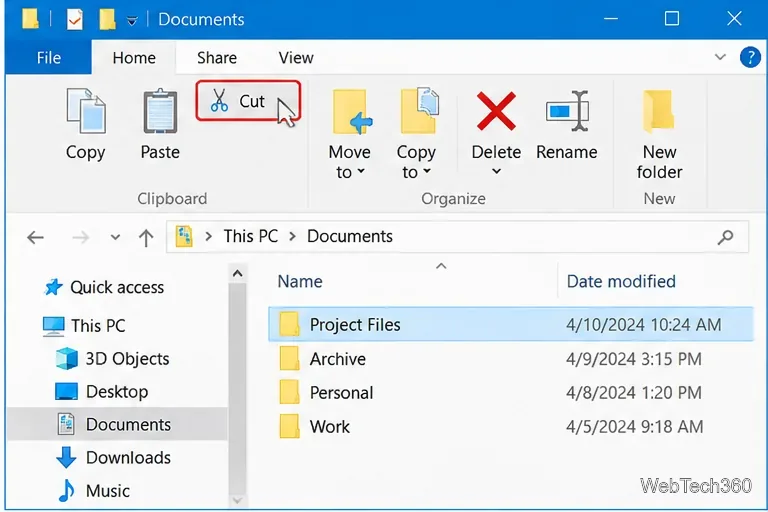
If you are moving important work, a deliberate Cut-and-Paste workflow is often easier to verify than a mouse gesture. Microsoft also recommends File Explorer's Cut and Paste commands for changing a file or folder's location in its File Explorer documentation.
This method does not add a separate “Are you sure?” box, but it separates the move into two clear actions and makes it less likely that a stray mouse movement will relocate something.
No supported Windows 10 setting turns the standard left-button drag-and-drop gesture into a mandatory confirmation dialog. Older third-party shell extensions attempted to add one, including DragDropConfirm, which was recommended by the previous version of this article.
That recommendation is now outdated. The project's own GitHub repository says the author tested it only with Windows 7, and its README highlights an update from January 2017 for Windows XP compatibility. Because it is a shell extension that integrates with File Explorer and does not document Windows 10 support, it is better treated as legacy software rather than a current Windows 10 solution.
If you notice the mistake immediately, press Ctrl+Z. Ctrl+Z is the standard Windows Undo shortcut, and File Explorer can often use it to reverse the most recent move. If you are not sure where the item went, avoid making several more file operations first, because that can make the original action harder to reverse or retrace.
For folders you move frequently, the simplest prevention is to use right-button drag for a final choice, or switch to Cut and Paste when the destination matters. Those options avoid depending on an old shell extension and work with File Explorer's built-in controls.
Windows 10 support note: Microsoft ended standard Windows 10 support on October 14, 2025. Windows 10 still runs, and these File Explorer behaviors remain relevant, but Microsoft recommends moving to a supported Windows release or using an eligible security-update option. See Microsoft's Windows 10 end-of-support guidance.
Create a searchable Windows 10 folder inventory with PowerShell. Save every file and subfolder path as plain text or export details to a sortable CSV.
Add a custom reminder, quote, or label to your Windows 10 desktop with a Rainmeter text skin. Create the INI file, load it, then adjust its font and position.
Use Bluetooth Swift Pair on Windows 10 to pair a compatible accessory from a notification, with setup steps and fixes when the prompt does not appear.
Learn what common laptop function key symbols mean, how Fn and Fn Lock affect them, and how to confirm the right shortcut for your Windows 10 laptop model.
Turn off your Windows 10 display instantly with ScreenSleep, set a keyboard shortcut, and see when to use the built-in screen timeout instead.
Fix the “running scripts is disabled on this system” PowerShell error on Windows 10 with a current-user policy, a temporary session option, and safe steps for downloaded scripts.
Change the Windows 10 drag-selection color with a backup-first registry walkthrough, RGB examples, troubleshooting tips, and steps to restore your original values.
Check your router’s connected-device list or scan a local network with Fing Desktop on a supported PC. Learn what each method can show and how to verify unfamiliar entries.
Messenger does not offer a documented per-friend online alert. Learn how Active Status works, where to check the green dot, and which notifications you can enable instead.
Use 7-Zip to find an exact filename or wildcard match inside a ZIP or other supported archive on Windows 10 without unpacking its files.








