How to Control Fan Speed in Windows 10

Windows 10 has no universal fan-speed slider. Fan speeds are managed by your PC’s firmware and hardware controller, so use a control supported by your computer: the manufacturer’s thermal utility, BIOS/UEFI settings, or compatible Windows software. A third-party app cannot control every laptop or fan controller.

Fans may speed up during startup or demanding work, then slow down as temperatures fall. Keep vents clear, and don’t lower fan speed just to reduce noise if the system is running hot.

1. Try the PC maker’s thermal utility

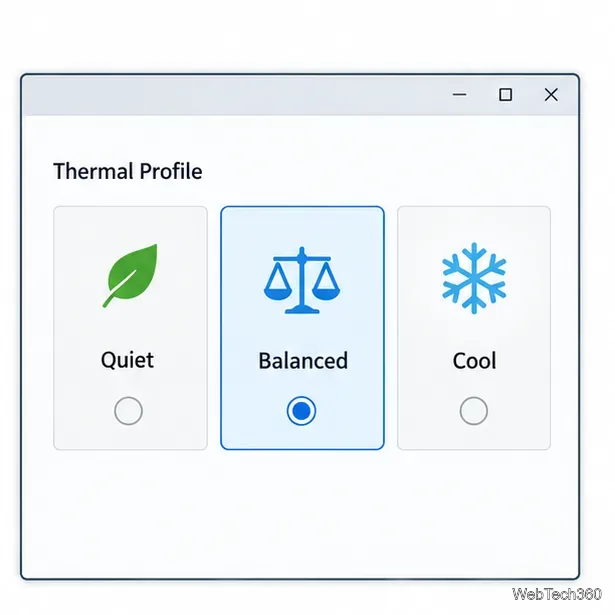
On a laptop, start with the manufacturer’s power or thermal app. Choose a supported profile such as Quiet, Balanced, Optimized, Cool, or Performance. These modes can change processor behavior as well as fan speed. For example, Dell’s Cool profile raises fan speed to lower surface temperature, while Quiet may reduce performance and raise temperature. Availability depends on the model.

For desktop motherboards, ASUS Fan Xpert may be included in AI Suite 3 or Armoury Crate, depending on the board. ASUS says it controls fans connected to supported headers and provides preset modes or custom curves.

Generic laptop thermal profile window with Quiet, Balanced, and Cool options.
Thermal profiles trade fan noise against temperature and performance; options vary by model.

2. Set a fan curve in BIOS or UEFI

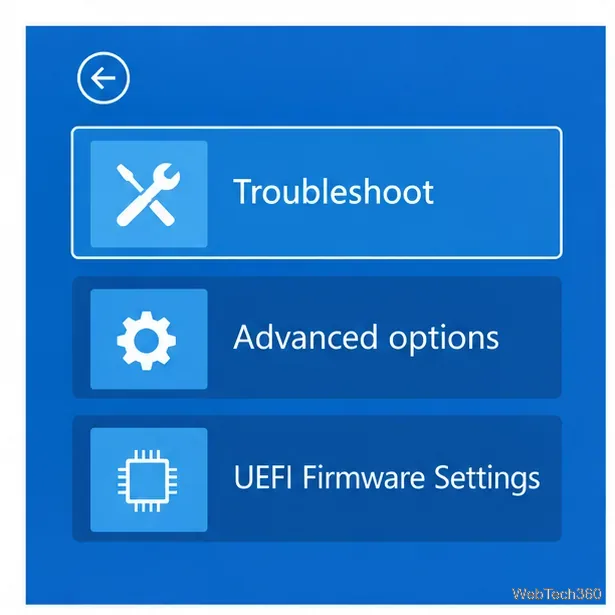
Motherboard firmware can control fans before Windows loads. From Windows, select Start > Power, hold Shift, then select Restart. Choose Troubleshoot > Advanced options > UEFI Firmware Settings > Restart. If that option is unavailable, use the startup key in your PC maker’s instructions; common keys include Esc, Delete, F1, F2, F10, F11, and F12.

Windows recovery menu showing Troubleshoot, Advanced options, and UEFI Firmware Settings.
When available, Windows lists the firmware shortcut under Troubleshoot and Advanced options.
  1. In firmware setup, open Fan Control, Hardware Monitor, Smart Fan, or a similarly named page. Names vary by motherboard.
  2. Select the header connected to the fan, such as CPU_FAN or a system-fan header. Check the manual for the correct mode: three-pin fans generally use DC, and four-pin fans use PWM. MSI documents this distinction for its boards.
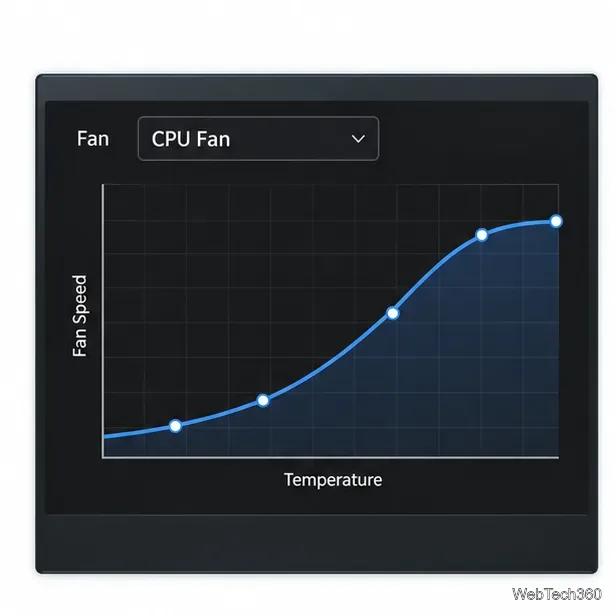
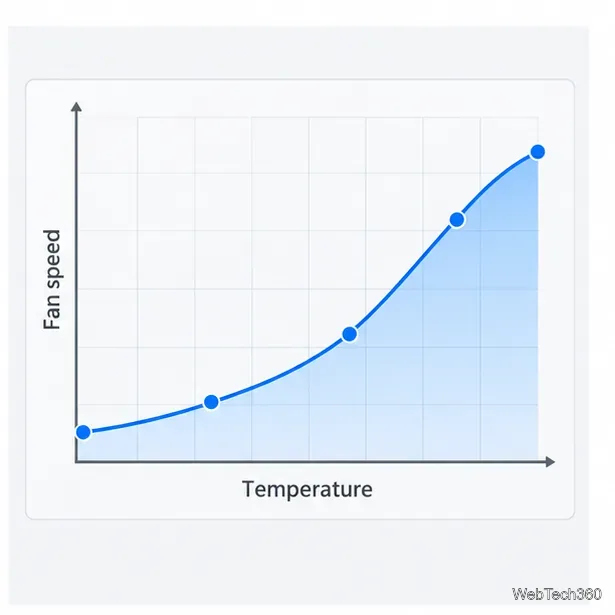
  3. Keep the default automatic curve as your baseline. If you edit it, make fan speed rise with temperature and keep a minimum at which the fan reliably spins. Don’t set zero or an unusually low fixed speed unless the manufacturer supports it.
  4. Use the firmware’s on-screen Save & Exit command. Labels and keys vary.
UEFI fan curve plotting fan speed upward as temperature rises.
A fan curve links temperature to speed; use the motherboard’s default as a reference.

3. Use Fan Control only on compatible hardware

For a desktop, the open-source Fan Control project offers profiles, curves, and temperature sources. Its documentation also describes fan calibration. Support depends on your hardware: an app may read sensors without detecting a controllable fan output. Laptop fan control is often model-specific.

  1. Download the installer or archive from the project’s official release page and follow its guided first-run setup.
  2. Check the detected fan outputs against the physical fans. Change one control at a time and watch whether that fan responds.
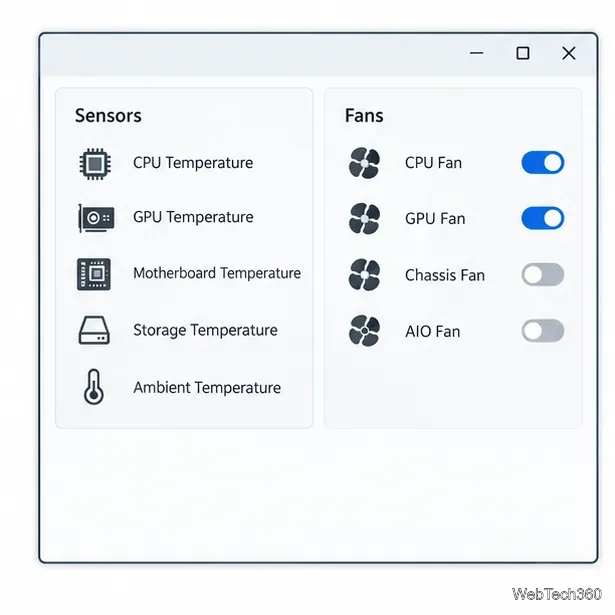
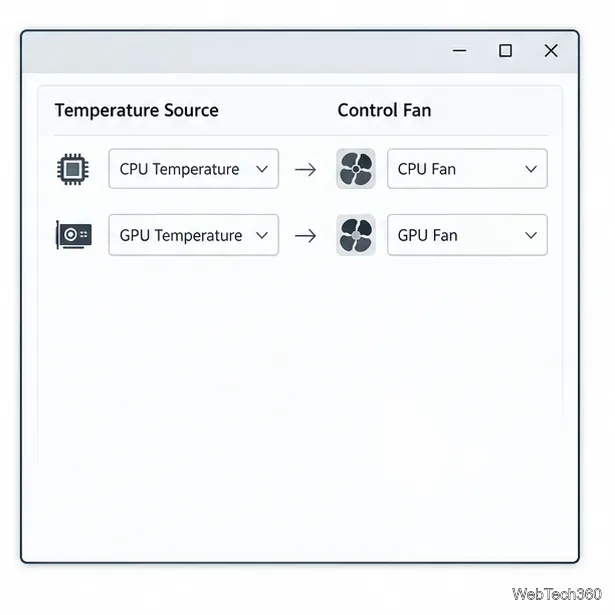
  3. Pair each fan with a suitable temperature source. A CPU cooler normally follows a CPU sensor; a graphics-card fan should follow a GPU sensor only if the card and software support it. Case-fan choices depend on the components they cool.
  4. If you run calibration, follow the prompts and observe the fan. It measures how the fan responds, including its start and stop points.
  5. Create a gradual curve and monitor temperatures and RPM during a test. If a fan stops unexpectedly or temperatures keep rising, restore the manufacturer’s automatic profile and stop using the custom control.
Generic fan utility dashboard listing temperature sensors and fan outputs.
A detected sensor or fan label does not guarantee that the app can control that output.
Generic fan utility matching CPU and GPU temperature sources to their fans.
Match each fan to a temperature source that reflects the component it cools.
A gradual fan curve keeps speed low at lighter temperatures and ramps up under heat.
Use a smooth curve instead of holding a fan at a low fixed speed under load.
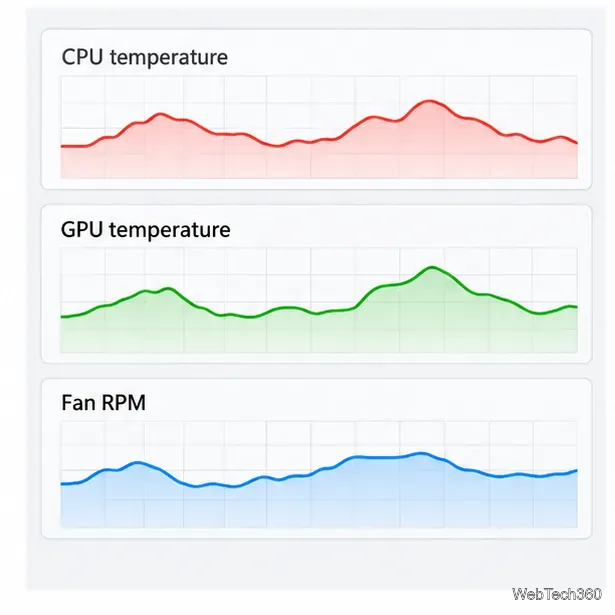
Monitoring dashboard graphs for CPU temperature, GPU temperature, and fan RPM.
These are example trend panels, not readings from a tested PC; check your own sensors.

Why older app instructions may fail

The earlier article recommends SpeedFan, but its official download page still lists version 4.52; check its supported-hardware list before using it with a newer PC. HWiNFO can monitor temperature and fan RPM, but its developer notes that fan-control support is system-specific. Don’t assume its Sensors window can change speed on your computer.

If the fan speed does not change

  • Confirm in the manual that the fan is on a controllable header and the header uses the right DC or PWM mode.
  • For a laptop, use a model-specific manufacturer utility or firmware setting. Windows may have no supported override if the maker does not provide one.
  • Close other fan-control utilities, then restore the manufacturer’s automatic profile to avoid conflicting settings.
  • If noise begins at idle, check for heavy background activity and blocked vents. Use the manufacturer’s diagnostics or support if a fan stops, reports an error, or keeps running at maximum speed when the system is cool.
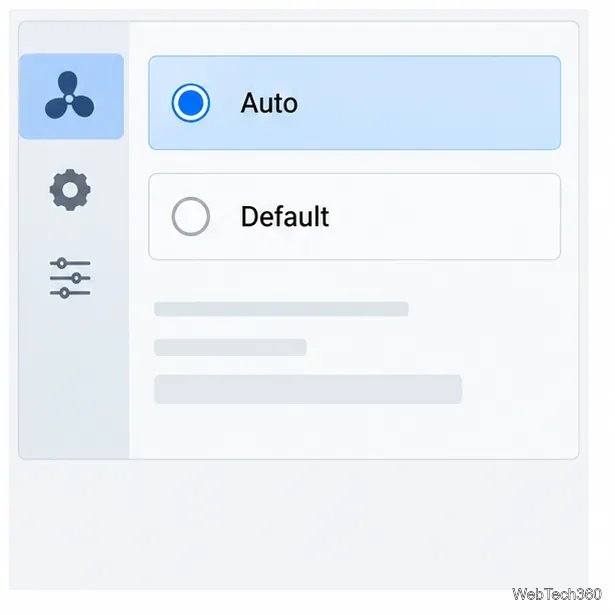
Auto option selected in a generic fan utility, showing how to return control to default.
If a custom setting behaves unexpectedly, restore the PC’s automatic or default profile.

Official references

Leave a Comment

How to Set Different Scaling Levels for Multiple Monitors in Windows 10

How to Set Different Scaling Levels for Multiple Monitors in Windows 10

Adjust each Windows 10 monitor independently with per-display scaling, keep text readable, and troubleshoot custom scaling or blurry apps.

How to Type on an iPhone From a Windows 10 PC

How to Type on an iPhone From a Windows 10 PC

Use AirType’s browser pairing setup to type on an iPhone from a Windows 10 PC, with current setup steps, troubleshooting, and privacy limits.

How to Hide the Mouse Cursor in Windows 10 Apps

How to Hide the Mouse Cursor in Windows 10 Apps

Hide the mouse pointer in Windows 10 videos, games, and other apps with built-in typing controls or PowerToys CursorHide’s adjustable inactivity timer.

How to Open Control Panel Power Options on a Windows 10 Desktop

How to Open Control Panel Power Options on a Windows 10 Desktop

Find Control Panel Power Options on a Windows 10 desktop, open the page with a Run command, and adjust power plans, display timeouts, sleep, and button behavior.

How to Prevent a File from Being Recovered on Windows 10

How to Prevent a File from Being Recovered on Windows 10

Learn what Windows 10 deletion leaves behind, how to use SDelete on an HDD, and why SSDs and cloud backups need separate treatment.

How to Access Advanced Settings for an Integrated Webcam in Windows 10

How to Access Advanced Settings for an Integrated Webcam in Windows 10

Use FFmpeg’s DirectShow tools to open an integrated webcam’s driver properties in Windows 10, find the correct device, and troubleshoot missing controls.

How to Identify a Keypress on Windows 10

How to Identify a Keypress on Windows 10

Identify a keypress in Windows 10 with a browser event tester or SharpKeys, then separate layout, software, and keyboard hardware issues.

How to Enter File or Folder Paths with Spaces in Windows 10 Command Prompt

How to Enter File or Folder Paths with Spaces in Windows 10 Command Prompt

Use double quotes around each complete path with spaces in Command Prompt. Learn how to list, change to, copy, and troubleshoot Windows 10 files and folders.

How to Disable Start Menu Auto-Expand on Windows 10

How to Disable Start Menu Auto-Expand on Windows 10

Turn off the Windows 10 Start menu’s hover-to-expand behavior with a legacy Mach2 command, check build limits, and see the built-in app-list alternative.

How to Fix the “iTunes Library.itl Cannot Be Read” Error in Windows 10

How to Fix the “iTunes Library.itl Cannot Be Read” Error in Windows 10

Fix the iTunes Library.itl read error on Windows 10 by updating iTunes, restoring a compatible backup, or safely creating a new library without deleting media files.