How to Access a Network Location in Command Prompt on Windows 10

Use pushd to open a UNC network path in Windows 10 Command Prompt, run commands in the shared folder, and return with popd.
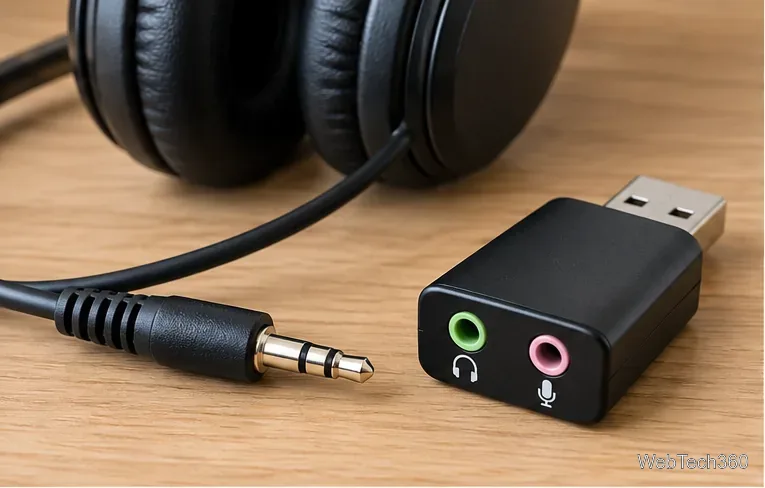
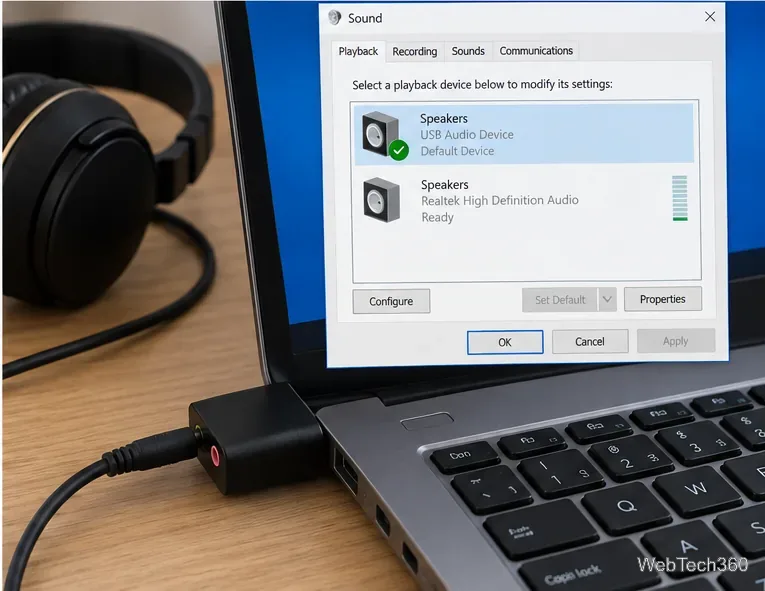
The short answer: to use headphones with a 3.5mm plug through a USB port on a Windows 10 PC, you need a USB audio adapter, sometimes sold as a USB sound card or USB-to-3.5mm adapter. A simple passive cable is not enough because the headphone plug carries analog audio while USB carries digital data. The adapter performs the digital-to-analog conversion that your headphones need.
The setup is usually plug-and-play, but you may still need to select the new USB device as the Windows playback device. Microsoft ended regular Windows 10 support on October 14, 2025, although Windows 10 PCs continue to run. See Microsoft's Windows 10 end-of-support guidance if you are still using the operating system.
Choose the adapter by looking at your headphone or headset plug. The phrase “headphone jack to USB” can be confusing: for this job, the USB connector goes into the computer and the 3.5mm jack accepts your headphones.
| Your audio device | Adapter to use |
|---|---|
| Stereo headphones with one 3.5mm TRS plug | USB audio adapter with a headphone output |
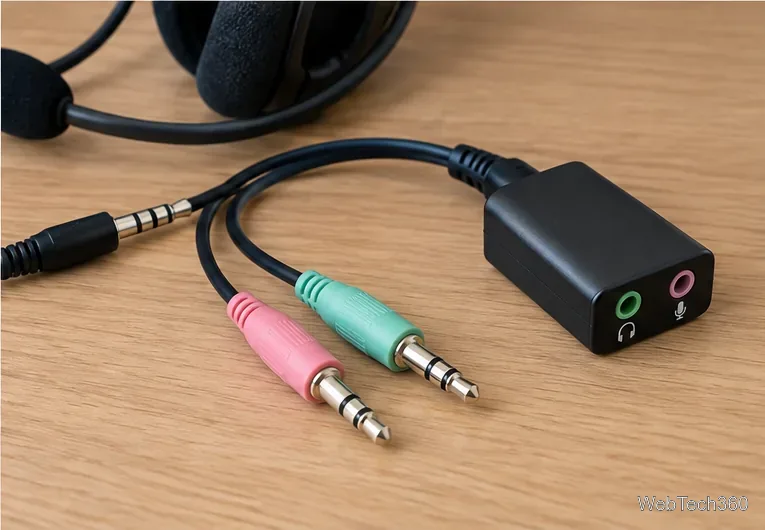
| Headset with one 4-pole TRRS plug | USB headset adapter with a combo headset jack, or a headset splitter plus a two-jack USB adapter |
| Headset with separate headphone and microphone plugs | USB audio adapter with separate output and microphone input |
| Microphone only | USB audio adapter that specifically includes a microphone input |
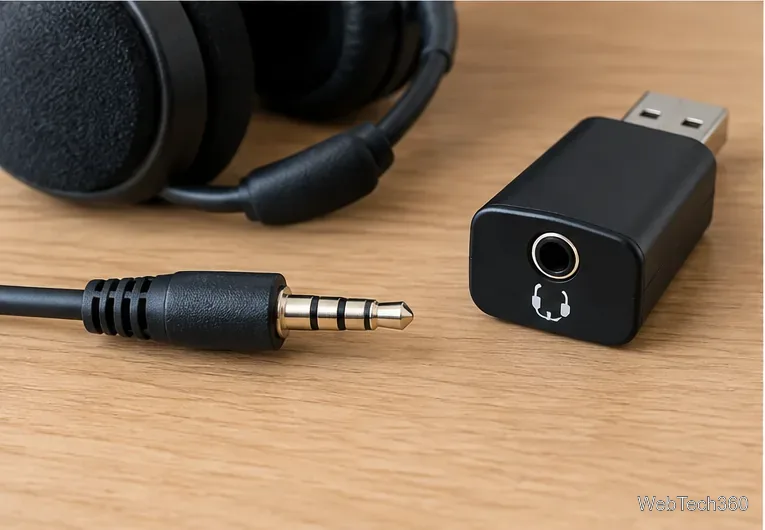
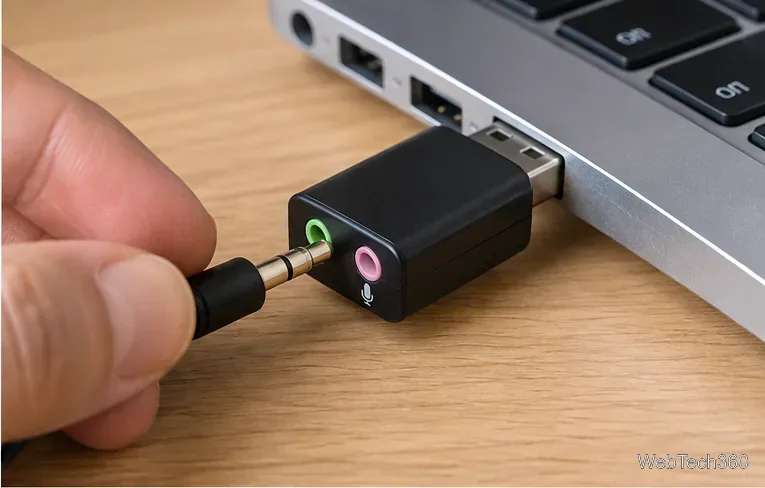
For ordinary headphones, plug the 3.5mm connector into the adapter's headphone or output jack, often marked with a headphone icon or colored green. If your adapter has a separate microphone jack, do not use that jack for headphones.
Insert the adapter into an available USB port on the computer. Windows should detect a compatible USB audio device automatically. Microsoft has included an in-box USB Audio 2.0 driver since Windows 10 version 1703, and compatible hardware can use that class driver without a separate download. You can read the technical details in Microsoft's USB Audio 2.0 driver documentation.
Open Start > Settings > System > Sound. Under Output, open the device list and select the USB audio device. Its exact name depends on the adapter; inexpensive models often appear as “USB Audio Device” or a similar generic name. Raise the master volume and play a short audio clip to confirm that sound is reaching the headphones.
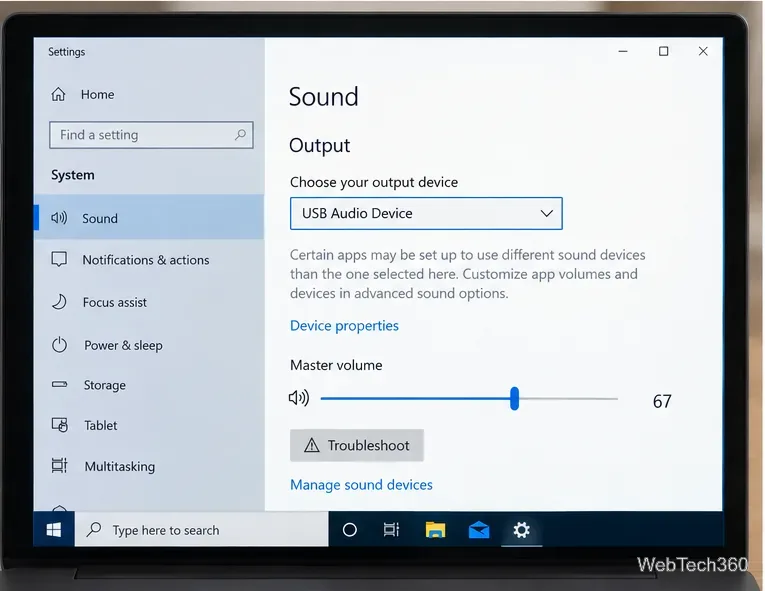
If an older desktop app keeps using the computer's built-in audio, open Sound Control Panel from the Sound settings page. On the Playback tab, select the USB device and choose Set Default. For a headset microphone, use the Recording tab and set the USB microphone as the default input as well.
A phone-style headset usually combines left audio, right audio, ground, and microphone on one TRRS connector. A USB adapter with separate green and pink jacks will not provide the microphone connection from that single plug by itself. Use a compatible headset splitter, or buy a USB adapter with a single combo headset jack.
Possibly. The USB adapter contains its own audio electronics, so the result depends on the adapter's digital-to-analog converter, amplifier, electrical noise, and driver behavior. A basic adapter is often sufficient for everyday headphones, but audible hiss, distortion, very low volume, or intermittent audio can point to a poor or faulty adapter. Switching USB ports can help with connection issues, but persistent noise is a reason to try a better-quality USB audio adapter rather than assuming the headphones are at fault.
Once Windows recognizes the adapter and you select it as the output device, your 3.5mm headphones work through USB like any other Windows audio endpoint.
Use pushd to open a UNC network path in Windows 10 Command Prompt, run commands in the shared folder, and return with popd.
Learn how to install a Rainmeter skin from an INI file by placing it in the right Skins folder, preserving its resources, refreshing Rainmeter, and loading it in Manage.
Open one folder in its own File Explorer window with Shift or the context menu, or change Folder Options to make every folder open separately.
Pin a frequently used Control Panel applet, such as Power Options or Sound, to the Windows 10 Start menu for one-click access.
Choose a supported Windows 10 hotkey for switching input languages, assign shortcuts to individual layouts, or disable an accidental shortcut.
Move a Windows 10 app to the display you want, use its game monitor setting, and handle full-screen apps with a practical primary-monitor workaround.
Use a transparent PNG and a Rainmeter skin to keep an image watermark above windows, adjust its transparency, and make it click-through on Windows 10.
Convert stereo audio to mono on Windows 10 with Audacity. Mix both channels into one mono track, export a new file, and verify the channel count.
Use Windows 10 Clipboard history to save recent text and images, paste an earlier clip with Windows key + V, and manage sync, pinned items, and privacy.
Learn how to zoom in on a video in Windows 10 with VLC’s Interactive Zoom, or use Windows Magnifier when the clip is playing in another app.








