How to Fix Lines on a Monitor Screen in Windows 10

Use a screenshot test, cable and port checks, monitor diagnostics, display settings, and driver rollback to pinpoint lines on a Windows 10 monitor.
Microsoft Word can create address, shipping, filing, name, and other printable labels without a separate label-design app. In desktop Word, go to Mailings > Labels, enter the label text, choose the stock that matches your sheet, then print a full page or a single label. For reliable alignment, use the vendor and product number printed on the label package instead of guessing the dimensions.
These steps are for desktop Word. Microsoft says Word for the web does not directly create labels; on the web, start from a label template instead. See Microsoft's create-and-print labels instructions.
Open Word and create a blank document. Select the Mailings tab on the ribbon, then select Labels. Word opens the Envelopes and Labels dialog on the Labels tab.
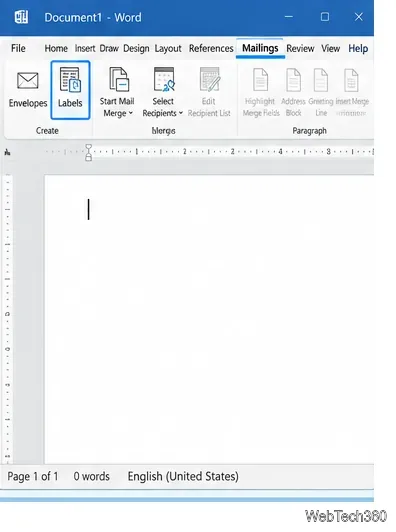
Type the address or other information in the Address box. The content can also be a name, file code, storage description, or other short text. To change its appearance, select the text and use the available Font or Paragraph formatting controls.
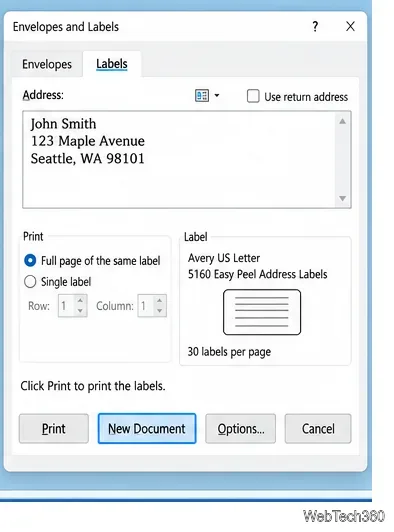
Select Options. Choose the appropriate printer type, then select the label vendor and Product number that match your label package. Available choices can vary by market, so use the identifier on your own stock rather than relying on an example shown in Word.
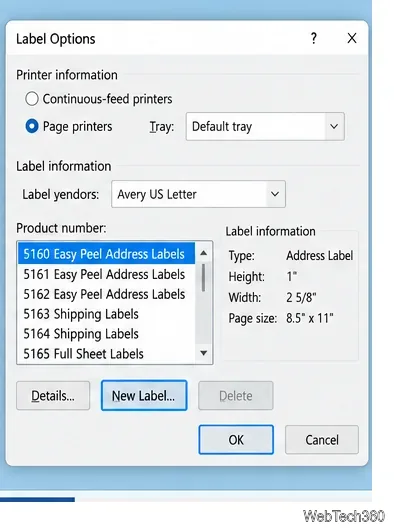
If your exact stock is not listed, choose New Label. Enter a name and copy the manufacturer's measurements: top and side margins, label height and width, horizontal and vertical pitch, number across and down, and page size. Horizontal pitch is the left-edge-to-left-edge distance between adjacent labels; vertical pitch is the corresponding top-to-top distance.
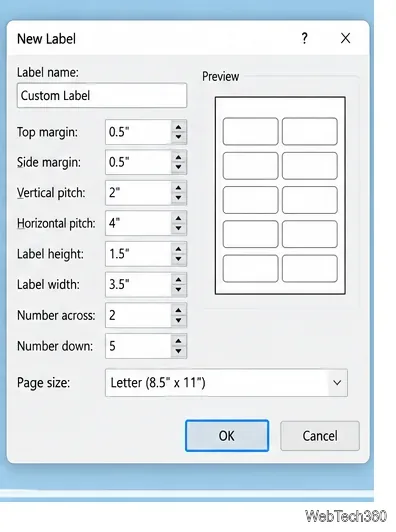
Small measurement errors can compound across a sheet, so use the manufacturer's specifications whenever they are available.
Choose Full page of the same label when every label should contain identical text. You can select Print immediately, but New Document is useful when you want to review, save, or edit the sheet before printing.
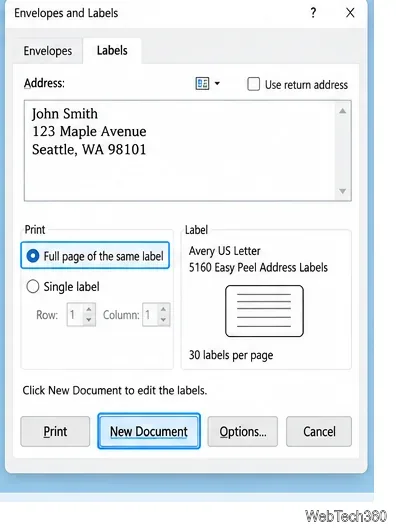
Select the correct label type in Options, then choose New Document. Word creates a table whose cells match the label layout. Type different content in each cell. If the boundaries are hard to see, turn on table gridlines; they help on screen but do not print.
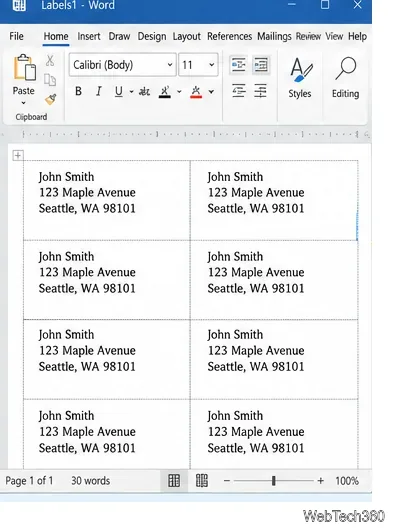
You can also add a logo or other graphic after creating the label document. Microsoft documents inserting the image, choosing Picture Format > Text Wrapping > Square, and positioning it inside the label. The old claim that Word labels cannot contain images is therefore outdated. See Microsoft's guide to adding graphics to labels.
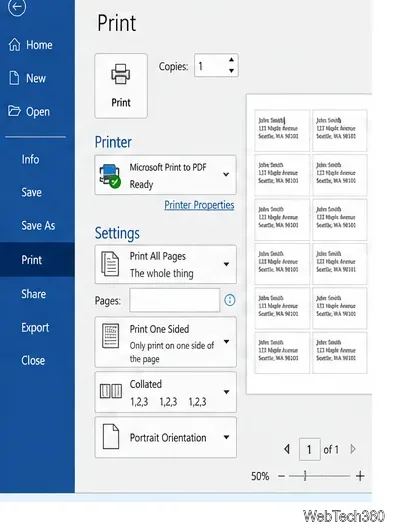
Go to File > Print, select the correct printer and paper source, and inspect the preview. Microsoft recommends printing to normal paper before loading label stock. Compare that test against a label sheet to confirm the text falls inside the label boundaries. If it does not, recheck the product number, page size, printer scaling, and custom measurements.
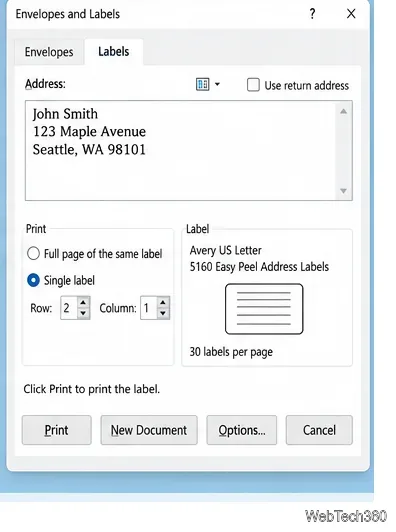
For a single label, return to Mailings > Labels, choose Single label, and set the row and column for the position you want to use. Load the sheet in the orientation required by your printer, then print. Microsoft's single-label instructions use this row-and-column method for partially used sheets.
If you have an address list in Excel or another supported data source, use Mailings > Start Mail Merge > Labels. Connect the recipient list, add merge fields, update the labels, preview the results, and complete the merge. Microsoft's mail-merge label guide covers the workflow and also explains how to select a label size.
Use a screenshot test, cable and port checks, monitor diagnostics, display settings, and driver rollback to pinpoint lines on a Windows 10 monitor.
Show two other time zones beside your Windows 10 clock. Set up each additional clock, give it a clear label, and find it in the taskbar calendar.
Find the File Explorer extension that delays right-click menus in Windows 10, test it safely with ShellExView, and restore any menu features you still need.
Stop Windows 10 from powering down a specific network adapter or USB device with plan-level settings and Device Manager controls, plus tips to avoid excess battery drain.
Check whether Windows 10 uses a digital license or product key, find a firmware-stored OEM key, and save license details securely for a reinstall.
Identify a Windows 10 Task Manager process by checking its executable path, file properties, publisher, linked services, and a Microsoft Defender scan.
Create a searchable Windows 10 folder inventory with PowerShell. Save every file and subfolder path as plain text or export details to a sortable CSV.
Add a custom reminder, quote, or label to your Windows 10 desktop with a Rainmeter text skin. Create the INI file, load it, then adjust its font and position.
Use Bluetooth Swift Pair on Windows 10 to pair a compatible accessory from a notification, with setup steps and fixes when the prompt does not appear.
Learn what common laptop function key symbols mean, how Fn and Fn Lock affect them, and how to confirm the right shortcut for your Windows 10 laptop model.








