How to Fix Lines on a Monitor Screen in Windows 10

Use a screenshot test, cable and port checks, monitor diagnostics, display settings, and driver rollback to pinpoint lines on a Windows 10 monitor.
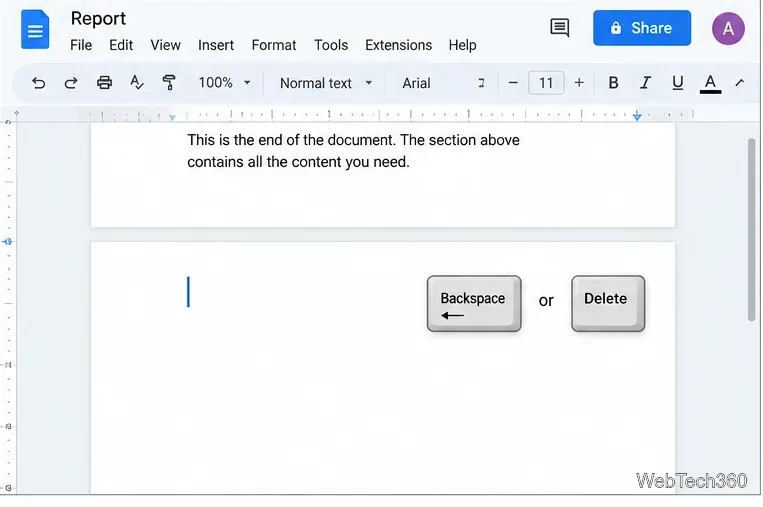
A blank page in Google Docs is usually caused by extra paragraph marks, a manual page break, a section break, or paragraph pagination settings. The fastest fix is to click at the start of the blank page and press Backspace or Delete. If the page stays put, make the hidden formatting visible so you can remove the item that is forcing the extra page.
This works when the page exists only because of one or more empty paragraphs. If deleting starts removing real text, undo the change and use the formatting checks below instead.
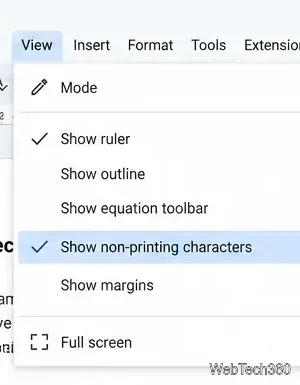
Google Docs can display non-printing characters in blue, including paragraph breaks, line breaks, page breaks, section breaks, column breaks, tabs, and spaces. Open View > Show non-printing characters. Google documents this option in its Docs formatting help.
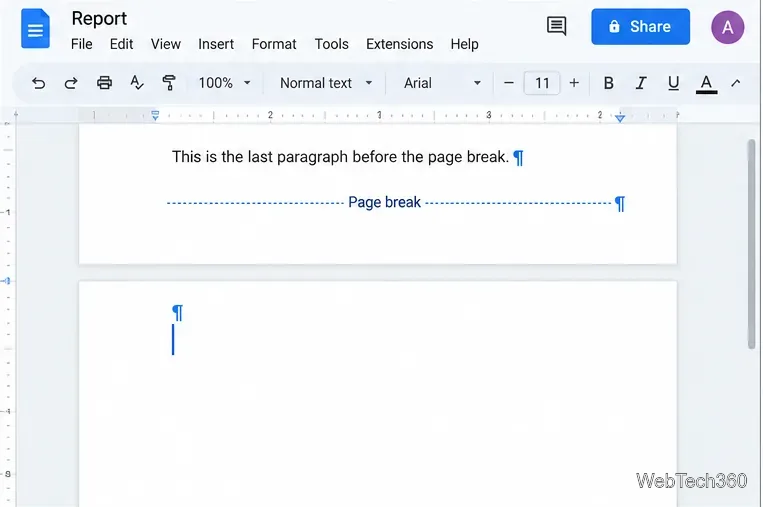
If the blank page contains one or more paragraph marks, select those marks and press Backspace or Delete. On a blank page at the end of a document, you can also place the cursor after the last real character on the previous page and delete forward until the extra paragraph is gone.
A page break intentionally starts the next content on a new page. When non-printing characters are visible, it is labeled clearly. Click just below the page break and press Backspace or Delete until it is removed. This matches Google's current page-break instructions.
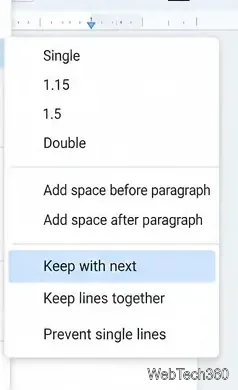
Sometimes there is no removable empty paragraph or page break. Instead, Google Docs may be keeping text together and pushing the whole block to the next page. Select the paragraph immediately before or after the unwanted gap, then open Format > Line & paragraph spacing. If appropriate for your layout, turn off Keep with next, Keep lines together, or Prevent single lines.
Google explains that these options control whether headings stay with following text, whether all lines of a paragraph stay on one page, and whether a single line is left at the top or bottom of a page. They are available in Pages format, not Pageless format. See Google's paragraph formatting guide.
If the marker says Section break, deleting it can merge two sections and may change section-specific margins, headers, footers, or page numbering. Remove a section break only if you no longer need that section boundary. If the document uses different layouts or numbering in different sections, first check the formatting on both sides of the break.
For a document meant mainly for on-screen reading, you can switch to continuous scrolling. On a computer, choose File > Page setup > Pageless > OK. Google also provides a Format menu shortcut for switching between Pages and Pageless. In Pageless format, the document scrolls continuously instead of displaying page breaks.
Pageless is not a universal fix, because it removes or limits page-based features such as headers and footers, page numbers, columns, and watermarks. Google's Pages and Pageless documentation lists the differences.
| What you see | Most likely fix |
|---|---|
| Blank final page with paragraph marks | Delete the extra empty paragraphs. |
| Visible Page break marker | Click below it and press Backspace or Delete. |
| Large blank area but no break | Check Keep with next, Keep lines together, and Prevent single lines. |
| Visible Section break marker | Remove it only if you do not need separate section formatting. |
| You do not need printed pages at all | Consider switching the document to Pageless format. |
On Android, iPhone, and iPad, Google also lets you remove a manual page break by tapping below the break and deleting it. For complex layout problems, the desktop editor is easier because you can show non-printing characters and inspect paragraph settings before changing the document.
Use a screenshot test, cable and port checks, monitor diagnostics, display settings, and driver rollback to pinpoint lines on a Windows 10 monitor.
Show two other time zones beside your Windows 10 clock. Set up each additional clock, give it a clear label, and find it in the taskbar calendar.
Find the File Explorer extension that delays right-click menus in Windows 10, test it safely with ShellExView, and restore any menu features you still need.
Stop Windows 10 from powering down a specific network adapter or USB device with plan-level settings and Device Manager controls, plus tips to avoid excess battery drain.
Check whether Windows 10 uses a digital license or product key, find a firmware-stored OEM key, and save license details securely for a reinstall.
Identify a Windows 10 Task Manager process by checking its executable path, file properties, publisher, linked services, and a Microsoft Defender scan.
Create a searchable Windows 10 folder inventory with PowerShell. Save every file and subfolder path as plain text or export details to a sortable CSV.
Add a custom reminder, quote, or label to your Windows 10 desktop with a Rainmeter text skin. Create the INI file, load it, then adjust its font and position.
Use Bluetooth Swift Pair on Windows 10 to pair a compatible accessory from a notification, with setup steps and fixes when the prompt does not appear.
Learn what common laptop function key symbols mean, how Fn and Fn Lock affect them, and how to confirm the right shortcut for your Windows 10 laptop model.








