How to Set Different Scaling Levels for Multiple Monitors in Windows 10

Adjust each Windows 10 monitor independently with per-display scaling, keep text readable, and troubleshoot custom scaling or blurry apps.
To delete a partition in Windows 10, use Disk Management and choose Delete Volume, or run DiskPart’s delete partition command. Both remove the volume from normal access and leave the space unallocated. Back up its files first.
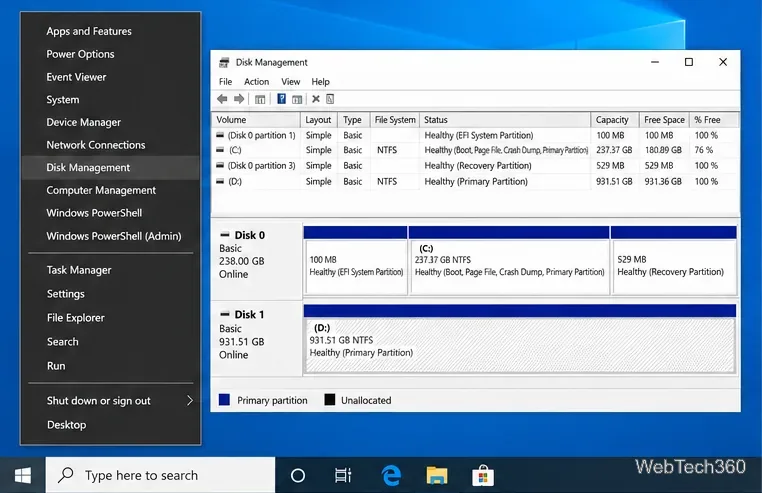
Match the target by disk number, capacity, drive letter, label, and position in the layout. Disk numbers vary by PC, and some partitions have no drive letter; don’t assume Disk 0 is the target.
Never remove EFI System, Microsoft Reserved, Windows boot, recovery, or OEM recovery partitions just to free space; doing so can prevent boot or factory recovery. DiskPart’s override bypasses type protections, so it isn’t a routine workaround. This guide covers basic data disks. Microsoft warns that deleting a partition on a dynamic disk can destroy all dynamic volumes on that disk.
Partition deletion also isn’t a secure erase. Treat the files as lost for normal use, and don’t rely on deletion to sanitize a drive before selling or disposing of it.
diskmgmt.msc, and press Enter. Approve an administrator prompt if Windows displays one.
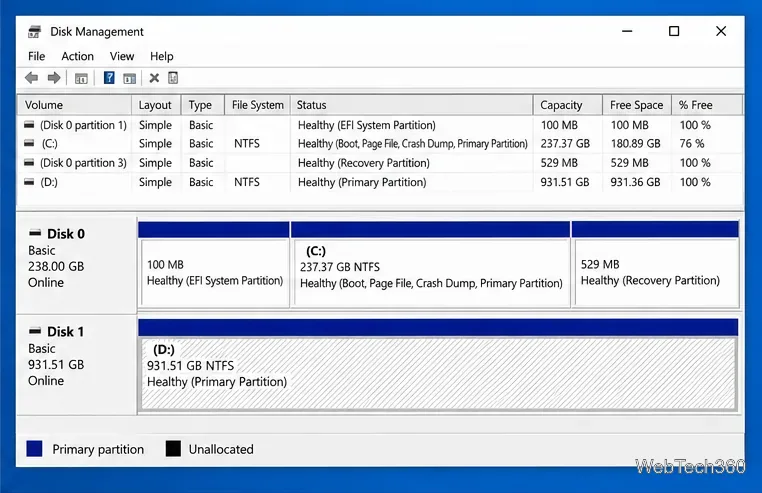
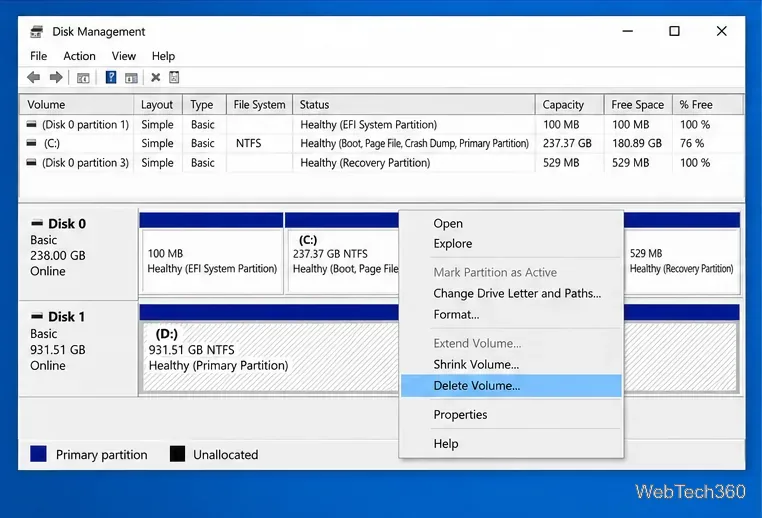
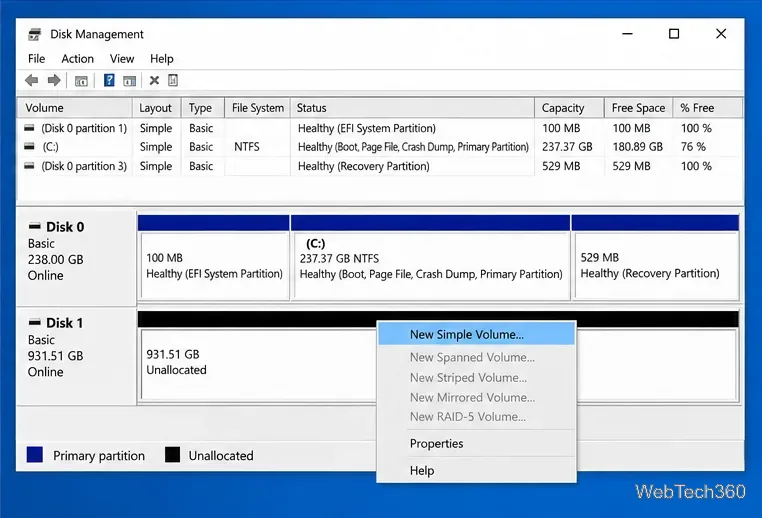
DiskPart deletes the partition in focus. Use it only when you can match disk and partition numbers to the data volume you verified in Disk Management. Replace the example numbers with those shown on your PC.
diskpart.
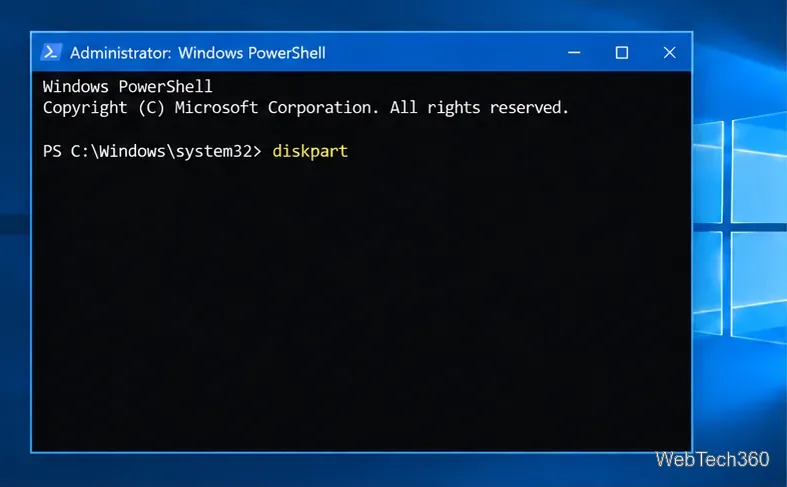
list disk and compare the displayed sizes with the physical drive. If the DYN column marks the disk as dynamic, stop and use a documented recovery or storage plan instead. For a basic disk, replace 1 below with the verified disk number:
list disk
select disk 1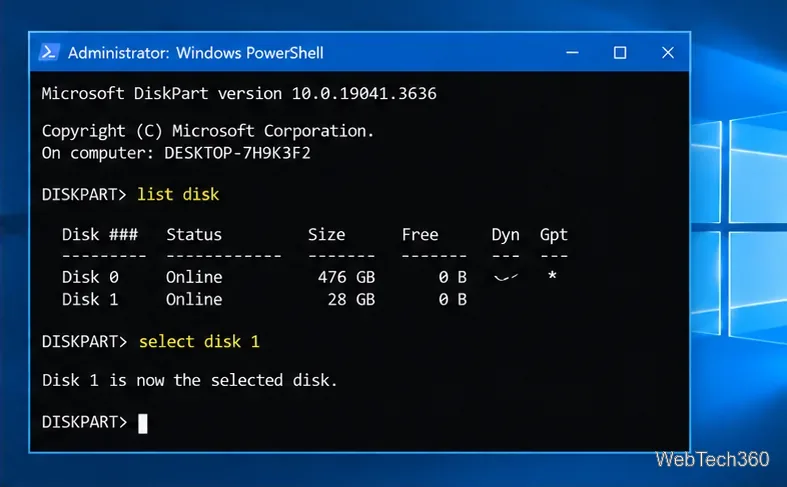
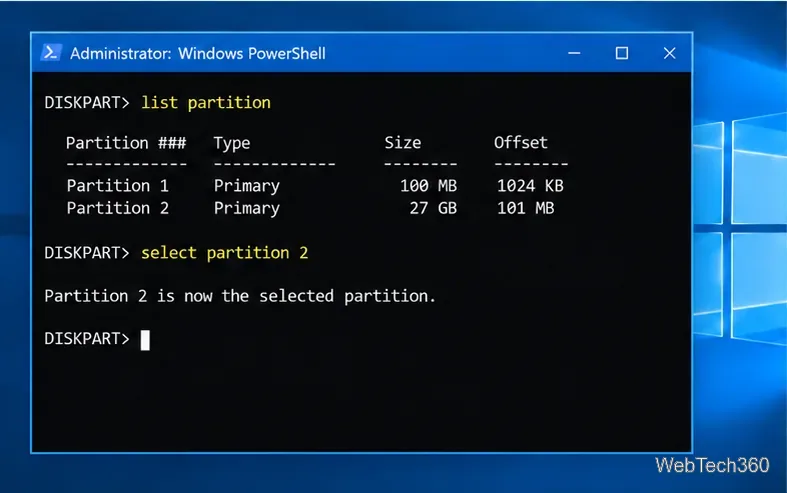
list partition to see the partitions on the selected disk. Compare the size and offset with the layout you inspected earlier. Replace 2 with the intended partition number, then inspect its properties:
list partition
select partition 2
detail partitionexit and stop.
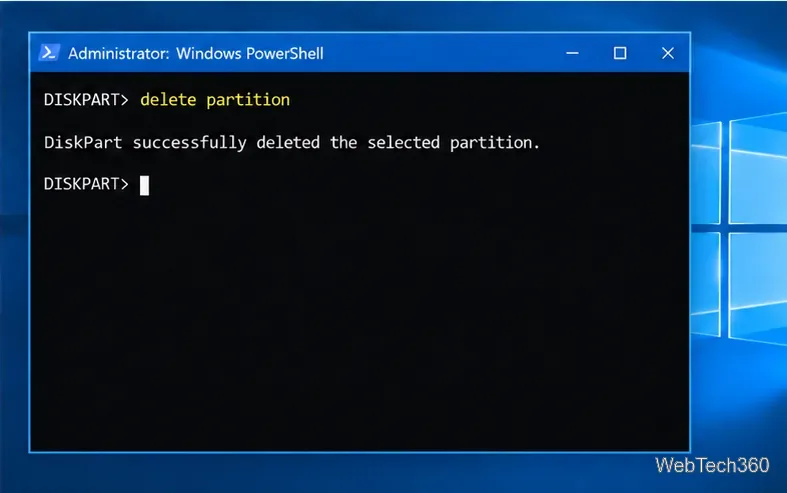
exit and confirm in Disk Management that the space is unallocated.
delete partitionoverride to force removal of a protected partition.
For current details, see Microsoft’s Disk Management guide, the DiskPart reference, and Microsoft Learn’s pages for delete partition, detail partition, and extending a basic volume.
Adjust each Windows 10 monitor independently with per-display scaling, keep text readable, and troubleshoot custom scaling or blurry apps.
Use AirType’s browser pairing setup to type on an iPhone from a Windows 10 PC, with current setup steps, troubleshooting, and privacy limits.
Hide the mouse pointer in Windows 10 videos, games, and other apps with built-in typing controls or PowerToys CursorHide’s adjustable inactivity timer.
Find Control Panel Power Options on a Windows 10 desktop, open the page with a Run command, and adjust power plans, display timeouts, sleep, and button behavior.
Learn what Windows 10 deletion leaves behind, how to use SDelete on an HDD, and why SSDs and cloud backups need separate treatment.
Use FFmpeg’s DirectShow tools to open an integrated webcam’s driver properties in Windows 10, find the correct device, and troubleshoot missing controls.
Identify a keypress in Windows 10 with a browser event tester or SharpKeys, then separate layout, software, and keyboard hardware issues.
Use double quotes around each complete path with spaces in Command Prompt. Learn how to list, change to, copy, and troubleshoot Windows 10 files and folders.
Turn off the Windows 10 Start menu’s hover-to-expand behavior with a legacy Mach2 command, check build limits, and see the built-in app-list alternative.
Fix the iTunes Library.itl read error on Windows 10 by updating iTunes, restoring a compatible backup, or safely creating a new library without deleting media files.








