How to Access a Network Location in Command Prompt on Windows 10

Use pushd to open a UNC network path in Windows 10 Command Prompt, run commands in the shared folder, and return with popd.
Short answer: if the partition is on a secondary or repurposed drive and you are certain Windows is not using it to boot or recover, you can remove the protected partition with DiskPart and the delete partition override command. Do not delete the EFI System Partition, active boot partition, or the Windows Recovery Environment partition that your current Windows installation depends on.
Windows 10 can show small protected partitions such as an EFI System Partition, Recovery Partition, Microsoft Reserved (MSR) partition, or an OEM utility partition. These are not normal data volumes. Microsoft notes that the EFI System Partition contains boot files and that Windows uses separate recovery partitions for Windows RE. If the drive is still part of your current Windows setup, deleting one of these partitions can leave the PC unable to boot or remove recovery features. See Microsoft's UEFI/GPT partition guidance.
reagentc /info. Microsoft's REAgentC documentation explains that this reports the current Windows RE status and location. If it points to the partition you planned to remove, stop.override can bypass normal partition-type protection.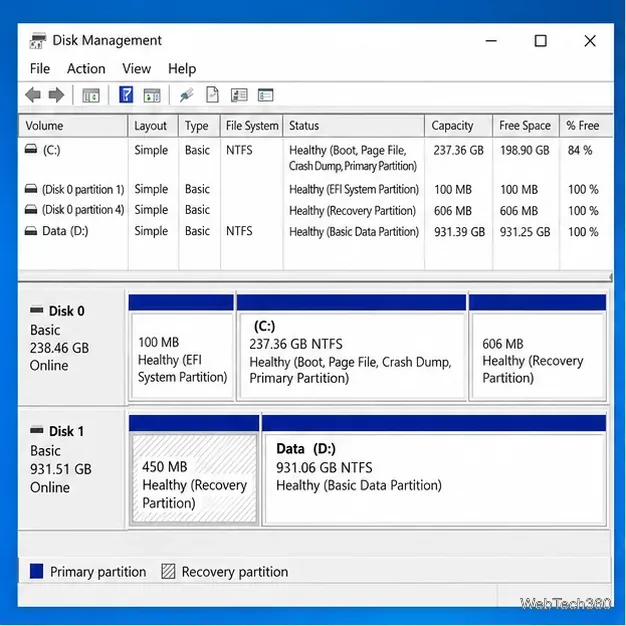
Open Start, search for Command Prompt, then choose Run as administrator. Enter:
diskpartRun:
list diskCompare the listed sizes with Disk Management. Then select the target disk, replacing N with its number:
select disk N
list partition
The DiskPart list command shows the partitions on the disk currently in focus.
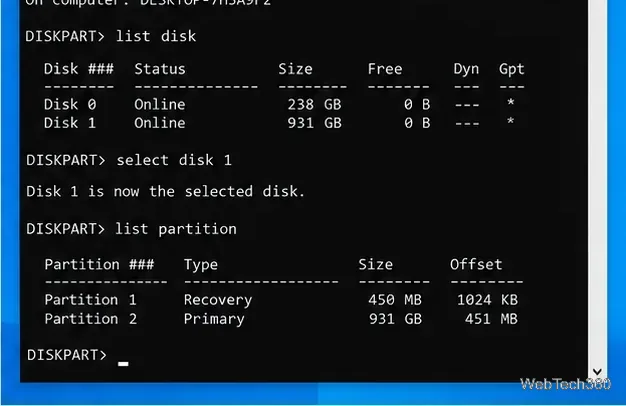
Choose the protected partition by number:
select partition N
detail partition
detail partition displays properties for the selected partition, which gives you one more chance to verify the target. Microsoft documents this command in its DiskPart detail reference.
When you are certain the selected partition belongs to the secondary drive and is no longer required, run:
delete partition overrideThe override parameter allows DiskPart to delete partitions that are normally protected by partition type. It does not make it safe to remove a partition that Windows currently needs. Microsoft's delete partition documentation explicitly excludes the current system, boot, paging-file, and crash-dump partitions.
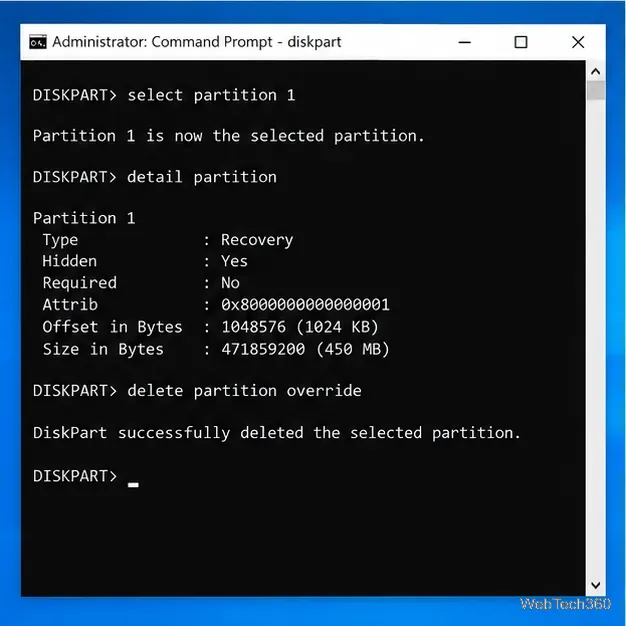
detail partition before the destructive command so the selected partition is unmistakable.The removed partition becomes unallocated space. Open Disk Management again to verify that the intended partition is gone and that your data volumes are still present.
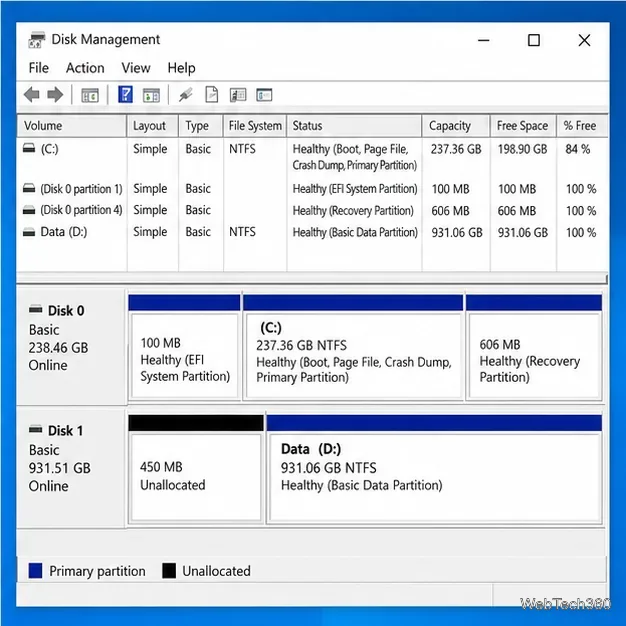
Whether you can merge that space into another volume depends on where the unallocated space sits. With Windows Disk Management, the free space generally must be immediately after the volume you want to extend and on the same disk. Microsoft's volume-extension guidance explains those requirements. If the unallocated block is on the wrong side of the volume, you can leave it unused, create a separate volume where practical, or repartition the drive after backing up its data.
A refusal is often a safety signal, not a command problem. Recheck that you selected the right disk and that the partition is not serving the running copy of Windows. If the goal is simply to reclaim a few hundred megabytes from the Windows boot drive, the risk is rarely worth the space gained.
If you are repurposing an old drive and want to erase everything on it, a full-disk wipe-and-repartition workflow may be more appropriate than deleting protected partitions one at a time. That is a different operation and destroys all volumes on the selected disk.
Windows 10 note: Microsoft ended standard Windows 10 support on October 14, 2025, although the operating system continues to run. If this is your main PC, also consider Microsoft's Windows 10 end-of-support guidance.
Use pushd to open a UNC network path in Windows 10 Command Prompt, run commands in the shared folder, and return with popd.
Learn how to install a Rainmeter skin from an INI file by placing it in the right Skins folder, preserving its resources, refreshing Rainmeter, and loading it in Manage.
Open one folder in its own File Explorer window with Shift or the context menu, or change Folder Options to make every folder open separately.
Pin a frequently used Control Panel applet, such as Power Options or Sound, to the Windows 10 Start menu for one-click access.
Choose a supported Windows 10 hotkey for switching input languages, assign shortcuts to individual layouts, or disable an accidental shortcut.
Move a Windows 10 app to the display you want, use its game monitor setting, and handle full-screen apps with a practical primary-monitor workaround.
Use a transparent PNG and a Rainmeter skin to keep an image watermark above windows, adjust its transparency, and make it click-through on Windows 10.
Convert stereo audio to mono on Windows 10 with Audacity. Mix both channels into one mono track, export a new file, and verify the channel count.
Use Windows 10 Clipboard history to save recent text and images, paste an earlier clip with Windows key + V, and manage sync, pinned items, and privacy.
Learn how to zoom in on a video in Windows 10 with VLC’s Interactive Zoom, or use Windows Magnifier when the clip is playing in another app.








