How to Set Different Scaling Levels for Multiple Monitors in Windows 10

Adjust each Windows 10 monitor independently with per-display scaling, keep text readable, and troubleshoot custom scaling or blurry apps.
Yes, you can delete a desktop.ini file in Windows 10, but do it only if you know which folder it belongs to. The file stores folder-specific settings, such as a custom icon or name. Removing it can undo those settings, and Windows or an app may recreate it. If you only want to stop seeing the file, hide hidden items in File Explorer instead.
desktop.ini is a plain-text configuration file that Windows uses to customize a folder. Microsoft documents settings for a custom icon, an information tip, and localized folder or item names. The file is normally hidden, and Windows gives it special meaning in folders marked for customization. Read Microsoft’s guide to customizing folders with Desktop.ini for the supported settings.
Seeing the filename by itself does not mean your PC is infected. If you are unsure about a particular file, check its folder and contents before removing it. Do not edit the file unless you intend to change that folder’s behavior.
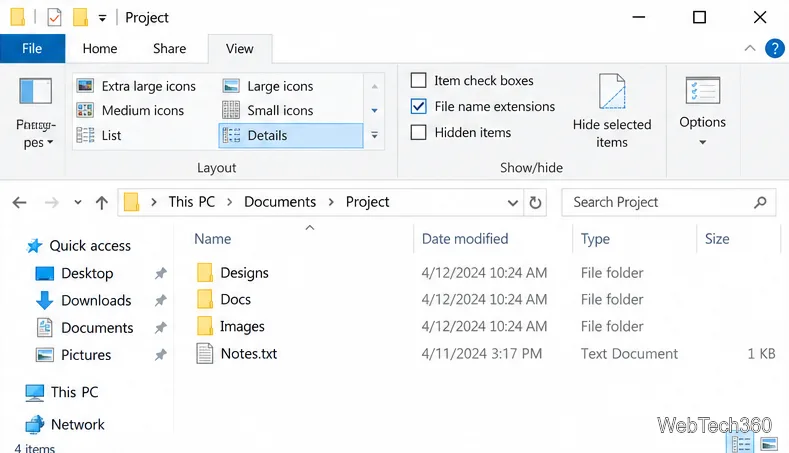
desktop.ini from a similarly displayed name such as desktop.ini.txt. Microsoft’s File Explorer guide describes these view controls.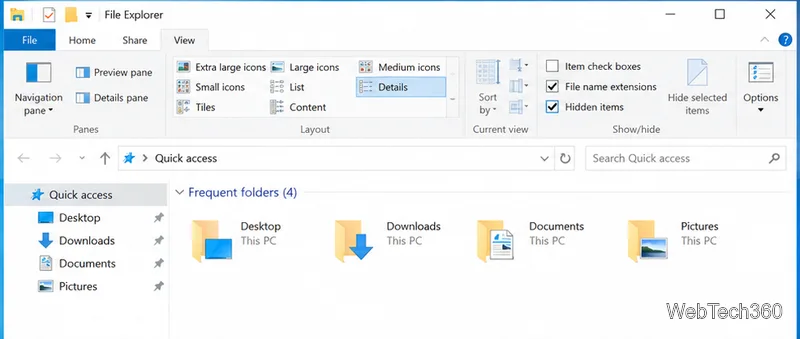
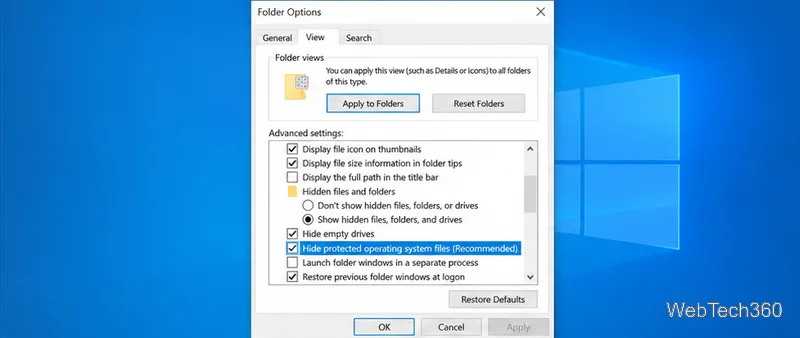
A desktop.ini file can also be marked as a protected operating system file. If it still does not appear and you have a specific reason to remove it, select View > Options > Change folder and search options, then open the View tab. Under Advanced settings, select Show hidden files, folders, and drives. Temporarily clear Hide protected operating system files (Recommended) only if you can identify the exact file, and accept Windows’ warning. This exposes other protected files too, so do not bulk-select or delete anything.
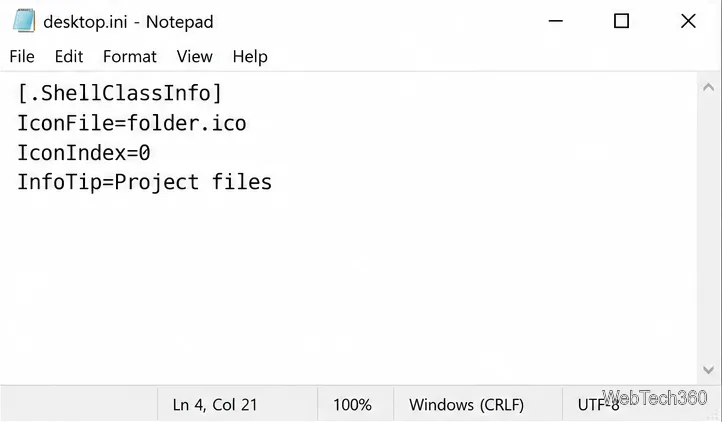
If you want to understand what the file controls, right-click desktop.ini, choose Open with, and select Notepad. Opening it as text does not run it. Look for entries such as IconFile, IconIndex, or InfoTip; those can explain why a folder has a custom icon or hover description. Close Notepad without saving if you only wanted to inspect it. If you may want the customization later, copy the file to a safe location first.
desktop.ini and is in the intended folder.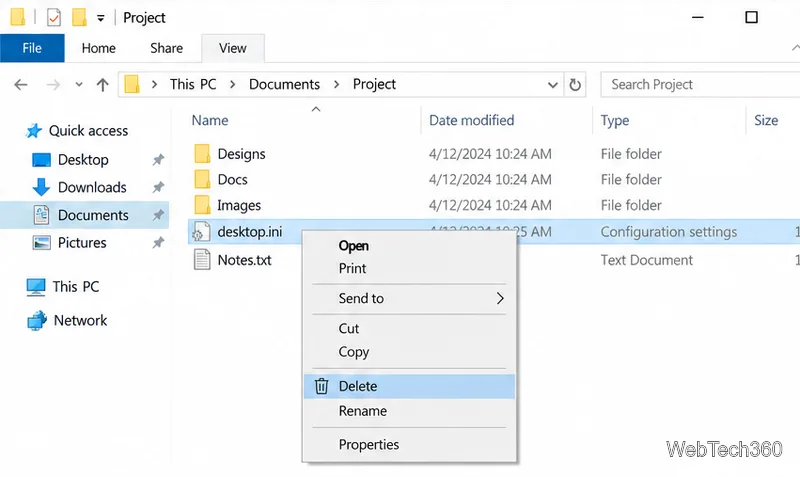
If you temporarily cleared Hide protected operating system files (Recommended), return to View > Options > View, check it again, and select Apply or OK. Restore Hidden items to the state you normally use; turn it off if you enabled it only for this task. Microsoft recommends keeping protected operating system files hidden during ordinary browsing.
The folder itself and its documents remain. However, a custom icon, localized name, or information tip that depended on the deleted file may disappear. If a Windows feature or application needs its own folder settings, the file may return. Repeatedly deleting it will not preserve those customizations; hiding it is the simpler option when visibility is the only problem.
Do not change the Registry just to keep desktop.ini from appearing. File Explorer already provides a reversible way to hide it, while a folder’s customization may depend on the configuration file. If the file keeps returning in a folder you do not recognize, review its location and contents and run your usual security scan instead of deleting other system files.
Adjust each Windows 10 monitor independently with per-display scaling, keep text readable, and troubleshoot custom scaling or blurry apps.
Use AirType’s browser pairing setup to type on an iPhone from a Windows 10 PC, with current setup steps, troubleshooting, and privacy limits.
Hide the mouse pointer in Windows 10 videos, games, and other apps with built-in typing controls or PowerToys CursorHide’s adjustable inactivity timer.
Find Control Panel Power Options on a Windows 10 desktop, open the page with a Run command, and adjust power plans, display timeouts, sleep, and button behavior.
Learn what Windows 10 deletion leaves behind, how to use SDelete on an HDD, and why SSDs and cloud backups need separate treatment.
Use FFmpeg’s DirectShow tools to open an integrated webcam’s driver properties in Windows 10, find the correct device, and troubleshoot missing controls.
Identify a keypress in Windows 10 with a browser event tester or SharpKeys, then separate layout, software, and keyboard hardware issues.
Use double quotes around each complete path with spaces in Command Prompt. Learn how to list, change to, copy, and troubleshoot Windows 10 files and folders.
Turn off the Windows 10 Start menu’s hover-to-expand behavior with a legacy Mach2 command, check build limits, and see the built-in app-list alternative.
Fix the iTunes Library.itl read error on Windows 10 by updating iTunes, restoring a compatible backup, or safely creating a new library without deleting media files.








