How to Download and Play Chess Titans on Windows 10

Chess Titans is not included with Windows 10. To play the classic Windows game, install the Chess component from the community Windows 7 Games package, then launch it from Start. The current package page lists Windows 10 support and Chess Titans, but it is not a Microsoft download. Review the source and security notes below before running its installer.

The package page lists version 4.3, dated August 1, 2026, and provides a SHA-256 checksum. Its disclaimer says the games remain copyrighted by their respective owners and are supplied without a warranty or license from the site. If you need software distributed directly by Microsoft, choose a current Store chess app instead; it is not the same product as Chess Titans.

Download and check the Chess Titans package

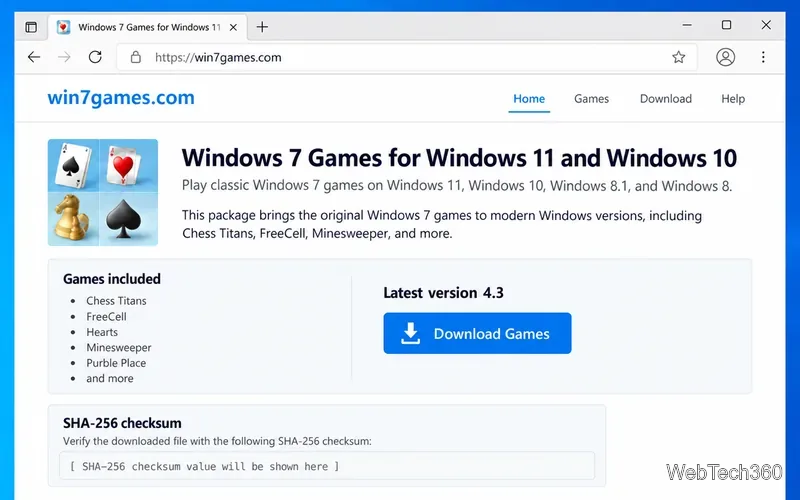
  1. Open the package site. Go to the Windows 7 Games page and choose Download Games. Check that the current page still lists Windows 10 compatibility and Chess Titans before downloading. The site is third-party and is not affiliated with Microsoft or the game’s rights holders.
win7games.com page listing the Windows 7 Games package, Chess Titans, version 4.3, and the download and checksum sections.
Representative package-page view; use the live site for the current version and checksum.
  1. Compare the installer’s SHA-256 hash. For the version 4.3 installer listed at the time this article was prepared, the site publishes this hash: ae3ff402b459d4343d9fd0edf0d46186b9f604b2c989c9c8aa99adedfe4958ee. If the page lists a newer version, use its matching checksum instead. To calculate the downloaded file’s hash in PowerShell, adjust the filename below if it differs, then compare the output with the value on the package page:
    Get-FileHash -Algorithm SHA256 -LiteralPath "$env:USERPROFILE\Downloads\Windows 7 Games for Windows 11, 10 and 8-4.3-setup.exe"
    A matching hash confirms that your copy matches the file represented by that published checksum. It does not make the installer an official Microsoft app or prove that the program is harmless. If the hash differs, do not run the file.
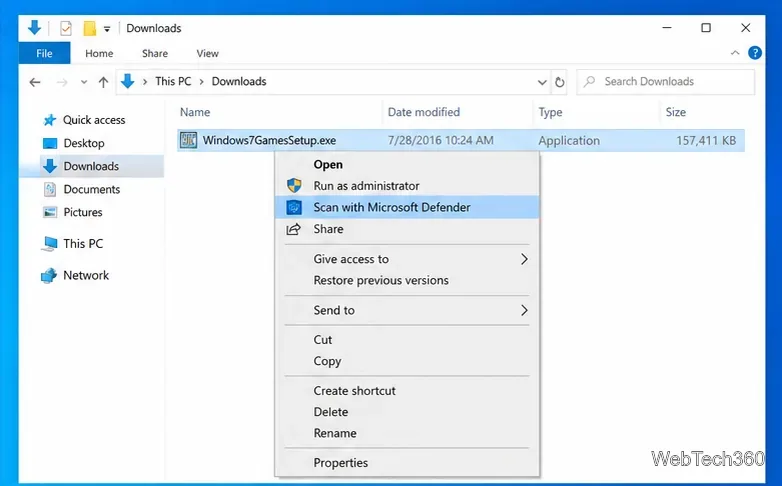
  1. Scan the downloaded file. In File Explorer, open Downloads, right-click the setup file, and choose Scan with Microsoft Defender. Follow the scan results and leave antivirus protection on. Microsoft’s Windows Security instructions explain how to scan an individual file. A clean scan only means Defender did not detect a known threat; it is not a guarantee of safety.
Windows File Explorer context menu with Scan with Microsoft Defender selected for a downloaded setup file.
Illustrative File Explorer context menu showing the Defender scan option for a downloaded installer.

Install only the Chess game

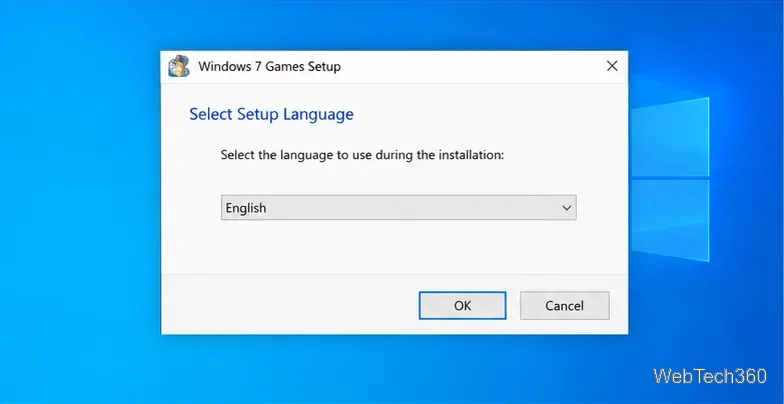
  1. Open the setup file and choose a language if prompted. Double-click the downloaded installer. Read any Windows security prompt before continuing; if the warning or publisher information is unexpected, cancel instead of bypassing it. Some installer versions show a language screen. Choose English or your preferred available language and continue.
Windows 7 Games Setup language dialog with English selected and OK and Cancel buttons.
Illustrative language-selection screen; exact setup screens can vary by package version and language.
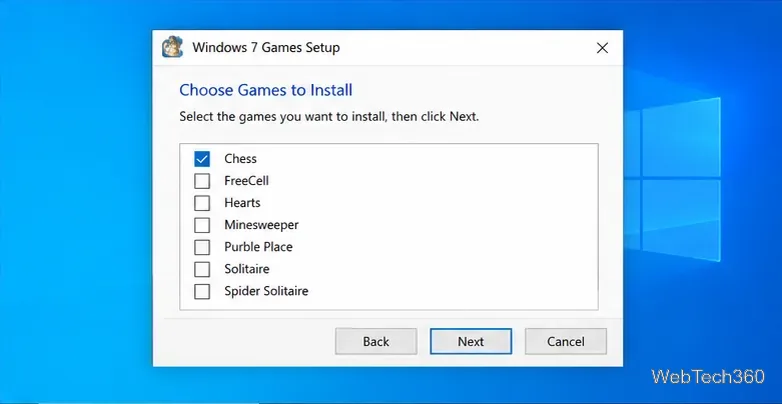
  1. Select Chess in the game list. The installer may call Chess Titans simply Chess. Check that item, clear any games you do not want, and continue through the setup. Do not install additional components unless you want them. When installation finishes, close the setup window.
Windows 7 Games Setup game selection list with Chess checked and other games unchecked.
Illustrative component list with Chess selected; the installer may label the game simply as Chess.

Start and play Chess Titans

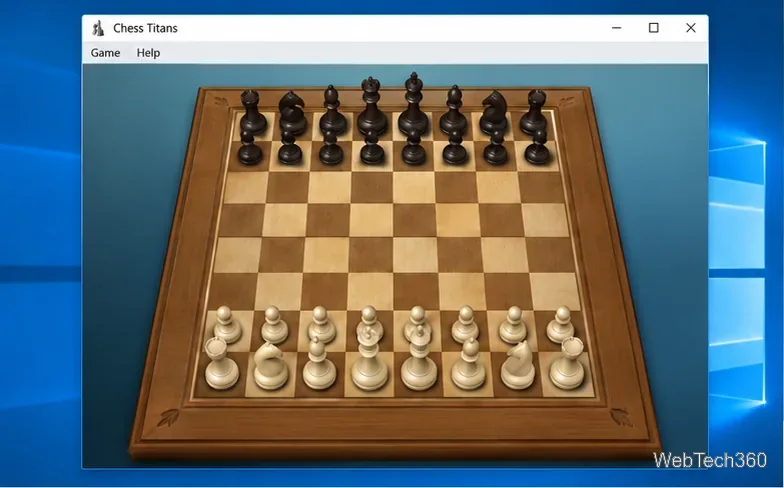
  1. Find the game from Start. Open Start and search for Chess Titans. If that does not find it, search for Chess, since that is the component name used by the installer. Select the game shortcut to open the familiar 3D board. If neither search finds it, return to the installer and confirm that Chess was selected.
Chess Titans window showing a 3D wooden chessboard in the starting position.
Illustrative Chess Titans game window with a wooden board and pieces.
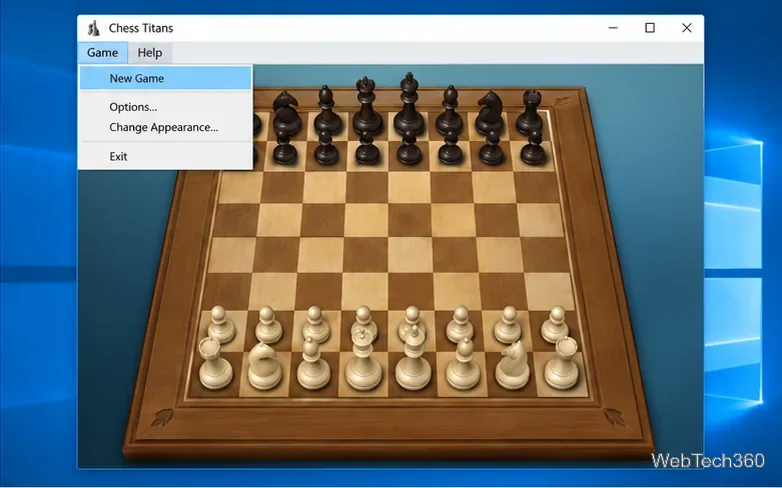
  1. Choose a new match and opponent. Open the Game menu and select New Game. Choose a game against the computer or a second human player, when the option appears. Two-player mode is for people taking turns at the same computer; it does not provide online multiplayer. The first launch may begin with White playing the computer.
Chess Titans Game menu open over the 3D chessboard, with New Game, Options, Change Appearance, and Exit visible.
Illustrative Game menu with New Game, Options, and Change Appearance entries.
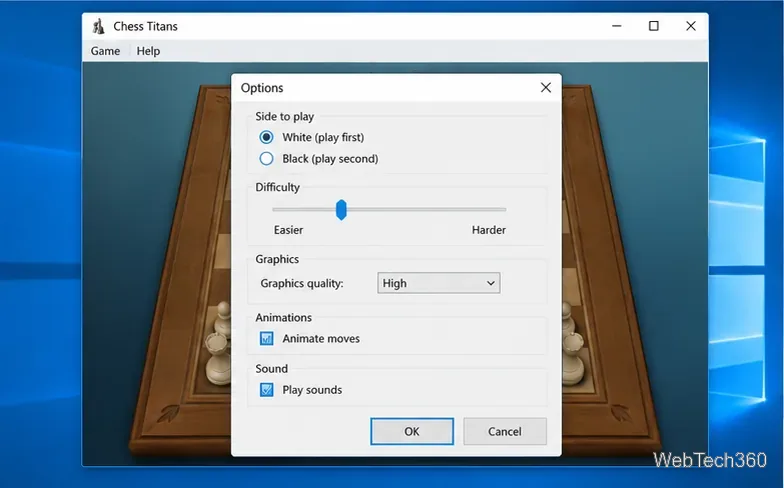
  1. Set your side and difficulty. Open Game > Options to choose White or Black and adjust the difficulty. The same dialog can control graphics quality, move animations, and sound. If you are introducing the game to a beginner, start with an easier setting and raise it later.
Chess Titans Options dialog showing side to play, difficulty, graphics quality, animations, and sound controls.
Illustrative Options dialog for side to play, difficulty, graphics, animations, and sound.
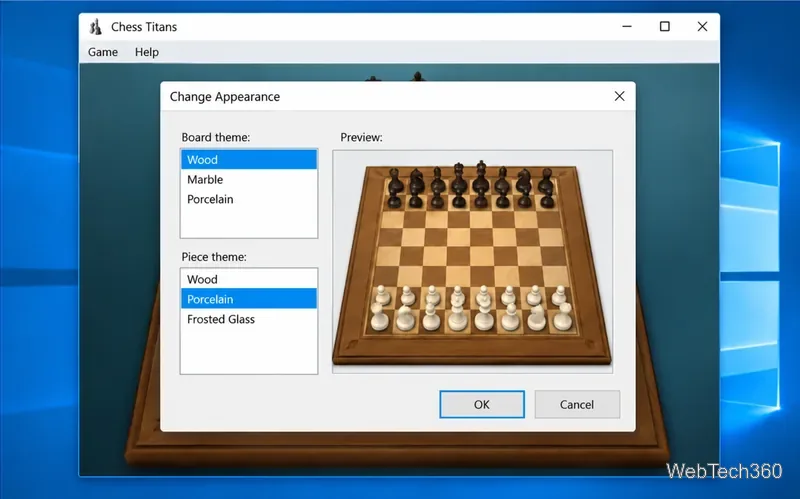
  1. Change the board and pieces. Choose Game > Change Appearance, select the available board and piece styles, and confirm. The classic version includes several looks; the exact choices can differ with the package version and language. You can return to this menu later without affecting the rules of the game.
Chess Titans Change Appearance dialog with board and piece theme lists and a wood chessboard preview.
Illustrative Change Appearance dialog with board and piece style lists.

Safety and compatibility notes

Do not disable Microsoft Defender, install unrelated download managers, or use a mirror if the package page stops offering the file. If Defender flags the installer or the checksum does not match, cancel and remove the download. For a Microsoft-hosted alternative, the Microsoft Store Chess app is a different chess game, not Chess Titans.

Windows 10 Home, Pro, Enterprise, and Education reached the end of standard support on October 14, 2025. Microsoft says those editions no longer receive regular security updates after that date; see its Windows 10 lifecycle notice for coverage details and extended-support options. Keep your device within a supported security program before installing third-party software.

Leave a Comment

How to Set Different Scaling Levels for Multiple Monitors in Windows 10

How to Set Different Scaling Levels for Multiple Monitors in Windows 10

Adjust each Windows 10 monitor independently with per-display scaling, keep text readable, and troubleshoot custom scaling or blurry apps.

How to Type on an iPhone From a Windows 10 PC

How to Type on an iPhone From a Windows 10 PC

Use AirType’s browser pairing setup to type on an iPhone from a Windows 10 PC, with current setup steps, troubleshooting, and privacy limits.

How to Hide the Mouse Cursor in Windows 10 Apps

How to Hide the Mouse Cursor in Windows 10 Apps

Hide the mouse pointer in Windows 10 videos, games, and other apps with built-in typing controls or PowerToys CursorHide’s adjustable inactivity timer.

How to Open Control Panel Power Options on a Windows 10 Desktop

How to Open Control Panel Power Options on a Windows 10 Desktop

Find Control Panel Power Options on a Windows 10 desktop, open the page with a Run command, and adjust power plans, display timeouts, sleep, and button behavior.

How to Prevent a File from Being Recovered on Windows 10

How to Prevent a File from Being Recovered on Windows 10

Learn what Windows 10 deletion leaves behind, how to use SDelete on an HDD, and why SSDs and cloud backups need separate treatment.

How to Access Advanced Settings for an Integrated Webcam in Windows 10

How to Access Advanced Settings for an Integrated Webcam in Windows 10

Use FFmpeg’s DirectShow tools to open an integrated webcam’s driver properties in Windows 10, find the correct device, and troubleshoot missing controls.

How to Identify a Keypress on Windows 10

How to Identify a Keypress on Windows 10

Identify a keypress in Windows 10 with a browser event tester or SharpKeys, then separate layout, software, and keyboard hardware issues.

How to Enter File or Folder Paths with Spaces in Windows 10 Command Prompt

How to Enter File or Folder Paths with Spaces in Windows 10 Command Prompt

Use double quotes around each complete path with spaces in Command Prompt. Learn how to list, change to, copy, and troubleshoot Windows 10 files and folders.

How to Disable Start Menu Auto-Expand on Windows 10

How to Disable Start Menu Auto-Expand on Windows 10

Turn off the Windows 10 Start menu’s hover-to-expand behavior with a legacy Mach2 command, check build limits, and see the built-in app-list alternative.

How to Fix the “iTunes Library.itl Cannot Be Read” Error in Windows 10

How to Fix the “iTunes Library.itl Cannot Be Read” Error in Windows 10

Fix the iTunes Library.itl read error on Windows 10 by updating iTunes, restoring a compatible backup, or safely creating a new library without deleting media files.