How to Set Different Scaling Levels for Multiple Monitors in Windows 10

Adjust each Windows 10 monitor independently with per-display scaling, keep text readable, and troubleshoot custom scaling or blurry apps.
If you want Microsoft FreeCell on Windows 10, the supported download is Microsoft Solitaire Collection in the Microsoft Store. It includes FreeCell, but it is the newer collection app, not the standalone Windows 7 FreeCell game. I could not verify a current Microsoft-hosted download for that exact legacy desktop version, so older third-party installer links should not be treated as official Microsoft downloads.
| Version | Where to get it | What to expect |
|---|---|---|
| Microsoft's current FreeCell | Microsoft Solitaire Collection in Microsoft Store | Official Microsoft app with a newer interface and several solitaire games, including FreeCell. |
| Standalone Windows 7 FreeCell | No verified Microsoft download found for Windows 10 | Third-party repacks may circulate, but Microsoft does not support those installers. |
That distinction matters: installing the Store app gives you a Microsoft FreeCell game, but it will not restore the old Windows 7 window, menus, or appearance. If you mainly want to play FreeCell, use the Store steps below. If you specifically need the legacy program, read the safety section before downloading any installer.
These steps install the current Microsoft Solitaire Collection. Button labels can vary slightly by Store version or region, but the app name and publisher should be clear.
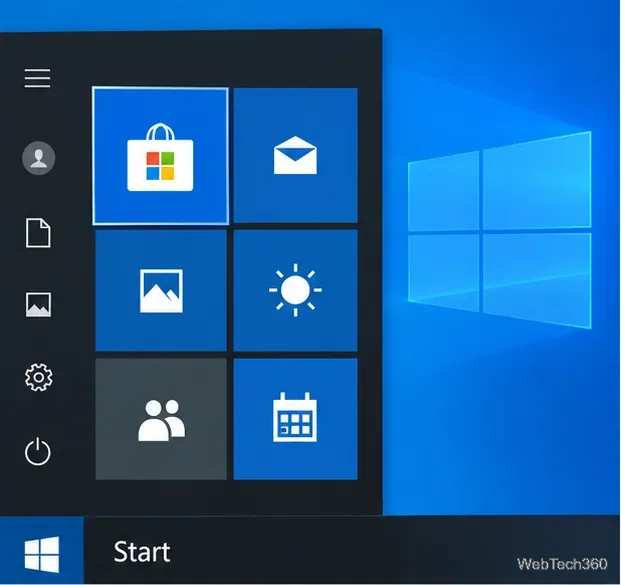
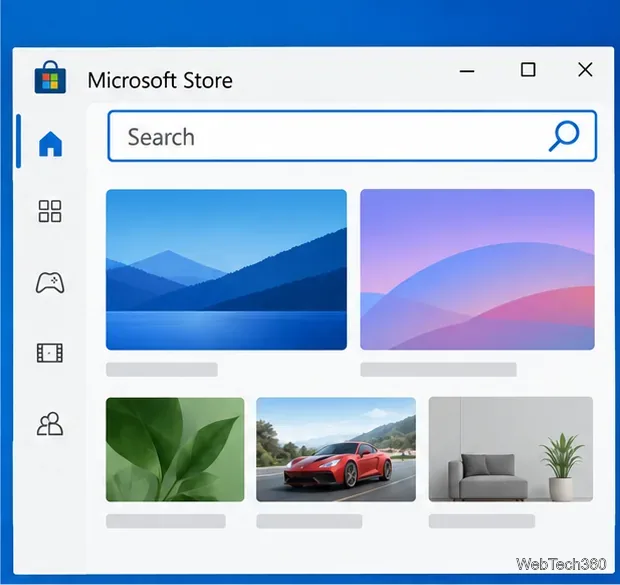
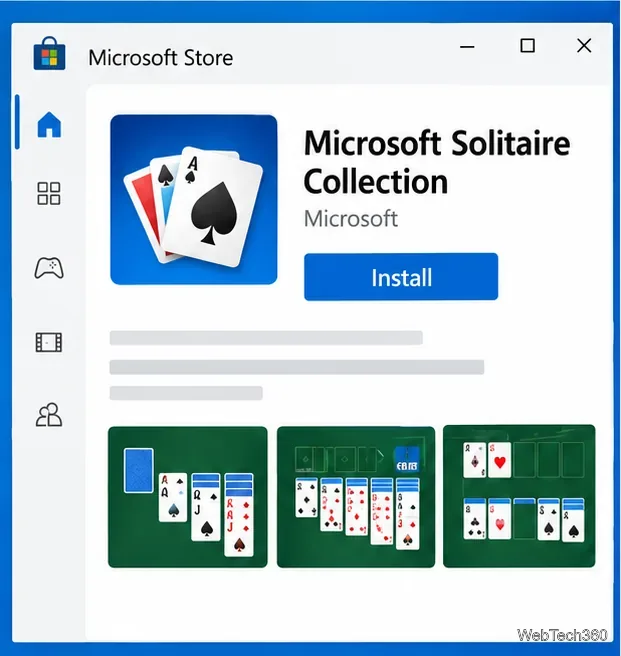
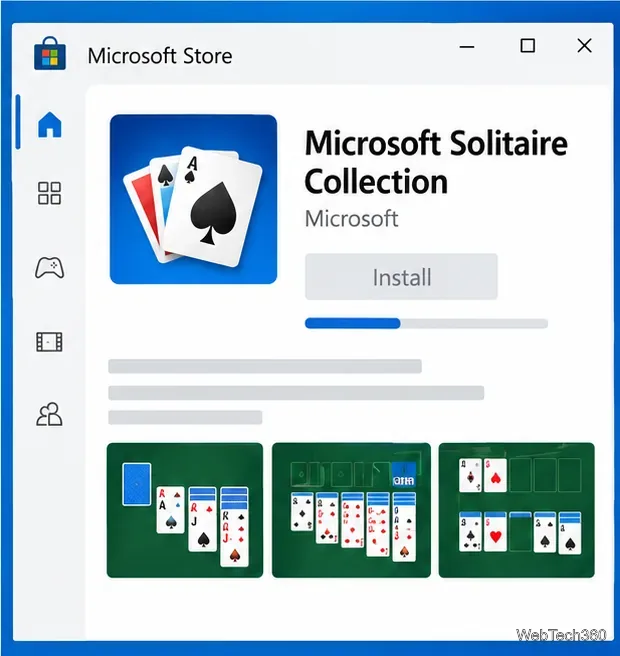
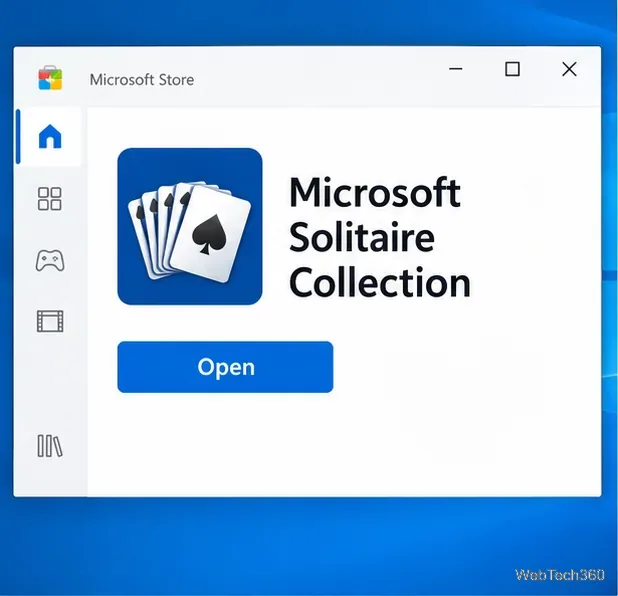
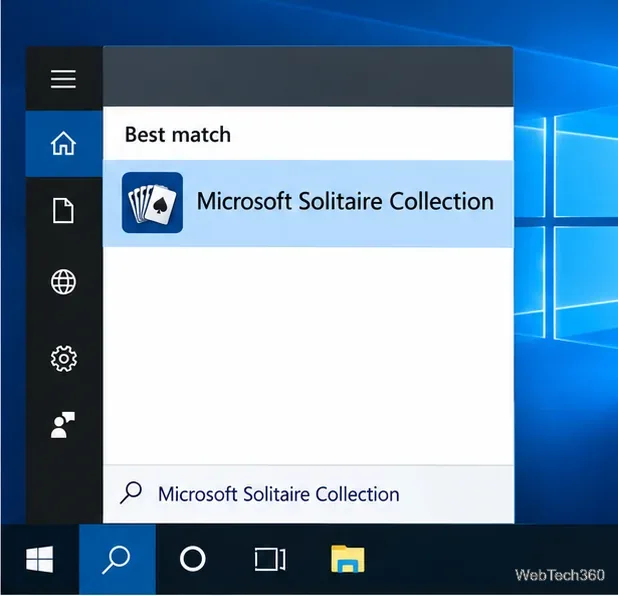
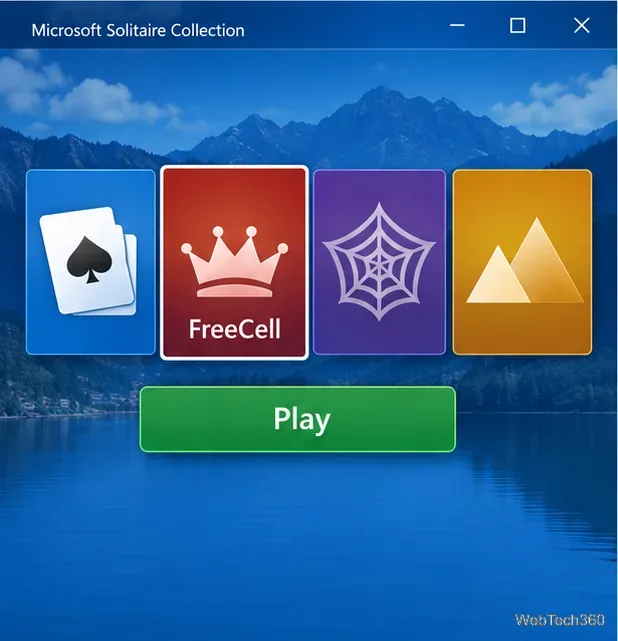

Some older how-to pages point to an installer hosted outside Microsoft, including an Internet Archive item. An archive listing is not the same as a Microsoft download, and I could not verify the current contents, publisher signature, or Microsoft origin of the package referenced by those older instructions. For that reason, this guide does not recommend running that installer or provide it as a trusted download.
If you choose to investigate a legacy copy elsewhere, treat it as unsupported software. Check the publisher and any digital signature in the file's Properties window, compare its SHA-256 checksum with one published by a source you trust, and scan both the downloaded archive and extracted installer with Microsoft Defender before opening them. A clean antivirus scan does not prove that a file is authentic or harmless. Do not turn off Defender or bypass a SmartScreen warning just to install an old game, and grant administrator access only when you have independently verified the source and understand what the installer will change.
Use the direct Microsoft Store product page linked above to confirm you have the right app. If the Store recommends another result, check the publisher before installing anything. Microsoft recommends getting apps from the Store when possible; its guidance for Windows also explains how to install programs from online sources and scan individual files with Windows Security.
One separate point for Windows 10 users: Microsoft ended general support for Windows 10 on October 14, 2025. Installing a game does not restore operating-system security updates. Check Microsoft's current support options for your Windows 10 edition and keep available security protection enabled.
Adjust each Windows 10 monitor independently with per-display scaling, keep text readable, and troubleshoot custom scaling or blurry apps.
Use AirType’s browser pairing setup to type on an iPhone from a Windows 10 PC, with current setup steps, troubleshooting, and privacy limits.
Hide the mouse pointer in Windows 10 videos, games, and other apps with built-in typing controls or PowerToys CursorHide’s adjustable inactivity timer.
Find Control Panel Power Options on a Windows 10 desktop, open the page with a Run command, and adjust power plans, display timeouts, sleep, and button behavior.
Learn what Windows 10 deletion leaves behind, how to use SDelete on an HDD, and why SSDs and cloud backups need separate treatment.
Use FFmpeg’s DirectShow tools to open an integrated webcam’s driver properties in Windows 10, find the correct device, and troubleshoot missing controls.
Identify a keypress in Windows 10 with a browser event tester or SharpKeys, then separate layout, software, and keyboard hardware issues.
Use double quotes around each complete path with spaces in Command Prompt. Learn how to list, change to, copy, and troubleshoot Windows 10 files and folders.
Turn off the Windows 10 Start menu’s hover-to-expand behavior with a legacy Mach2 command, check build limits, and see the built-in app-list alternative.
Fix the iTunes Library.itl read error on Windows 10 by updating iTunes, restoring a compatible backup, or safely creating a new library without deleting media files.








