How to Set Different Scaling Levels for Multiple Monitors in Windows 10

Adjust each Windows 10 monitor independently with per-display scaling, keep text readable, and troubleshoot custom scaling or blurry apps.
You can try Minecraft: Java Edition for free with the official demo. Download the Minecraft Launcher from Minecraft’s trial page, sign in with a Microsoft account, choose Java Edition, and select Play Demo. The demo is limited, but it lets you explore Survival gameplay before deciding whether to buy the game. The steps below use the current official download and launcher flow; you do not need to create a Mojang account or download a third-party “free full version.”
The Java Edition demo is for desktop computers running Windows, macOS, or Linux. On the official Minecraft free trial page, use the options under Minecraft Java Edition. The page also lists separate Bedrock trials for platforms such as PlayStation and Android. Those are different versions, so a console or mobile download will not install Java Edition.
You will need a Microsoft account to access the Java demo in the Launcher. If you have not used Minecraft before, you can create an account during sign-in. The old instructions to register a new Mojang account no longer apply to this process.
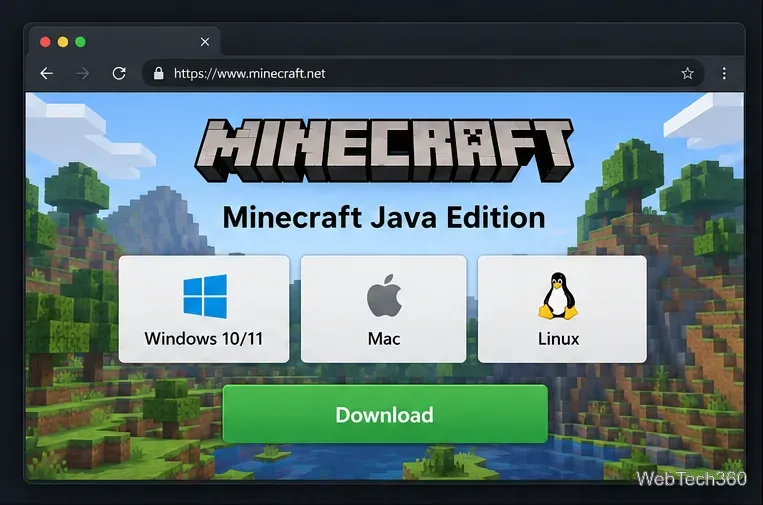
Open the official free trial page and scroll to its device download choices. Under Minecraft Java Edition, select Windows 10/11, Mac, or the Linux option that matches your distribution. Follow the page’s download prompts. If the first option does not work, use the alternate download link shown in that section or go to the official Minecraft download page.
Download only from Minecraft.net or the official store or distribution link it provides. The file you get is for installing the Launcher; it is not an unrestricted copy of the full paid game.
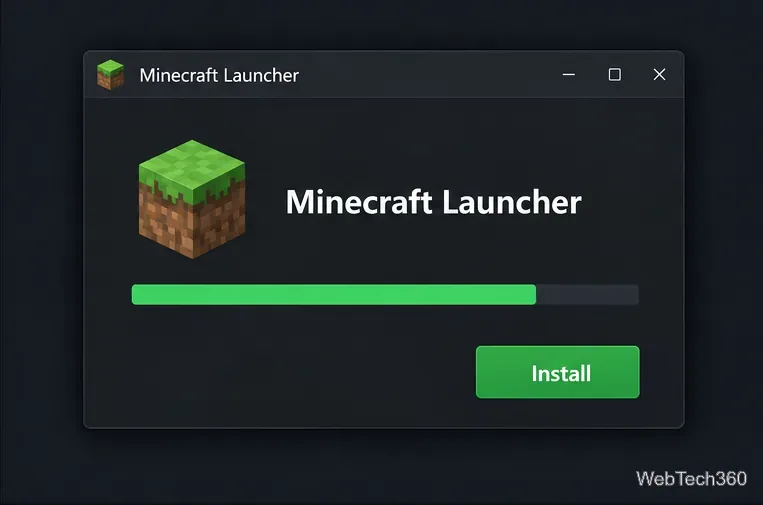
Open the downloaded installer and follow your operating system’s prompts. Windows users can install the Launcher from Minecraft.net or the Microsoft Store. Mac and Linux users should use the package linked for their system and follow any installation notes on the official page. For platform-specific directions, see Minecraft’s Launcher installation guide.
When installation finishes, open Minecraft Launcher. If your computer blocks the installer or installation fails, make sure you downloaded the correct package for your operating system. On Windows, Microsoft Store sign-in can also affect installation; Minecraft’s installation troubleshooting guide lists supported fixes.
In the Launcher, choose the Microsoft account sign-in option. Sign in to an existing account or create one if prompted. Minecraft’s current Java Edition demo instructions say the demo appears after you log in when the account does not own Minecraft. Use the same Microsoft account consistently; if you own the game on a different account, the Launcher may show different access options.
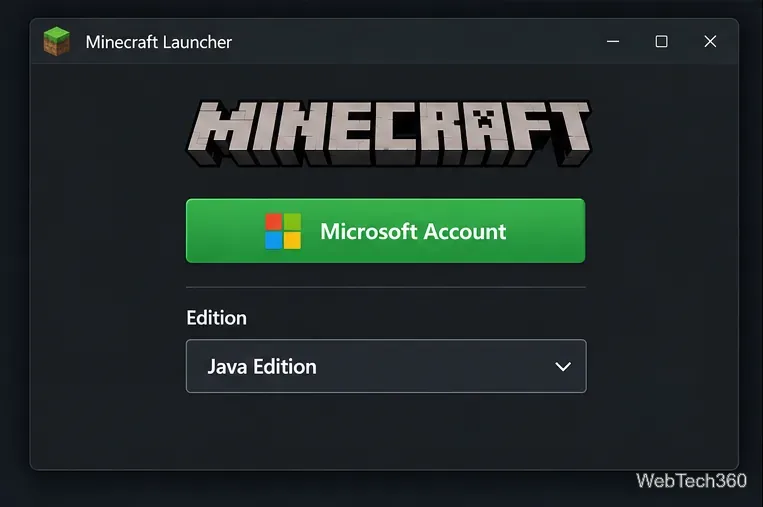
If the Launcher asks which version you want, choose Java Edition. Select Play Demo to download the required game files and start the trial. The first launch can take longer while the Launcher installs files. You do not need to buy the game to start the demo, but the demo does not unlock permanent full-game access.
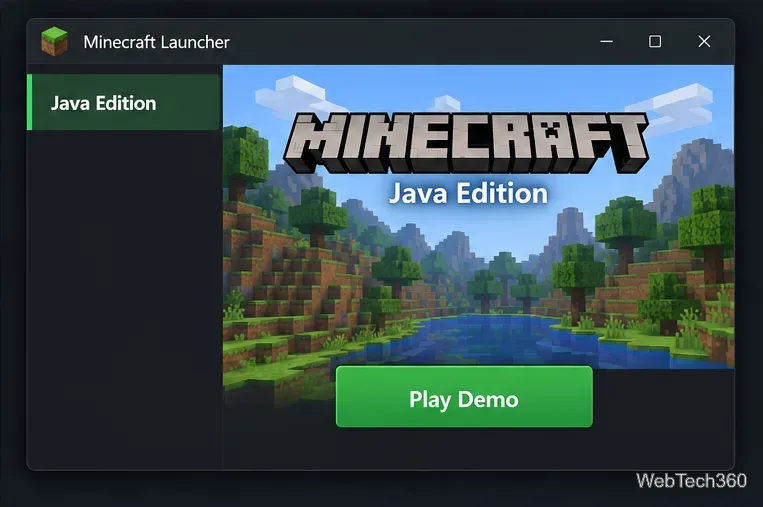
The trial lets you play the core game in Survival mode, including crafting, exploring, and combat. Minecraft describes the Java and Bedrock trials as approximately 100 minutes of in-game time, or about five in-game days; the exact length can vary slightly by device. It is enough to try the basic survival loop, but it is not an unlimited free edition.
If Play Demo does not appear, confirm that you selected Java Edition and signed in with the Microsoft account you intend to use. Sign out and back in, then check for Launcher updates. If the problem continues, use Minecraft’s official demo or installation support pages rather than downloading an installer from a third-party site.
Adjust each Windows 10 monitor independently with per-display scaling, keep text readable, and troubleshoot custom scaling or blurry apps.
Use AirType’s browser pairing setup to type on an iPhone from a Windows 10 PC, with current setup steps, troubleshooting, and privacy limits.
Hide the mouse pointer in Windows 10 videos, games, and other apps with built-in typing controls or PowerToys CursorHide’s adjustable inactivity timer.
Find Control Panel Power Options on a Windows 10 desktop, open the page with a Run command, and adjust power plans, display timeouts, sleep, and button behavior.
Learn what Windows 10 deletion leaves behind, how to use SDelete on an HDD, and why SSDs and cloud backups need separate treatment.
Use FFmpeg’s DirectShow tools to open an integrated webcam’s driver properties in Windows 10, find the correct device, and troubleshoot missing controls.
Identify a keypress in Windows 10 with a browser event tester or SharpKeys, then separate layout, software, and keyboard hardware issues.
Use double quotes around each complete path with spaces in Command Prompt. Learn how to list, change to, copy, and troubleshoot Windows 10 files and folders.
Turn off the Windows 10 Start menu’s hover-to-expand behavior with a legacy Mach2 command, check build limits, and see the built-in app-list alternative.
Fix the iTunes Library.itl read error on Windows 10 by updating iTunes, restoring a compatible backup, or safely creating a new library without deleting media files.








