How to Open a Linux Shell in a Folder on Windows 10

Open a Linux shell in any Windows 10 folder with File Explorer, PowerShell, and WSL. Check the Linux path and fix common setup issues.
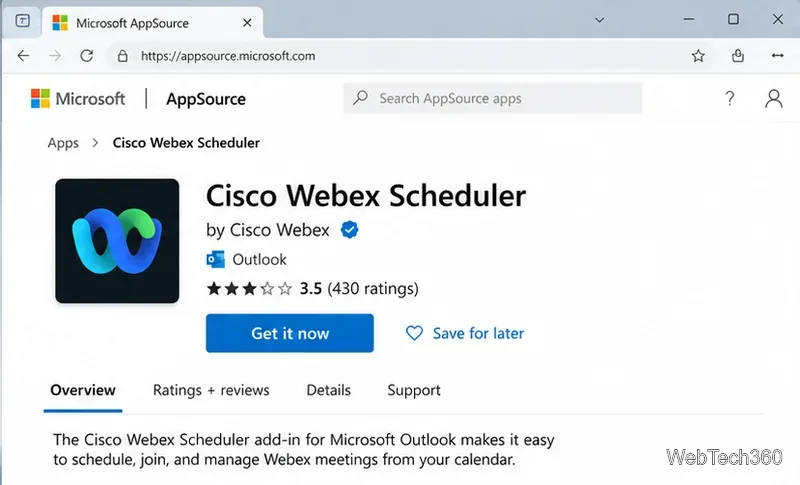
To add Webex to Microsoft Outlook today, install Cisco Webex Scheduler, the current Outlook add-in for scheduling Webex meetings. You generally do not need the older Webex Productivity Tools or its COM add-in. For Microsoft 365, Cisco directs users to install Webex Scheduler from Microsoft Marketplace/AppSource or through Outlook's app store.
The Cisco Webex Scheduler listing in Microsoft Marketplace says the add-in lets you schedule, start, and join Webex meetings from Outlook. The listing currently states that a paid Cisco Webex Meetings host account and a Microsoft 365 account are required.
If your organization blocks add-in installation, you will need your Microsoft 365 or Webex administrator to deploy Webex Scheduler for you.
The simplest route is to open the official Cisco Webex Scheduler Marketplace page and select Get it now. You can also install it from Outlook itself.
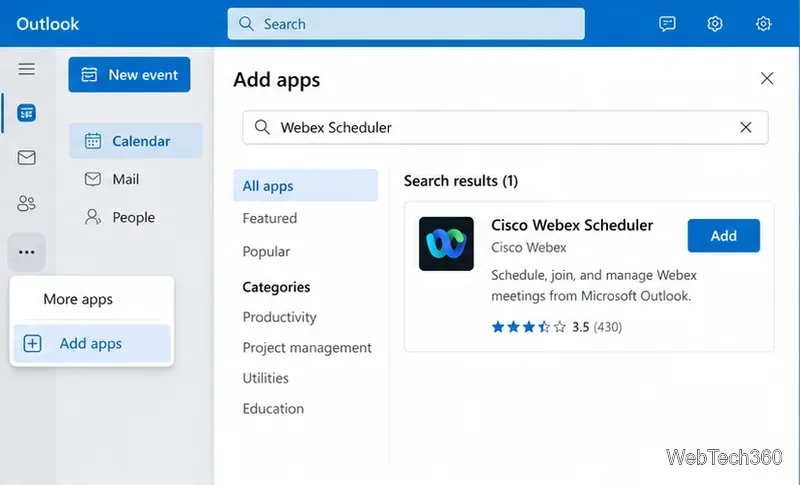
In new Outlook for Windows or Outlook on the web, select More apps > Add apps. In classic Outlook for Windows, Microsoft currently directs users to Home > All Apps, then Add Apps or Get Add-ins, depending on the Outlook version. Microsoft documents these paths in its Outlook add-ins guide.
Search for Cisco Webex Scheduler, open the result published by Cisco Webex, and select Add or Get it now. Follow the Microsoft sign-in and consent prompts. If the add-in is already deployed by your organization, you may see it automatically without installing it yourself.
Cisco notes that the add-in requests mailbox permissions needed to work with Outlook and Exchange. If the Add option is unavailable, that usually means your organization manages add-ins centrally.
After installation, create or open a calendar event. In Outlook desktop, look for the Cisco Webex controls on the meeting ribbon. In Outlook on the web, open the Cisco Webex Scheduler from the event and choose Add Webex Meeting.
The first time you use it, Cisco's current setup flow asks you to get started, select or enter your Webex site, and sign in with your Microsoft 365 account. If your company uses a site such as company.webex.com, choose or enter the site associated with your Webex account.
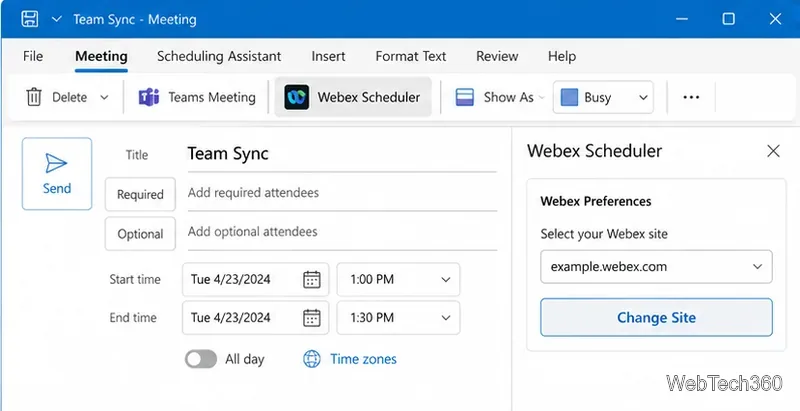
Cisco's official Webex Scheduler instructions also explain how to change the Webex site later through Webex Preferences.
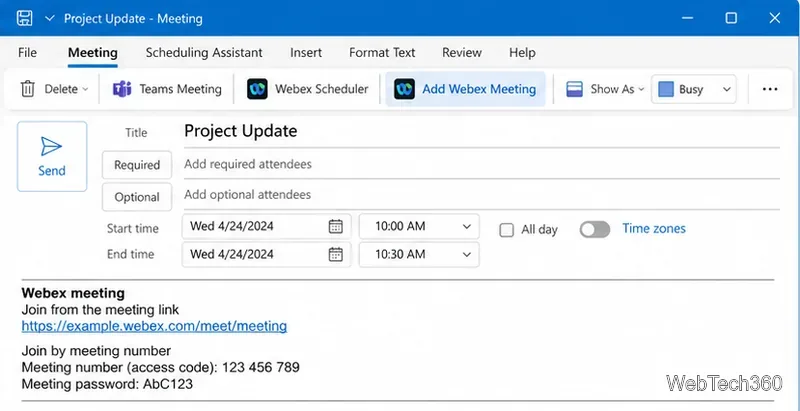
Create the appointment as usual: enter a title, invite attendees, and set the date and time. Then select Add Webex Meeting. Webex adds the meeting information and join link to the Outlook invitation. Review the event and select Send.
Older guides often tell users to download Webex Productivity Tools, enable Outlook integration, and then turn on a Webex COM add-in under Outlook Options. That is no longer the standard Microsoft 365 setup. Microsoft states that COM add-ins are not supported in new Outlook for Windows, and its migration guidance maps the older Cisco Webex Meetings COM add-in to the Cisco Webex Scheduler web add-in.
For most Microsoft 365 users, install Webex Scheduler instead. If your company runs on-premises Microsoft Exchange, Cisco documents a separate manifest-based deployment because Microsoft AppSource cannot be used to deploy Webex Scheduler to on-premises Exchange. See Cisco's Webex Scheduler installation guide and ask your administrator which deployment method applies.
Once Webex Scheduler is installed and connected to the correct Webex site, you can create Webex meetings directly from Outlook without installing the legacy Productivity Tools package.
Open a Linux shell in any Windows 10 folder with File Explorer, PowerShell, and WSL. Check the Linux path and fix common setup issues.
Use a screenshot test, cable and port checks, monitor diagnostics, display settings, and driver rollback to pinpoint lines on a Windows 10 monitor.
Show two other time zones beside your Windows 10 clock. Set up each additional clock, give it a clear label, and find it in the taskbar calendar.
Find the File Explorer extension that delays right-click menus in Windows 10, test it safely with ShellExView, and restore any menu features you still need.
Stop Windows 10 from powering down a specific network adapter or USB device with plan-level settings and Device Manager controls, plus tips to avoid excess battery drain.
Check whether Windows 10 uses a digital license or product key, find a firmware-stored OEM key, and save license details securely for a reinstall.
Identify a Windows 10 Task Manager process by checking its executable path, file properties, publisher, linked services, and a Microsoft Defender scan.
Create a searchable Windows 10 folder inventory with PowerShell. Save every file and subfolder path as plain text or export details to a sortable CSV.
Add a custom reminder, quote, or label to your Windows 10 desktop with a Rainmeter text skin. Create the INI file, load it, then adjust its font and position.
Use Bluetooth Swift Pair on Windows 10 to pair a compatible accessory from a notification, with setup steps and fixes when the prompt does not appear.








