How to Set Different Scaling Levels for Multiple Monitors in Windows 10

Adjust each Windows 10 monitor independently with per-display scaling, keep text readable, and troubleshoot custom scaling or blurry apps.
To open a second File Explorer window at the folder you are using in Windows 10, select that window and press Ctrl+N. The original window stays open, and the new one lets you work with the same folder in a separate window. Microsoft lists Ctrl+N as the File Explorer shortcut to open a new window in its Windows keyboard shortcut reference.
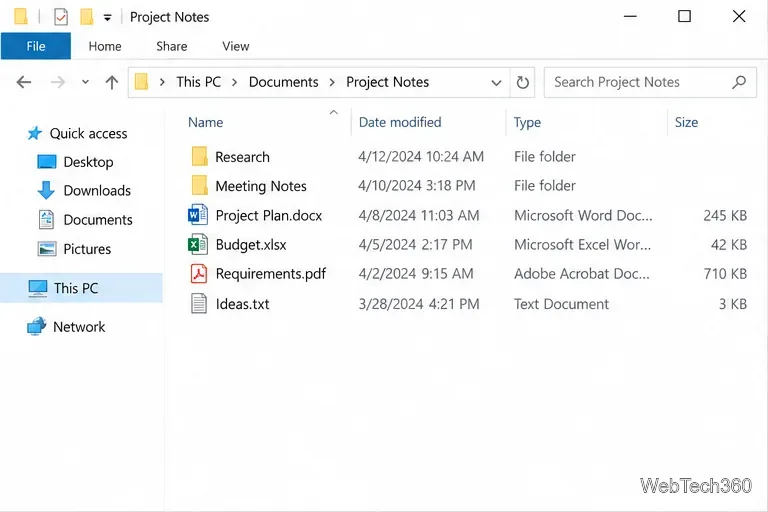
This creates another view of the same location; it does not make a second copy of the files. Changes made in either window affect the shared folder. That makes the shortcut useful when you want to compare two locations, drag files between folders, or keep the same folder visible while using another app.
Windows 10 also offers an Open new window command in File Explorer’s File menu. With the desired folder already open, select File in the upper-left corner, then choose Open new window. You can open the menu with Alt+F; in the English interface, press N if that letter is shown for the command. If the letter does not work on your Windows build or in another display language, select the command with the mouse or use the underlined letter shown on screen.
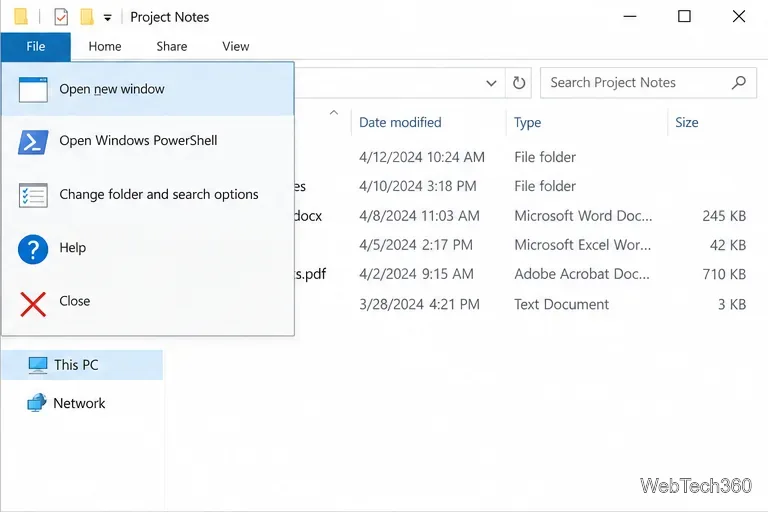
The menu command is useful if you forget Ctrl+N or want to confirm that you are opening a new window from the current folder. Choose the command from the File Explorer window that is already showing the location you want. Starting another Explorer window from the taskbar or Start menu can instead open the configured starting location, such as Quick access or This PC.
After the new window opens, compare the breadcrumb paths in both windows. Matching paths mean they are looking at the same folder, even if one window is smaller or positioned differently. If you use two windows for file management, drag one by its title bar to the left or right edge of the screen to snap it into place, then select the other window for the remaining side. Microsoft explains window snapping and switching in its Windows multitasking guide.
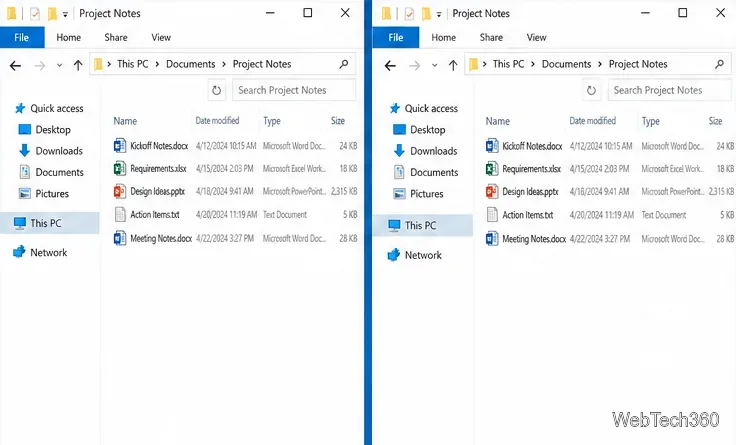
If the second window is hidden behind the first, press Alt+Tab to switch between open windows. When several File Explorer windows are grouped under one taskbar icon, select the icon and choose the window you want. Closing one window does not delete or close the other; use Ctrl+W when the window you want to close is active.
A new window opens at the current folder, but it does not recreate the route you took to get there. If the original window reached Project Notes by moving through other folders, its Back button can return through that earlier history. The new window has no copy of that earlier trail, so its Back button may be unavailable until you navigate to another folder in the new window. The original window’s history is unchanged.
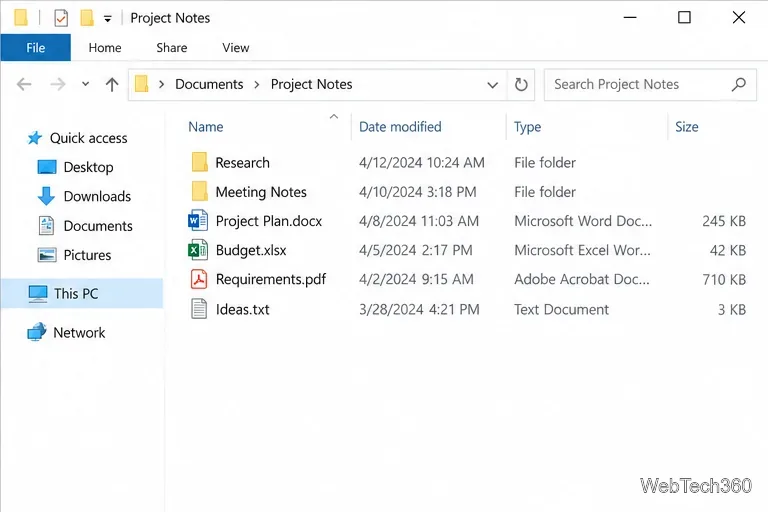
This is expected: the new window shares the folder location, not the original window’s navigation session. Once you move to another folder in the new window, it builds its own Back and Forward history from that point.
These steps apply to Windows 10 File Explorer. Microsoft ended Windows 10 support on October 14, 2025; PCs still run, but no longer receive free Windows Update security fixes or technical assistance. See Microsoft’s File Explorer in Windows guidance for its current Windows 10 notes.
Adjust each Windows 10 monitor independently with per-display scaling, keep text readable, and troubleshoot custom scaling or blurry apps.
Use AirType’s browser pairing setup to type on an iPhone from a Windows 10 PC, with current setup steps, troubleshooting, and privacy limits.
Hide the mouse pointer in Windows 10 videos, games, and other apps with built-in typing controls or PowerToys CursorHide’s adjustable inactivity timer.
Find Control Panel Power Options on a Windows 10 desktop, open the page with a Run command, and adjust power plans, display timeouts, sleep, and button behavior.
Learn what Windows 10 deletion leaves behind, how to use SDelete on an HDD, and why SSDs and cloud backups need separate treatment.
Use FFmpeg’s DirectShow tools to open an integrated webcam’s driver properties in Windows 10, find the correct device, and troubleshoot missing controls.
Identify a keypress in Windows 10 with a browser event tester or SharpKeys, then separate layout, software, and keyboard hardware issues.
Use double quotes around each complete path with spaces in Command Prompt. Learn how to list, change to, copy, and troubleshoot Windows 10 files and folders.
Turn off the Windows 10 Start menu’s hover-to-expand behavior with a legacy Mach2 command, check build limits, and see the built-in app-list alternative.
Fix the iTunes Library.itl read error on Windows 10 by updating iTunes, restoring a compatible backup, or safely creating a new library without deleting media files.








