How to Access a Network Location in Command Prompt on Windows 10

Use pushd to open a UNC network path in Windows 10 Command Prompt, run commands in the shared folder, and return with popd.
To enable XMP, restart your PC, enter the UEFI/BIOS setup, find the memory or overclocking settings, select an XMP profile, then save and reboot. XMP is not a Windows setting: it applies a speed, timing, and voltage profile stored on compatible RAM modules.
Intel describes Extreme Memory Profile (XMP) as a memory-overclocking feature for compatible DDR4 and DDR5 memory. XMP 2.0 is used with DDR4, while XMP 3.0 is specific to DDR5. The profile can make RAM run at its advertised performance setting instead of the lower default JEDEC setting used for broad compatibility.
Check three things first: the memory kit, motherboard, and processor memory controller all need to support the target memory speed. A RAM kit having an XMP profile does not guarantee that every motherboard and CPU combination can run that profile stably.
Because XMP changes memory frequency and sometimes voltage beyond standard settings, it is a form of overclocking. Intel notes that operation outside published specifications can affect stability and may affect warranty coverage, so review the terms for your processor, motherboard, and memory before proceeding.
Restart the computer and press the setup key during startup. Delete and F2 are common choices, but the correct key depends on the motherboard or PC maker. If the startup screen does not show the key, check the system manual rather than repeatedly trying unrelated keys.
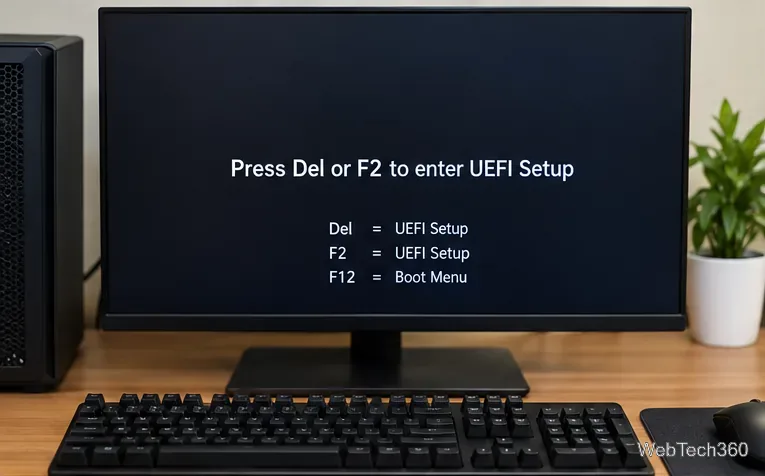
Look for a setting named XMP, Extreme Memory Profile, or a vendor-specific memory profile control. The menu may be under sections such as Memory, Overclocking, OC, Tweaker, or Ai Tweaker. On current ASUS boards, for example, XMP can appear under Ai Tweaker/Ai OverClock Tuner, while MSI exposes XMP or EXPO controls in its BIOS interface. The exact layout varies by motherboard and BIOS version.
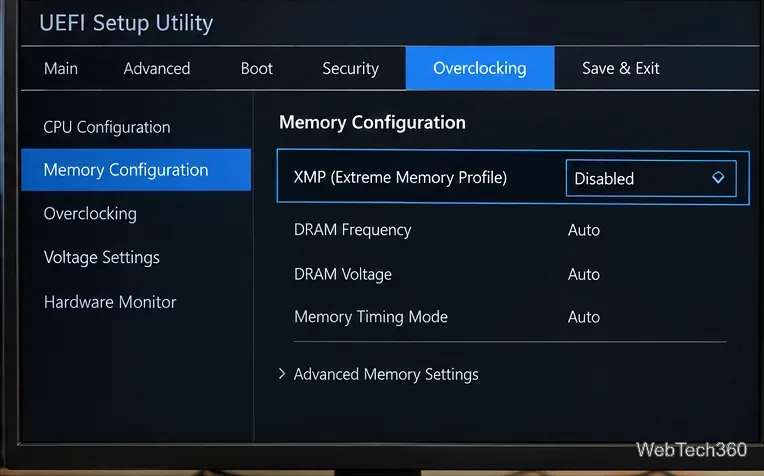
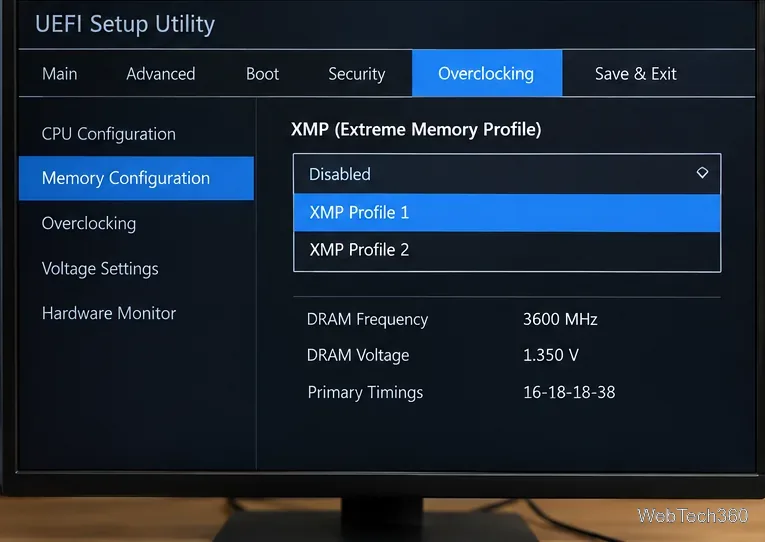
Change XMP from Disabled or Auto to the available profile. If you see Profile 1 and Profile 2, start with the normal profile recommended by your motherboard or memory documentation instead of manually entering frequency, timings, or voltage.
Some motherboards use different names. ASUS may show XMP I/XMP II, and AMD platforms may show EXPO or DOCP instead. If you have an AMD system, use the profile type your motherboard documentation specifies rather than assuming that an Intel XMP label must appear.
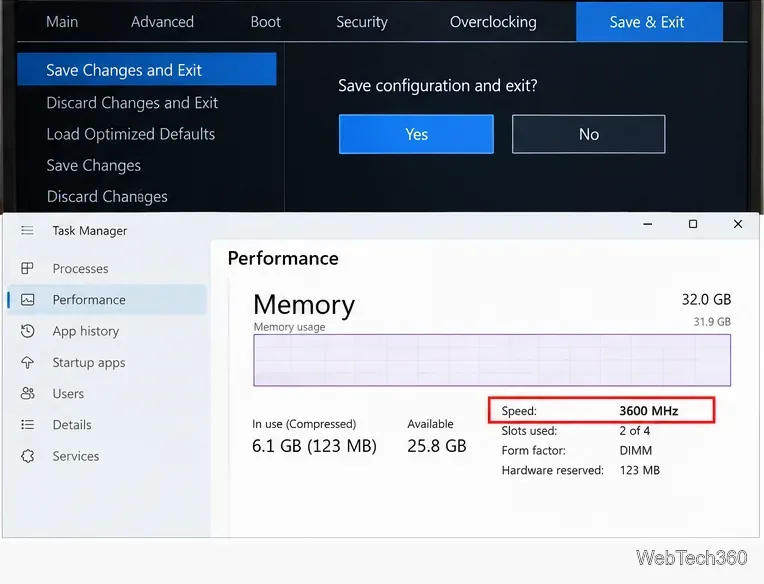
Save the changes and exit UEFI/BIOS; F10 is common on many boards. The first boot after a memory-setting change can take longer while the motherboard trains the memory.
After Windows starts, open Task Manager > Performance > Memory and check the reported speed. You can also verify it in the BIOS memory information screen. Windows may label the value in MHz even though modern DDR memory data rates are commonly marketed in MT/s.
If no XMP option appears, do not assume the RAM is defective. Check the memory kit specifications, motherboard manual, CPU support, and BIOS version. On an AMD platform, the equivalent setting may be labeled EXPO, DOCP, A-XMP, or another vendor-specific name. On an OEM desktop or laptop, the manufacturer may intentionally hide memory-overclocking settings.
The old shortcut of checking only a utility's SPD field is not enough to prove full system compatibility: it can show that the module contains an XMP profile, but the motherboard and CPU still determine whether that profile can actually be used.
Return to UEFI/BIOS and disable XMP or load the motherboard's default settings. If the computer will not reach the BIOS, follow the motherboard manual's CMOS-reset procedure. Then confirm the DIMMs are installed in the recommended slots and, when possible, use a matched memory kit listed on the board's QVL. ASUS's current XMP/EXPO/DOCP support guidance likewise recommends using compatible memory and restoring BIOS defaults when a profile fails.
Do not keep raising DRAM voltage just to force an unstable profile. A slightly lower supported memory speed is preferable to random crashes, boot loops, or memory errors.
If your RAM, motherboard, and CPU support the profile, enabling XMP is the simplest way to run the memory at its intended performance setting without manually tuning every timing. The real-world benefit varies by workload and system configuration, so treat XMP as a convenient performance setting rather than a guaranteed large speed boost.
Use pushd to open a UNC network path in Windows 10 Command Prompt, run commands in the shared folder, and return with popd.
Learn how to install a Rainmeter skin from an INI file by placing it in the right Skins folder, preserving its resources, refreshing Rainmeter, and loading it in Manage.
Open one folder in its own File Explorer window with Shift or the context menu, or change Folder Options to make every folder open separately.
Pin a frequently used Control Panel applet, such as Power Options or Sound, to the Windows 10 Start menu for one-click access.
Choose a supported Windows 10 hotkey for switching input languages, assign shortcuts to individual layouts, or disable an accidental shortcut.
Move a Windows 10 app to the display you want, use its game monitor setting, and handle full-screen apps with a practical primary-monitor workaround.
Use a transparent PNG and a Rainmeter skin to keep an image watermark above windows, adjust its transparency, and make it click-through on Windows 10.
Convert stereo audio to mono on Windows 10 with Audacity. Mix both channels into one mono track, export a new file, and verify the channel count.
Use Windows 10 Clipboard history to save recent text and images, paste an earlier clip with Windows key + V, and manage sync, pinned items, and privacy.
Learn how to zoom in on a video in Windows 10 with VLC’s Interactive Zoom, or use Windows Magnifier when the clip is playing in another app.








