How to Fix Lines on a Monitor Screen in Windows 10

Use a screenshot test, cable and port checks, monitor diagnostics, display settings, and driver rollback to pinpoint lines on a Windows 10 monitor.
XPS Viewer is still available in Windows 10, but it is an optional Windows capability rather than a default app on newer clean installations. If you need to open an .xps or .oxps document, the usual fix is to install XPS Viewer from Optional features. Microsoft identifies the capability as XPS.Viewer~~~~0.0.1.0 and lists it for Windows 10 version 1803 and later in its Features on Demand documentation.
Support note: Windows 10 reached end of support on October 14, 2025 for the standard Home, Pro, Enterprise, and Education releases. These instructions are for PCs that are still running Windows 10. For ongoing security updates, Microsoft recommends moving to a supported Windows version when possible. See the Windows 10 lifecycle notice.
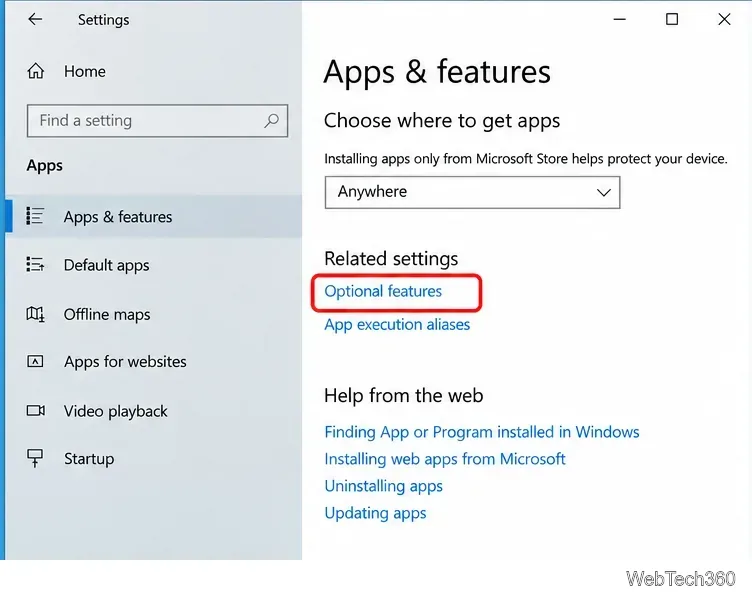
Press Windows + I to open Settings, select Apps, and stay on Apps & features. Under Related settings, select Optional features. On some Windows 10 builds, the wording may appear as Manage optional features.
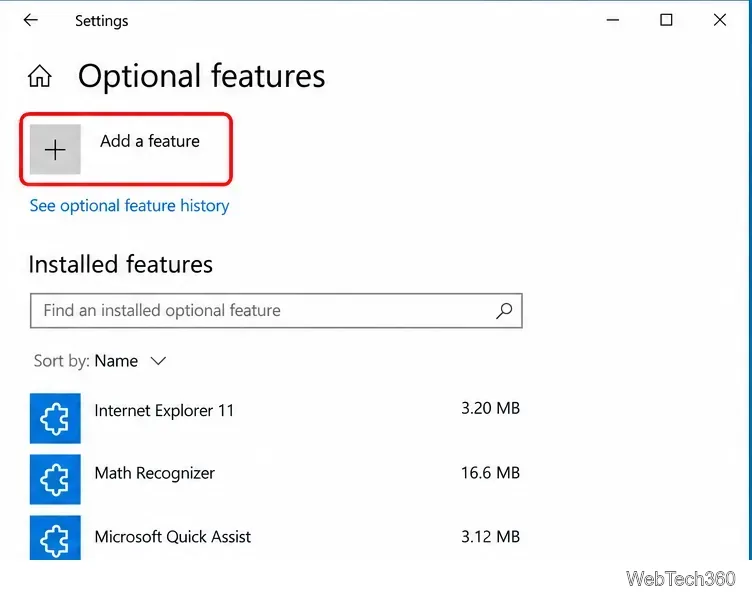
On the Optional features page, select Add a feature. Windows will load the list of capabilities that can be added to the current installation. You normally need an internet connection unless your organization provides Features on Demand from an internal source.
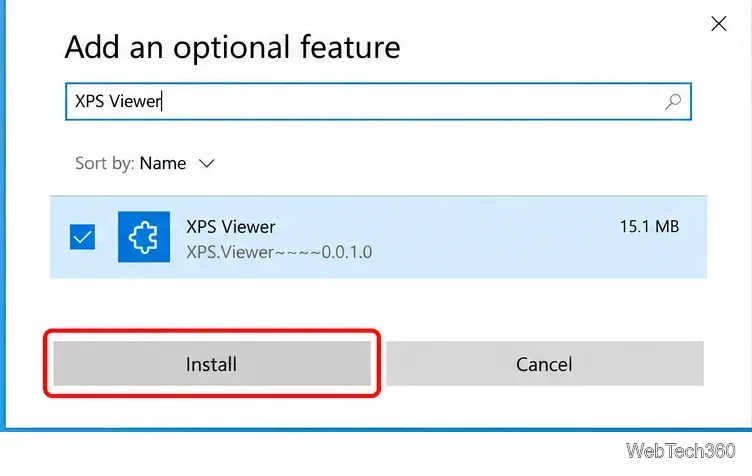
Type XPS Viewer in the search box, select the result, and choose Install. Wait for Windows to finish adding the capability. When installation is complete, XPS Viewer should appear in the installed optional features list.
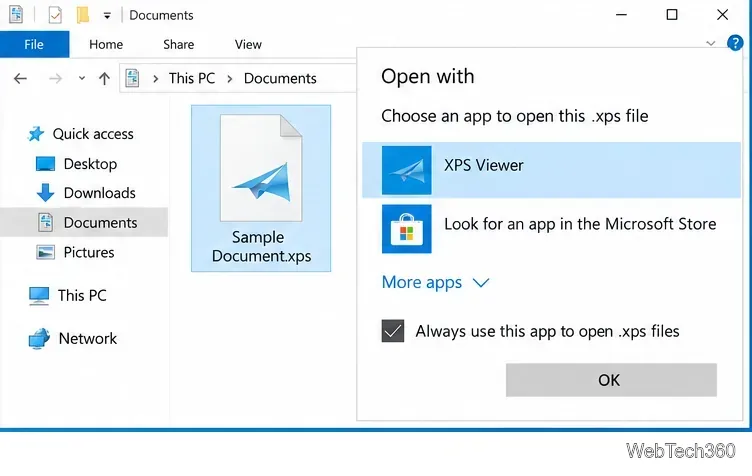
Double-click the document after installation. If Windows still asks which app to use, right-click the file, choose Open with, and select XPS Viewer. You can also enable Always use this app if you want XPS Viewer to remain the default handler for that file type.
If the graphical Settings method does not list XPS Viewer, you can ask Windows to add the capability with Deployment Image Servicing and Management (DISM). Open Command Prompt or Windows PowerShell as administrator, then run:
DISM /Online /Add-Capability /CapabilityName:XPS.Viewer~~~~0.0.1.0Microsoft documents /Add-Capability as the DISM command for adding a Windows capability to a running system. When no local source is supplied, DISM can obtain capability files through the configured Windows servicing source, including Windows Update when policy permits. See Microsoft's DISM capability servicing reference.
On a work or school PC, Group Policy or an internal update server can control where optional-feature files come from. If DISM cannot find the source files or the command is blocked, contact your administrator instead of downloading an unknown XPS package from a third-party website.
If you are not sure whether the capability is present, run this command in an elevated Command Prompt or PowerShell window:
DISM /Online /Get-CapabilityInfo /CapabilityName:XPS.Viewer~~~~0.0.1.0Look for the State field. If it says Installed, the Windows capability is already present and you can focus on the file association instead. Microsoft uses the same XPS Viewer capability name in its DISM inventory example.
Microsoft changed XPS Viewer starting with Windows 10 version 1803. Systems upgraded from an older release could keep the viewer, but a new or clean installation of version 1803 or later does not necessarily include it. Microsoft instead makes it available through Apps & features and Features on Demand, as explained in its removed and changed Windows features list.
XPS Viewer remains useful for legacy XPS documents. Microsoft describes it as able to read, copy, print, sign, and set permissions for XPS files. If you only need to share a document with people on newer devices, converting it to a more widely supported format such as PDF can also make distribution easier.
Use a screenshot test, cable and port checks, monitor diagnostics, display settings, and driver rollback to pinpoint lines on a Windows 10 monitor.
Show two other time zones beside your Windows 10 clock. Set up each additional clock, give it a clear label, and find it in the taskbar calendar.
Find the File Explorer extension that delays right-click menus in Windows 10, test it safely with ShellExView, and restore any menu features you still need.
Stop Windows 10 from powering down a specific network adapter or USB device with plan-level settings and Device Manager controls, plus tips to avoid excess battery drain.
Check whether Windows 10 uses a digital license or product key, find a firmware-stored OEM key, and save license details securely for a reinstall.
Identify a Windows 10 Task Manager process by checking its executable path, file properties, publisher, linked services, and a Microsoft Defender scan.
Create a searchable Windows 10 folder inventory with PowerShell. Save every file and subfolder path as plain text or export details to a sortable CSV.
Add a custom reminder, quote, or label to your Windows 10 desktop with a Rainmeter text skin. Create the INI file, load it, then adjust its font and position.
Use Bluetooth Swift Pair on Windows 10 to pair a compatible accessory from a notification, with setup steps and fixes when the prompt does not appear.
Learn what common laptop function key symbols mean, how Fn and Fn Lock affect them, and how to confirm the right shortcut for your Windows 10 laptop model.








