How to Access a Network Location in Command Prompt on Windows 10

Use pushd to open a UNC network path in Windows 10 Command Prompt, run commands in the shared folder, and return with popd.
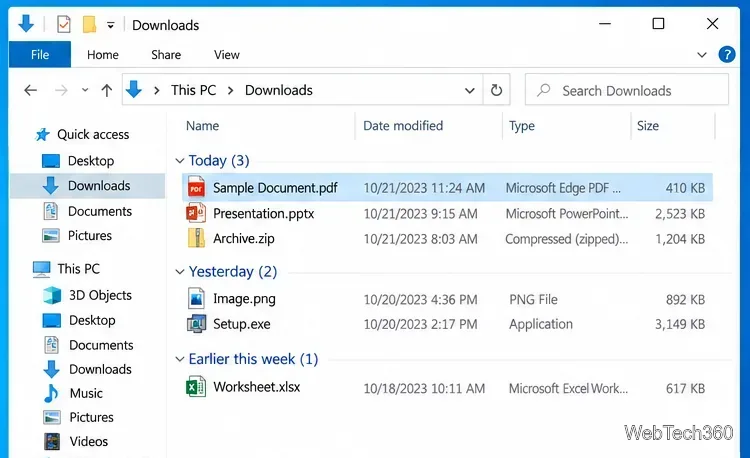
If you just downloaded a file on Windows 10 and cannot find it, start with the Downloads folder. Press Windows+E to open File Explorer, select Downloads in the left pane, and look for the newest item. If the file is not there, open your browser's download history—Ctrl+J works in Microsoft Edge, Google Chrome, and Firefox—and use the option to show the file in its folder.
Most browsers save files to your Windows user Downloads folder unless you changed the destination or chose a different location when saving. The usual path is C:\Users\<your-user-name>\Downloads.
Open File Explorer with Windows+E, select Downloads, switch to a detailed list if needed, and sort by Date modified so the newest-looking files are easy to spot. If you remember part of the filename, type it in the Search Downloads box in the upper-right corner.
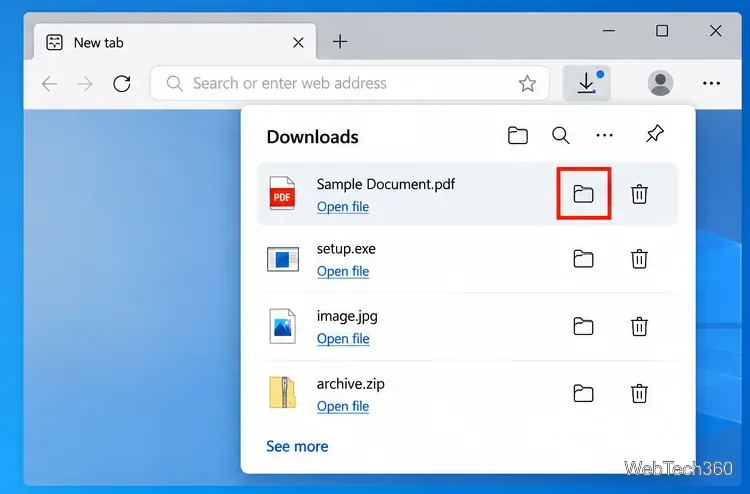
If the file is missing from Downloads, the browser can often tell you exactly where it went. In Edge, Chrome, and Firefox, press Ctrl+J to open the downloads list. Find the item you downloaded, then choose the folder icon or Show in folder when that option is available.
Microsoft documents Ctrl+J as the shortcut for Downloads. The downloads panel also gives you a folder action for completed files. If you want to check or change the default save location, open Settings and more > Settings > Downloads. Microsoft notes that the configured path is shown under Location. See Microsoft's guide to finding the Edge download location.
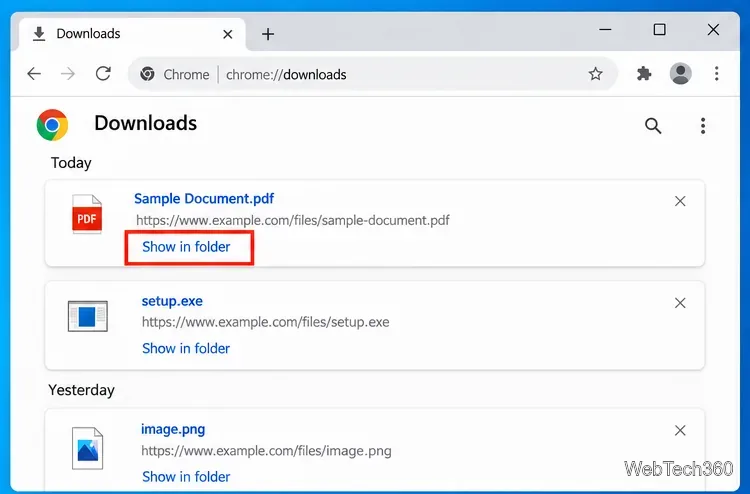
Chrome also opens its Downloads page with Ctrl+J. Google says completed downloads can provide a Show in folder action, and Chrome's default Windows location is the user's Downloads folder unless you changed it. You can review the setting at Chrome menu > Settings > Downloads. See Google Chrome Help for downloads and download locations.
Firefox keeps a Downloads panel and a Downloads Library. Press Ctrl+J, or open the browser menu and choose Downloads. For a completed item, the folder icon opens the folder containing the file. Mozilla also explains that removing an item from download history does not delete the downloaded file itself. See Mozilla's Firefox download management guide.
If the browser history shows the file but your normal Downloads folder does not, you may have changed the default destination. Check the browser's Downloads settings for the current folder. Also look for a setting such as Ask where to save each file before downloading; when that option is enabled, a download can end up on the Desktop, in Documents, on another drive, or in a folder you selected only once.
If another program handled the download—a download manager, game launcher, cloud-sync app, or torrent client—open that application's completed-download list or settings and look for its save directory. The browser's history will not help if the browser did not perform the download.
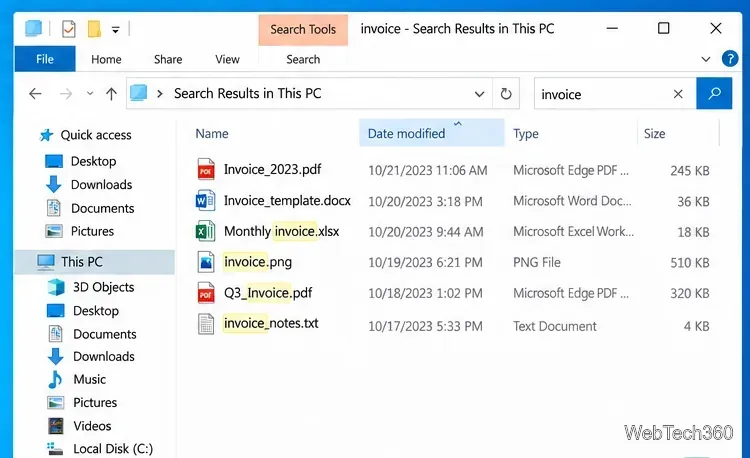
When you know all or part of the name, File Explorer can search a wider area. Open File Explorer, select This PC, and type the filename or a distinctive keyword in the search box. You can also search by a file extension such as .pdf, .zip, or .jpg when you do not remember the exact name.
A search from This PC is broader and can take longer than searching inside Downloads. Microsoft specifically recommends choosing a folder such as Downloads for a focused search, or This PC for a slower, more thorough search. See Microsoft Support on finding files in Windows.
A browser download entry is a record of the download, not a backup copy. The file may have been moved, renamed, deleted, or blocked by security software after the download completed. If Show in folder no longer finds it, search Windows by filename and extension, then check the Recycle Bin or your security software's quarantine history if there is a reason to suspect the file was removed.
For future downloads, keeping the default Downloads folder or enabling the browser option that asks where to save each file makes the destination easier to remember.
Use pushd to open a UNC network path in Windows 10 Command Prompt, run commands in the shared folder, and return with popd.
Learn how to install a Rainmeter skin from an INI file by placing it in the right Skins folder, preserving its resources, refreshing Rainmeter, and loading it in Manage.
Open one folder in its own File Explorer window with Shift or the context menu, or change Folder Options to make every folder open separately.
Pin a frequently used Control Panel applet, such as Power Options or Sound, to the Windows 10 Start menu for one-click access.
Choose a supported Windows 10 hotkey for switching input languages, assign shortcuts to individual layouts, or disable an accidental shortcut.
Move a Windows 10 app to the display you want, use its game monitor setting, and handle full-screen apps with a practical primary-monitor workaround.
Use a transparent PNG and a Rainmeter skin to keep an image watermark above windows, adjust its transparency, and make it click-through on Windows 10.
Convert stereo audio to mono on Windows 10 with Audacity. Mix both channels into one mono track, export a new file, and verify the channel count.
Use Windows 10 Clipboard history to save recent text and images, paste an earlier clip with Windows key + V, and manage sync, pinned items, and privacy.
Learn how to zoom in on a video in Windows 10 with VLC’s Interactive Zoom, or use Windows Magnifier when the clip is playing in another app.








