How to Set Different Scaling Levels for Multiple Monitors in Windows 10

Adjust each Windows 10 monitor independently with per-display scaling, keep text readable, and troubleshoot custom scaling or blurry apps.
The AppData folder holds data that apps save for a particular Windows user. Windows hides it by default. The quickest way to open the current account’s folder is to press Windows + R, enter %USERPROFILE%\AppData, and press Enter. This opens the AppData parent folder directly, even when hidden items are not displayed in File Explorer.
%USERPROFILE%\AppData. The %USERPROFILE% part resolves to the profile folder for the signed-in account, usually under C:\Users.You can also open File Explorer with Windows + E, click its address bar, enter the same path, and press Enter. Using the variable avoids guessing the account folder name.
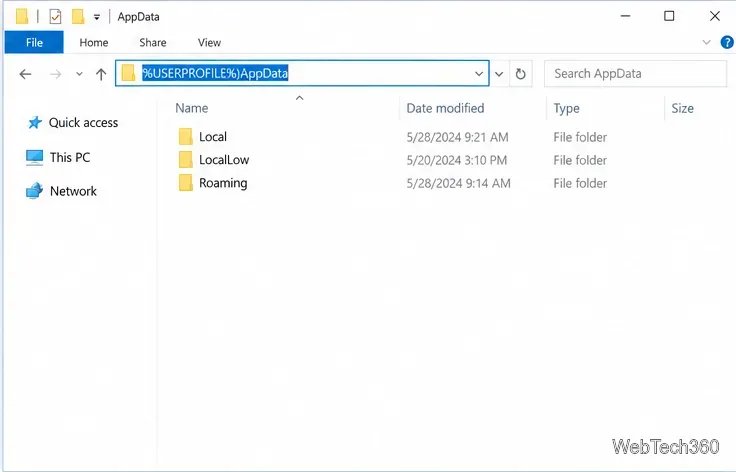
Use this method if you want to browse from your Windows profile or confirm where the folder is located. Interface illustrations in this guide show the Windows 10 layout; wording and spacing can vary slightly by build.
In some layouts, the command is under View > Show > Hidden items. You can also use View > Options > Change folder and search options, open the View tab, choose Show hidden files, folders, and drives, then select Apply and OK. See Microsoft’s File Explorer guidance for the hidden-item controls.
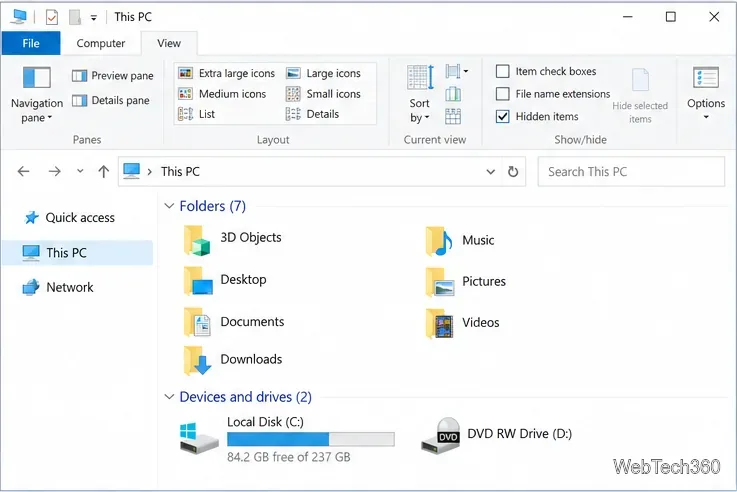
In File Explorer, enter %USERPROFILE% in the address bar and press Enter. You can also browse to C:\Users\<your-account-name>, replacing the example with the folder name on your PC. A Windows account’s folder name may differ from its display name, so the environment variable is usually easier.
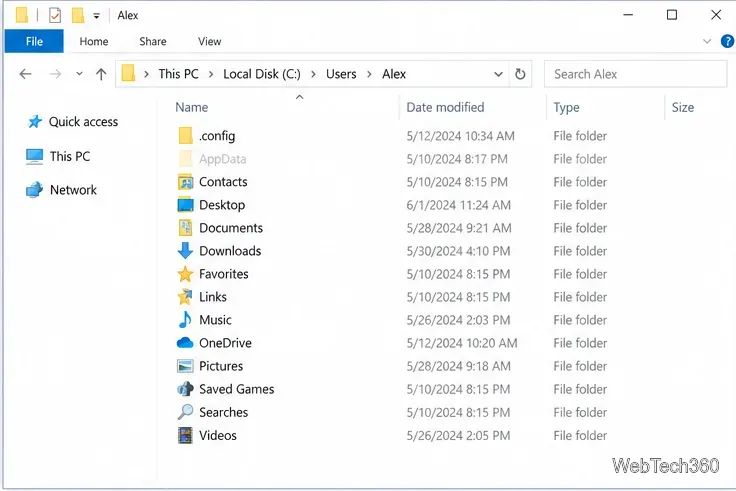
Double-click the faded AppData folder. Its faded appearance indicates that it is hidden; it is still a normal folder. The parent path is usually C:\Users\<account-name>\AppData, though a managed or redirected profile can use a different location.
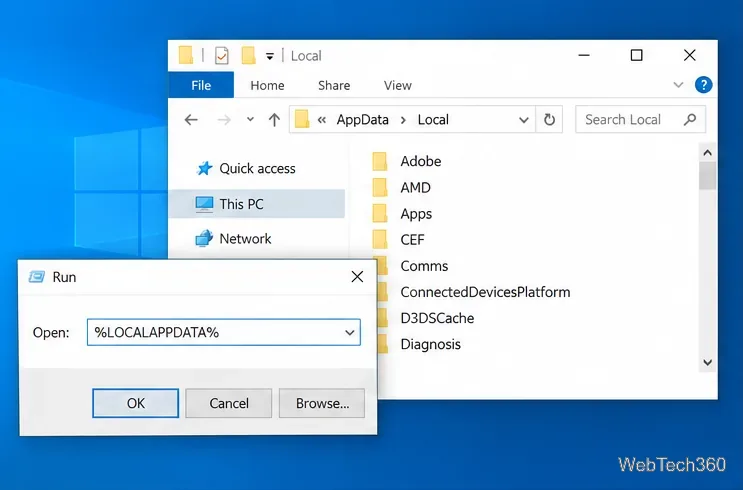
Windows provides shortcuts for two subfolders. Press Windows + R, enter one of these values, and press Enter:
%APPDATA% opens the current user’s AppData\Roaming folder.%LOCALAPPDATA% opens the current user’s AppData\Local folder.These variables do not open the AppData parent itself. The Microsoft Known Folder ID reference lists the Roaming and Local profile locations and their corresponding variables.
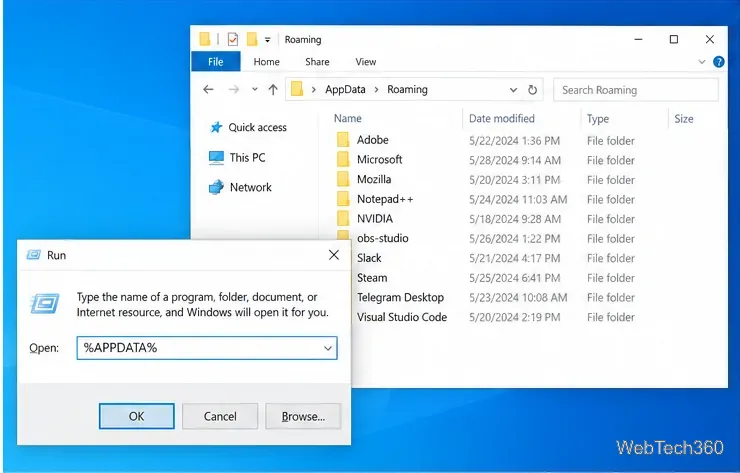
To go from Roaming to the parent AppData folder, click AppData in File Explorer’s breadcrumb path. You can also press Alt + Up Arrow to move to the parent folder.
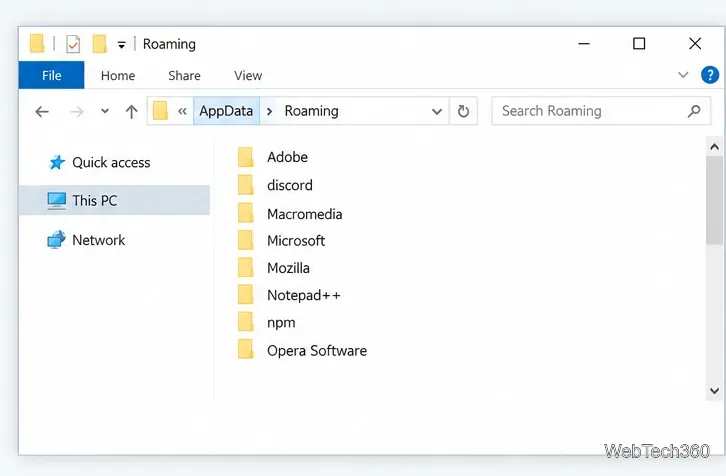
If you need Local specifically, use %LOCALAPPDATA% in Run instead of opening AppData and navigating manually.
The AppData parent commonly contains three folders:
Apps choose which location they use, and their data can be arranged in subfolders. If an app’s instructions name a specific path, follow that path rather than moving files between these folders.
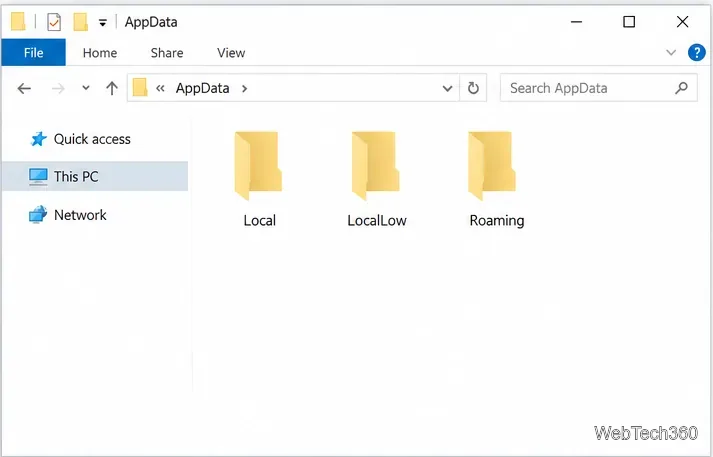
Run opens Roaming instead of AppData: that is expected for %APPDATA%. Click the AppData breadcrumb to move up, or use %USERPROFILE%\AppData when you need the parent folder.
AppData is missing from the profile: make sure Hidden items is enabled. If you used a typed path, confirm you opened the profile for the Windows account you mean. Each account has its own AppData location.
Be cautious about deleting files: AppData can contain app settings, profiles, saved data, and caches. Do not delete the whole folder or one of its three main subfolders as a cleanup shortcut. Remove an app’s leftover folder only when you know what it contains and have kept anything you may need.
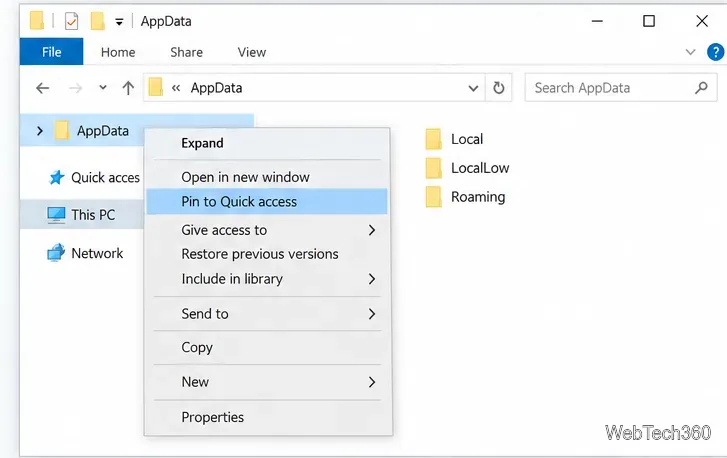
If you visit the parent folder often, show hidden items, locate AppData in your profile, right-click it, and choose Pin to Quick access. It will then appear in File Explorer’s navigation pane. Use the same hidden-items setting if you later need to find the folder again in the profile.
Adjust each Windows 10 monitor independently with per-display scaling, keep text readable, and troubleshoot custom scaling or blurry apps.
Use AirType’s browser pairing setup to type on an iPhone from a Windows 10 PC, with current setup steps, troubleshooting, and privacy limits.
Hide the mouse pointer in Windows 10 videos, games, and other apps with built-in typing controls or PowerToys CursorHide’s adjustable inactivity timer.
Find Control Panel Power Options on a Windows 10 desktop, open the page with a Run command, and adjust power plans, display timeouts, sleep, and button behavior.
Learn what Windows 10 deletion leaves behind, how to use SDelete on an HDD, and why SSDs and cloud backups need separate treatment.
Use FFmpeg’s DirectShow tools to open an integrated webcam’s driver properties in Windows 10, find the correct device, and troubleshoot missing controls.
Identify a keypress in Windows 10 with a browser event tester or SharpKeys, then separate layout, software, and keyboard hardware issues.
Use double quotes around each complete path with spaces in Command Prompt. Learn how to list, change to, copy, and troubleshoot Windows 10 files and folders.
Turn off the Windows 10 Start menu’s hover-to-expand behavior with a legacy Mach2 command, check build limits, and see the built-in app-list alternative.
Fix the iTunes Library.itl read error on Windows 10 by updating iTunes, restoring a compatible backup, or safely creating a new library without deleting media files.








