How to Set Different Scaling Levels for Multiple Monitors in Windows 10

Adjust each Windows 10 monitor independently with per-display scaling, keep text readable, and troubleshoot custom scaling or blurry apps.
If an app still works, start with its publisher account, purchase email, or license screen. If Windows was reinstalled or the app was removed, check backups and vendor records. A local scanner may find data stored on the current installation, but Windows has no universal store for every app key. Some products use account sign-in or a separate license file instead of a serial number.
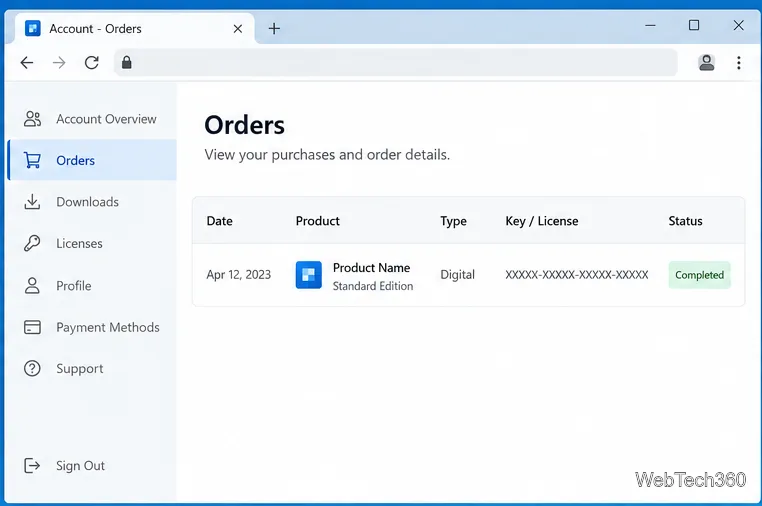
Sign in to the account used to buy the app and check Orders, Downloads, Subscriptions, or Licenses. Check work and personal accounts if either could have been used.
For Microsoft Store purchases, use your Microsoft account’s Order history. Some apps have only an install option because they do not use a key. Many digital Microsoft 365 purchases are tied to your account instead of a product key; see Microsoft’s download guidance and Microsoft 365 key guidance.
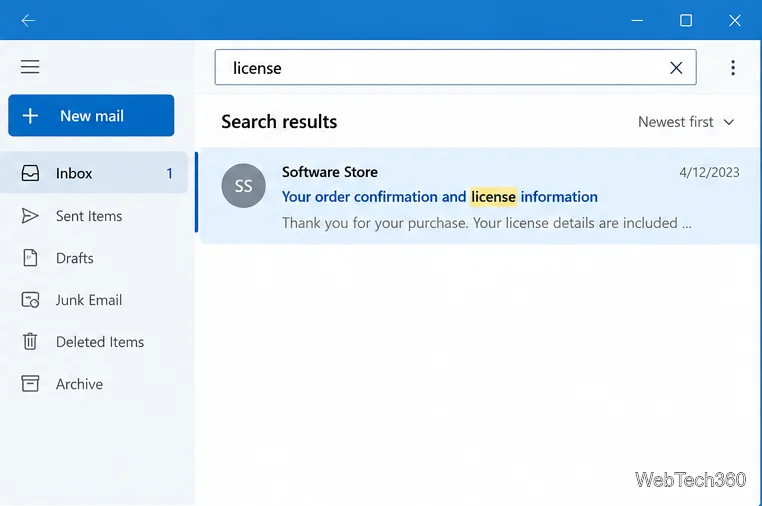
Search likely inboxes for the app or publisher plus license, serial number, registration, product key, or receipt. Check archive and junk folders, then inspect order messages and attachments. A receipt may prove the purchase while a separate email contains the key.
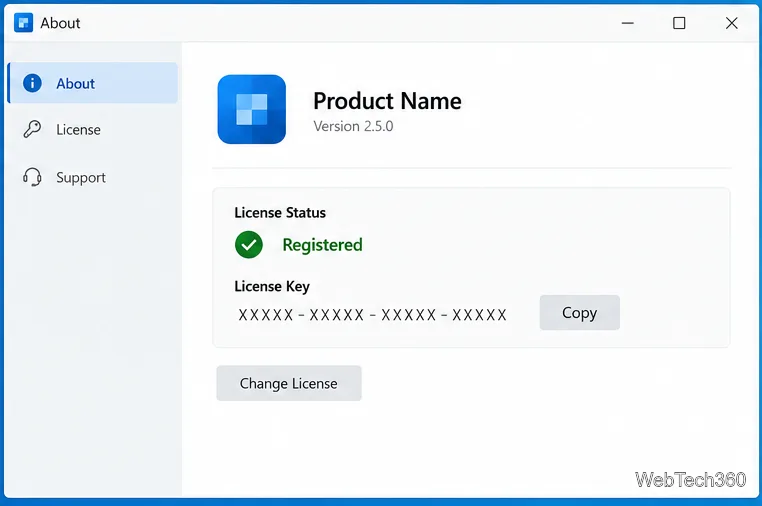
If the app opens, check Help, About, Account, Subscription, or Manage license. It may let you sign in again or identify the license owner. Some apps intentionally mask the key; the visible part can help the publisher locate it. Do not edit program files or registry values to expose it.
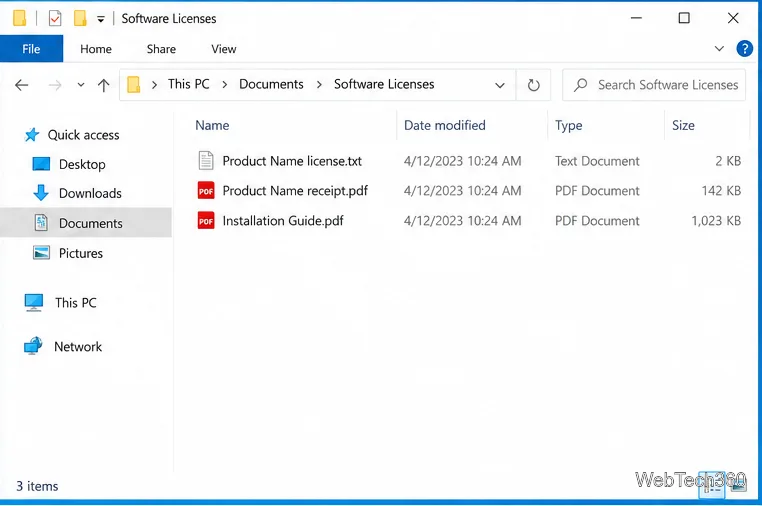
Search Documents, Downloads, Desktop, and folders holding installers or receipts for the app name, publisher, “license,” or “registration.” Some products use separate license files with publisher-specific names or extensions. Check external drives, cloud backups, old PCs, and backups of your former Windows profile. An old Windows folder or disk image is useful only if it still exists; do not assume Windows kept a copy.
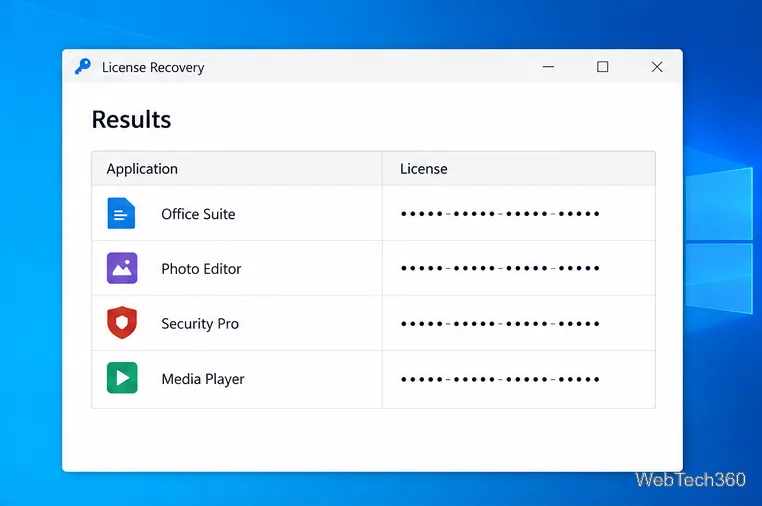
Some utilities search the current Windows installation for locally stored license data. LicenseCrawler’s author download page describes finding app keys and serial numbers and says noncommercial use is free. Download only from the author, scan a PC you own or administer, and keep results private.
A scan may miss apps that use online activation, encryption, or separate license files. It cannot restore data from an old Windows installation that is gone and was not backed up. Do not edit or delete registry entries to fix activation; Microsoft’s registry backup guidance explains how to back up registry data.
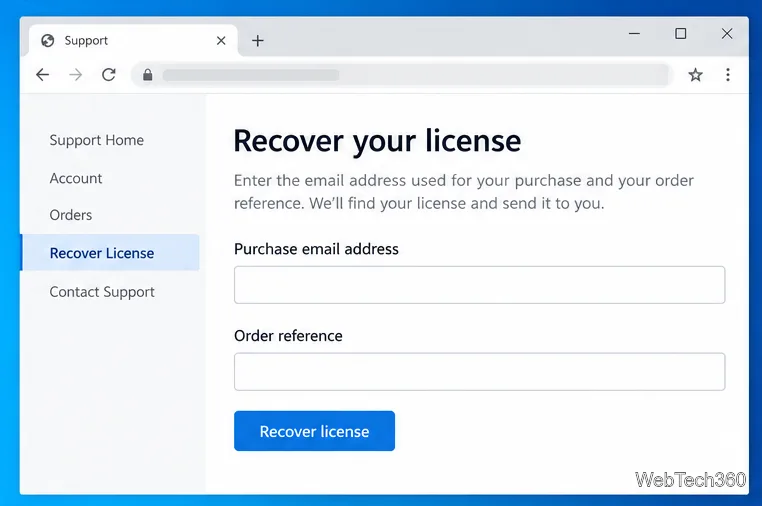
Contact the publisher through its official website. Give the product name, purchase email, approximate date, and order number; provide a redacted receipt if requested. Never post a full key or receipt publicly. Support may resend the key or restore an account-based license, but reissue is not guaranteed.
Ask whether you must deactivate the old PC before moving the license. Transfer and activation limits vary, so a recovered key may not authorize use on another device.
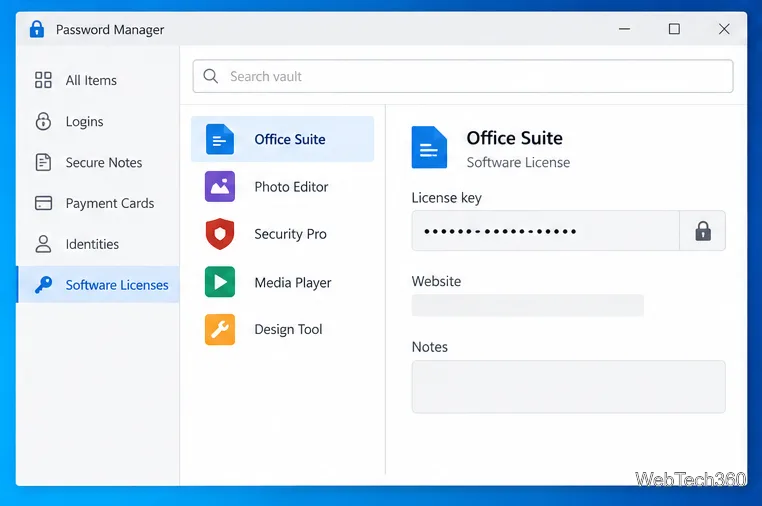
Record the app and edition, publisher, purchase email, order reference, and device limit. Store the full key or license file in a password manager’s secure note or another encrypted vault—not an unprotected desktop text file.
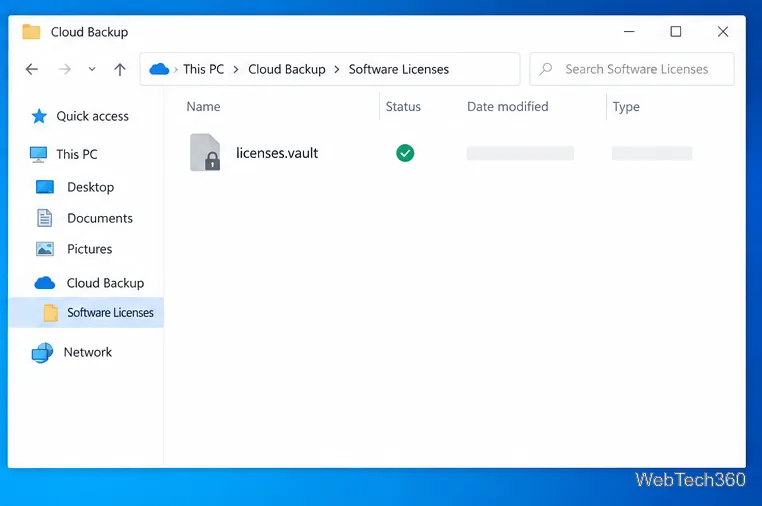
Keep a second encrypted copy on an external drive or protected cloud vault, separate from the PC. Use a strong, unique password and multifactor authentication where available. A plain text key in a synced folder is exposed to anyone who can access that account or device.
If the app is gone, Windows was freshly installed, and no account, email, or backup has the license, the key may no longer be recoverable from the PC. Contact the publisher. Account-based products may reactivate when you sign in; device-bound licenses follow the publisher’s transfer rules.
Adjust each Windows 10 monitor independently with per-display scaling, keep text readable, and troubleshoot custom scaling or blurry apps.
Use AirType’s browser pairing setup to type on an iPhone from a Windows 10 PC, with current setup steps, troubleshooting, and privacy limits.
Hide the mouse pointer in Windows 10 videos, games, and other apps with built-in typing controls or PowerToys CursorHide’s adjustable inactivity timer.
Find Control Panel Power Options on a Windows 10 desktop, open the page with a Run command, and adjust power plans, display timeouts, sleep, and button behavior.
Learn what Windows 10 deletion leaves behind, how to use SDelete on an HDD, and why SSDs and cloud backups need separate treatment.
Use FFmpeg’s DirectShow tools to open an integrated webcam’s driver properties in Windows 10, find the correct device, and troubleshoot missing controls.
Identify a keypress in Windows 10 with a browser event tester or SharpKeys, then separate layout, software, and keyboard hardware issues.
Use double quotes around each complete path with spaces in Command Prompt. Learn how to list, change to, copy, and troubleshoot Windows 10 files and folders.
Turn off the Windows 10 Start menu’s hover-to-expand behavior with a legacy Mach2 command, check build limits, and see the built-in app-list alternative.
Fix the iTunes Library.itl read error on Windows 10 by updating iTunes, restoring a compatible backup, or safely creating a new library without deleting media files.








