How to Access a Network Location in Command Prompt on Windows 10

Use pushd to open a UNC network path in Windows 10 Command Prompt, run commands in the shared folder, and return with popd.
If you need to find the administrator account on Windows 10, start with the account you are currently using. Open Settings > Accounts > Your info. If the word Administrator appears under your account name, that account has administrator rights. If it does not, you can list every account and group that belongs to the local Administrators group with Command Prompt or PowerShell.
Windows can have more than one administrator. A local account, Microsoft account, domain account, or organization-managed identity can all be granted administrative access, so there is not always one single “admin account.” Microsoft recommends limiting administrator access because administrators can change system settings, install software, and access files. See Microsoft's guidance for managing user accounts in Windows.
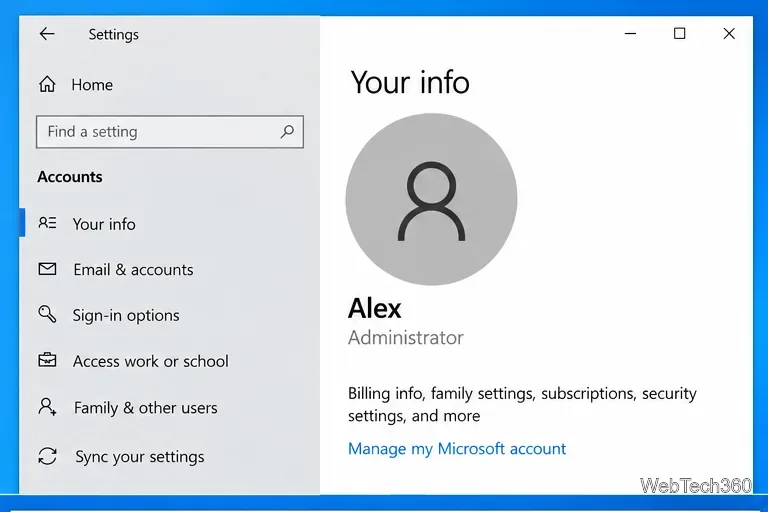
Microsoft documents this same check in its Windows activation guidance: on Windows 10, Settings > Accounts > Your info displays Administrator below the name when the current user has administrator rights. See Microsoft's Windows activation documentation.
You do not need WMIC or a separate check for every user. To see the members of the local Administrators group directly, open Command Prompt and run:
net localgroup AdministratorsThe names listed under Members have local administrator membership on that PC. You may see individual users, the built-in Administrator account, or organization-managed groups. You usually do not need to open Command Prompt as administrator just to view the group membership.
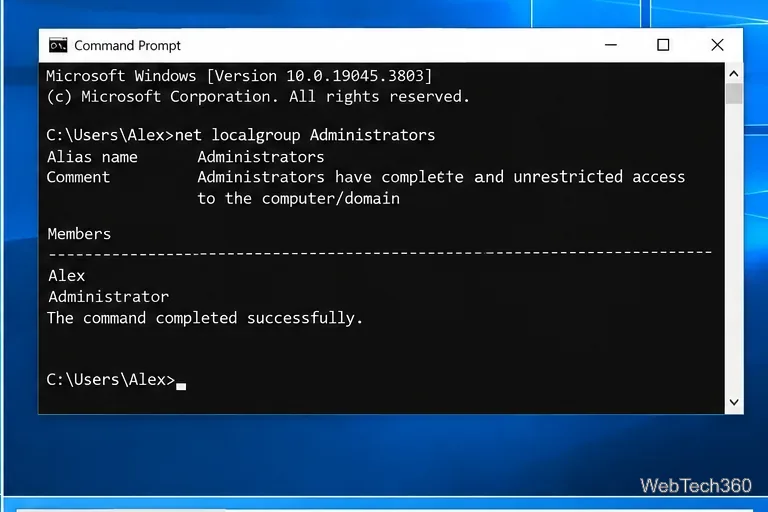
If you want to inspect one local account in more detail, you can also run net user USERNAME. The output includes a Local Group Memberships line; an entry for *Administrators confirms that account belongs to the group.
PowerShell provides a cleaner structured view. Open Windows PowerShell and run:
Get-LocalGroupMember -Group "Administrators"Microsoft's Get-LocalGroupMember documentation uses this command to return all members of the local Administrators group. The output can also show the object class and principal source, which helps distinguish local accounts from other identity sources.
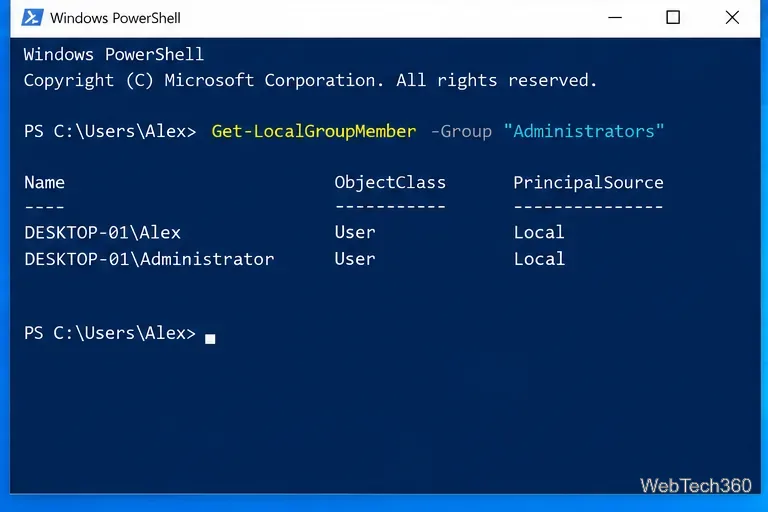
If PowerShell says the cmdlet is unavailable, use the net localgroup Administrators method instead. Microsoft notes that the LocalAccounts module is not available in 32-bit PowerShell running on a 64-bit system.
If you already have access to an administrator account and need to verify or change another user's type, go to Settings > Accounts > Family & other users on Windows 10. Select the account and choose Change account type. The dialog shows whether it is a Standard User or Administrator.
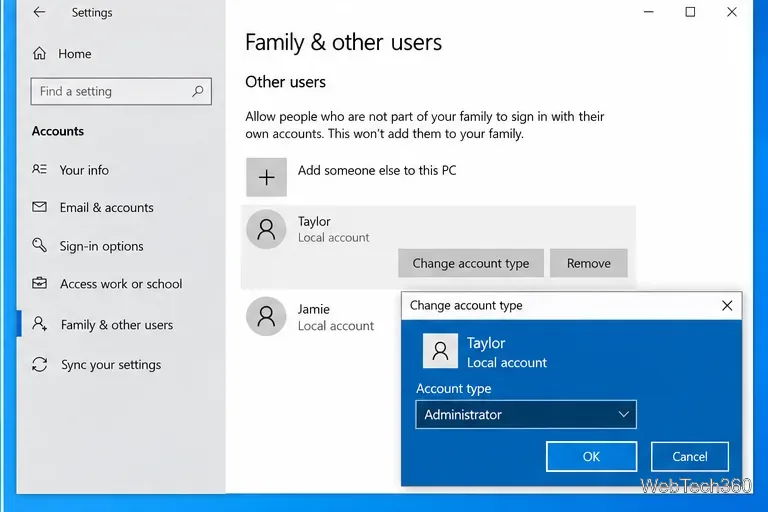
Changing a standard account to Administrator requires authorization from an existing administrator. Do not enable the built-in Administrator account simply because you see it in command output; it may be disabled by design, and a normal named administrator account is usually the safer choice for everyday management.
Multiple administrator entries are normal on shared or managed computers. A home PC may have two personal admin accounts, while a work PC can include domain or Microsoft Entra groups in addition to local users. Also, being a member of Administrators does not mean every app automatically runs with elevated privileges. User Account Control can still ask for approval when a program needs elevation.
If this is a company or school computer and the administrator entry belongs to an organization-managed group, contact your IT administrator instead of removing or modifying that membership.
Windows 10 reached end of support on October 14, 2025. The operating system still works, but Microsoft no longer provides the normal free security updates and technical support for Windows 10. Microsoft recommends moving to Windows 11 where possible, or using an eligible Extended Security Updates option when additional Windows 10 coverage is needed. See Microsoft's Windows 10 end-of-support notice.
Use pushd to open a UNC network path in Windows 10 Command Prompt, run commands in the shared folder, and return with popd.
Learn how to install a Rainmeter skin from an INI file by placing it in the right Skins folder, preserving its resources, refreshing Rainmeter, and loading it in Manage.
Open one folder in its own File Explorer window with Shift or the context menu, or change Folder Options to make every folder open separately.
Pin a frequently used Control Panel applet, such as Power Options or Sound, to the Windows 10 Start menu for one-click access.
Choose a supported Windows 10 hotkey for switching input languages, assign shortcuts to individual layouts, or disable an accidental shortcut.
Move a Windows 10 app to the display you want, use its game monitor setting, and handle full-screen apps with a practical primary-monitor workaround.
Use a transparent PNG and a Rainmeter skin to keep an image watermark above windows, adjust its transparency, and make it click-through on Windows 10.
Convert stereo audio to mono on Windows 10 with Audacity. Mix both channels into one mono track, export a new file, and verify the channel count.
Use Windows 10 Clipboard history to save recent text and images, paste an earlier clip with Windows key + V, and manage sync, pinned items, and privacy.
Learn how to zoom in on a video in Windows 10 with VLC’s Interactive Zoom, or use Windows Magnifier when the clip is playing in another app.








