How to Set Different Scaling Levels for Multiple Monitors in Windows 10

Adjust each Windows 10 monitor independently with per-display scaling, keep text readable, and troubleshoot custom scaling or blurry apps.
To find the manufacturer’s serial number for a physical hard drive or SSD, open PowerShell and query Windows for its disk information. This also works for many USB drives Windows detects. The vol command shows a different value: a volume serial number tied to a drive letter, not the hardware serial you need for a warranty claim.
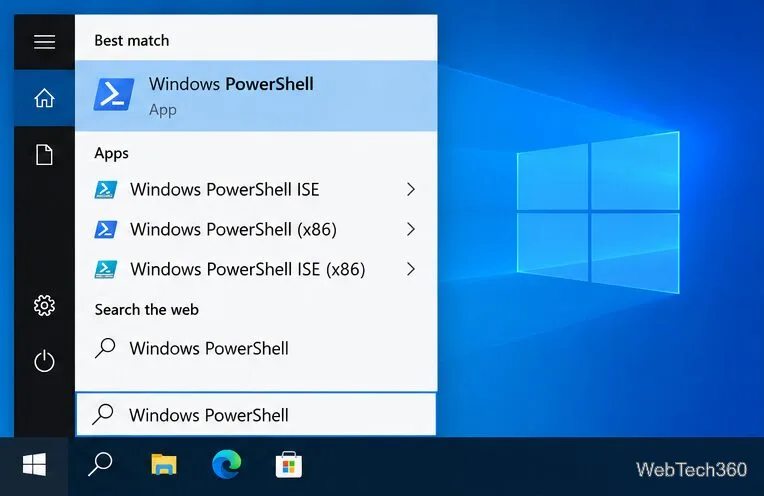
Get-CimInstance -ClassName Win32_DiskDrive | Select-Object Index, Model, SerialNumberSerialNumber. If the computer has several drives, compare their models and disk numbers in Disk Management (right-click Start and choose Disk Management). Do not use a volume letter such as C: as the disk number; a physical disk can contain multiple volumes.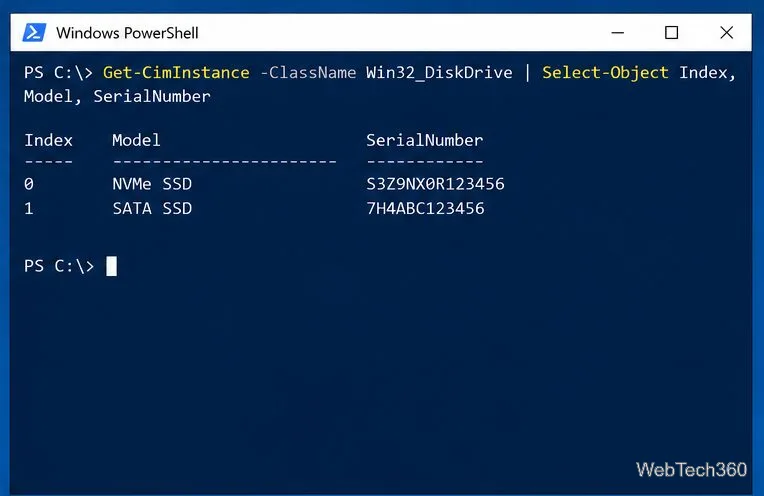
The query uses the Win32_DiskDrive class. Microsoft describes it as a physical disk drive as Windows sees it, and defines SerialNumber as the manufacturer-assigned identifier for the physical media. The Get-CimInstance cmdlet is the PowerShell method used here to retrieve that record. The query only reads device details; it does not change or format the drive.
Connect the external HDD or SSD, wait for Windows to recognize it, and run the same PowerShell command again. External USB drives that Windows exposes as physical disks can appear in the results alongside internal storage.
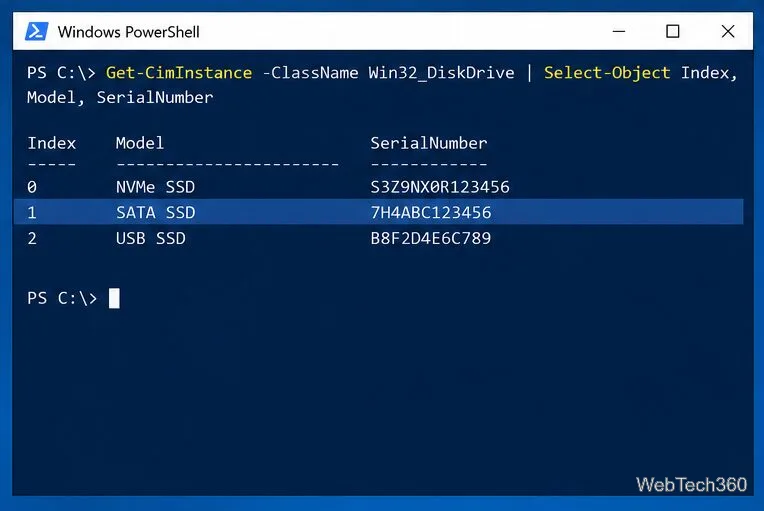
If the external device is missing, check that it appears in Disk Management and try another cable or USB port. If its row appears but SerialNumber is blank, the enclosure or USB-to-SATA bridge may not pass the drive’s serial through to Windows. The number shown can also belong to the enclosure or controller instead of the drive. In that case, check the label on the drive or enclosure, the manufacturer’s utility, or the original documentation before giving a serial to support.
To see the identifier for a volume such as C:, open Command Prompt and enter:
vol C:Replace C: with another drive letter as needed. Microsoft documents vol as displaying a disk volume’s label and serial number, if present.
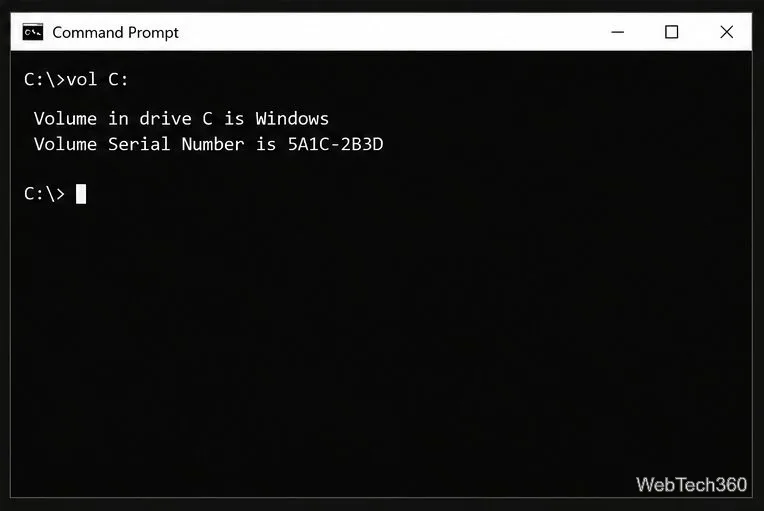
vol C: is a volume ID, not the manufacturer’s hardware serial.A volume serial identifies a formatted volume, while the PowerShell result identifies a physical disk. One disk can hold several partitions with different drive letters, so vol can return different volume serials for the same physical hardware. Use the PowerShell result when a manufacturer, repair shop, or warranty form asks for the HDD or SSD serial number.
Older guides often recommend wmic diskdrive get serialnumber. Microsoft deprecated the WMIC utility starting with Windows 10 version 21H1 and has removed it from Windows 11 version 24H2 and later. Windows Management Instrumentation remains available; it is the WMIC command-line utility that has been phased out. Use the PowerShell query above instead. See Microsoft’s WMIC documentation for the current status.
Make sure you entered the query in PowerShell, not Command Prompt. If Windows says it cannot find Get-CimInstance, reopen Windows PowerShell from Start and try again. If the command returns no disk rows, first check whether the drive appears in Disk Management; a drive Windows has not detected cannot return a serial through this query.
A blank or generic-looking serial usually means the device, enclosure, RAID controller, or virtual storage layer is not passing through the manufacturer’s physical-drive identifier. Windows can report only what that hardware exposes. For a RAID array, consult the system or controller vendor’s management tool if you need the serial of an individual member disk. Cross-check the model and serial against the label or manufacturer documentation before submitting a warranty request.
Adjust each Windows 10 monitor independently with per-display scaling, keep text readable, and troubleshoot custom scaling or blurry apps.
Use AirType’s browser pairing setup to type on an iPhone from a Windows 10 PC, with current setup steps, troubleshooting, and privacy limits.
Hide the mouse pointer in Windows 10 videos, games, and other apps with built-in typing controls or PowerToys CursorHide’s adjustable inactivity timer.
Find Control Panel Power Options on a Windows 10 desktop, open the page with a Run command, and adjust power plans, display timeouts, sleep, and button behavior.
Learn what Windows 10 deletion leaves behind, how to use SDelete on an HDD, and why SSDs and cloud backups need separate treatment.
Use FFmpeg’s DirectShow tools to open an integrated webcam’s driver properties in Windows 10, find the correct device, and troubleshoot missing controls.
Identify a keypress in Windows 10 with a browser event tester or SharpKeys, then separate layout, software, and keyboard hardware issues.
Use double quotes around each complete path with spaces in Command Prompt. Learn how to list, change to, copy, and troubleshoot Windows 10 files and folders.
Turn off the Windows 10 Start menu’s hover-to-expand behavior with a legacy Mach2 command, check build limits, and see the built-in app-list alternative.
Fix the iTunes Library.itl read error on Windows 10 by updating iTunes, restoring a compatible backup, or safely creating a new library without deleting media files.








